
In an era where screen real estate defines workflow efficiency, a quiet revolution is unfolding on desks around the world. Developers, writers, and knowledge workers are turning their monitors sideways—literally. The shift from traditional horizontal (landscape) orientation to vertical (portrait) setups isn’t just a quirky trend; it’s a calculated move driven by practical benefits in coding, writing, and long-form content creation. But is this switch universally beneficial? And what trade-offs come with rotating your display 90 degrees?
This article explores the growing preference for vertical monitors among coders and writers, compares both orientations across key performance metrics, and provides actionable insights for professionals deciding which setup suits their workflow best.
The Rise of the Vertical Monitor
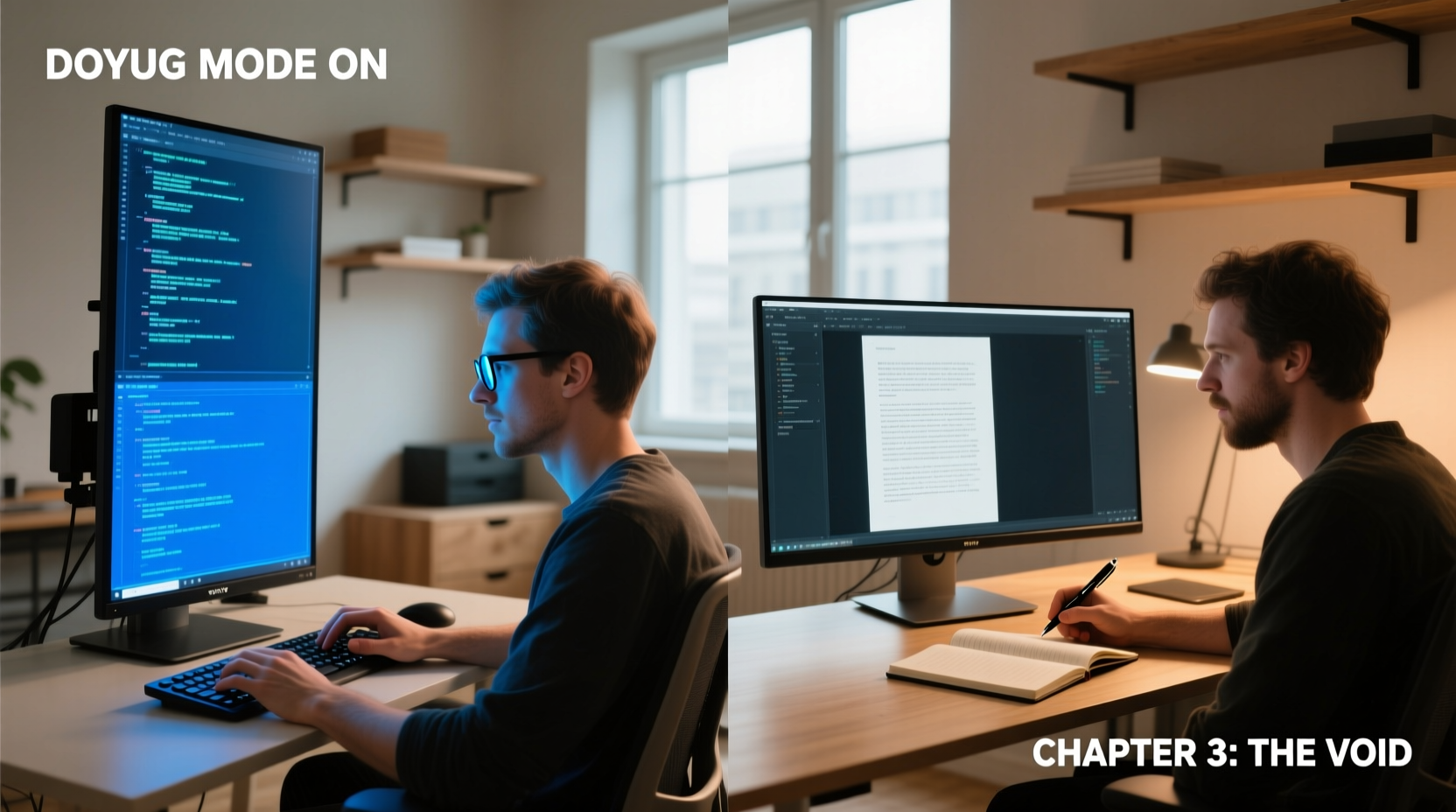
Vertical monitor usage has surged over the past decade, particularly in software development and digital writing circles. Unlike standard landscape displays optimized for video playback and spreadsheets, portrait mode aligns more naturally with how we read and write: top to bottom. For coders scrolling through thousands of lines of code or authors drafting novels, that alignment translates into fewer scrolls, less eye strain, and improved context retention.
High-resolution monitors—especially 27-inch 4K panels—have made vertical use not only feasible but highly effective. When rotated, these screens offer approximately 3,000 pixels of vertical space, enabling developers to view entire functions or classes without constant navigation. Similarly, writers can see multiple pages at once, preserving narrative flow during editing.
“Reading and writing are vertical activities. It makes sense that our tools should reflect that.” — Dr. Lena Torres, Human-Computer Interaction Researcher, MIT Media Lab
Why Coders Are Going Vertical
Software development involves navigating deeply nested files, reviewing pull requests, debugging logs, and comparing versions. Horizontal screens force developers to either scroll excessively or split views into cramped panes. A vertical monitor mitigates these issues by maximizing visible lines of code.
Consider a typical Python file: a class may span 200+ lines. On a standard 1080p landscape monitor, only about 40–50 lines fit vertically. With a 4K monitor in portrait mode, that jumps to over 120 lines—more than doubling contextual visibility.
Integrated Development Environments (IDEs) like Visual Studio Code, IntelliJ, and Sublime Text benefit significantly from vertical layouts. Syntax trees, method hierarchies, and Git diffs become easier to follow when they unfold naturally down the screen. Pair programming sessions also improve, as both participants can follow logic flow without losing place.
Real Example: A Developer’s Workflow Transformation
Jamal Chen, a backend engineer at a fintech startup in Berlin, switched to a dual-monitor setup—one landscape, one portrait—after struggling with fragmented code reviews. “I used to lose track of variable declarations because I had to keep jumping up and down the file,” he says. “Now, my main monitor is vertical 4K. I can see almost the entire service layer of our API at once. My review time dropped by nearly 30%, and bugs related to scope confusion have decreased.”
His secondary landscape screen handles browser testing, Slack, and documentation, proving that hybrid configurations often deliver optimal results.
Writers Embrace the Scroll-Friendly Format
Long-form writers—from technical documentarians to novelists—are discovering similar advantages. Writing is inherently linear. Whether crafting a research paper or scripting dialogue, maintaining narrative continuity matters. Portrait orientation supports this by displaying more text vertically, reducing interruptions caused by frequent scrolling.
Markdown editors, Google Docs, and Scrivener all perform better in vertical mode. Writers report improved focus, especially during revision phases. Seeing full paragraphs, scene transitions, or argument structures in one glance helps preserve tone and pacing.
Moreover, vertical screens reduce horizontal eye movement. Instead of scanning wide lines that require backtracking to the next line (a known cause of reading fatigue), users maintain a central focal path, enhancing concentration.
| Aspect | Horizontal Monitor | Vertical Monitor |
|---|---|---|
| Lines of Code Visible (1080p) | ~45 | ~25 |
| Lines of Code Visible (4K Portrait) | N/A | ~120 |
| Pages Viewable (Word Doc, 12pt) | 1.5–2 | 3–4 |
| Ideal For | Spreadsheets, Video Editing, Multitasking | Coding, Writing, Reading PDFs, Web Browsing |
| Ease of Side-by-Side Windows | Excellent | Limited |
When Horizontal Still Wins
Despite the momentum behind vertical monitors, landscape remains essential for certain tasks. Designers working with timelines in Adobe Premiere or After Effects need width to manage tracks. Data analysts using Excel or Power BI rely on broad column visibility. Even coders dealing with complex UI layouts or responsive design previews benefit from horizontal space.
Additionally, most operating systems and applications assume landscape default behavior. Menus, toolbars, and dashboards are designed with width in mind. Switching to portrait can make some interfaces feel cramped or awkward, especially if scaling and DPI settings aren’t properly configured.
Gaming and media consumption remain firmly rooted in landscape format. Full-screen videos, cinematic experiences, and multiplayer HUDs all depend on wide aspect ratios. While possible to run in portrait, the experience is suboptimal.
Step-by-Step Guide to Transitioning to a Vertical Monitor
Moving to a vertical setup requires more than just twisting your screen. Follow this sequence to ensure a smooth transition:
- Check Hardware Compatibility: Confirm your monitor supports 90-degree rotation and your stand or mount allows it. Some budget models lack pivot functionality.
- Update Graphics Drivers: Ensure your GPU drivers support portrait orientation. Most modern integrated and discrete cards do, but older systems may require updates.
- Rotate the Display:
- Windows: Right-click desktop > Display settings > Orientation > Portrait.
- macOS: System Settings > Displays > Rotation > Rotate 90°.
- Adjust Scaling: High-DPI monitors in portrait mode may render text too small. Increase system scaling (e.g., 125% or 150%) for comfortable readability.
- Optimize Software Layouts: Resize IDE panels, email inboxes, or browser windows to take advantage of vertical space. Collapse unnecessary sidebars.
- Test for One Week: Use it exclusively for coding or writing tasks. Note changes in scrolling frequency, eye comfort, and workflow speed.
- Decide: Keep, Tweak, or Revert: Based on your trial, choose whether to adopt it full-time, use it as a secondary screen, or return to landscape.
Hybrid Setups: The Best of Both Worlds?
Many professionals don’t choose between vertical and horizontal—they combine them. A dual-monitor configuration with one in portrait and one in landscape offers unmatched flexibility.
Common hybrid arrangements include:
- Primary (Portrait): Code editor or manuscript draft.
- Secondary (Landscape): Browser, terminal, chat apps, or design tools.
This setup mirrors the way modern work happens: deep focus on one task while keeping auxiliary tools accessible. It avoids the limitations of each orientation while amplifying their strengths.
“The future isn’t portrait versus landscape—it’s intelligent screen allocation based on task type.” — Rajiv Mehta, UX Architect at Figma
Frequently Asked Questions
Can any monitor be rotated vertically?
No. Only monitors with pivot stands or VESA-compatible mounts support vertical orientation. Check your model’s specifications before attempting rotation.
Does using a vertical monitor cause neck strain?
Not if properly positioned. The top of the screen should be at or slightly below eye level. Use monitor arms to adjust height and tilt. Poor ergonomics—not orientation—is the root cause of discomfort.
Is vertical better for reading documents?
Yes, especially for long PDFs, legal texts, or academic papers. More content fits vertically, minimizing page turns and improving comprehension.
Action Plan: How to Decide What Works for You
Before making a permanent change, assess your daily tasks. Here’s a checklist to guide your decision:
- ☑ Do you spend >4 hours/day reading or writing long blocks of text?
- ☑ Do you frequently scroll through code files longer than 100 lines?
- ☑ Are you using a 27” or larger 1440p/4K monitor?
- ☑ Do you already use a second monitor for auxiliary tasks?
- ☐ Do you primarily edit video, graphics, or wide-format spreadsheets?
If you answered “yes” to the first four and “no” to the last, vertical is likely a strong fit.
Conclusion: Align Tools with How You Think
The debate between vertical and horizontal monitors isn’t about which is objectively better—it’s about alignment. Are your tools structured to match how you process information? For coders buried in nested logic and writers shaping stories line by line, vertical monitors offer a rare synergy between interface and cognition.
Yet, rigidity is the enemy of productivity. The smartest approach isn’t dogma—it’s adaptability. Experiment. Rotate one screen. Measure the difference in focus, speed, and comfort. Let data, not trends, drive your decision.




 浙公网安备
33010002000092号
浙公网安备
33010002000092号 浙B2-20120091-4
Comments
No comments yet. Why don't you start the discussion?