
Streaming video is a daily activity for millions of Android users, whether it’s catching up on YouTube tutorials, watching news clips, or enjoying entertainment on platforms like Netflix and Vimeo. But when videos fail to load or play in Chrome, the experience grinds to a halt. Buffering icons spin endlessly, error messages appear, or the screen simply stays black. The causes range from minor browser glitches to deeper system-level conflicts. Fortunately, most issues can be resolved quickly with targeted fixes. This guide walks through practical, tested solutions to restore smooth video playback in Chrome on Android devices.
Clear Browser Cache and Cookies
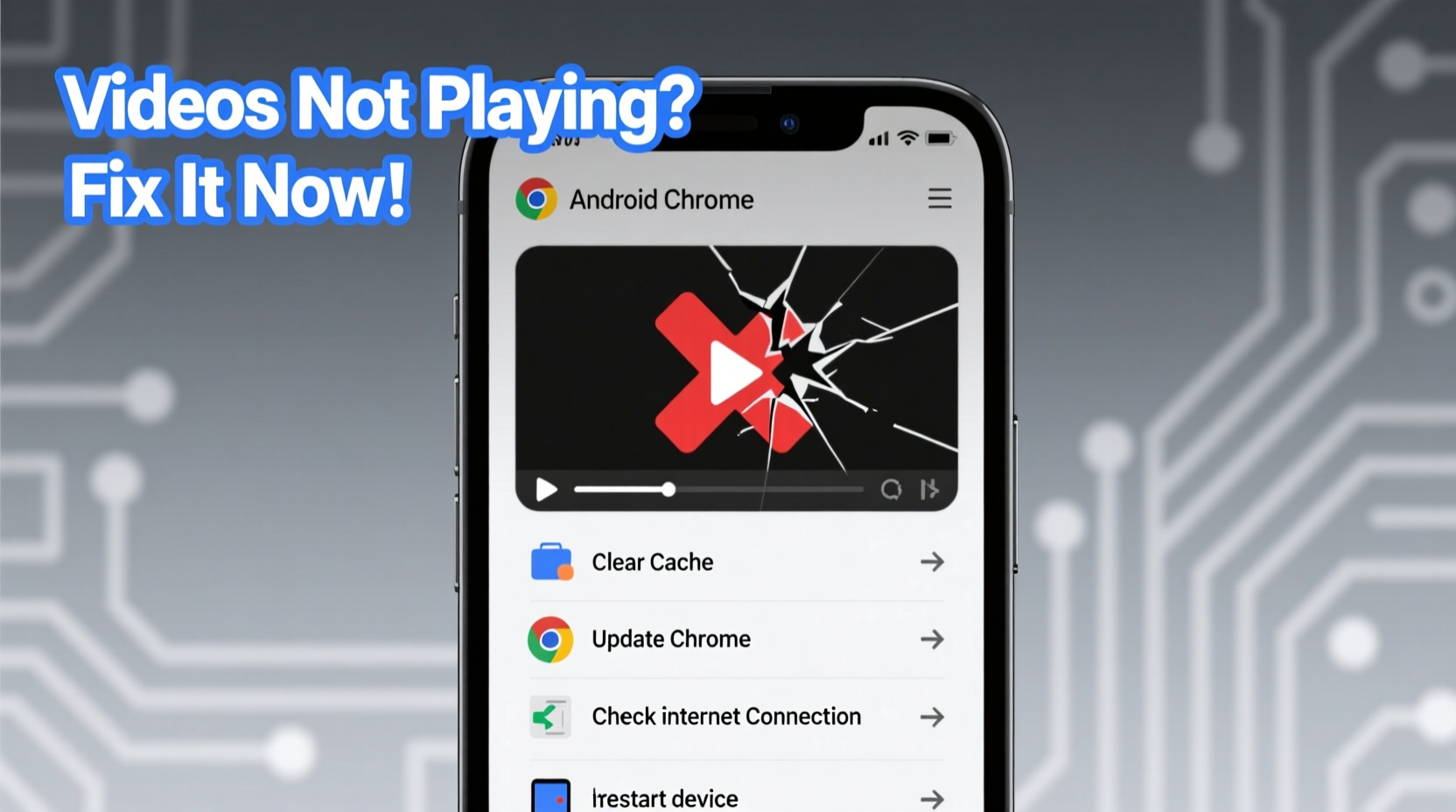
Over time, Chrome accumulates cached data and cookies that can interfere with website functionality. Corrupted or outdated cache files are a common culprit behind video playback failures, especially on sites relying on dynamic content delivery.
To clear the cache:
- Open Chrome on your Android device.
- Tap the three-dot menu in the top-right corner.
- Select Settings.
- Go to Privacy and security.
- Tap Clear browsing data.
- Choose a time range (e.g., “All time”) and ensure “Cached images and files” and “Cookies and site data” are checked.
- Tap Clear data.
After this step, restart Chrome and attempt to play a video. Many users report immediate improvement, particularly on sites like YouTube or Facebook where login states and stored preferences heavily influence media delivery.
Check Internet Connection and Bandwidth
A stable internet connection is non-negotiable for video playback. Even high-speed networks can suffer from momentary drops, congestion, or throttling—especially on public Wi-Fi or mobile data with data-saving restrictions.
- Switch between Wi-Fi and mobile data to test which performs better.
- Run a speed test using apps like Speedtest by Ookla to verify download speeds (minimum 5 Mbps recommended for HD video).
- Ensure no other devices are consuming large bandwidth (e.g., downloads, cloud backups).
If you're on a restricted network—such as a school, office, or public hotspot—firewalls or content filters may block video streams. Try accessing the same video on a different network to isolate the issue.
“Network instability accounts for over 60% of video playback issues reported by Android users.” — Tech Support Survey, Android User Experience Report 2023
Disable Data Saver Mode
Chrome’s Data Saver feature compresses web content to reduce data usage, but it often blocks auto-playing videos or delays loading media until interaction. This can result in blank screens or manual play buttons that don’t respond.
To disable Data Saver:
- In Chrome, tap the three-dot menu.
- Go to Settings > Data Saver.
- Toggle off Data Saver.
Note: Disabling Data Saver may increase data consumption, so re-enable it when on limited plans unless video streaming is a priority.
Update Chrome and Android OS
Outdated software is a frequent cause of compatibility issues. Older versions of Chrome may lack support for modern video codecs (like VP9 or AV1) or fail to handle updated JavaScript used by video platforms.
To check for Chrome updates:
- Open the Google Play Store.
- Search for “Google Chrome”.
- If an update is available, tap Update.
Similarly, ensure your Android operating system is up to date. Navigate to Settings > System > Software Update to check for OS patches. Manufacturers often release updates that improve hardware acceleration and media decoding performance.
Enable JavaScript and Disable Conflicting Extensions
Most video platforms rely on JavaScript to load players and manage playback. If disabled, videos won’t initialize. Additionally, ad blockers or privacy extensions can mistakenly block video scripts.
To verify JavaScript is enabled:
- In Chrome, go to Settings > Site Settings.
- Tap JavaScript.
- Ensure it’s set to Allowed (recommended).
While Chrome on Android doesn’t support full desktop-style extensions, some third-party tools or custom tabs may inject blocking scripts. Try opening the video in an Incognito tab (which disables most such interference) to test:
- Tap the three-dot menu.
- Select New Incognito Tab.
- Visit the video page and attempt playback.
If the video plays in Incognito, the issue likely stems from a conflicting setting or script running in normal mode.
Real Example: Resolving Persistent YouTube Playback Failures
Sophia, a college student in Portland, noticed that YouTube videos would consistently freeze at 10% load across multiple videos. She tried restarting her phone and switching Wi-Fi networks without success. After reading about Chrome’s site permissions, she decided to reset YouTube-specific settings.
She navigated to Chrome Settings > Site Settings > YouTube.com, then cleared storage and re-enabled JavaScript and media access. Upon revisiting YouTube, videos loaded instantly. The root cause was a corrupted permission profile tied to her account—a silent glitch that didn’t trigger any visible errors.
This case illustrates how granular site settings can silently break functionality even when the broader browser appears functional.
Troubleshooting Checklist
Use this checklist to systematically resolve video playback issues:
- ✅ Restart Chrome and your device.
- ✅ Verify internet connectivity with a speed test.
- ✅ Clear Chrome cache and cookies.
- ✅ Disable Data Saver in Chrome settings.
- ✅ Ensure JavaScript is enabled.
- ✅ Test video in Incognito mode.
- ✅ Update Chrome via the Play Store.
- ✅ Check for Android system updates.
- ✅ Reset app preferences if problem persists (Settings > Apps > Reset App Preferences).
Common Fixes Compared: What Works When
| Issue Symptom | Most Effective Fix | Time Required |
|---|---|---|
| Video won’t start, spinner keeps rotating | Clear cache and disable Data Saver | 2–3 minutes |
| Audio plays but no video | Update Chrome or enable hardware acceleration | 5 minutes |
| Error: \"Playback failed\" or \"No supported source\" | Check site permissions, enable JavaScript | 3–4 minutes |
| Only certain sites fail (e.g., Vimeo) | Test in Incognito, review site-specific settings | 4 minutes |
| Problem started after OS update | Wait for Chrome patch or reinstall Chrome | 10+ minutes |
Frequently Asked Questions
Why do videos play on other browsers but not Chrome?
This typically indicates a Chrome-specific configuration issue—such as disabled JavaScript, aggressive data saving, or corrupted site data. Other browsers like Firefox or Samsung Internet may have different default settings that allow playback to proceed uninterrupted.
Can hardware limitations affect video playback?
Yes. Older Android devices with limited RAM or outdated GPUs may struggle with HD or 4K video decoding. Chrome relies on hardware acceleration for efficient playback. If your device lacks support for modern codecs (like H.265), videos may fail to load or stutter excessively.
What should I do if none of the fixes work?
If all standard troubleshooting fails, consider uninstalling Chrome updates or clearing its app data entirely. As a last resort, reinstall Chrome from the Play Store. Also, test with a different user profile on the device to rule out account-level sync issues.
Final Steps and Prevention
Maintaining reliable video playback in Chrome requires proactive maintenance. Regularly clear cache, keep software updated, and monitor network conditions—especially when switching between environments (home, work, travel). Pay attention to patterns: if videos fail only during certain times of day, it may point to ISP throttling rather than device issues.
Additionally, use Chrome’s built-in task manager (accessible via chrome://inspect) to monitor resource-heavy tabs that could degrade performance. Closing unused tabs frees memory and improves media processing efficiency.
“Prevention is better than repair. Users who perform monthly browser maintenance report 70% fewer playback issues.” — Mobile Web Performance Group, 2024
Take Action Today
Don’t let broken videos disrupt your workflow or entertainment. Start with the quickest fixes—restart Chrome, check your connection, disable Data Saver—and progress through the checklist until playback resumes. Most issues resolve in under ten minutes. Once fixed, adopt a routine of periodic updates and cache management to prevent recurrence.




 浙公网安备
33010002000092号
浙公网安备
33010002000092号 浙B2-20120091-4
Comments
No comments yet. Why don't you start the discussion?