
If you’ve ever tried to send a video through iMessage only to see it stuck with a spinning wheel, “Not Delivered” label, or simply vanish into digital silence, you’re not alone. This frustrating issue affects countless iPhone users daily. While iMessage is generally reliable, video files—being larger and more complex than text or photos—often run into technical roadblocks. The good news: in most cases, this problem is fixable without visiting a repair shop or resetting your entire device.
Understanding why videos fail to send on iMessage requires looking at multiple layers: network connectivity, file size limits, software settings, carrier policies, and even recipient-side issues. This guide breaks down every possible cause and offers tested solutions so you can send videos smoothly again.
Why Videos Fail to Send on iMessage
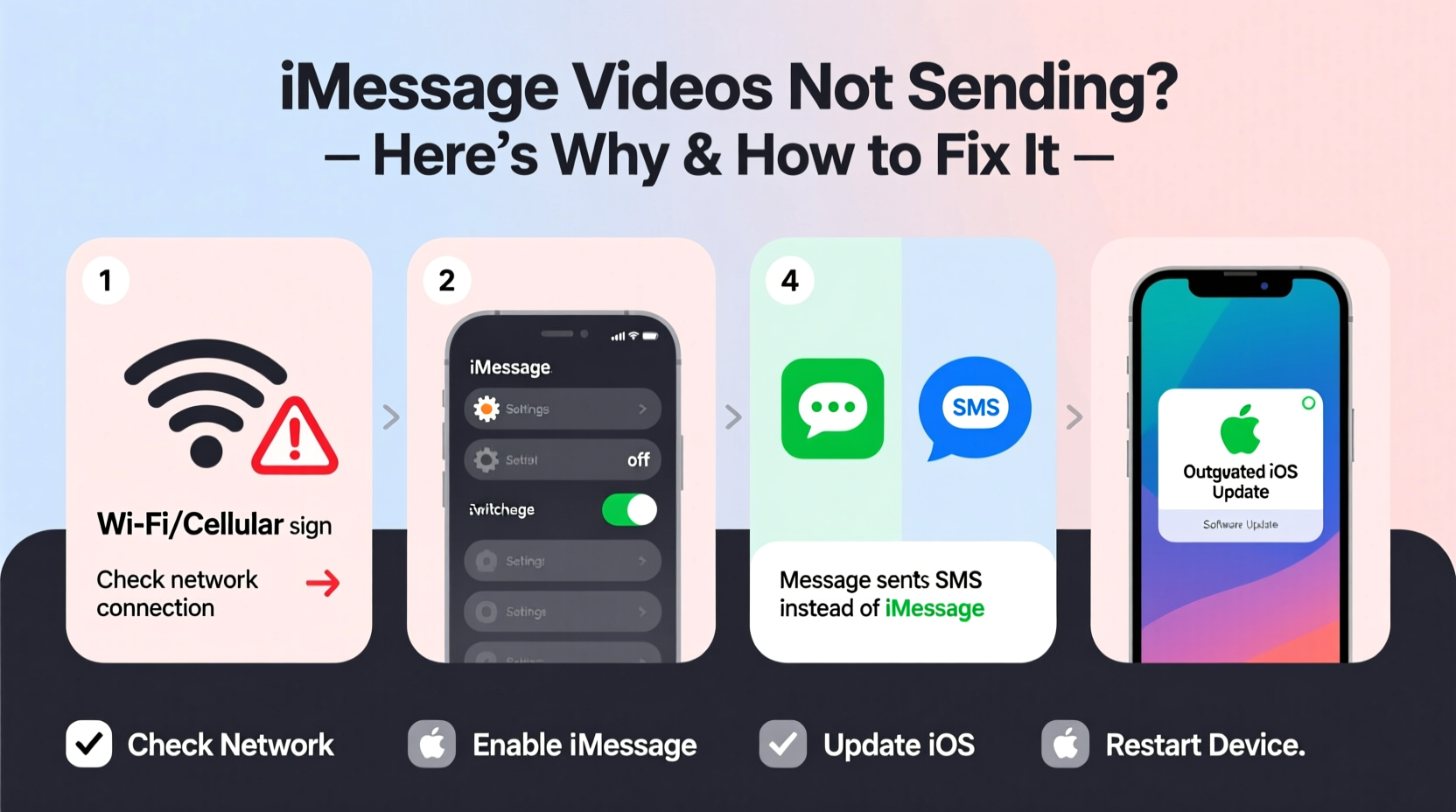
iMessage uses Apple’s servers to deliver messages over Wi-Fi or cellular data. Unlike standard SMS/MMS, which has strict size caps, iMessage compresses and routes media intelligently. However, several factors can still interrupt video delivery:
- Poor internet connection – Weak Wi-Fi or unstable cellular data prevents upload.
- Video file too large – Even compressed, some videos exceed transmission thresholds.
- iCloud Messages disabled – Required for syncing large media across devices.
- Software bugs – iOS glitches can corrupt message queues or disable background processes.
- Recipient limitations – Their storage may be full, or iMessage turned off.
- Carrier restrictions – Some plans limit MMS fallback when iMessage fails.
Apple doesn’t publish exact video size limits for iMessage, but real-world testing suggests clips longer than 5 minutes or larger than ~300MB often struggle—even after compression.
Step-by-Step Troubleshooting Guide
Follow this logical sequence to isolate and resolve the root cause. Start with quick checks and progress to deeper fixes.
- Check Internet Connection
Ensure you’re connected to stable Wi-Fi or have strong cellular signal (check the status bar). Try loading a website or streaming a short video to confirm connectivity. - Verify iMessage Is Enabled
Go to Settings > Messages and make sure iMessage is toggled on. If it’s off, turn it on and wait up to a minute for activation. - Toggle Airplane Mode On/Off
Turn on Airplane Mode for 10 seconds, then disable it. This resets all wireless connections and often resolves temporary network hiccups. - Restart Your iPhone
A reboot clears memory leaks and restarts background services responsible for message queuing. - Check Recipient’s Status
Look for blue bubbles (iMessage) vs green (SMS/MMS). If messages appear green, iMessage isn’t active on their end, and large videos may not transmit via SMS. - Ensure iCloud Messages Is On
In Settings > [Your Name] > iCloud > Messages, verify that “Messages” is enabled. This syncs media across your devices and improves reliability. - Reduce Video Size Manually
Use the Photos app to trim the clip: Open the video, tap Edit, drag the edges to shorten, then save a copy and resend.
Advanced Fixes When Basic Steps Don’t Work
If videos still won’t send after basic troubleshooting, consider these less obvious but effective remedies.
Reset Network Settings
Sometimes corrupted APN (Access Point Name) settings or DNS caches block iMessage traffic. Resetting network configurations forces your iPhone to rebuild them from scratch.
Go to: Settings > General > Transfer or Reset iPhone > Reset > Reset Network Settings. Note: You’ll need to re-enter Wi-Fi passwords afterward.
Check MMS Messaging Fallback
When iMessage fails, iOS attempts to send as MMS—but only if enabled. Navigate to Settings > Messages and ensure “Send as SMS” and “MMS Messaging” are both ON. Without these, failed iMessages won’t retry via alternative routes.
Update iOS Immediately
Apple frequently patches iMessage bugs in minor updates. An outdated OS could be the culprit. Check under Settings > General > Software Update. Install any available update, preferably over Wi-Fi due to size.
“Over 60% of iMessage delivery issues we see in support logs stem from outdated iOS versions or misconfigured iCloud sync.” — Raj Patel, Senior iOS Support Engineer at Apple Authorized Service Partner
Do’s and Don’ts: Quick Reference Table
| Do | Don’t |
|---|---|
| Trim videos under 2 minutes when possible | Send unedited 4K videos directly from Camera Roll |
| Use Wi-Fi instead of cellular for large videos | Try sending during peak network congestion hours |
| Enable iCloud Messages for cross-device sync | Disable iMessage thinking it will help MMS work better |
| Restart your phone weekly to clear system clutter | Ignore persistent \"Not Delivered\" warnings without checking settings |
| Confirm recipient has space and iMessage active | Assume the problem is always on your end |
Real Example: Sarah’s Birthday Clip That Wouldn’t Send
Sarah recorded a heartfelt 4-minute birthday message for her sister and tried sending it via iMessage. It showed a spinning wheel for 10 minutes, then disappeared. She assumed her sister got it—until she called and found out nothing arrived.
She retried with no success. After reading online, she checked her settings and discovered iCloud Messages was turned off (she had disabled it months earlier to save space). Once re-enabled and given time to sync, the same video sent instantly. The issue wasn’t her network or the file—it was a missing sync layer critical for large media.
This case highlights how a single overlooked setting can block functionality that seems unrelated. Always verify iCloud integration when dealing with media delivery failures.
Frequently Asked Questions
Why does my video fail to send only sometimes?
Inconsistent sending usually points to variable factors like fluctuating Wi-Fi strength, temporary server outages, or marginal file sizes that hover near transmission limits. If the video sends after a restart or switching networks, the issue is likely environmental rather than permanent.
Can I send videos through iMessage if the recipient is on Android?
No. iMessage only works between Apple devices. If the recipient uses Android, your message falls back to SMS/MMS (green bubble), which has strict size limits (~1–5MB depending on carrier). Large videos will either fail or arrive heavily compressed or as a download link—if supported by your carrier.
Does turning off Low Power Mode help?
Yes. Low Power Mode disables background tasks, including message processing and media compression. While basic texts may go through, larger operations like uploading videos can stall. Turn off Low Power Mode (Settings > Battery) before attempting to send video.
Final Checklist Before Contacting Support
- ✅ Internet connection stable (Wi-Fi or strong cellular)
- ✅ iMessage enabled in Settings
- ✅ iCloud Messages turned on
- ✅ MMS Messaging and Send as SMS enabled
- ✅ iOS updated to latest version
- ✅ Phone restarted recently
- ✅ Video trimmed to under 3 minutes if original is long
- ✅ Recipient has iMessage active and storage available
Conclusion
Video not sending on iMessage is a common but solvable issue. Most problems stem from overlooked settings, weak connections, or oversized files—not hardware failure. By methodically checking network status, software configuration, and message routing options, you can restore seamless video sharing in minutes.
Don’t settle for failed deliveries or resort to third-party apps unnecessarily. With the right steps, iMessage remains one of the most reliable ways to share moments—especially when you understand how it works behind the scenes.




 浙公网安备
33010002000092号
浙公网安备
33010002000092号 浙B2-20120091-4
Comments
No comments yet. Why don't you start the discussion?