
Microsoft Excel’s VLOOKUP function is one of the most widely used tools for retrieving data from tables. Despite its popularity, many users encounter issues that prevent it from returning expected results. Whether you're seeing #N/A, #REF!, or simply incorrect values, understanding the root cause is key to restoring functionality. This guide breaks down the most frequent VLOOKUP problems, explains why they occur, and provides actionable fixes to get your spreadsheets back on track.
Understanding How VLOOKUP Works
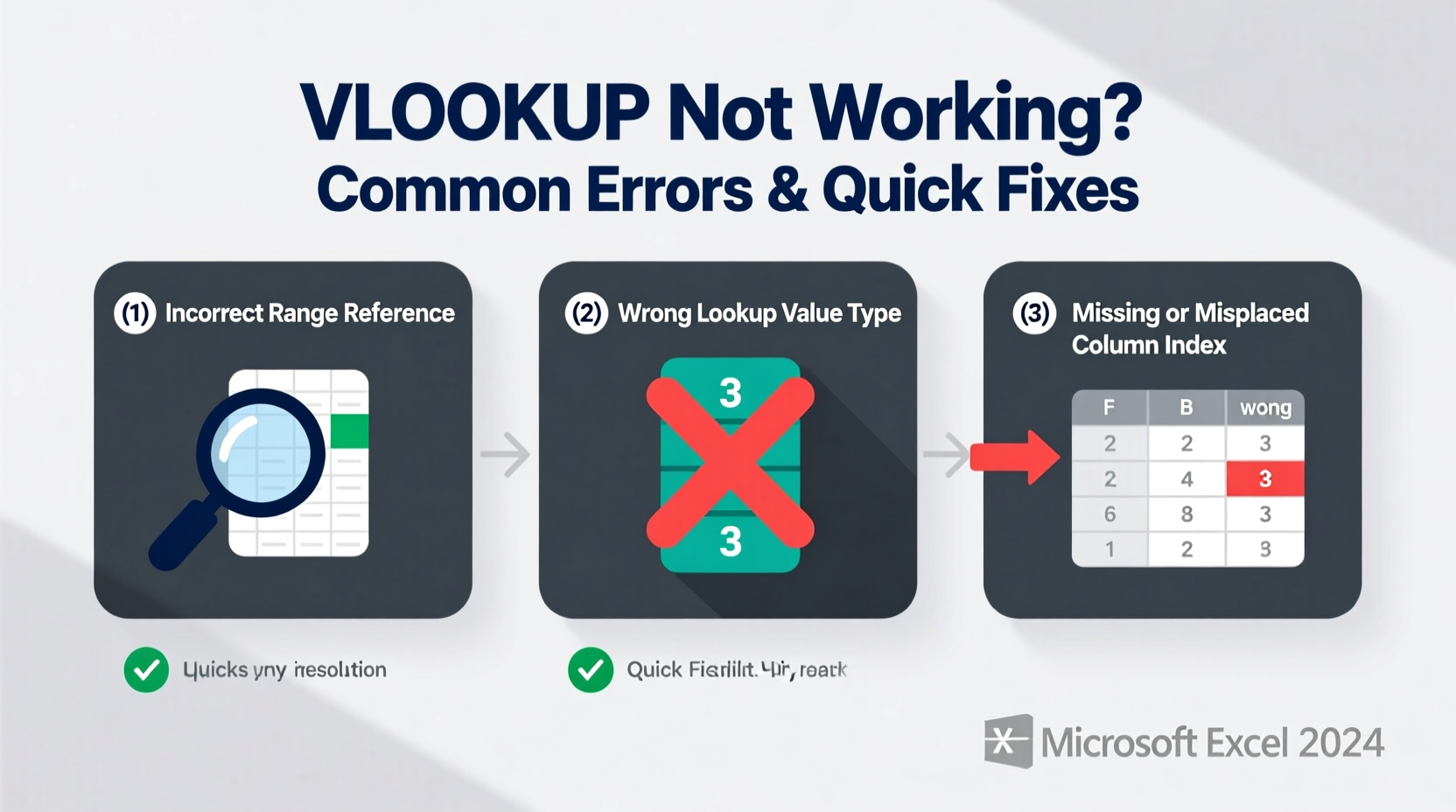
VLOOKUP searches for a value in the first column of a table and returns a corresponding value from another column in the same row. The syntax is:
VLOOKUP(lookup_value, table_array, col_index_num, [range_lookup])
- lookup_value: The value you want to find.
- table_array: The range of cells containing the data.
- col_index_num: The column number (from the left) in the table_array from which to retrieve data.
- range_lookup: TRUE for approximate match, FALSE for exact match.
A single misstep in any of these arguments can break the function. Let's examine the most common errors and how to resolve them efficiently.
Common VLOOKUP Errors and Their Fixes
1. #N/A Error – Value Not Found
The #N/A error indicates that Excel couldn’t locate the lookup value in the first column of your table array. While this may seem straightforward, several subtle issues often lie beneath.
Causes:
- Spelling mistakes or typos in the lookup value or table.
- Extra spaces (leading, trailing, or double spaces).
- Data type mismatch (e.g., number stored as text).
- Case sensitivity — although VLOOKUP isn’t case-sensitive, invisible characters might interfere.
Solutions:
- Use
=TRIM(CLEAN(A2))to remove extra spaces and non-printable characters. - Convert text-formatted numbers using
VALUE()or by multiplying by 1. - Ensure both lookup and table values are the same data type.
- Use
=IFERROR(VLOOKUP(...), \"Not Found\")to handle missing entries gracefully.
2. #REF! Error – Invalid Column Index
This error appears when the col_index_num exceeds the number of columns in the table array.
For example, if your table_array is A2:C10 (3 columns), but you specify col_index_num = 4, Excel returns #REF! because there is no fourth column.
Fix: Double-check the column count in your table_array and adjust the index accordingly. Remember: the count starts from the first column of the selected range, not the worksheet.
3. #VALUE! Error – Incorrect Arguments
This error typically arises when:
- The
col_index_numis less than 1. - The
col_index_numcontains text instead of a number. - The
table_arrayreference is invalid or corrupted.
Solution: Validate all inputs. Ensure the column index is a positive integer and that your range references are correctly formatted.
4. Returns Wrong Value – Approximate Match Gone Awry
Sometimes VLOOKUP returns a value, but it’s incorrect—often due to using an approximate match (TRUE) without proper sorting.
When range_lookup = TRUE (or omitted), Excel assumes the first column is sorted in ascending order and returns the closest match less than or equal to the lookup value. If the data isn't sorted, results become unpredictable.
Fix: For exact matches, always set range_lookup = FALSE. This eliminates guesswork and ensures precision.
“Approximate matches require sorted data. Using them on unsorted tables is the most common source of silent errors in VLOOKUP.” — Dr. Lisa Tran, Data Analyst & Excel Instructor, University of Michigan
Troubleshooting Checklist: Is Your VLOOKUP Set Up Correctly?
Before diving into complex diagnostics, run through this checklist to catch simple oversights:
- ✅ Is the lookup value present in the first column of the table array?
- ✅ Are there leading/trailing spaces? Try using TRIM().
- ✅ Is the data type consistent (text vs. number)?
- ✅ Is the
col_index_numwithin the range of your table_array? - ✅ Have you used absolute references ($A$2:$D$20) to prevent shifting ranges when copying formulas?
- ✅ Did you specify
FALSEfor exact match when needed? - ✅ Is your table_array structured correctly—no missing headers or merged cells?
Real Example: Fixing a Broken Payroll Lookup
A small HR team uses VLOOKUP to pull employee hourly rates from a master pay table. They enter:
=VLOOKUP(A2, PayTable, 2, FALSE)
But for employee “J. Smith,” it returns #N/A—even though the name appears in the list.
Upon inspection, they discover:
- The payroll sheet has “J. Smith” with a trailing space.
- The master table has “J. Smith” without spaces.
Using =TRIM(A2) in a helper column resolves the issue. Alternatively, they update the formula to:
=VLOOKUP(TRIM(A2), PayTable, 2, FALSE)
Now, the function works consistently across all entries. This minor adjustment prevents ongoing payroll inaccuracies.
Do’s and Don’ts of Using VLOOKUP
| Do | Don’t |
|---|---|
| Use absolute references for table_array (e.g., $B$2:$E$50) | Use relative references that shift when copied |
| Set range_lookup to FALSE for exact matches | Rely on default TRUE without sorting the first column |
| Clean data with TRIM() and VALUE() when necessary | Assume visible text is identical across cells |
| Verify column index based on table_array, not worksheet | Count columns from the entire sheet instead of the selected range |
| Use IFERROR to handle missing values elegantly | Leave #N/A errors exposed in reports |
Advanced Tip: Replace VLOOKUP with INDEX-MATCH for Greater Flexibility
While VLOOKUP is useful, it has limitations—it can’t look to the left, and inserting columns can break existing formulas. Consider upgrading to INDEX-MATCH:
=INDEX(ReturnColumn, MATCH(LookupValue, LookupColumn, 0))
This combination is more robust, allows bidirectional lookups, and doesn’t rely on column position. It’s especially helpful when restructuring tables or working with dynamic datasets.
Frequently Asked Questions
Why does VLOOKUP return the first match only?
VLOOKUP stops at the first occurrence of the lookup value. If duplicates exist, it won’t retrieve subsequent entries. To find all matches, use FILTER (in Excel 365) or advanced formulas combining INDEX, SMALL, and ROW functions.
Can VLOOKUP work across different sheets or workbooks?
Yes. Reference other sheets like: =VLOOKUP(A2, Sheet2!$A$2:$D$20, 3, FALSE). If referencing another workbook, ensure it’s open or include the full path. Note: external links can slow performance and break if file locations change.
Why does my VLOOKUP stop working after adding a new column?
Because VLOOKUP relies on column index numbers. Inserting a column shifts data positions, making the original index incorrect. INDEX-MATCH avoids this by referencing specific columns directly.
Conclusion: Take Control of Your Data Retrieval
VLOOKUP is a powerful tool, but its rigid structure demands precision. By understanding common pitfalls—such as data type mismatches, improper column indexing, and unclean text—you can diagnose and fix errors quickly. Implementing best practices like using absolute references, validating inputs, and cleaning data proactively will save hours of troubleshooting.
Don’t let spreadsheet errors undermine your productivity. Apply these fixes today, consider transitioning to more flexible alternatives like INDEX-MATCH, and build more reliable, maintainable models.




 浙公网安备
33010002000092号
浙公网安备
33010002000092号 浙B2-20120091-4
Comments
No comments yet. Why don't you start the discussion?