
The holiday season is a time of warmth, celebration, and innovation. With smart home technology now seamlessly integrated into daily life, one of the most delightful upgrades you can make is automating your Christmas tree lighting using voice-activated commands through Google Home. No more fumbling for switches or timers—just say the word, and your tree glows to life. Whether you're hosting guests, winding down after dinner, or simply enjoying a cozy evening, controlling your holiday lights by voice adds convenience and charm.
This guide walks you through everything you need to know about setting up voice-activated tree commands using Google Home, including compatible devices, step-by-step setup instructions, creative shortcut ideas, and real-world applications that bring magic to your holidays—without complexity.
Understanding Voice-Activated Tree Commands
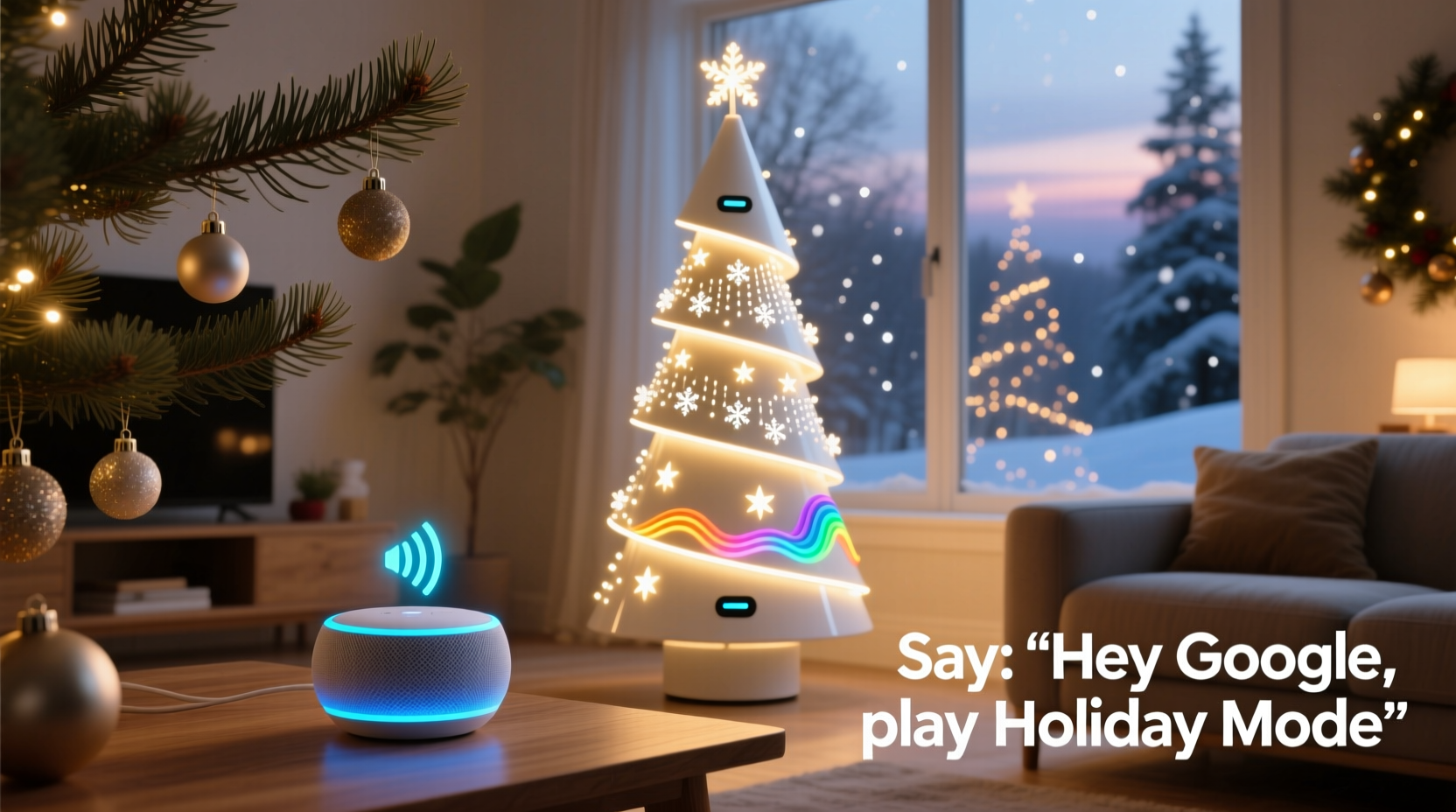
Voice-activated tree commands allow users to control their Christmas tree lights—or even an entire holiday lighting display—using spoken phrases via Google Assistant on Google Home devices. These commands work through smart plugs, smart light strips, or Wi-Fi-enabled bulbs connected to your home network and linked to your Google account.
When properly configured, saying something like “Hey Google, turn on the Christmas tree” triggers a signal sent from your Google Home speaker or display to the connected smart device, which then powers the lights. The system supports not only on/off commands but also brightness adjustments, color changes (for RGB lights), schedules, and custom scenes—all controllable through natural language.
The foundation of this automation lies in compatibility. Your lighting setup must be tied to a smart home ecosystem that integrates with Google Assistant. Most major brands—including Philips Hue, LIFX, TP-Link Kasa, Wyze, and Nanoleaf—offer such support, making it easier than ever to build a responsive, voice-driven holiday ambiance.
Required Equipment and Setup
To get started, ensure you have the right hardware and connectivity in place. Below is a checklist of essential components:
- Google Home device (e.g., Nest Mini, Nest Hub, Nest Audio)
- Smart plug or smart light strip/bulb compatible with Google Assistant
- Stable Wi-Fi connection (2.4 GHz band recommended for most smart plugs)
- Christmas tree lights (standard or LED) that connect to the smart device
- Google Account and the Google Home app installed on your smartphone
Begin by plugging your Christmas lights into the smart plug. Power on both the plug and the lights. Open the Google Home app, tap the \"+\" icon, and select \"Set up device.\" Follow the prompts to pair your smart plug with your Wi-Fi network. Once connected, assign a clear name such as “Christmas Tree Lights.” This ensures accurate recognition when issuing voice commands.
If using addressable LED strips (like Govee or Philips Hue Lightstrip), follow the manufacturer’s app instructions first, then link the product to Google Home under “Works with Google” within the respective app settings.
“Voice control transforms holiday decor from static decoration to interactive experience. It's not just about convenience—it’s about creating moments.” — Sarah Lin, Smart Home Experience Designer
Creating Holiday Shortcuts with Google Home
While basic on/off commands are useful, the real power comes from Google Home’s Shortcuts. A Shortcut is a custom routine that lets you trigger multiple actions with a single phrase. You can use these to create immersive holiday experiences beyond just turning lights on.
For example, a single command could dim the living room lights, start playing festive music, adjust the thermostat, and illuminate the tree—all synchronized to enhance the mood.
Step-by-Step Guide to Creating a Holiday Shortcut
- Open the Google Home app on your mobile device.
- Navigate to the Routines tab (represented by clock icon).
- Select Add Routine.
- Tap the microphone icon to define the voice trigger. Enter a phrase like “It’s Christmastime” or “Let’s decorate the house.”
- Under “Add action,” choose Lighting > Adjust lights, then select your tree lights and set desired brightness or color.
- Add additional actions: play music (“Play Christmas Jazz on Spotify”), adjust thermostat, announce a message (“Happy Holidays!” via speaker), or activate other smart lights.
- Save the routine with a descriptive name like “Holiday Ambiance Mode.”
Now, when you say your chosen phrase, all linked actions execute in sequence. You can create different shortcuts for various moods: “Cozy Night In,” “Santa’s Arrival,” or “Morning Glow.”
Advanced Automation Ideas and Real-Life Application
Take your setup further by integrating time-based triggers and guest modes. For instance, schedule your tree to turn on automatically every evening at 5:30 PM from December 1st to January 6th. Or have it pulse gently when a family member arrives home, detected via geolocation if they’ve opted in.
Mini Case Study: The Thompson Family Holiday Routine
The Thompsons live in suburban Denver and host extended family every weekend in December. They wanted a way to welcome guests warmly without manual effort. Using Google Home, they created a shortcut called “Welcome to Our Holiday Home.”
When triggered, the routine:
- Fades on the front porch lights
- Illuminates the Christmas tree in rainbow wave mode
- Plays “Sleigh Ride” at low volume over living room speakers
- Sends a notification to the kitchen tablet: “Guests arrived – warm cider ready?”
They also set up a bedtime command: “Time for Santa,” which turns off all house lights except the tree and a hallway nightlight, while announcing, “Don’t forget to leave milk and cookies out!” Their children love it, and guests consistently comment on the thoughtful atmosphere.
This level of personalization isn’t reserved for tech experts. With a few hours of setup, any household can enjoy similar sophistication.
Do’s and Don’ts: Smart Lighting Best Practices
| Do | Don’t |
|---|---|
| Use consistent naming (e.g., “Front Tree Lights”) | Name devices “Outlet1,” “DeviceA,” etc. |
| Test routines before relying on them for events | Assume voice recognition will work perfectly the first time |
| Schedule automatic shutdowns (e.g., turn off at midnight) | Leave lights running unattended overnight without supervision |
| Group related devices (tree, garland, menorah) under one room | Scatter devices across multiple rooms in the app |
| Update firmware regularly for security and performance | Ignore software update notifications |
Troubleshooting Common Issues
Even well-planned setups can encounter hiccups. Here are frequent problems and solutions:
- Google doesn’t recognize the command: Re-train voice match in the Google Home app and ensure device names are simple and distinct.
- Lights respond slowly: Check Wi-Fi signal strength near the smart plug; consider using a Wi-Fi extender.
- Shortcut fails midway: Break complex routines into smaller ones and test individually.
- Device shows “No response”: Power cycle the smart plug and verify it hasn’t lost connection to the network.
- Unintended activations: Avoid common phrases like “Turn on the lights” if kids often say them; opt for unique triggers like “Activate North Pole Mode.”
FAQ
Can I control multiple trees with separate voice commands?
Yes. As long as each tree is connected to its own smart plug or grouped lighting system, you can assign unique names (e.g., “Living Room Tree” and “Porch Tree”) and issue individual commands like “Hey Google, turn on the porch tree.”
Do I need a smart bulb to change colors, or can I do it with a regular string of lights?
You need RGB-capable smart lights—either smart bulbs or LED strips—to change colors. A standard light strand plugged into a basic smart plug can only turn on/off or dim (if the plug supports dimming). For dynamic effects, invest in color-changing lights like Govee LED strips or Philips Hue products.
Can I schedule my tree to turn on at sunset every day?
Absolutely. In the Google Home app, go to Routines, create a new routine, and select “At sunset” as the trigger. Then choose the action “Turn on Christmas Tree Lights.” The system uses your location to calculate daily sunset times, ensuring perfect timing year-round.
Checklist: Launch Your Voice-Activated Holiday Display
- ✔️ Purchase a Google Assistant-compatible smart plug or light strip
- ✔️ Plug in your Christmas tree lights and connect to Wi-Fi via the Google Home app
- ✔️ Name the device clearly (e.g., “Christmas Tree Lights”)
- ✔️ Test basic voice commands (“Turn on the Christmas tree”)
- ✔️ Create at least one holiday shortcut (e.g., “Festive Mode”)
- ✔️ Add extra actions: music, thermostat, announcements
- ✔️ Schedule daily on/off times or sunrise/sunset triggers
- ✔️ Share control with family members via Google Home app sharing
- ✔️ Test the full routine with guests or family present
- ✔️ Make adjustments based on feedback and usage patterns
Conclusion
Voice-activated tree commands with Google Home holiday shortcuts represent more than technological novelty—they’re a meaningful enhancement to seasonal traditions. By reducing friction and adding delight, these systems let you focus on what matters most: spending quality time with loved ones, creating memories, and embracing the spirit of the holidays.
The tools are accessible, the setup is straightforward, and the impact is lasting. Whether you’re illuminating a small tabletop tree or orchestrating a full-home display, automation brings elegance and ease. Start small, experiment often, and don’t hesitate to personalize your commands to reflect your family’s unique rhythm.




 浙公网安备
33010002000092号
浙公网安备
33010002000092号 浙B2-20120091-4
Comments
No comments yet. Why don't you start the discussion?