
Virtual Private Networks (VPNs) are essential tools for privacy, security, and accessing geo-restricted content. But when your VPN won’t connect, it can be frustrating—especially if you're working remotely, streaming content, or handling sensitive data. Connection failures stem from a range of causes: misconfigured settings, network restrictions, outdated software, or firewall interference. The good news is that most issues are fixable with systematic troubleshooting.
This guide walks through the most effective methods to diagnose and resolve common VPN connectivity problems. Whether you’re using OpenVPN, WireGuard, IKEv2, or another protocol, these steps apply across platforms and providers.
Common Causes of VPN Connection Failures
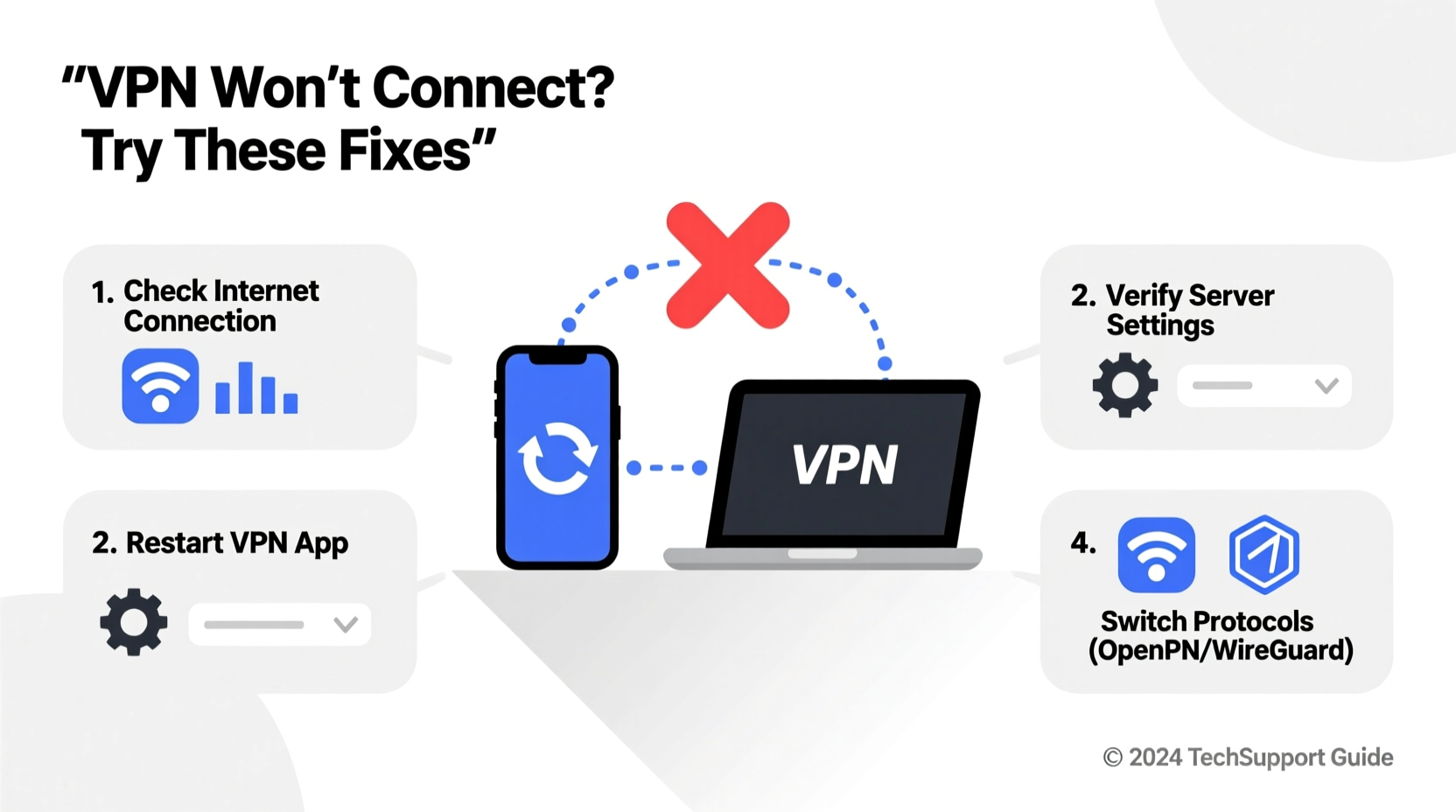
Before diving into fixes, it helps to understand what might be going wrong. The root cause often lies in one of these categories:
- Network Restrictions: Firewalls, public Wi-Fi policies, or ISP throttling may block VPN traffic.
- Incorrect Configuration: Wrong server address, login credentials, or protocol selection.
- Outdated Software: Old apps or drivers may not support current encryption standards.
- Firewall/Antivirus Interference: Security software sometimes blocks legitimate tunneling protocols.
- Server Overload: Your chosen server may be down or too busy to accept new connections.
- Router or DNS Issues: Misconfigured routers or corrupted DNS caches can prevent secure handshake.
Step-by-Step Troubleshooting Guide
Follow this logical sequence to isolate and fix the problem. Each step builds on the previous one, increasing in complexity but ensuring no stone is left unturned.
- Restart Your Devices – Reboot your computer, phone, or router. A simple restart clears temporary glitches and resets network states.
- Check Internet Connectivity – Confirm you have stable internet access by loading a website without the VPN enabled.
- Verify Login Credentials – Double-check your username and password. Many services lock accounts after multiple failed attempts.
- Switch Servers – Try connecting to a different server location. Some servers may be offline or overloaded.
- Change VPN Protocol – In your app settings, switch from OpenVPN UDP to TCP (or vice versa), or try IKEv2 or WireGuard if available.
- Disable Firewall Temporarily – Test if Windows Defender, Norton, or other antivirus tools are blocking the connection. Re-enable immediately after testing.
- Flush DNS Cache – On Windows: run
ipconfig /flushdnsin Command Prompt. On macOS: usesudo dscacheutil -flushcache. - Update the VPN App – Ensure you’re running the latest version. Outdated clients often fail due to deprecated APIs or security patches.
- Reinstall the Application – Uninstall completely, delete leftover files, then reinstall fresh from the official site.
- Try a Different Network – Connect via mobile hotspot or another Wi-Fi network to rule out local restrictions.
Advanced Fixes for Persistent Issues
If standard steps don’t work, consider deeper technical adjustments:
- Manually Configure MTU Settings: High Maximum Transmission Unit (MTU) values can fragment packets. Set MTU to 1400 or lower in advanced network settings.
- Allow VPN Through Windows Firewall: Go to Control Panel > System and Security > Windows Defender Firewall > Allow an app through firewall, then ensure your VPN client is checked for both private and public networks.
- Reset Winsock Catalog (Windows): Run
netsh winsock resetin elevated Command Prompt, then restart. - Use Port Forwarding on Router: For self-hosted or business-grade setups, forward ports like 1194 (OpenVPN) or 500/4500 (IPSec).
Do’s and Don’ts When Fixing VPN Connections
| Do’s | Don’ts |
|---|---|
| Always update your operating system and network drivers | Don’t ignore error messages—note them for diagnostics |
| Test multiple servers and protocols | Don’t share login details across devices unnecessarily |
| Use trusted DNS servers like Google (8.8.8.8) or Cloudflare (1.1.1.1) | Don’t disable security software permanently |
| Contact your provider’s support with logs and error codes | Don’t assume all Wi-Fi networks allow unrestricted access |
Real-World Example: Remote Worker Regains Access
Sarah, a freelance developer based in Chicago, suddenly lost her ability to connect to her company’s internal tools via their corporate-provided VPN. She was preparing for a client demo and couldn’t afford downtime.
After confirming her internet worked normally, she tried switching servers—no success. Then she noticed the error code “ERR_CONNECTION_FAILED.” She disabled her third-party firewall (Bitdefender) temporarily, and the connection succeeded. Sarah realized Bitdefender had updated overnight and added a new rule blocking UDP-based tunnels.
She re-enabled the firewall, manually allowed the VPN application through its interface, and restored full functionality within ten minutes. Her key takeaway: always check recent software updates when things stop working unexpectedly.
Expert Insight on Secure Connectivity
“Most ‘failed’ VPN connections aren’t due to the service itself, but local configuration conflicts. Users should treat their network stack like any other critical system—regular maintenance prevents major breakdowns.” — Dr. Rajiv Mehta, Network Security Engineer at CyberShield Labs
Essential Checklist: Quick-Fix Actions
Quick Diagnostic Checklist:
- ✅ Internet works without VPN?
- ✅ Correct username/password entered?
- ✅ Server selection changed and retried?
- ✅ Antivirus/firewall temporarily disabled?
- ✅ App updated to latest version?
- ✅ Tried alternate protocol (e.g., TCP instead of UDP)?
- ✅ Restarted router and device?
- ✅ Tested on a different network (e.g., mobile hotspot)?
Frequently Asked Questions
Why does my VPN say “connected” but I can’t browse?
This usually indicates a DNS leak or routing misconfiguration. Try changing your DNS to a public resolver like 1.1.1.1. Also, enable “kill switch” or “DNS leak protection” in your app settings to prevent traffic from bypassing the encrypted tunnel.
Can my router block a VPN?
Yes. Some routers, especially those provided by ISPs, have deep packet inspection (DPI) or parental controls that interfere with encrypted traffic. Flashing custom firmware like DD-WRT or using a router designed for VPN use can help maintain consistent connections.
What should I do if my workplace or school blocks my personal VPN?
Institutional networks often restrict tunneling protocols. Consider using obfuscated servers (if your provider offers them), which disguise VPN traffic as regular HTTPS. Alternatively, some premium services offer “stealth mode” or “camouflage mode” specifically for restricted environments.
Final Steps and Long-Term Prevention
Once you’ve restored your connection, take steps to prevent future disruptions. Schedule regular updates for your OS, router firmware, and VPN client. Keep notes on which servers and protocols perform best in your region. Enable auto-connect features only when necessary, as they can mask underlying issues.
For businesses relying on remote access, implement redundant connections and monitor uptime through built-in analytics or third-party dashboards. Proactive monitoring catches issues before they impact productivity.
“Reliability in remote access starts with preparation—not panic.” — IT Operations Handbook, 2023 Edition
Take Action Today
A non-functional VPN doesn’t have to mean lost time or compromised security. By methodically eliminating potential causes—from simple reboots to protocol adjustments—you regain control over your digital environment. Most problems are solvable in under 20 minutes with the right approach.




 浙公网安备
33010002000092号
浙公网安备
33010002000092号 浙B2-20120091-4
Comments
No comments yet. Why don't you start the discussion?