
In the evolving landscape of web performance and digital media, image formats play a critical role in user experience. For years, PNG has been the go-to choice for lossless images requiring transparency—logos, icons, and graphics with sharp edges. But as bandwidth efficiency and page speed become non-negotiable, a new contender has taken center stage: WebP. Developed by Google in 2010, WebP combines superior compression with rich feature support, making it a compelling replacement for PNG in many use cases. Understanding this shift isn't just technical—it's strategic.
The Evolution of Image Formats on the Web
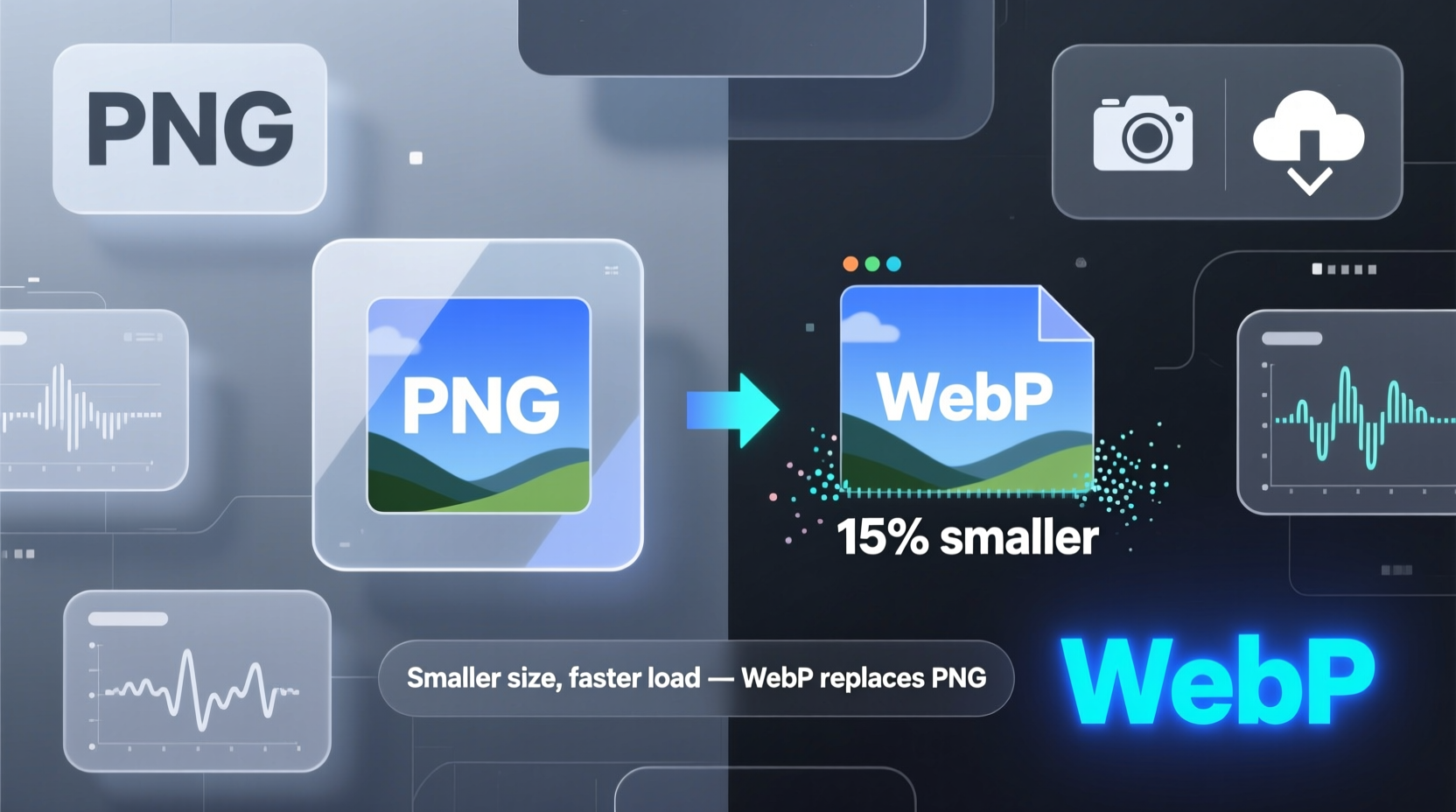
Image formats have evolved alongside internet infrastructure. Early web developers relied on GIFs for animation and basic transparency, but their limited color palette made them unsuitable for detailed graphics. PNG emerged in the late 1990s as a patent-free alternative to GIF, offering lossless compression and full alpha transparency—features that quickly made it indispensable for designers.
However, PNG’s strength—lossless quality—also became its limitation. Files are often large, especially when used for high-resolution assets. As mobile browsing surged and Core Web Vitals became key ranking factors, the need for lighter, faster-loading images intensified. Enter WebP, which delivers comparable visual fidelity at significantly smaller file sizes.
How WebP Outperforms PNG in Key Areas
WebP uses advanced compression techniques based on VP8 video encoding. It supports both lossy and lossless compression, along with transparency (alpha channel) and animation—essentially combining the strengths of JPEG, PNG, and GIF into one format.
The most significant advantage lies in file size reduction. In real-world tests, WebP typically reduces PNG file sizes by 25% to 70%, depending on image complexity and settings. This directly translates to faster load times, reduced bandwidth consumption, and improved SEO performance.
“Switching from PNG to WebP was one of the fastest wins we had in improving site speed without sacrificing visual quality.” — Lena Torres, Senior Frontend Engineer at OptiLoad Labs
Technical Comparison: WebP vs PNG
| Feature | PNG | WebP |
|---|---|---|
| Compression Type | Lossless only | Lossy and lossless |
| Transparency Support | Yes (alpha channel) | Yes (alpha channel) |
| Animation Support | No (APNG exists but limited) | Yes |
| Average File Size Reduction | Baseline | 25–70% |
| Browser Support (as of 2024) | Near-universal | ~98% global (all modern browsers) |
| Color Depth | Up to 48-bit RGB + alpha | Up to 40-bit RGBA |
When to Replace PNG with WebP: A Practical Guide
Not every PNG should be replaced overnight. The decision depends on context: browser support requirements, content type, and delivery infrastructure. Here’s a step-by-step approach to evaluating and implementing the switch.
- Inventory Your Images: Audit your site’s static assets. Identify all PNG files, particularly those larger than 10 KB or used above the fold.
- Assess Usage Context: Determine whether each image requires transparency or crisp edges (e.g., logos, UI icons). These are ideal candidates for WebP conversion.
- Convert Using Trusted Tools: Use tools like
cwebp(from Google’s WebP package), ImageMagick, or online converters to generate WebP versions. Automate this process via build scripts if using a CMS or static site generator. - Implement Responsive Delivery: Serve WebP to supporting browsers while falling back to PNG for older ones using the HTML
<picture>element:
<picture>
  <source srcset=\"logo.webp\" type=\"image/webp\">
  <img src=\"logo.png\" alt=\"Company Logo\">
</picture>- Test Across Devices: Verify rendering consistency on various browsers and screen resolutions. Pay special attention to transparency handling and edge clarity.
- Monitor Performance Gains: Use Lighthouse or PageSpeed Insights before and after migration to quantify improvements in load time and overall score.
Real-World Example: E-Commerce Platform Migration
An online fashion retailer with over 12,000 product detail pages relied heavily on PNGs for badges, icons, and layered graphics. Their homepage alone loaded 38 PNG assets totaling 1.2 MB. After converting eligible images to WebP, the same visual content dropped to 410 KB—a 66% reduction.
The impact was immediate: Largest Contentful Paint (LCP) improved by 1.4 seconds, and bounce rate decreased by 11% on mobile devices. The engineering team automated conversion through their CI/CD pipeline, ensuring all future uploads were processed into both WebP and fallback PNG formats.
This case underscores that the benefits of WebP aren’t theoretical—they translate into measurable business outcomes when implemented systematically.
Common Challenges and How to Overcome Them
Despite its advantages, adopting WebP isn’t without hurdles. Legacy systems may lack native support, design teams might resist workflow changes, and some tools still default to older formats.
- Limited Editor Support: Some graphic editors don’t export WebP natively. Workaround: Use plugins (e.g., Adobe Photoshop WebP plugin) or batch conversion tools.
- Caching Layers May Not Differentiate Formats: Ensure your CDN or server can serve different assets based on client capabilities (via Accept headers).
- Design Team Resistance: Educate stakeholders with side-by-side comparisons showing identical visuals at drastically reduced sizes.
Checklist: Migrating from PNG to WebP
- ✅ Audit existing PNG usage across the website
- ✅ Identify high-impact images (large size, frequent use)
- ✅ Set up automated conversion pipeline (CLI tools or CMS integration)
- ✅ Implement
<picture>tags or server-side content negotiation - ✅ Test fallback behavior in Internet Explorer and legacy environments
- ✅ Monitor Core Web Vitals pre- and post-migration
- ✅ Update brand asset guidelines to specify WebP as default
Frequently Asked Questions
Is WebP supported in all modern browsers?
Yes. As of 2024, WebP is supported in Chrome, Firefox, Safari (14+), Edge, and Opera. Over 98% of global users can view WebP images without issue. For older browsers like IE11, provide PNG fallbacks using the <picture> element.
Does WebP support transparency like PNG?
Absolutely. WebP supports full 8-bit alpha transparency, allowing smooth blending and soft edges—something even superior to PNG’s capabilities in certain gradient scenarios due to better compression handling.
Can I convert PNG to WebP without quality loss?
Yes. Using lossless WebP encoding preserves every pixel exactly as in the original PNG while still achieving file size reductions of up to 40%. For maximum fidelity, always compare outputs visually after conversion.
Conclusion: Embracing the Future of Web Imagery
The move from PNG to WebP isn’t merely a trend—it’s a necessary evolution driven by performance demands and technological progress. While PNG remains valid for specific applications, WebP offers a smarter, more efficient alternative for most modern web contexts. By adopting WebP thoughtfully and systematically, developers and designers contribute directly to faster, greener, and more accessible digital experiences.




 浙公网安备
33010002000092号
浙公网安备
33010002000092号 浙B2-20120091-4
Comments
No comments yet. Why don't you start the discussion?