
Computers are designed to operate quietly, so when strange sounds start emerging—be it grinding, buzzing, clicking, or whirring—it’s natural to feel concerned. These noises aren’t just annoying; they can be early warning signs of hardware issues. Ignoring them might lead to data loss, reduced performance, or even permanent failure. Understanding what different sounds mean and how to respond can save time, money, and stress.
This guide breaks down the most common weird computer noises, explains their likely causes, and provides actionable steps to troubleshoot and resolve them before they escalate.
Common Types of Computer Noises and What They Mean
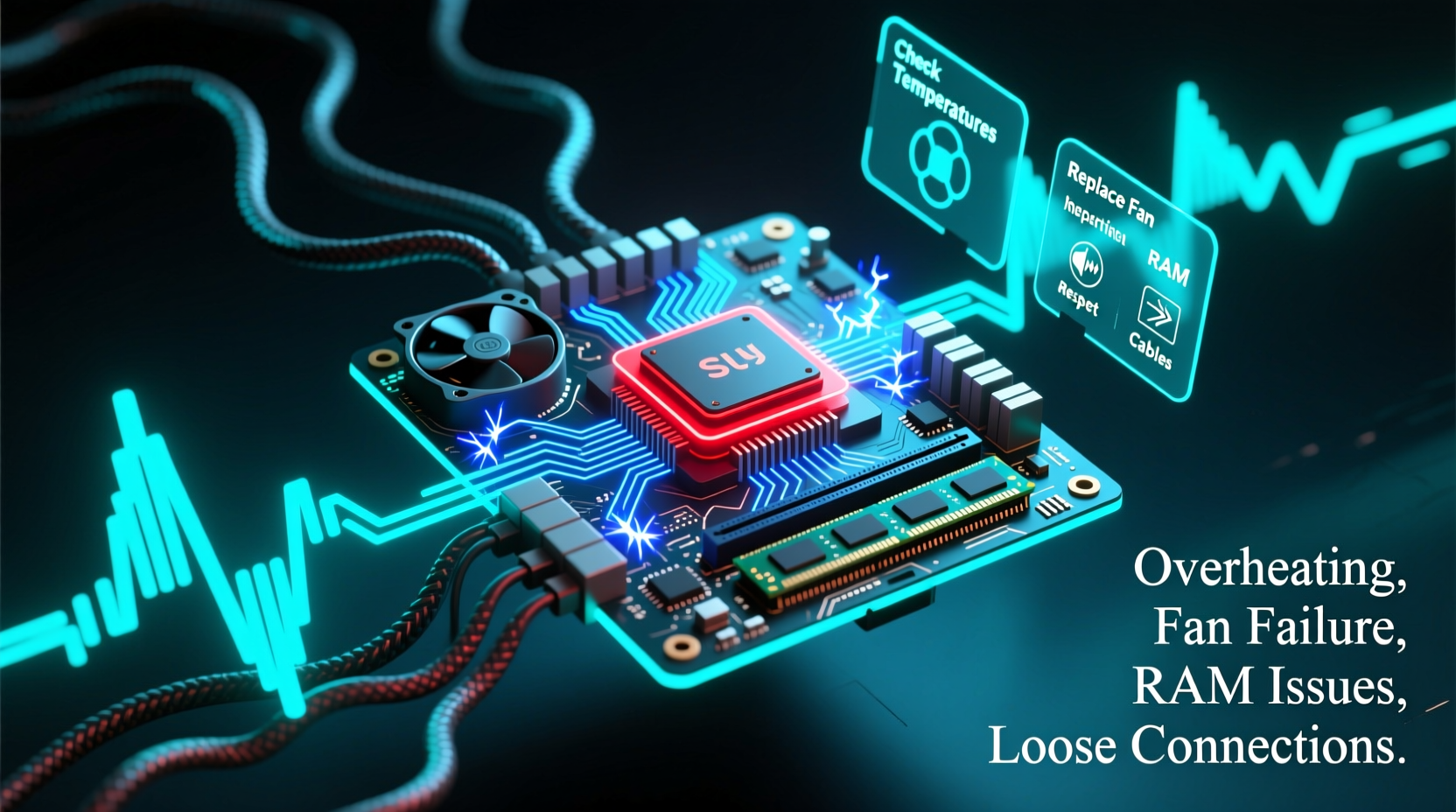
Not all computer sounds are problematic. Fans spinning up during heavy workloads or a brief click when booting are normal. But persistent or unusual noises often point to underlying issues. Here's a breakdown of typical sounds and their potential sources:
- Clicking or ticking: Often associated with hard drives, especially mechanical ones (HDDs). A rhythmic click may indicate the read/write head struggling to access data—a condition sometimes called the “click of death.”
- Grinding or scraping: Usually points to a failing fan or a loose cable touching a spinning component like a fan blade. In rare cases, it could signal bearing failure in an HDD.
- Whirring or high-pitched squealing: Commonly caused by fans spinning at high RPMs due to overheating, dust buildup, or worn-out bearings. Can also originate from power supplies or optical drives.
- Buzzing or humming: May come from the power supply unit (PSU), coil whine in the GPU or motherboard, or electrical interference. Low-frequency hums are sometimes normal, but sudden changes warrant attention.
- Beeping during startup: Not a mechanical noise, but BIOS beep codes can indicate hardware failures such as RAM or GPU issues.
Step-by-Step Troubleshooting Guide
When confronted with an unfamiliar noise, follow this structured approach to identify and address the root cause safely.
- Power down and unplug: Always turn off and disconnect your computer before inspecting internal components to avoid electrical hazards.
- Open the case: Use a screwdriver to remove the side panel (for desktops). For laptops, only proceed if you’re experienced—otherwise, seek professional help.
- Inspect for obstructions: Look for loose cables, wires, or debris that might be touching fans or moving parts.
- Clean dust buildup: Use compressed air to gently blow out dust from fans, heatsinks, and vents. Focus on CPU, GPU, PSU, and case fans.
- Test individual components: Boot the system and listen closely. Try disconnecting non-essential devices (optical drive, secondary HDD) to see if the noise stops.
- Monitor temperatures: Use tools like HWMonitor or Core Temp to check if high temps are causing fans to overwork.
- Replace or repair faulty parts: If a specific fan, drive, or PSU is making noise, consider replacement.
Component-Specific Issues and Solutions
Different hardware components produce distinct sounds. Identifying which part is responsible helps target repairs efficiently.
Fans (CPU, GPU, Case, PSU)
Fans are the most common source of noise. Over time, dust accumulation increases friction, and lubricant in bearings dries out, leading to rattling or screeching.
Hard Drives (HDDs)
A failing mechanical hard drive often emits repetitive clicking, grinding, or stuttering sounds. This could mean the actuator arm is malfunctioning or platters are damaged.
Act immediately: Back up critical data as soon as possible. Consider replacing the drive with an SSD, which has no moving parts and is silent.
Optical Drives
If your computer has a DVD or CD drive, odd spinning or grinding noises during use may indicate a disc is stuck, unbalanced, or the motor is failing. Eject the disc and clean the lens with a proper cleaning kit.
Coil Whine
A high-pitched buzzing or ringing under load—especially from GPUs—is known as coil whine. It’s usually harmless but annoying. It occurs due to electrical vibrations in coils and capacitors.
“Coil whine doesn’t damage components, but persistent mechanical grinding or clicking should never be ignored.” — David Lin, Senior Hardware Technician at TechCare Labs
Troubleshooting Checklist
Use this checklist to systematically diagnose and fix noisy computer issues:
- ✅ Power off and unplug the computer
- ✅ Open the case and visually inspect for loose cables or debris
- ✅ Clean all fans and heatsinks with compressed air
- ✅ Boot system and isolate sound location (listen near PSU, GPU, HDD bay)
- ✅ Check system temperatures using monitoring software
- ✅ Disconnect non-essential drives to test for HDD noise
- ✅ Replace noisy fans or drives as needed
- ✅ Consider upgrading to quieter components (e.g., SSD, aftermarket CPU cooler)
Do’s and Don’ts: Managing Computer Noise
| Do | Don’t |
|---|---|
| Regularly clean dust from fans and vents | Ignore persistent clicking from your hard drive |
| Use rubber mounts or anti-vibration pads for fans | Overclock components without improving cooling |
| Upgrade to fluid-dynamic bearing (FDB) or silent fans | Use household cleaners or water to clean internal parts |
| Back up data if drive makes unusual noises | Apply excessive force when removing stuck components |
| Monitor system health with diagnostic tools | Run your PC in hot, enclosed spaces |
Real-World Example: Recovering from a Clicking Hard Drive
Sarah, a freelance photographer, noticed her desktop PC started making a rhythmic clicking sound every time she accessed photo files. At first, she dismissed it as normal wear. But after two days, the system began freezing, and some folders wouldn’t open.
She used a live Linux USB to boot her machine and copied her latest photo projects to an external drive. After confirming the drive was failing, she replaced the 5-year-old HDD with an SSD. The new drive was not only silent but significantly faster. Sarah now schedules monthly backups and uses S.M.A.R.T. monitoring tools to catch early signs of failure.
This scenario highlights why timely response to strange noises—especially from storage drives—is crucial for data preservation.
Frequently Asked Questions
Is it safe to keep using a computer that makes a grinding noise?
No. A grinding sound often indicates physical contact between components or bearing failure. Continued use risks further damage, especially to fans or hard drives. Shut down the system and inspect it promptly.
Can I fix a noisy power supply myself?
It’s not recommended. PSUs contain high-voltage components even when unplugged. If your PSU is buzzing or whining, replace it entirely with a reputable, high-efficiency model rather than attempting internal repairs.
Why does my laptop fan sound louder after updates?
Software updates can increase CPU usage due to background processes like indexing or driver adjustments. Monitor task manager for high resource use. If the noise persists, check for dust buildup or thermal paste degradation.
Conclusion: Silence Is Golden—Take Action Early
Weird computer noises are more than just distractions—they’re signals. Whether it’s a subtle click or a loud grind, each sound carries information about your system’s health. By learning to interpret these cues and responding with informed troubleshooting, you protect both performance and data integrity.
Regular maintenance, attentive listening, and proactive upgrades transform a noisy, unreliable machine into a quiet, efficient workstation. Don’t wait for total failure. Address odd sounds today, and your computer—and your peace of mind—will thank you.




 浙公网安备
33010002000092号
浙公网安备
33010002000092号 浙B2-20120091-4
Comments
No comments yet. Why don't you start the discussion?