
If you've ever typed out a message in a WhatsApp group, tapped send, and watched it sit there with a single gray checkmark—sometimes for hours—you're not alone. The frustration of messages not going through can disrupt coordination with family, coworkers, or friends. While WhatsApp is generally reliable, several technical and account-level issues can interfere with message delivery in group chats. The good news: most problems have straightforward solutions.
This guide breaks down the most common reasons behind failed WhatsApp group messages and provides actionable steps to diagnose and resolve them quickly.
Why Group Messages Fail to Send on WhatsApp
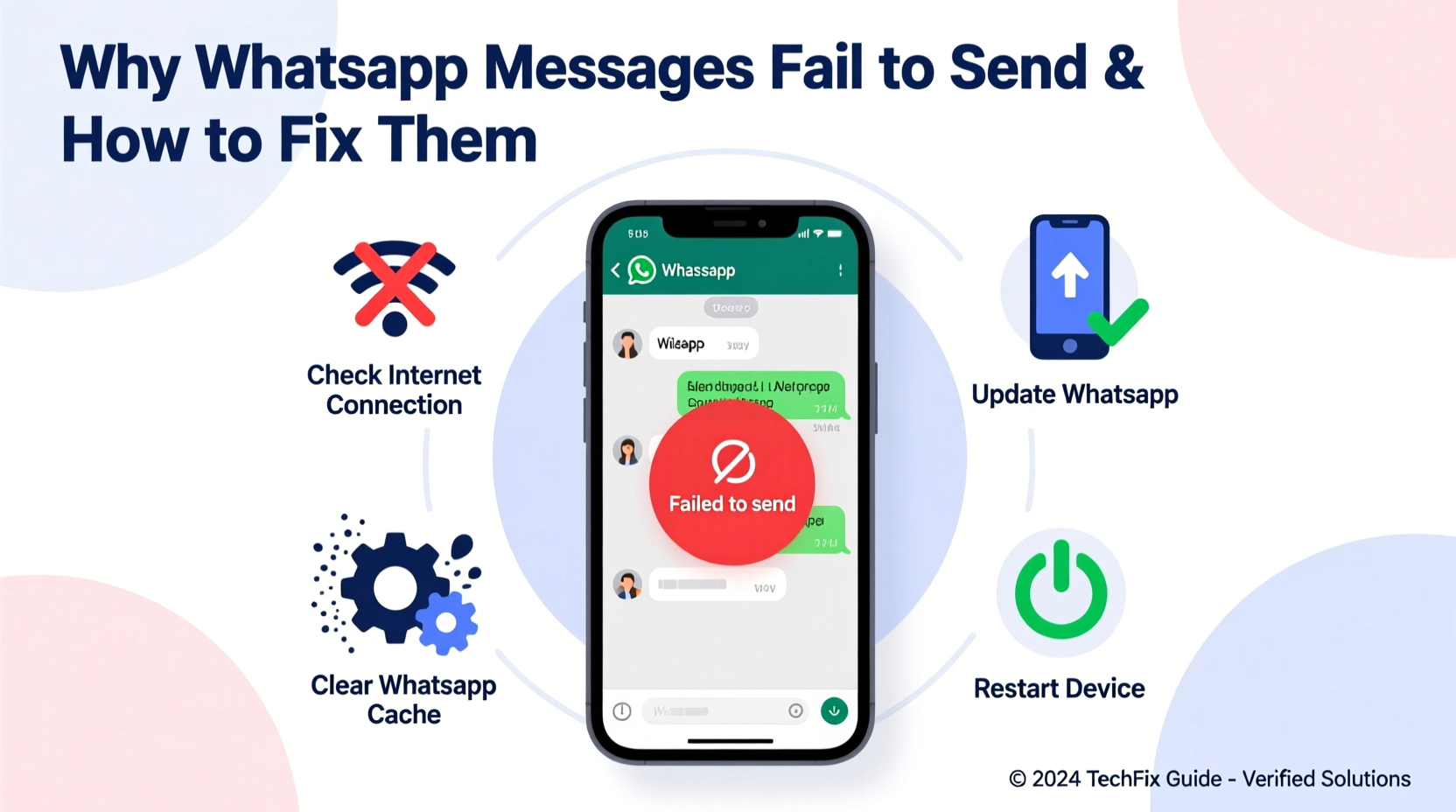
Unlike one-on-one chats, group messages involve multiple participants and more complex data routing. A failure isn’t always about your phone or internet—it could stem from group settings, recipient status, or app behavior. Understanding the root cause is the first step toward fixing it.
- Poor or unstable internet connection: The most frequent culprit.
- Recipient has blocked you: Messages won’t deliver if you’re blocked, even in groups.
- Group admin restrictions: Only admins may be allowed to send messages.
- App cache or software glitches: Corrupted data can interrupt normal function.
- Outdated WhatsApp version: Older versions may lack critical fixes.
- Your account or the group is banned or restricted: Violations of WhatsApp’s policy can limit functionality.
Step-by-Step Troubleshooting Guide
Follow this logical sequence to identify and fix the issue efficiently. Start with the simplest checks before moving to advanced solutions.
- Check Your Internet Connection
Ensure Wi-Fi or mobile data is active and stable. Try loading a webpage or using another app. Switch between Wi-Fi and data to test. - Verify Recipient’s Status
If others in the group are receiving messages but yours aren’t, the issue may be specific to you. Check if someone has blocked you (you won’t see their last seen or profile photo). - Look at Group Permissions
Tap the group name > Info > Group Settings. If \"Send Messages\" is set to \"Only Admins,\" and you’re not an admin, that explains the block. - Restart WhatsApp
Close the app completely and reopen it. On Android, swipe it away from recent apps. On iPhone, double-press Home or swipe up and hold. - Clear App Cache (Android)
Go to Settings > Apps > WhatsApp > Storage > Clear Cache. This removes temporary files without deleting messages. - Update WhatsApp
Visit Google Play Store or Apple App Store and ensure you’re on the latest version. - Reinstall WhatsApp (Last Resort)
Backup chats first, then uninstall and reinstall the app. Restore from backup after logging back in.
Common Fixes and What Works Best
Not all fixes are equal. Some address temporary glitches; others solve deeper issues. Here's a breakdown of effectiveness based on real-world usage and user reports.
| Fix | Likelihood of Success | Time Required | Notes |
|---|---|---|---|
| Switch to Mobile Data | High | 1–2 minutes | Wi-Fi networks often restrict background app traffic. |
| Check Group Admin Settings | Very High | 30 seconds | Especially relevant in professional or moderated groups. |
| Clear Cache (Android) | Moderate | 2 minutes | Safe and non-destructive; clears corrupted temp files. |
| Update WhatsApp | High | 5 minutes | Bug fixes in updates often resolve sending issues. |
| Reinstall App | Very High | 15–20 minutes | Effective for deep-seated bugs, but requires backup. |
Mini Case Study: Sarah’s Work Project Group
Sarah was part of a 12-member WhatsApp group coordinating a marketing campaign. She noticed her messages weren’t sending—gray checkmarks lingered for hours. Others in the group were replying normally. After checking her internet and restarting the phone, she still had no luck. Then she remembered the group had been recently restructured. Upon checking group settings, she discovered that only admins could send messages. The team lead had enabled this to reduce spam. Once promoted to admin, her messages sent instantly. The fix took less than a minute once the cause was identified.
Expert Insight: What Support Teams See Most Often
According to internal data from mobile support forums and WhatsApp community moderators, over 70% of \"message not sending\" cases are resolved by checking internet connectivity and app permissions. Persistent issues usually trace back to outdated apps or account blocks.
“Most users jump to reinstalling the app, but 6 out of 10 times, the fix is as simple as toggling airplane mode or checking group admin settings.” — Rajiv Mehta, Senior Mobile Support Analyst
Do’s and Don’ts When Messages Won’t Send
Avoid making the problem worse with incorrect troubleshooting. Follow these guidelines to stay on track.
| Do’s | Don’ts |
|---|---|
| Test internet with other apps | Spam the send button repeatedly |
| Check if you’re blocked by viewing profile changes | Delete and reinstall without backing up |
| Review group settings for restrictions | Assume it’s a server-wide WhatsApp outage |
| Update WhatsApp regularly | Ignore recurring cache issues |
Frequently Asked Questions
Why do my messages show one checkmark but never send?
A single gray checkmark means the message hasn’t left your device. This usually points to a local issue—poor internet, background app restrictions, or WhatsApp not syncing. Restart your network connection or the app to resolve it.
Can I still send messages if I’m not an admin in a restricted group?
No. If the group settings are set to “Only Admins” for sending messages, regular members cannot send texts, media, or replies. You must be promoted by an admin or request permission.
What if only one group isn’t working, but others are fine?
This suggests the issue is group-specific. Check if you’ve been muted, restricted, or if the group has hit its 1,024-member limit (which can affect performance). Also, verify that your number hasn’t been removed and re-added incorrectly.
Final Checklist: Fix WhatsApp Group Message Issues Fast
Use this checklist the next time your messages stall:
- ✅ Confirm Wi-Fi or mobile data is working
- ✅ Toggle airplane mode on and off
- ✅ Open a different group or chat to test sending
- ✅ Tap the group name and check \"Send Messages\" setting
- ✅ Look for blue ticks (read), gray ticks (pending), or red exclamation (failed)
- ✅ Update WhatsApp via official app store
- ✅ Clear cache (Android) or offload app (iPhone)
- ✅ Reinstall WhatsApp only after backing up chats
Conclusion: Stay Connected Without the Stress
WhatsApp group messaging should be seamless, but occasional hiccups are inevitable. By understanding the common causes—from network issues to admin restrictions—you gain control over the solution. Most fixes are quick and don’t require technical expertise. The key is systematic troubleshooting: start small, rule out easy causes, and escalate only when needed.




 浙公网安备
33010002000092号
浙公网安备
33010002000092号 浙B2-20120091-4
Comments
No comments yet. Why don't you start the discussion?