
Encountering an \"Access Denied\" error while browsing the web can be frustrating—especially when you’re certain you’ve visited the site before or believe you should have permission. These errors aren’t always due to personal mistakes; they stem from a variety of technical, geographic, and security-related factors. Understanding the root causes is the first step toward resolving them efficiently. This guide breaks down the most common reasons behind access restrictions and provides actionable solutions to help you get back online without compromising your safety.
Common Causes of Access Denied Errors
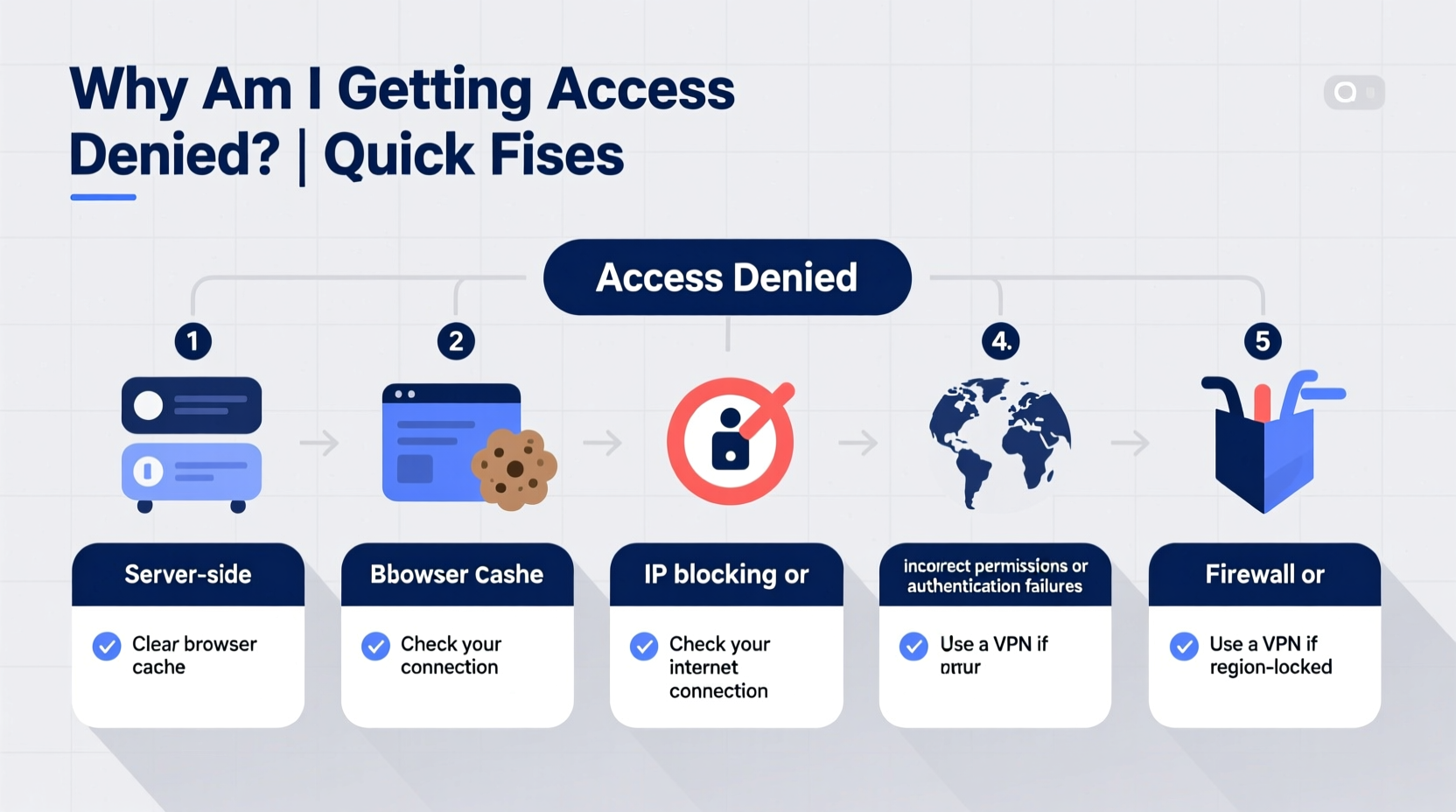
Access denied messages—often displayed as HTTP 403 Forbidden, “You don’t have permission,” or similar alerts—are triggered when a server refuses to fulfill a request. Unlike connection timeouts or DNS errors, these indicate that communication with the server was established, but access was intentionally blocked.
- IP Address Restrictions: Websites may block specific IP addresses or ranges due to suspicious activity, spam, or geographic limitations.
- Firewall or Security Software: Overzealous antivirus programs, firewalls, or parental controls can intercept and block access to certain domains.
- Website Authentication Requirements: Some pages require login credentials, membership status, or session cookies to view content.
- Geoblocking: Content providers restrict access based on your physical location due to licensing or legal regulations.
- Outdated Browser Cache or Cookies: Corrupted or expired data can mislead the server into thinking your session is invalid.
- Server Misconfigurations: Occasionally, the issue lies not with the user but with incorrect permissions set on the server side.
Step-by-Step Troubleshooting Guide
Follow this structured approach to diagnose and fix access issues methodically.
- Verify the Error Scope: Determine whether the problem affects all websites or just one. If it’s isolated, the cause is likely site-specific.
- Check Your Internet Connection: Ensure you have stable connectivity. Try loading other sites to confirm basic functionality.
- Clear Browser Cache and Cookies: Old data may conflict with authentication. In Chrome or Firefox, go to Settings > Privacy > Clear Browsing Data.
- Try a Different Browser: Test the site in an alternate browser to rule out browser-specific glitches.
- Disable Extensions Temporarily: Ad blockers, privacy tools, or script filters (like NoScript) can interfere with page loading.
- Restart Your Router: Rebooting resets your public IP address in many cases, which may resolve IP-based blocks.
- Scan for Malware: Run a full system scan using trusted antivirus software. Infected devices are often flagged by remote servers.
Advanced Fixes for Persistent Issues
If basic troubleshooting doesn’t work, consider deeper technical interventions.
Use a Trusted VPN
When geoblocking or regional filtering is the culprit, a reputable Virtual Private Network (VPN) routes your traffic through a server in an allowed region. Choose services with strong privacy policies and consistent uptime.
Flush DNS and Renew IP
DNS cache corruption can lead to false access denials. Open Command Prompt (Windows) or Terminal (Mac/Linux) and run:
ipconfig /flushdns   (Windows)
sudo dscacheutil -flushcache (Mac)
Then renew your IP:
ipconfig /release
ipconfig /renew
Modify Hosts File (If Redirected Incorrectly)
In rare cases, malware or misconfigurations redirect domains incorrectly. Check your hosts file (C:\\Windows\\System32\\drivers\\etc\\hosts on Windows, /etc/hosts on Mac/Linux) for suspicious entries pointing known sites to wrong IPs.
“We see increasing numbers of users blocked not because of malicious intent, but due to shared IP reputations from compromised networks.” — Lena Torres, Senior Network Security Analyst at NetShield Labs
Do’s and Don’ts When Facing Access Denied Errors
| Do | Don't |
|---|---|
| Clear browser data regularly | Ignore repeated warnings from security software |
| Use updated, legitimate antivirus tools | Download random \"fix-it\" utilities from untrusted sites |
| Test access via mobile data or hotspot | Assume the website is permanently down |
| Contact site support with error details | Attempt brute-force logins or bypass scripts |
| Check if others report the same issue (via Downdetector or social media) | Disable firewall entirely for convenience |
Real-World Example: The Office Worker’s Dilemma
Sarah, a marketing consultant, couldn’t access her client’s internal reporting portal during a critical presentation. The browser returned “Access Denied – 403.” Colleagues on the same Wi-Fi had no issues. She first cleared her browser cache—no change. After disabling her ad blocker, the site loaded instantly. The tool was blocking a tracking script essential for session validation. While well-intentioned, the extension inadvertently broke authentication flow. Sarah added the domain to her ad blocker’s whitelist, restoring access without sacrificing productivity.
This case illustrates how third-party tools, though designed to protect users, can sometimes overreach and disrupt legitimate functions.
Checklist: Regain Website Access in 10 Minutes
- ✅ Confirm the URL is spelled correctly
- ✅ Try opening the site in incognito/private mode
- ✅ Disable browser extensions one by one
- ✅ Restart your router to refresh your IP
- ✅ Use a different device or network (e.g., phone hotspot)
- ✅ Flush DNS and renew IP address
- ✅ Scan for malware using built-in or third-party tools
- ✅ Attempt access via a trusted VPN service
- ✅ Check if the site is down for everyone (use
downforeveryoneorjustme.com) - ✅ Contact website administrator with timestamp and error code
Frequently Asked Questions
Can my ISP block websites and cause access denied errors?
Yes. Internet Service Providers (ISPs) may restrict access to certain sites due to government mandates, copyright enforcement, or network policies. This is common with torrent sites, gambling platforms, or adult content. Using a reputable VPN typically bypasses such blocks.
Why do I get access denied only on Wi-Fi but not mobile data?
This usually indicates a network-level restriction. Public or workplace Wi-Fi networks often employ firewalls or content filters. Schools, offices, and cafes block categories like social media or streaming. Switching to mobile data avoids these filters, confirming the restriction is external to your device.
Is it safe to use free proxies to bypass access denied errors?
No. Free proxy services pose significant risks: they can log your keystrokes, inject ads, or steal login credentials. Many are operated by malicious actors. For secure access, use paid, audited VPN providers with transparent logging policies instead.
Final Thoughts and Action Steps
Access denied errors are rarely arbitrary. They serve as digital gatekeepers, enforcing rules related to security, legality, and access control. While inconvenient, they often protect users and systems from harm. By understanding the underlying mechanisms—whether it's an IP ban, outdated cookie, or regional lock—you empower yourself to respond intelligently rather than reactively.
Start with simple checks: restart your router, clear your cache, test another device. Progress to advanced steps only when necessary, and always prioritize security over convenience. Avoid sketchy tools promising instant fixes; they often create bigger problems. Instead, rely on proven methods like verified antivirus scans, responsible use of VPNs, and direct communication with site administrators.




 浙公网安备
33010002000092号
浙公网安备
33010002000092号 浙B2-20120091-4
Comments
No comments yet. Why don't you start the discussion?