
If your phone isn't receiving text messages, it can be more than just an inconvenience—it can disrupt communication with family, friends, or even work contacts. While the issue might seem technical or mysterious, most causes are actually fixable with a few logical steps. Whether you're using an iPhone or Android, the root of the problem often lies in settings, connectivity, carrier services, or app configurations. This guide walks you through proven troubleshooting methods to identify and resolve why your texts aren’t coming through.
Check Your Signal and Network Connection
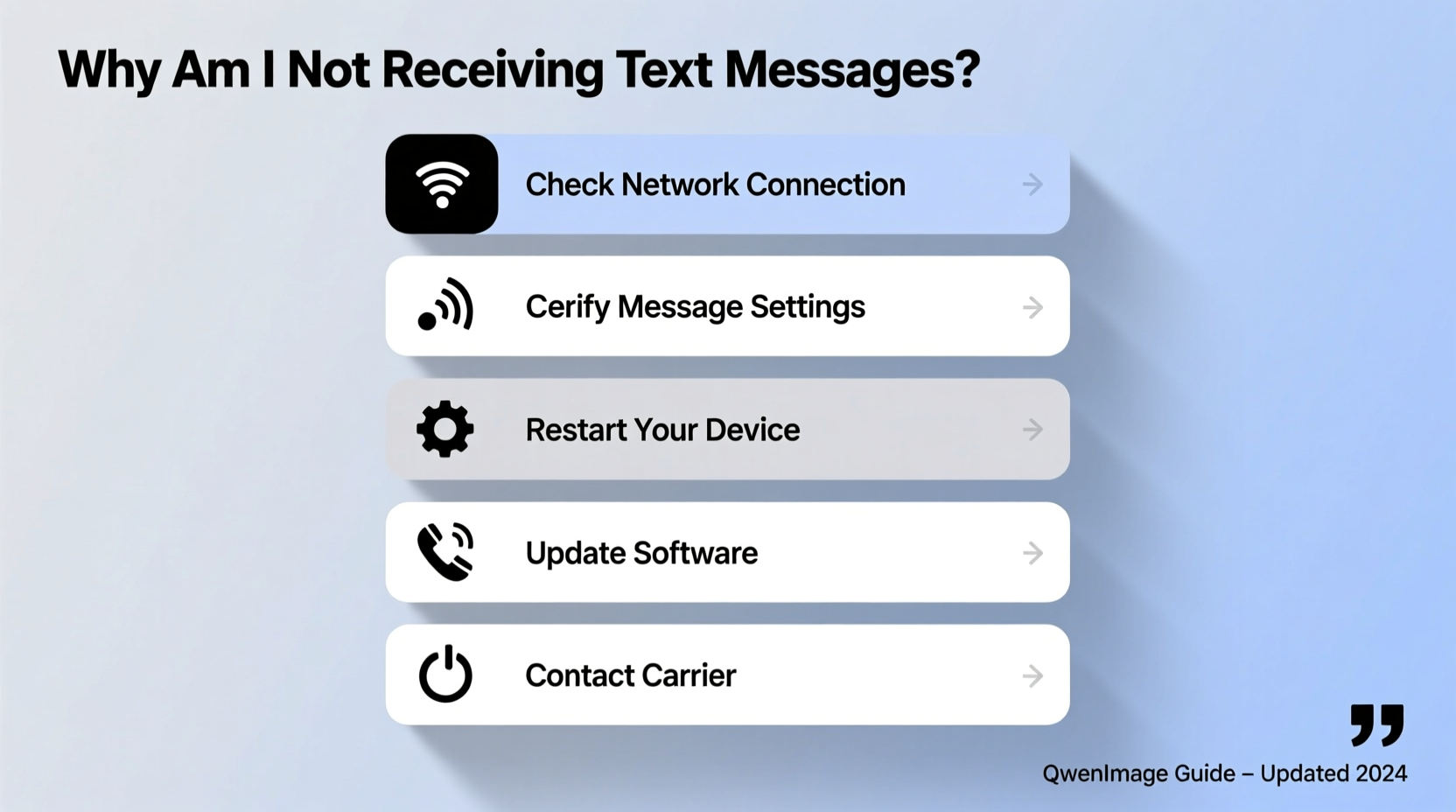
The first and most fundamental step is verifying that your device has a stable network connection. Without adequate signal strength, SMS and MMS messages simply cannot be delivered.
Look at your status bar:
- A strong cellular signal (indicated by full bars) means your phone can communicate with cell towers.
- No signal, “No Service,” or “SOS Only” indicates a connectivity problem.
- Wi-Fi Calling enabled? Ensure it’s properly configured if you’re relying on internet-based messaging.
For areas with consistently poor reception, consider a signal booster or contacting your carrier about network coverage in your area. Temporary dead zones can delay or block message delivery entirely.
Review Messaging App Settings
Your default messaging app may have settings that inadvertently block incoming messages. These vary between iOS and Android, but common culprits include blocked contacts, disabled notifications, or incorrect message type preferences.
iOS (iPhone)
- Navigate to Settings > Messages.
- Ensure Send & Receive uses your correct phone number and Apple ID.
- Verify that Filter Unknown Senders is not overly aggressive—check the \"Unknown Senders\" tab in the Messages app.
- Disable Silence Unknown Callers if it's interfering with message filtering.
Android
- Open your default messaging app (e.g., Google Messages).
- Go to Settings > Spam Protection and disable filters temporarily to test.
- Check Block Numbers or Spam folders for missed messages.
- Confirm that SMS and MMS are enabled under Advanced settings.
“Many users don’t realize their own spam filters are intercepting legitimate messages. A quick settings audit resolves over half of non-delivery cases.” — Lena Torres, Mobile Support Specialist at T-Mobile
Step-by-Step: Full Troubleshooting Checklist
Follow this sequence methodically. Many issues are resolved within the first few steps.
- Restart your phone. A reboot clears temporary glitches affecting messaging services.
- Check Do Not Disturb or Focus mode. These modes may silence notifications without blocking delivery.
- Verify the sender’s number isn’t blocked. Go to Settings > Blocked Contacts.
- Ensure your carrier plan includes SMS/MMS. Some prepaid or MVNO plans restrict messaging.
- Update your phone’s software. Outdated OS versions can cause compatibility bugs.
- Reinsert or replace your SIM card. A loose or damaged SIM prevents network registration.
- Reset network settings. This clears saved Wi-Fi, Bluetooth, and cellular configurations.
- Contact your carrier. Confirm there are no service outages or account suspensions.
Common Carrier and Account Issues
Sometimes, the problem isn’t with your phone at all. Carriers manage message routing, and account-level issues can interrupt service.
| Issue | Description | Solution |
|---|---|---|
| Service Suspension | Unpaid bill or expired prepaid balance | Pay outstanding balance or refill account |
| Network Outage | Regional disruption affecting SMS delivery | Check carrier’s outage map or status page |
| Number Porting Delay | Recent carrier switch not fully processed | Wait 24–48 hours or contact support |
| SMS Filtering by Carrier | Carrier blocks spam-like content automatically | Ask sender to avoid links or large media |
If you’ve recently switched carriers or ported your number, delays in full activation are normal—but exceeding 48 hours warrants a call to customer service.
Real-World Example: Sarah’s Missing Texts
Sarah hadn’t received any texts from her daughter’s school for two days. Panic set in when she missed a pickup reminder. She checked her phone: full signal, no blocked numbers, and no Do Not Disturb active. After restarting the device with no change, she opened the Messages app settings and discovered that “MMS Messaging” was turned off—an option buried in the Advanced menu.
After enabling MMS, she immediately received five photo-heavy messages from the school’s alert system, which relied on multimedia messaging. The issue wasn’t signal or carrier-related; it was a single disabled setting. Sarah now checks her messaging configuration quarterly to prevent recurrence.
iMessage vs. SMS: Understanding the Difference
iPhone users often confuse iMessage (blue bubbles) with standard SMS (green bubbles). If iMessage is malfunctioning, fallback to SMS should occur—but sometimes it doesn’t.
Causes include:
- iMessage stuck in activation loop
- No internet access (required for iMessage)
- Recipient’s number incorrectly registered with Apple’s servers
To reset iMessage:
- Go to Settings > Messages > Send & Receive.
- Sign out of your Apple ID.
- Restart the phone.
- Sign back in and re-enable iMessage.
This forces a fresh handshake with Apple’s messaging servers and often restores both iMessage and SMS functionality.
FAQ: Common Questions About Missing Texts
Why do I receive some texts but not others?
This usually points to selective filtering. Check spam folders, blocked contacts, or app-specific filters. It could also mean some senders use Rich Communication Services (RCS) or third-party apps (like WhatsApp), which behave differently than SMS.
Can someone block me without me knowing?
Yes. If a contact blocks your number, your messages will appear to send normally (with blue checkmarks on iPhone), but they won’t be delivered. There’s no direct notification—you’d need indirect clues like lack of response or read receipts disappearing.
Will resetting all settings delete my messages?
No. Resetting network or all settings does not erase messages, photos, or personal data. It only clears system preferences like Wi-Fi passwords, display brightness, and keyboard dictionaries.
Conclusion: Take Control of Your Messaging Experience
Not receiving text messages is frustrating, but rarely permanent. Most issues stem from simple oversights—disabled features, weak signals, or forgotten filters. By systematically checking your device settings, network status, and carrier account, you can pinpoint and fix the root cause efficiently. Don’t assume the problem is with the sender; modern mobile networks are complex, and small misconfigurations can have big consequences.




 浙公网安备
33010002000092号
浙公网安备
33010002000092号 浙B2-20120091-4
Comments
No comments yet. Why don't you start the discussion?