
Seeing blurry images on Google Images is a common frustration for users searching for high-quality visuals. Whether you're a designer sourcing inspiration, a marketer building a campaign, or someone simply looking for a clear photo, encountering pixelated or low-resolution results can be discouraging. The issue isn’t always with the images themselves—it often stems from how Google processes, displays, and serves visual content. Understanding the root causes and knowing how to navigate around them can significantly improve your experience.
How Google Images Works: A Behind-the-Scenes Look
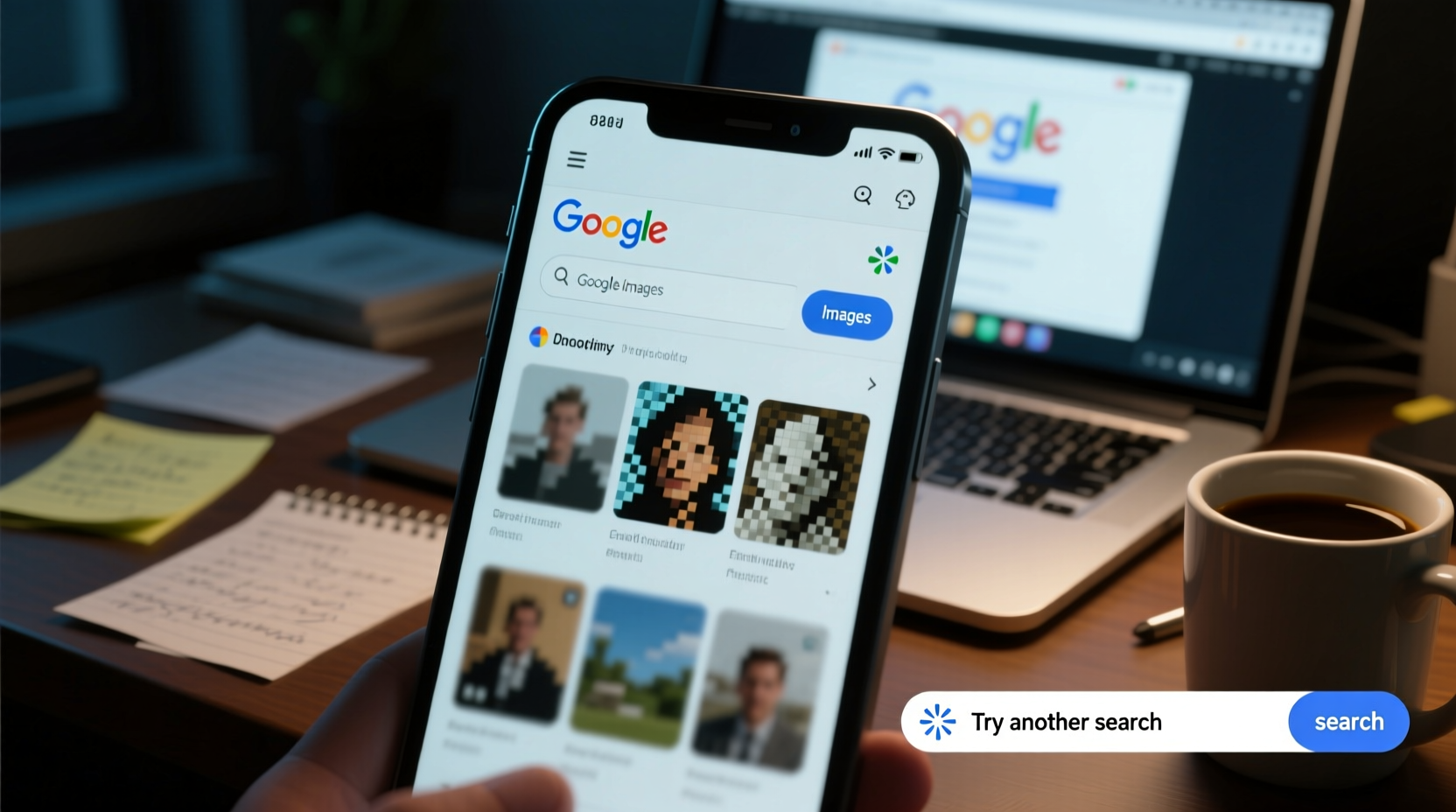
Google Images doesn't host photos directly. Instead, it indexes images from websites across the internet and generates thumbnails for fast loading. When you perform a search, Google retrieves relevant images and displays compressed versions in its grid layout. These thumbnails are optimized for speed, not resolution, which is why they often appear blurry when viewed in the preview pane.
The actual full-size image remains on the original website. Clicking “Visit page” or using the “View image” option (when available) redirects you to the source, where higher quality may be accessible. However, due to changes in Google’s interface over the years—especially after 2018—direct access to standalone image URLs has been limited, making it harder to assess true image quality without visiting external sites.
“Google prioritizes performance and bandwidth efficiency. That means thumbnails are aggressively compressed to load quickly, even if that sacrifices clarity.” — Sarah Lin, Web Performance Analyst at SpeedMetrics.io
Common Causes of Blurry Google Images
Several technical and environmental factors contribute to poor image clarity on Google Images. Recognizing these helps in applying effective solutions.
- Thumbnail compression: Google reduces image file sizes to ensure rapid page loads, especially on mobile devices.
- Low-quality source images: If the original image uploaded to a website is low resolution, Google can only index what’s available.
- Slow internet connection: On unstable networks, Google may serve lower-resolution previews temporarily.
- Browser rendering issues: Some browsers scale or render images poorly, particularly on high-DPI screens.
- Cached data: Outdated browser cache might display older, compressed versions of images.
- Device screen resolution: Viewing images on high-density displays (like Retina or 4K monitors) can make standard-resolution thumbnails look fuzzy.
Troubleshooting Steps to Improve Image Quality
If you're consistently seeing blurry images, follow this step-by-step guide to enhance your viewing experience.
- Clear browser cache and cookies: Old cached files may force outdated, compressed versions of images to load. In Chrome, go to Settings > Privacy and Security > Clear Browsing Data.
- Use an updated browser: Older versions may not support modern image formats like WebP, leading to fallbacks in lower quality.
- Check your internet speed: Slow connections trigger adaptive loading, where Google serves lower-quality assets. Run a speed test and reset your router if needed.
- Disable data-saving modes: Browser features like Chrome’s “Lite mode” or mobile data savers compress images automatically. Turn them off for full fidelity.
- Zoom out on the image grid: Sometimes, stepping back from the thumbnail view reveals sharper details due to scaling algorithms.
- Try incognito mode: This disables extensions and caches, helping determine if third-party tools are interfering with image rendering.
- Switch devices or networks: Test the same search on a different device or Wi-Fi network to isolate hardware or ISP-related issues.
Do’s and Don’ts When Searching for High-Quality Images
| Do’s | Don’ts |
|---|---|
| Use specific search terms like “high resolution,” “4K,” or “HD wallpaper” | Rely solely on the thumbnail preview for quality assessment |
| Filter by size (Large, Medium, etc.) using Google’s Tools menu | Assume all “large” labeled images are print-ready or ultra HD |
| Look for authoritative sources like .edu, .gov, or stock photography sites | Download images from unknown blogs without checking licensing |
| Verify image dimensions by visiting the source URL | Use right-click save if the site explicitly prohibits downloads |
Real Example: A Designer’s Experience
Jamal, a freelance graphic designer based in Portland, was preparing a client presentation on urban architecture. He searched “modern skyscraper silhouette” on Google Images and found several promising options. However, every image looked soft and indistinct in the preview. Frustrated, he almost gave up—until he remembered to filter by “Large” under the Tools menu. That narrowed results to images over 1024x768 pixels. He then clicked through each top result to the original websites, where he discovered downloadable PNGs with crisp edges and transparent backgrounds suitable for overlays. By combining filtering with source verification, Jamal saved hours and delivered a polished deck.
Advanced Tips for Finding Crisp, Usable Images
Beyond basic troubleshooting, advanced techniques can help you consistently locate high-fidelity visuals.
- Leverage advanced search operators: Try queries like
site:unsplash.com \"mountain landscape\" filetype:jpgto target trusted repositories. - Search by image type: Use filters for PNG (better for graphics), JPEG (photos), or SVG (scalable vectors).
- Reverse image search: Upload a low-res image via Google Lens or drag-and-drop into Google Images to find higher-resolution versions.
- Use alternative platforms: For professional needs, consider Unsplash, Pexels, or Adobe Stock, which offer curated, high-resolution content.
- Check EXIF data: Once on the source site, use browser extensions to inspect image metadata and confirm resolution and camera details.
Frequently Asked Questions
Why does Google show blurry images instead of clear ones?
Google uses compressed thumbnails to optimize loading speed and reduce bandwidth usage. These previews are not meant for detailed inspection but for quick browsing. The full-quality image typically resides on the source website.
Can I fix blurry Google Images permanently?
You can't change how Google serves thumbnails, but you can adjust your settings and habits to access better quality. Clearing cache, disabling data savers, filtering by size, and visiting original sources are reliable methods to consistently find sharper images.
Are all large-filtered images high resolution?
Not necessarily. Google’s “Large” filter refers to minimum dimensions (usually 1024x768 or above), but doesn’t guarantee high DPI, professional quality, or suitability for printing. Always verify resolution and licensing on the source site.
Conclusion: Take Control of Your Image Search Experience
Blurry Google Images aren’t a flaw—they’re a trade-off between speed and quality. While you can’t eliminate compressed thumbnails, you now have the tools to bypass their limitations. From refining your search strategy to leveraging filters and verifying sources, small adjustments lead to dramatically better results. Whether you're sourcing visuals for creative work or personal projects, don’t settle for fuzzy previews. Dig deeper, question assumptions, and prioritize original context over convenience.




 浙公网安备
33010002000092号
浙公网安备
33010002000092号 浙B2-20120091-4
Comments
No comments yet. Why don't you start the discussion?