
Many iPhone users have experienced the frustration of taking a sharp, high-resolution photo only to find it looks noticeably blurrier moments later when viewed from their camera roll or after sharing. This issue can be especially disheartening when capturing important moments—birthdays, travel scenes, or professional work. The degradation in image quality isn’t always due to the camera hardware; instead, it often stems from software settings, compression behaviors, or syncing processes that alter how images are stored and retrieved. Understanding the root causes—and knowing how to fix them—is essential for preserving the clarity and integrity of your photos.
Understanding iPhone Photo Compression and Storage
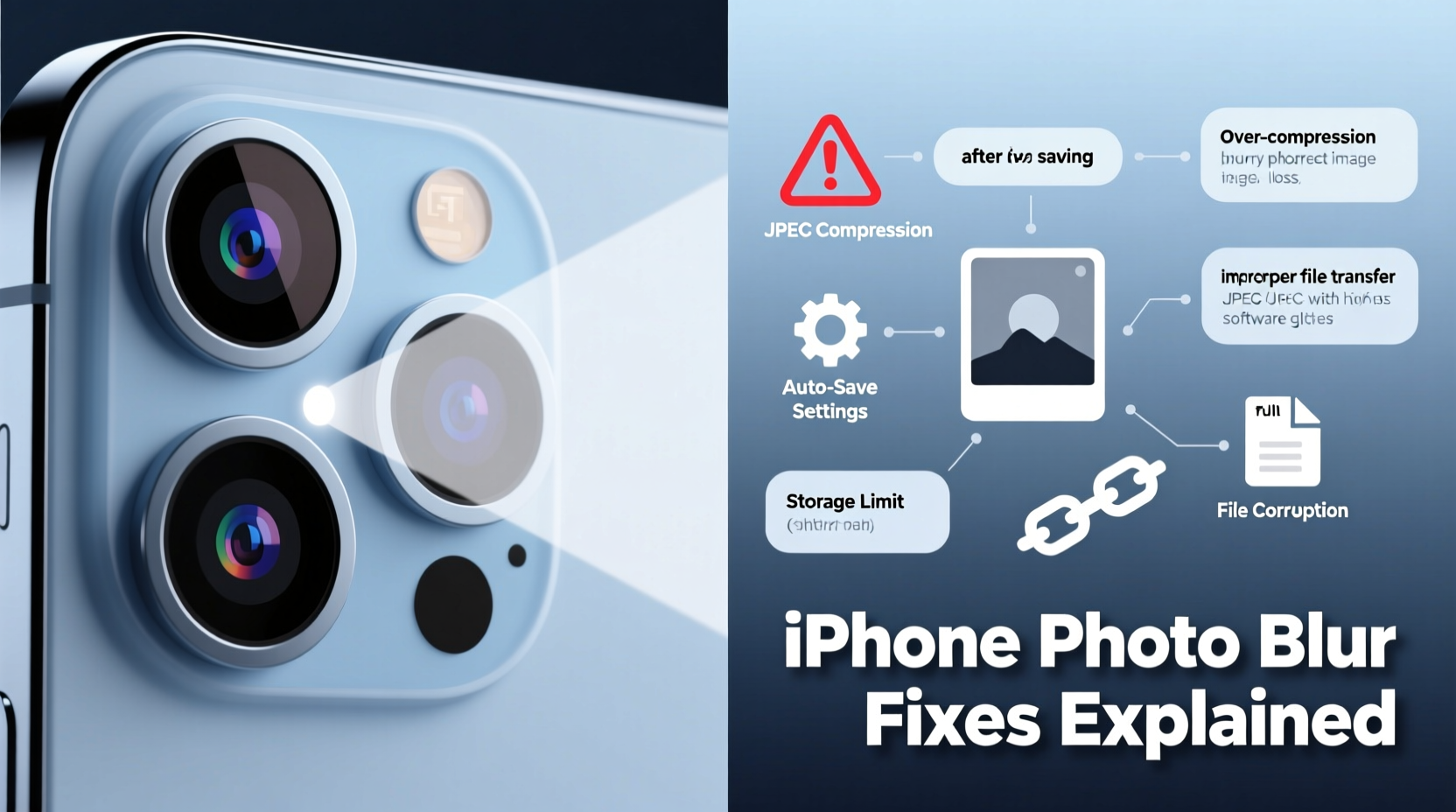
iPhones use a technology called HEIC (High Efficiency Image Format) by default to save photos. Introduced with iOS 11, HEIC reduces file size while maintaining visual quality, helping users save storage space. However, this efficiency comes at a cost: when photos are converted, shared, or saved across platforms, they may undergo recompression or format conversion, leading to visible blurriness.
When you take a photo, the iPhone captures it in full resolution. But depending on your settings, iCloud Photos behavior, messaging apps, or third-party platforms, the image may be downgraded during transfer or backup. For example, if “Optimize iPhone Storage” is enabled, full-resolution versions are stored in iCloud, while lower-quality proxies remain on-device. When you save or share these local versions, the reduced resolution becomes apparent.
Common Causes of Blurry Photos After Saving
- iCloud Optimization: If you use iCloud Photos with “Optimize iPhone Storage,” your device keeps smaller, compressed versions of photos to save space.
- Message Compression: Sending photos via iMessage or SMS automatically compresses them unless both sender and receiver use “Send as Actual Size.”
- Format Conversion: Converting HEIC files to JPEG—common when sharing with non-Apple devices—can introduce quality loss if not handled properly.
- Third-Party App Processing: Apps like Instagram, WhatsApp, or email clients may re-compress images upon upload, reducing resolution.
- Editing and Re-saving: Every time a photo is edited and exported through certain apps, it risks being recompressed, especially if saved multiple times.
“Image degradation on iPhones is rarely about the lens—it’s usually a pipeline issue between capture, storage, and delivery.” — David Lin, Mobile Imaging Specialist at TechVisual Lab
Step-by-Step Guide to Prevent and Fix Blurry Photos
To maintain photo clarity from capture to long-term storage, follow this structured workflow:
- Disable Optimize iPhone Storage (if possible): Go to Settings > [Your Name] > iCloud > Photos and select “Download and Keep Originals.” This ensures full-resolution images stay on your device.
- Change Default Message Settings: Navigate to Settings > Messages > “Low Quality Image Mode” and disable it. Also enable “Send as Actual Size” under the same menu.
- Use AirDrop Instead of MMS: When sharing with other Apple users, use AirDrop to transfer photos without compression.
- Export Photos Correctly: When saving to cloud services or computers, use the “Save Unmodified Original” option in the Share Sheet to avoid unintended processing.
- Switch to JPEG for Cross-Platform Sharing: In Settings > Camera > Formats, choose “Most Compatible” to default to JPEG instead of HEIC, reducing conversion issues.
- Avoid Repeated Edits: Edit photos once using non-destructive editors (like Apple Photos or Lightroom), then export the final version only once.
Do’s and Don’ts: Best Practices for Preserving Image Quality
| Do | Don’t |
|---|---|
| Use “Download and Keep Originals” in iCloud Photos | Rely on “Optimize iPhone Storage” if you frequently edit or share photos |
| Enable “Send as Actual Size” in Messages | Assume all shared photos retain full quality automatically |
| Transfer photos via AirDrop or direct cable connection | Repeatedly save and re-upload the same photo across apps |
| Choose “Most Compatible” mode in Camera Settings | Ignore format differences when transferring to Windows or Android |
| Back up originals to external drives or Mac | Delete original photos immediately after cloud upload |
Real Example: A Travel Photographer’s Experience
Sophie, a freelance travel photographer based in Vancouver, relied on her iPhone 14 Pro for candid shots during a trip to Japan. She noticed that while her preview thumbnails looked crisp, the saved versions in Google Photos appeared soft and lacked detail. After investigation, she discovered that her iPhone was set to “Optimize iPhone Storage,” meaning only compressed versions were being uploaded to Google via screen recording and save actions. Additionally, she had been sending photos to her editor via standard iMessage, which applied aggressive compression.
After switching to “Download and Keep Originals,” enabling “Send as Actual Size,” and using AirDrop to transfer files to her MacBook before uploading, the quality discrepancy disappeared. Her editor confirmed receiving full-resolution, print-ready images. Sophie now audits her photo workflow monthly to ensure no settings have reverted after updates.
Troubleshooting Checklist: Is Your Photo Being Compressed?
Use this checklist to identify and resolve blurriness issues:
- ✅ Check iCloud Photos setting: Is it set to “Optimize iPhone Storage”?
- ✅ Verify Messages settings: Is “Low Quality Image Mode” turned off?
- ✅ Confirm camera format: Is it set to “Most Compatible” (JPEG) or “High Efficiency” (HEIC)?
- ✅ Test export method: Does saving via Share Sheet include an “Unmodified Original” option?
- ✅ Review app behavior: Are third-party apps (e.g., WhatsApp, Gmail) known to compress media?
- ✅ Inspect file metadata: Use a computer to check pixel dimensions and file size—smaller than expected? Likely compressed.
- ✅ Try direct transfer: Connect iPhone to Mac/PC and copy photos directly via Finder or Image Capture.
Frequently Asked Questions
Why do my iPhone photos look fine in the gallery but blurry when I save them?
This typically happens because the gallery displays cached previews or optimized thumbnails. When you save or share the photo, the system may pull a lower-resolution version—especially if “Optimize iPhone Storage” is enabled or if the app forces compression during export.
Can I recover a blurred photo that was saved in low quality?
If the original full-resolution version still exists in iCloud or hasn’t been overwritten, you can restore it. Open the Photos app, tap “Select,” choose the blurry photo, then tap the Share button and look for “Duplicate Unmodified Original.” If unavailable, the original may have been lost. Always back up originals externally.
Does iOS update affect photo quality settings?
Yes. Some iOS updates reset default settings, including message compression and iCloud optimization. After major updates, revisit Settings > Messages and Settings > iCloud > Photos to confirm your preferred options are still active.
Final Thoughts: Take Control of Your iPhone’s Photo Quality
The convenience of smartphone photography shouldn’t come at the expense of image fidelity. Blurry photos after saving are preventable with awareness and proactive configuration. By adjusting iCloud settings, disabling compression features, choosing compatible formats, and understanding how apps handle media, you can ensure every photo retains its intended sharpness and detail.
Don’t let automatic optimizations silently degrade your memories or professional work. Audit your current settings today, establish a reliable workflow, and treat your iPhone not just as a casual camera—but as a serious imaging tool worthy of proper care and attention.




 浙公网安备
33010002000092号
浙公网安备
33010002000092号 浙B2-20120091-4
Comments
No comments yet. Why don't you start the discussion?