
Seeing duplicate app icons on your smartphone or tablet can be confusing—and frustrating. You tap one icon expecting a familiar interface, only to find another identical version launching beside it. This glitch doesn’t just clutter your home screen; it can also affect performance, drain battery life, and cause data sync issues. The good news is that app duplication is usually not a hardware failure or permanent software defect. In most cases, it’s caused by identifiable system behaviors, syncing anomalies, or third-party tools. Understanding the root causes empowers you to resolve the problem efficiently and prevent recurrence.
Common Causes of App Duplication
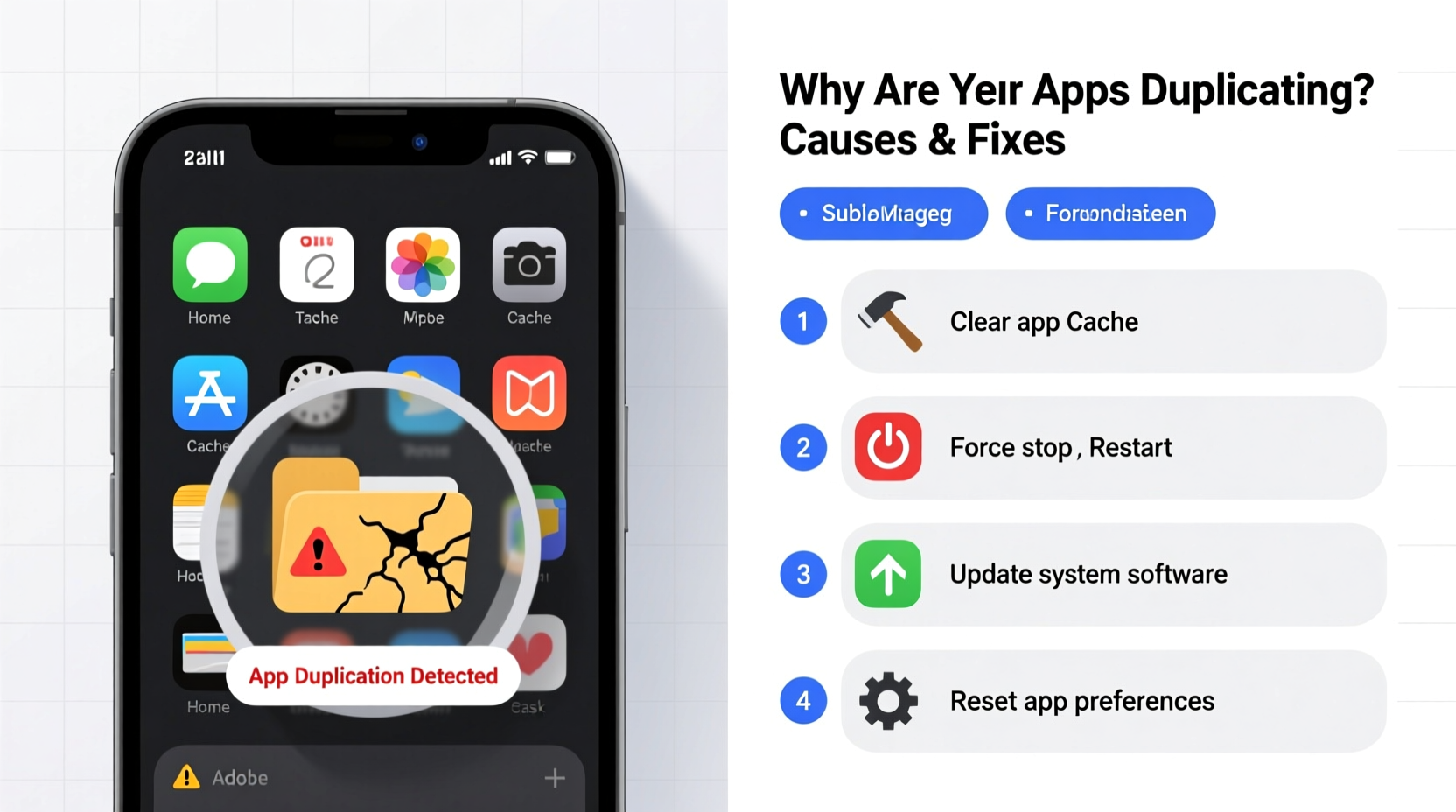
App duplication isn't random. It typically stems from specific interactions between your operating system, installed applications, and cloud services. Below are the most frequent triggers:
- Multiple User Profiles or Work Profiles: Android devices often support dual profiles—personal and work. Apps installed in both environments appear as duplicates, even though they operate independently with separate data.
- App Cloners or Dual Space Features: Many manufacturers (e.g., Samsung, Xiaomi, Oppo) include built-in app cloning tools for running two instances of messaging apps like WhatsApp or Instagram. If enabled unintentionally, these create exact copies.
- Cloud Sync Glitches: When restoring from a backup via Google Drive, iCloud, or manufacturer-specific services, metadata errors can cause the system to reinstall apps already present, resulting in duplicates.
- Third-Party Launchers: Some custom launchers misinterpret app shortcuts or fail to refresh the app drawer properly after updates, displaying outdated entries alongside current ones.
- Developer Options or Sideloading Errors: Installing debug versions (APKs) alongside Play Store versions creates two distinct apps with similar names and icons.
“Duplicate apps are rarely a sign of malware, but rather a symptom of configuration overlap. Most fixes involve adjusting settings, not removing software.” — David Lin, Mobile Systems Engineer at Android Authority Labs
How to Fix Duplicate Apps: Step-by-Step Guide
Resolving app duplication requires identifying the underlying mechanism first. Follow this structured approach to eliminate unwanted copies safely.
- Determine if the Duplicates Are Intentional
Check your device settings for any active app cloning features. On Samsung devices, go to Settings > Advanced Features > Dual Messenger. On Xiaomi phones, navigate to Settings > Apps > Twin Apps. Disable any entries you didn’t intentionally set up. - Review Work Profile Settings
If your phone is linked to a corporate email or managed by an organization, a work profile may be active. Go to Settings > Accounts > Work Profile (or Users & accounts) and see if apps are mirrored under a separate space. Removing the work profile (if permitted) will remove the duplicates. - Clear Launcher Cache
If using a third-party launcher (e.g., Nova, Microsoft Launcher), force-stop it via Settings > Apps > [Launcher Name], then clear its cache. Restart the device to rebuild the app list correctly. - Uninstall the Unwanted Instance
Long-press the duplicate app icon and select “App Info.” If the package name differs slightly (e.g., com.whatsapp vs. com.whatsapp.w4), uninstall the one you don’t need. Be cautious not to delete essential data. - Reset App Preferences (Android)
Go to Settings > Apps > Reset app preferences. This won’t delete data but resets permissions, default apps, and background restrictions, which can correct display anomalies.
Do’s and Don’ts: Managing App Instances
| Action | Do | Don't |
|---|---|---|
| Using Dual Apps | Enable only for apps needing separate accounts (e.g., personal and business WhatsApp). | Clone every social media app unnecessarily—increases bloat and confusion. |
| After Factory Reset | Restore selectively from backup; verify apps during setup. | Automatically restore everything without reviewing installed apps. |
| Installing APKs | Only install signed APKs from trusted sources; avoid beta/test versions unless needed. | Sideloading multiple versions of the same app without version control. |
| Troubleshooting | Restart the device after making changes to app settings. | Use third-party \"cleaner\" apps that promise to \"remove duplicates\"—they may delete wrong files. |
Real-World Example: Maria’s Messaging Confusion
Maria, a small business owner, started seeing two WhatsApp icons on her Samsung Galaxy S22. She assumed someone had hacked her phone until she noticed one version contained old messages while the other had recent chats. After some research, she discovered she had accidentally re-enabled “Dual Messenger” during a recent update. The second instance was empty because she hadn’t set it up. By visiting Settings > Advanced Features > Dual Messenger, she disabled the cloned WhatsApp and merged her chat backups into the primary app. Her home screen returned to normal within minutes.
This scenario highlights how easily duplication occurs—even among tech-savvy users—and how simple the fix can be when the right setting is identified.
Prevention Checklist
To avoid future occurrences of app duplication, follow this proactive checklist:
- ✅ Regularly audit installed apps in your device settings.
- ✅ Disable Twin Apps or Dual Messenger unless actively required.
- ✅ Avoid installing the same app from multiple sources (Play Store + APK).
- ✅ Use only one launcher at a time; switch back to default if glitches occur.
- ✅ During device setup or restore, manually choose which apps to reinstall.
- ✅ Keep your OS and apps updated—many duplication bugs are patched in updates.
Frequently Asked Questions
Can duplicate apps harm my phone?
No, duplicate apps themselves aren’t harmful. However, they consume extra storage, increase background activity, and may lead to confusion over which instance holds your latest data. In rare cases, poorly coded clones might introduce security vulnerabilities.
Why do I see two Chrome browsers after updating Android?
This often happens when a system update reinstalls Chrome alongside a user-installed version. Check your app manager—uninstall the redundant one (usually labeled as “User” app). The system version will remain and function normally.
Will resetting my phone fix duplicated apps permanently?
A factory reset removes all current duplicates, but if the same backup is restored without adjustments, the issue can return. For lasting results, disable cloning features and manage restore options carefully post-reset.
Conclusion: Take Control of Your Digital Experience
Duplicate apps disrupt the clean, intuitive experience smartphones are designed to deliver. While unsettling at first, the condition is almost always reversible through careful diagnosis and targeted fixes. Whether triggered by dual profiles, cloning tools, or sync inconsistencies, the solution lies in understanding your device’s architecture and managing settings with intention. Now that you know the causes and have actionable steps to resolve them, you can maintain a streamlined, efficient home screen.




 浙公网安备
33010002000092号
浙公网安备
33010002000092号 浙B2-20120091-4
Comments
No comments yet. Why don't you start the discussion?