
If you've ever clicked \"Send\" in Outlook only to find your message lingering indefinitely in the Outbox, you're not alone. This common issue can disrupt workflows, delay communication, and cause unnecessary stress—especially when sending time-sensitive emails. While Outlook is a powerful email client, it’s not immune to glitches that interfere with message delivery. The good news: most cases of stuck emails have straightforward solutions. Understanding why this happens and how to fix it quickly can save hours of frustration.
Understanding the Outlook Outbox: What It Means When Emails Get Stuck
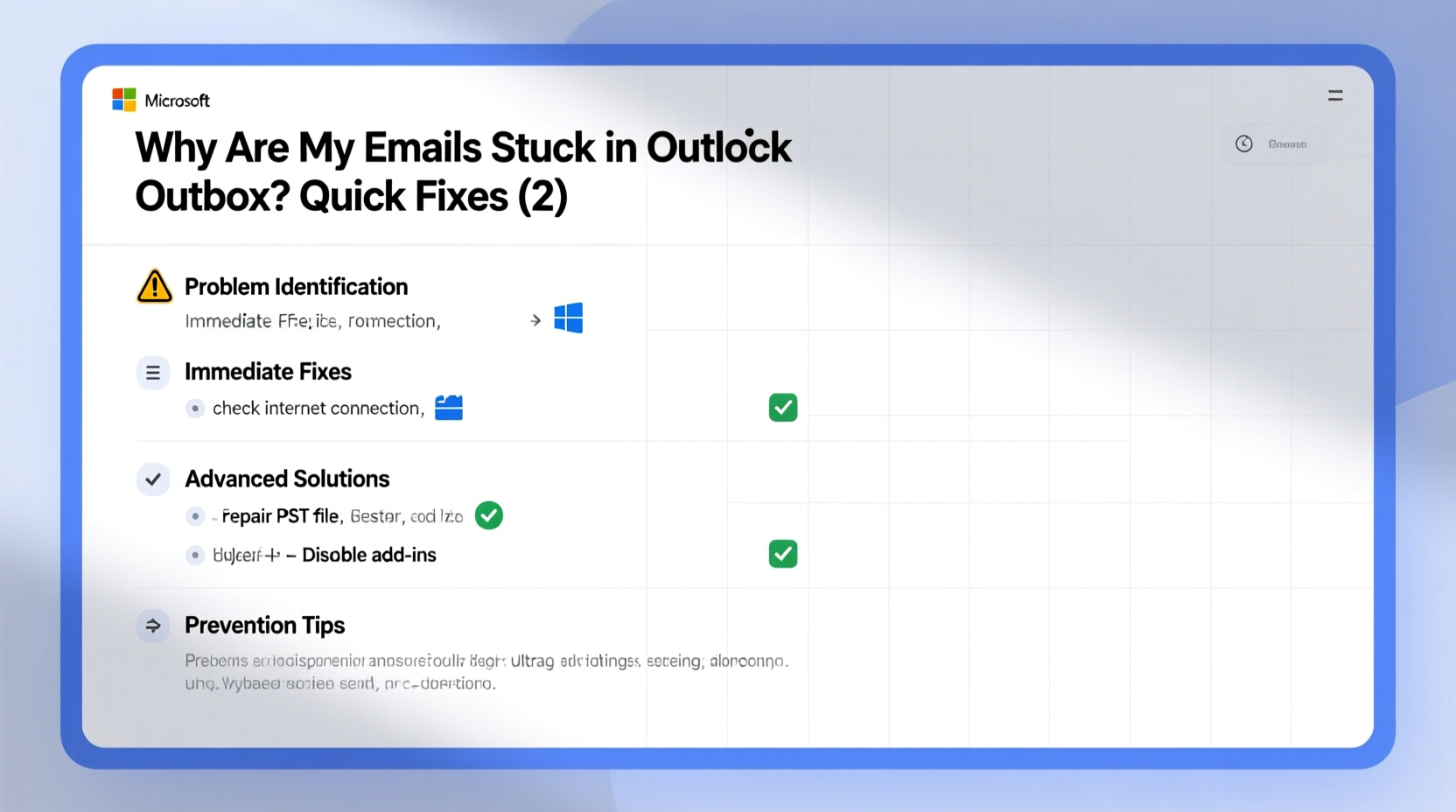
The Outbox in Microsoft Outlook acts as a temporary holding area for outgoing messages before they are successfully transmitted through your email server. Normally, emails pass through this folder briefly—often just seconds—before being sent. However, when an email remains in the Outbox for minutes or even hours, it indicates a disruption in the send/receive process.
This delay can stem from various sources: network connectivity problems, incorrect account settings, oversized attachments, corrupted data files, or interference from add-ins. In some cases, the issue may be server-side, such as temporary outages from your email provider (e.g., Exchange, Office 365, or IMAP/POP services).
Step-by-Step Troubleshooting Guide to Free Stuck Emails
Follow this structured approach to diagnose and resolve the root cause efficiently.
- Check Your Internet Connection
Without a stable connection, Outlook cannot communicate with the mail server. Test by opening a browser and loading a website. If connectivity is down, restart your router or switch to a reliable network. - Force a Manual Send/Receive
In Outlook, press F9 or go to Send / Receive > Send All. This forces Outlook to attempt processing all pending messages immediately. - Verify Server Status
If you're using Microsoft 365 or Exchange, visit Microsoft 365 Service Health to see if there's an ongoing outage affecting mail flow. - Disable Offline Mode
Go to Send / Receive > Work Offline and ensure it’s unchecked. Being in offline mode prevents any messages from sending until reconnected. - Restart Outlook in Safe Mode
Press Win + R, typeoutlook.exe /safe, and press Enter. This starts Outlook without add-ins, which might be interfering with message transmission.
Common Causes and Their Fixes
Different underlying issues require targeted responses. Below is a breakdown of frequent culprits and how to address them.
| Cause | Symptoms | Solution |
|---|---|---|
| Large Attachments | Emails freeze during send; error about message size | Compress files or use cloud sharing links (OneDrive, Google Drive) |
| Corrupted PST/OST File | Multiple emails stuck; slow performance | Run Inbox Repair Tool (scanpst.exe) |
| Outdated Outlook Version | Sync errors, crashes, failed sends | Update via File > Office Account > Update Options |
| Add-in Conflicts | Stuck emails only occur after installing new tools | Disable add-ins one by one under File > Options > Add-ins |
| Incorrect SMTP Settings | Messages never leave Outbox; no error messages | Verify port numbers and encryption (TLS/SSL) with your IT team or provider |
Mini Case Study: Resolving Chronic Outbox Delays in a Small Business
A marketing firm with ten employees reported recurring delays in client communications. Several team members noticed emails remaining in the Outbox for over two hours. Initial troubleshooting revealed that large design files (over 20MB) were being attached directly to messages—exceeding their ISP’s 10MB limit. Additionally, outdated antivirus software was scanning every outgoing message, creating bottlenecks.
The IT consultant recommended switching to OneDrive sharing links instead of direct attachments and updating the security suite. They also configured Outlook to compress images automatically before sending. Within 48 hours, the stuck email issue resolved completely, and send times returned to normal.
“Email reliability hinges on both user habits and system health. A single oversized attachment can cascade into broader communication failures.” — Raj Mehta, Corporate IT Consultant
Actionable Checklist: Fix Stuck Emails in Under 10 Minutes
Use this checklist whenever you encounter stuck messages:
- ✅ Confirm internet connectivity is active
- ✅ Toggle off “Work Offline” mode in Send/Receive tab
- ✅ Press F9 to force send/receive cycle
- ✅ Check for unusually large attachments (>10–15MB)
- ✅ Restart Outlook normally, then try again
- ✅ Launch Outlook in Safe Mode to rule out add-in conflicts
- ✅ Verify account settings match those provided by your email host
- ✅ Run scanpst.exe if multiple messages fail consistently
When to Use the Inbox Repair Tool (scanpst.exe)
If emails remain stuck across multiple attempts and restarting doesn't help, your Outlook data file may be corrupted. The built-in Inbox Repair Tool can often resolve these structural issues.
To access it:
1. Close Outlook completely.
2. Navigate to C:\\Program Files\\Microsoft Office\\OfficeXX (replace XX with your version number).
3. Locate and run scanpst.exe.
4. Select your profile’s PST or OST file.
5. Click “Start” to scan, then “Repair” if issues are found.
6. Reopen Outlook and test sending a new message.
Note: Always back up your PST file before running repairs. Data loss, though rare, is possible with severely damaged files.
Frequently Asked Questions
Why do some emails get stuck while others send fine?
This usually points to message-specific factors like file size, recipient server issues, or formatting errors (e.g., embedded scripts). It can also happen if certain rules or Quick Steps interfere with delivery. Try resending the message in plain text format to isolate the cause.
Can antivirus software block emails from sending?
Yes. Some security programs deeply integrate with Outlook and scan every outgoing message. If the scanner freezes or takes too long, the email may appear stuck. Temporarily disable real-time email scanning to test—if messages send normally, adjust your antivirus settings or update its definitions.
Will clearing the Outbox delete my unsent emails?
Deleting a message from the Outbox removes it permanently unless it has already been delivered. Before deleting, copy the content to Notepad or Word as a backup. Only remove items you’re certain you no longer need to send.
Final Thoughts: Prevent Future Outbox Issues
Prevention is more effective than constant troubleshooting. Regularly maintain your Outlook environment by keeping the application updated, avoiding excessively large attachments, and reviewing add-ins periodically. Set up automatic archiving to prevent oversized mailbox files, which contribute to instability.
For teams relying heavily on Outlook, consider adopting standardized email practices—such as using shared drives for large files and setting up message size alerts—to minimize disruptions. Monitoring send behavior weekly helps catch issues early.




 浙公网安备
33010002000092号
浙公网安备
33010002000092号 浙B2-20120091-4
Comments
No comments yet. Why don't you start the discussion?