
If you've recently noticed that your Google search results appear in an unusual orange hue instead of the standard blue links, you're not imagining things—and it's more than just a visual quirk. This color shift can indicate underlying technical issues, from browser settings to potential malware infections. While some causes are harmless, others may compromise your privacy or browsing experience. Understanding what triggers this change is essential to restoring normal functionality and ensuring your device remains secure.
What Causes Google Search Results to Turn Orange?
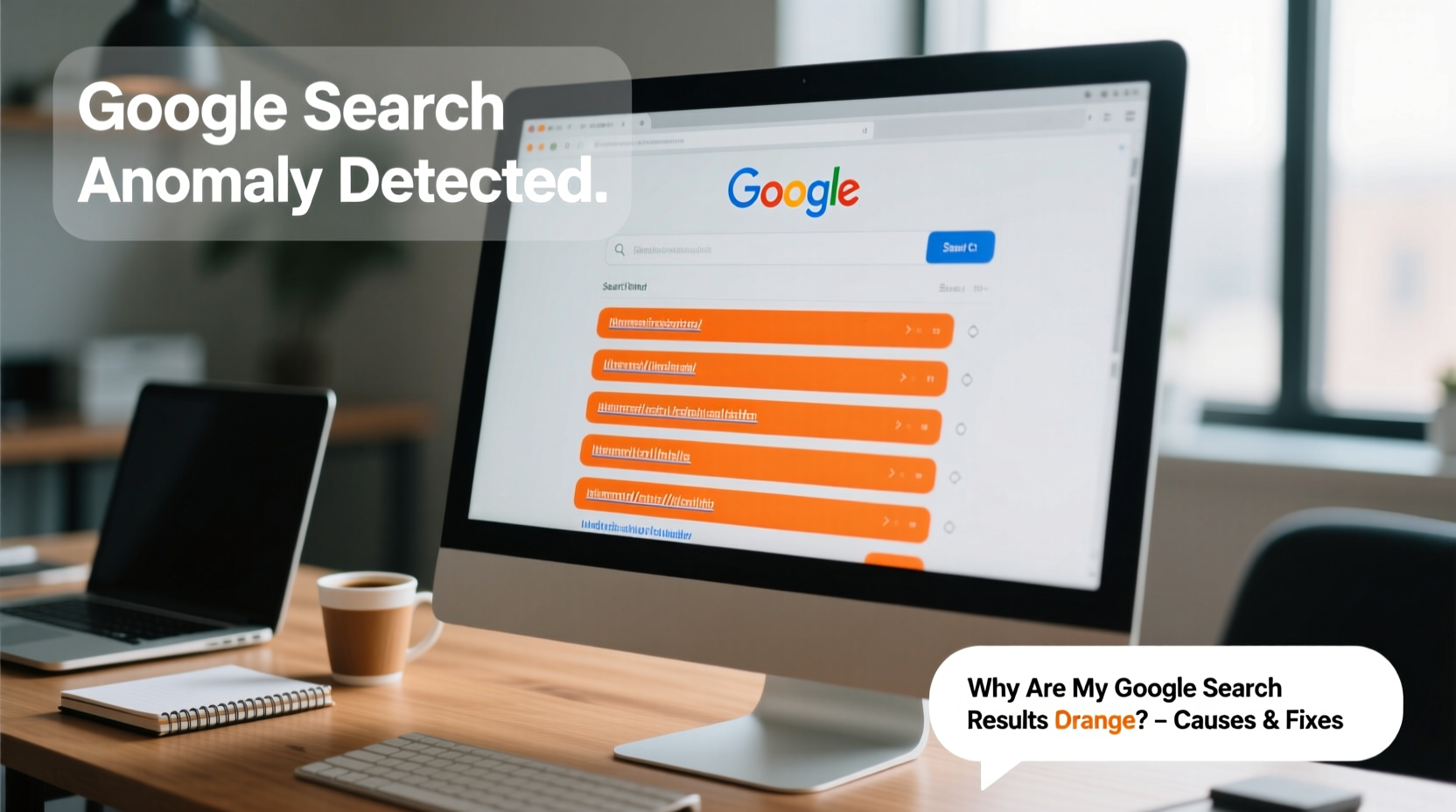
The default color for Google search result titles is a deep blue (#1a0dab). When these links appear orange, it typically means something has overridden the original styling. This override can stem from software on your device, browser configurations, or even network-level interference. The most common culprits include browser extensions, custom CSS rules, malware, or accessibility tools that alter page appearance.
Unlike temporary glitches, persistent orange results suggest a systemic issue. Some users report seeing orange after installing new toolbars, ad blockers with aggressive theming, or third-party SEO analysis tools. Others find the change occurs only on certain devices or networks, pointing to localized configuration problems rather than account-wide changes.
Browser Extensions That Modify Page Appearance
Many browser add-ons enhance functionality by injecting custom styles into web pages. Extensions like \"Dark Reader,\" \"Stylus,\" or SEO auditing tools often recolor links to improve readability or highlight specific elements. While useful, these tools sometimes apply unintended color schemes to Google results.
To verify if an extension is responsible:
- Open your browser in Incognito or Private mode (where most extensions are disabled).
- Perform a Google search.
- If the results appear normal, an active extension is likely altering the display.
From there, disable extensions one by one to identify the offender. Pay special attention to themes, ad blockers, readability enhancers, and developer tools.
Malware and Unwanted Software Interference
In more serious cases, orange-tinted search results signal a malware infection. Certain types of adware or browser hijackers modify web content to promote affiliate links, redirect traffic, or inject advertisements. These programs often change link colors as part of broader visual manipulation.
Common signs of malware-related color changes include:
- Orange links persist across different websites
- New, unfamiliar toolbars or homepage settings
- Redirects to unknown search engines
- Slower browser performance or unexpected pop-ups
“Any unauthorized change to search result presentation should be treated as a red flag. It often indicates deeper system compromise.” — Dr. Lena Patel, Cybersecurity Analyst at WebShield Labs
How Malware Alters Search Results
Malicious software operates at the browser level, injecting scripts into web pages before they load. These scripts can rewrite CSS styles, including link colors. Because the changes happen client-side, Google itself isn’t at fault—the problem lies within your local environment.
Some strains specifically target high-traffic sites like Google to maximize exposure for phishing attempts or pay-per-click fraud. They may also track browsing habits, steal credentials, or degrade system performance over time.
Accessibility Settings and High Contrast Modes
Operating systems and browsers offer accessibility features designed to assist users with visual impairments. High contrast modes, screen readers, and color filter settings can unintentionally alter the appearance of web content, including Google search results.
For example:
- Windows High Contrast Mode may replace blue links with orange for better visibility.
- macOS Display Accommodations can invert colors or apply tints.
- Chrome’s “Force Dark Mode” or experimental flags might interfere with site rendering.
| Platform | Setting Location | Potential Impact |
|---|---|---|
| Windows 10/11 | Settings > Ease of Access > High Contrast | Overrides website colors |
| macOS | System Settings > Accessibility > Display | Color filters affect all apps |
| Google Chrome | chrome://flags/#enable-force-dark | May distort light-themed sites |
| Android/iOS | Device Accessibility Settings | Affects mobile browser output |
Step-by-Step Fix Guide
Follow this structured approach to diagnose and resolve orange Google search results:
- Test in Incognito Mode – Open an incognito window and run a Google search. If results are normal, the issue is caused by extensions or cache.
- Disable All Extensions – Go to your browser’s extension manager and turn off every add-on. Reload Google. Re-enable one by one to isolate the culprit.
- Clear Browser Cache and Cookies – Corrupted cached data can cause display anomalies. Clear browsing data including cached images and files.
- Check Accessibility Settings – Review your OS and browser settings for any enabled high contrast, color filters, or forced themes.
- Scan for Malware – Use trusted antivirus software (e.g., Malwarebytes, Windows Defender) to perform a full system scan.
- Reset Browser Settings – If problems persist, reset your browser to default settings. This removes custom configurations without deleting bookmarks.
- Update Your Browser – Ensure you’re running the latest version. Outdated software may have rendering bugs or security flaws.
Real-World Example: A Small Business Owner’s Experience
Sarah Thompson, who runs a digital marketing agency in Austin, began noticing orange search results while researching SEO trends. At first, she assumed it was a Google UI update. But when clients reported similar issues after visiting her site, she investigated further.
She discovered that a recently installed \"SEO Analyzer Pro\" extension was overriding link colors site-wide using custom CSS. Although marketed as a productivity tool, it also injected invisible tracking scripts. After removing the extension and running a malware scan, her search results returned to normal. She now audits all browser tools for permissions and reviews user feedback before installation.
Prevention Checklist
Protect your browsing experience with these proactive steps:
- ✅ Only install browser extensions from official stores (Chrome Web Store, Firefox Add-ons)
- ✅ Review extension permissions before enabling
- ✅ Regularly audit and remove unused add-ons
- ✅ Keep antivirus software updated and run monthly scans
- ✅ Avoid pirated software or cracked tools that may bundle malware
- ✅ Monitor browser homepage and default search engine settings
- ✅ Use built-in browser protection features (e.g., Google Safe Browsing)
Frequently Asked Questions
Is Google intentionally changing search result colors to orange?
No, Google does not use orange for standard search result titles. Any deviation from the traditional blue indicates external interference, such as browser modifications or malware.
Can my router or ISP change Google’s colors?
While rare, some ISPs or public Wi-Fi networks inject ads or scripts that alter webpage content. However, this is uncommon in residential broadband. More likely, the issue originates from your device.
Do dark mode settings cause orange links?
Yes. Some dark mode implementations poorly handle color contrast and may render links in orange or yellow to maintain visibility. Adjust your theme settings or use well-maintained dark mode extensions.
Conclusion: Take Control of Your Browsing Environment
Orange Google search results are not a glitch to ignore. They serve as a visible symptom of deeper technical influences—some benign, others potentially harmful. Whether caused by an overzealous browser extension or a stealthy malware infection, identifying and resolving the root cause protects your privacy, improves performance, and restores trust in your online experience.




 浙公网安备
33010002000092号
浙公网安备
33010002000092号 浙B2-20120091-4
Comments
No comments yet. Why don't you start the discussion?