
If you've ever sent a message from your iPhone and noticed the bubble turned green instead of blue, you're not alone—and you're probably wondering what it means. The color of your message bubbles isn't just a design quirk; it reflects the underlying technology being used to send your text. Understanding why messages appear green versus blue can help clarify delivery issues, privacy concerns, and compatibility across devices.
This distinction becomes especially important when communicating with friends or family who may use different phones. While it might seem trivial at first glance, the color difference reveals whether your message is being sent via Apple's iMessage network or the older SMS/MMS system. Let’s explore exactly what these colors mean, why they matter, and how you can control or troubleshoot them.
What Do Blue and Green Message Bubbles Mean?
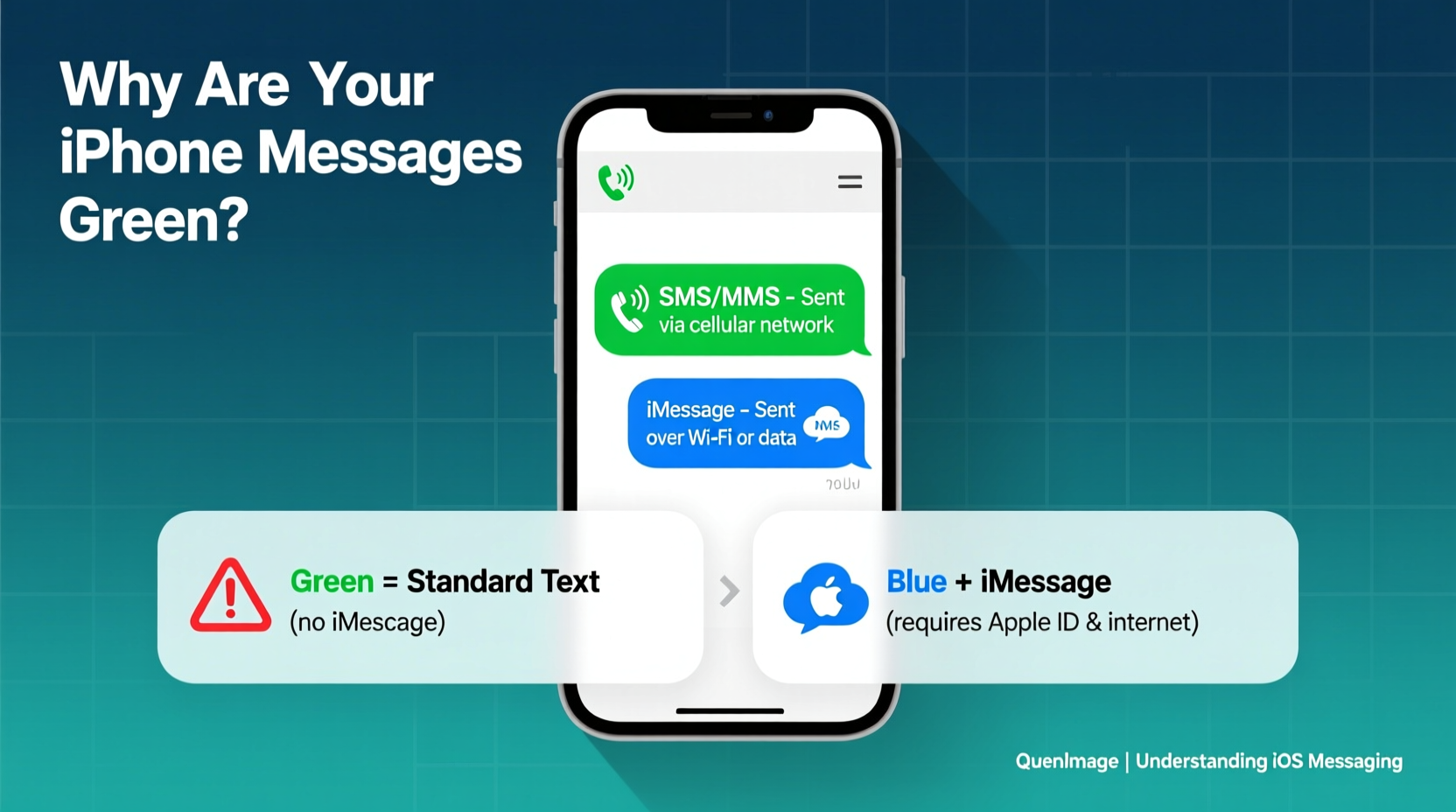
The most immediate visual clue in the Messages app on iPhone is the color of the text bubble:
- Blue bubbles: These indicate messages sent via iMessage, Apple’s proprietary internet-based messaging service.
- Green bubbles: These represent standard SMS (Short Message Service) or MMS (Multimedia Messaging Service) texts sent through your cellular carrier.
iMessage requires an Apple ID and an internet connection—either Wi-Fi or cellular data—to function. It supports enhanced features like read receipts, typing indicators, high-quality photo sharing, and end-to-end encryption. In contrast, SMS/MMS operates over traditional voice networks, doesn’t require internet access, but lacks modern features and security.
So when you see green, you’re essentially sending a “regular” text message, much like any non-smartphone user would receive.
Why Are My Messages Green Instead of Blue?
There are several common reasons why your messages might be green even when texting another iPhone user:
- The recipient doesn’t have an iPhone. This is the most frequent cause. Android, Windows Phone, or basic phones only support SMS/MMS, so all messages to those devices will appear in green.
- iMessage is turned off on the recipient’s device. Even if they own an iPhone, if iMessage is disabled in Settings > Messages, your texts will fall back to SMS and show as green.
- Your own iMessage is disabled. If iMessage is off on your phone, outgoing messages default to SMS regardless of the recipient’s device.
- No internet connection. iMessage requires data. If you’re out of Wi-Fi range and cellular data is off or unavailable, your iPhone sends the message as SMS instead.
- The recipient changed their phone number or restored their device. When someone resets their iPhone or switches SIM cards, Apple may temporarily de-register their number from iMessage, causing messages to revert to green until reactivation.
This fallback mechanism ensures you can still communicate even when iMessage isn’t available—but at the cost of losing advanced features and encryption.
Key Differences Between iMessage (Blue) and SMS (Green)
| Feature | iMessage (Blue) | SMS/MMS (Green) |
|---|---|---|
| Encryption | End-to-end encryption | No encryption |
| Internet Required | Yes (Wi-Fi or data) | No (uses cellular network) |
| Read Receipts | Available (if enabled) | Not supported |
| Typing Indicators | Yes | No |
| Group Chat Features | Names, replies, mentions | Limited or none |
| Photo/Video Quality | High quality, no compression | Often compressed |
| Delivery Confirmation | \"Delivered\" or \"Read\" status | No confirmation beyond sending |
As shown, iMessage offers a significantly richer and more secure experience than traditional texting. However, its functionality depends entirely on ecosystem alignment—both sender and receiver must be within Apple’s network for full benefits.
Real Example: A Misunderstood Conversation
Sarah noticed that her messages to her friend Jake suddenly turned green. She assumed he got a new Android phone. Concerned about privacy, she asked him directly. Jake was surprised—he still had his iPhone. After checking, he realized he had accidentally disabled iMessage during a recent software update. Once he re-enabled it under Settings > Messages, the bubbles turned blue again, and Sarah could see read receipts once more.
This simple fix restored full functionality without either party needing to change devices or carriers. It highlights how easily settings changes can impact communication quality—and why understanding message colors matters.
How to Fix Green Messages When Using Two iPhones
If you’re messaging another iPhone user and seeing green bubbles, follow this step-by-step guide to restore iMessage functionality:
- Check your iMessage settings: Go to Settings > Messages and ensure iMessage is toggled on.
- Verify the recipient’s number is linked to iMessage: In Settings > Messages > Send & Receive, confirm your phone number and Apple ID are listed.
- Ask the recipient to check their iMessage status: They should also have iMessage enabled and registered with their number.
- Restart iMessage: Toggle iMessage off, wait 30 seconds, then turn it back on. This often refreshes the connection.
- Ensure internet connectivity: Confirm both parties have active Wi-Fi or cellular data.
- Check Apple’s iMessage servers: Rarely, outages occur. Visit Apple System Status to verify service availability.
- Re-register your number: If problems persist, sign out of your Apple ID in Settings > [Your Name] > iCloud, restart the phone, then sign back in.
Expert Insight: Why Message Color Matters Beyond Aesthetics
“Many users don’t realize that green messages aren’t just less feature-rich—they’re also far less secure. SMS has known vulnerabilities to interception and spoofing. For sensitive conversations, relying on iMessage provides a critical layer of protection.” — Dr. Lena Torres, Cybersecurity Analyst at MobileTrust Labs
This perspective underscores that the color difference isn’t merely cosmetic. It reflects fundamental differences in security infrastructure. While SMS has served reliably for decades, it wasn’t designed with modern privacy threats in mind.
Troubleshooting Checklist
Use this checklist if you're consistently getting green messages when you expect blue:
- ✅ Is iMessage turned on for both you and the recipient?
- ✅ Are both devices connected to the internet (Wi-Fi or data)?
- ✅ Is the recipient using an iPhone or another device?
- ✅ Has the recipient recently changed their SIM or phone number?
- ✅ Have you tried restarting the Messages app or your device?
- ✅ Does Apple’s iMessage service show any current outages?
- ✅ Is your phone number correctly verified under Settings > Messages > Send & Receive?
Frequently Asked Questions
Does a green message mean I’ve been blocked?
No. Being blocked typically prevents messages from delivering altogether or shows no delivery confirmation. A green bubble simply indicates the message was sent via SMS, not iMessage. Blocking behavior varies, but color alone is not a reliable indicator.
Can I force a message to send as iMessage?
Not directly. The system automatically chooses iMessage when conditions are met: both users have iMessage enabled, are using Apple devices, and have internet access. You can’t manually override this logic within the default Messages app.
Are green messages less reliable?
They can be. SMS relies on older cellular networks that may experience delays, character limits (160 characters per segment), media compression, and lack delivery tracking. Additionally, spam filtering by carriers sometimes blocks or flags SMS messages incorrectly.
Final Thoughts: Embracing Clarity in Digital Communication
Understanding why your iPhone messages are green isn’t just about aesthetics—it’s about knowing how your words travel and what protections they do or don’t have. The shift between blue and green reflects deeper technological layers that affect privacy, reliability, and functionality.
By staying informed and proactive about your messaging settings, you ensure smoother conversations and better security. Whether you're coordinating plans with family or sharing sensitive details with a colleague, knowing the difference empowers you to communicate more effectively.




 浙公网安备
33010002000092号
浙公网安备
33010002000092号 浙B2-20120091-4
Comments
No comments yet. Why don't you start the discussion?