
Seeing green message bubbles on your iPhone instead of the familiar blue ones can be confusing — especially if you're messaging other iPhone users. While a single green bubble might not be cause for alarm, consistent green texts suggest something is interrupting your iMessage connection. Understanding why this happens and how to resolve it is essential for seamless communication.
iMessage, Apple’s proprietary messaging service, uses an internet connection to send encrypted messages between Apple devices, shown as blue bubbles. When iMessage is unavailable, your iPhone automatically falls back to standard SMS/MMS via your cellular carrier, which appear as green bubbles. This isn’t inherently bad, but it does mean you’re missing out on features like read receipts, typing indicators, high-quality media sharing, and end-to-end encryption.
Understanding iMessage vs. SMS: The Blue vs. Green Difference
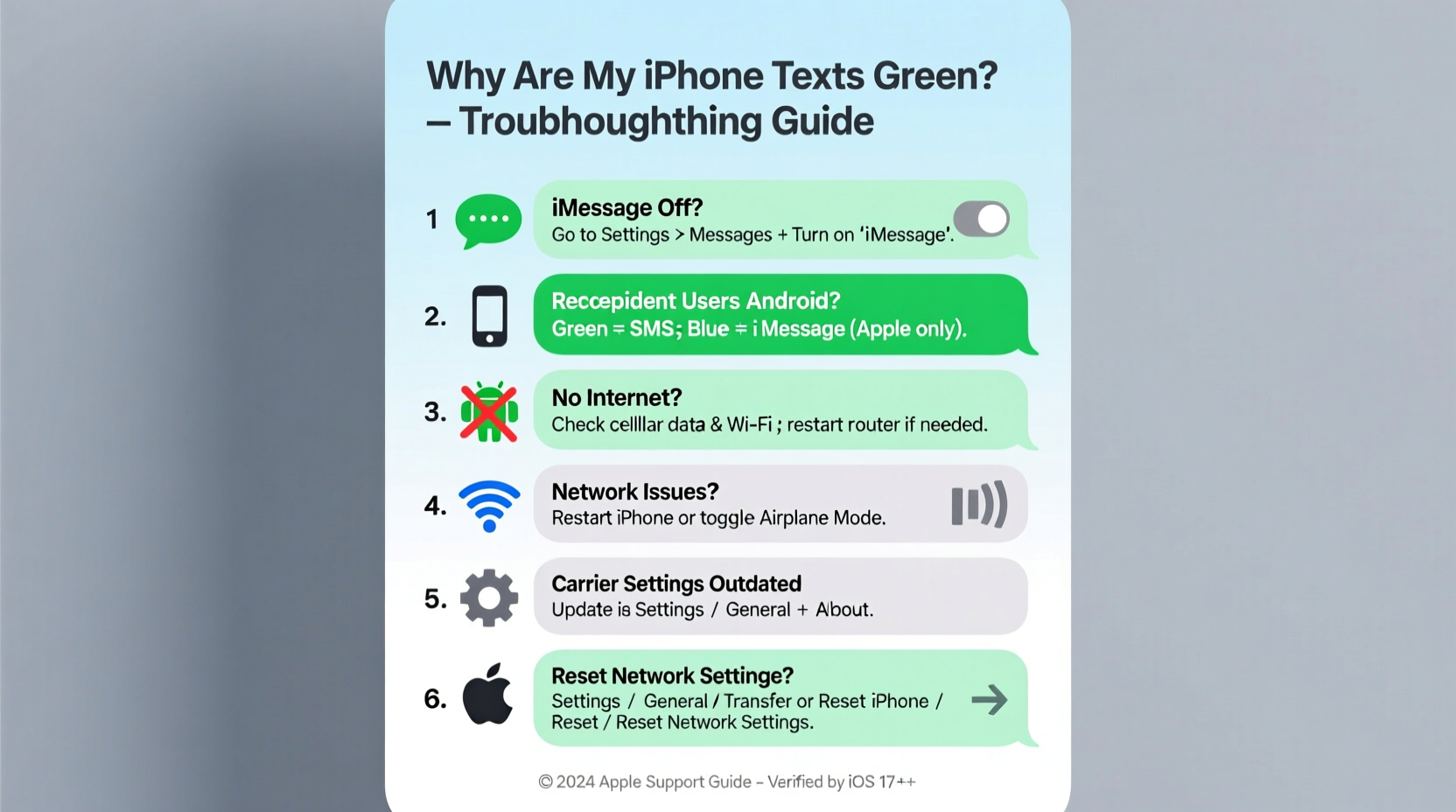
The color of your message bubbles indicates which protocol your iPhone is using:
- Blue Bubbles: Messages sent via iMessage (internet-based). These require both sender and recipient to have iMessage enabled and an active internet connection (Wi-Fi or cellular data).
- Green Bubbles: Messages sent as SMS/MMS through your cellular network. These work on any phone, including Android devices, but lack advanced iMessage features.
It's normal to see green bubbles when texting non-iPhone users. However, if you're messaging another iPhone user and seeing green, there’s likely a technical issue preventing iMessage from functioning properly.
“Many users assume green messages mean their phone is broken, but more often than not, it’s a simple settings or connectivity issue.” — Jordan Lee, Senior iOS Support Technician at Apple Authorized Service Center
Common Causes of Green Text Messages Between iPhones
When two iPhone users exchange messages and see green bubbles, one or more of the following issues may be present:
- iMessage is disabled on either device.
- One user has turned off their iPhone or it’s out of network range.
- Poor or no internet connection (Wi-Fi or cellular data) on the sender’s or recipient’s end.
- The recipient has switched to a new phone (e.g., Android) but hasn’t deregistered their number from iMessage.
- Apple ID sign-in problems or sync errors on either device.
- Carrier settings are outdated or SMS/MMS settings are misconfigured.
Step-by-Step Troubleshooting Guide
Follow these steps in order to diagnose and fix green message issues between iPhone users:
- Check iMessage Settings
Go to Settings > Messages and ensure that iMessage is toggled on. Wait a few seconds for it to activate — sometimes it takes a moment to register with Apple’s servers. - Verify Internet Connection
Ensure you’re connected to Wi-Fi or have strong cellular data. Try loading a website to confirm connectivity. iMessage won’t work without an active internet connection. - Restart Your iPhone
A simple restart can resolve temporary software glitches. Press and hold the side button and either volume button, then slide to power off. Turn it back on after 30 seconds. - Check the Recipient’s Device Status
If the person you’re messaging has their phone turned off, is in airplane mode, or has no service, your message will default to SMS (green). - Ensure Your Apple ID Is Signed In
Go to Settings > [Your Name] > iCloud and verify you’re signed in. Then go to Messages and make sure your Apple ID is listed under “Send & Receive.” - Re-enable iMessage and FaceTime
Toggle iMessage off, wait 30 seconds, then turn it back on. Do the same for FaceTime (Settings > FaceTime), as both services rely on the same activation system. - Update Carrier Settings
Outdated carrier settings can interfere with SMS fallback. Go to Settings > General > About. If an update is available, you’ll see a prompt. - Reset Network Settings
As a last resort, go to Settings > General > Transfer or Reset iPhone > Reset > Reset Network Settings. This clears saved Wi-Fi passwords and resets cellular configurations, so reconnect to Wi-Fi afterward.
Do’s and Don’ts When Fixing Green Message Issues
| Do’s | Don’ts |
|---|---|
| ✅ Double-check iMessage is enabled in Settings | ❌ Assume the problem is on your end only — check with the recipient |
| ✅ Use Wi-Fi when cellular data is weak | ❌ Ignore pending iOS updates — they often contain critical fixes |
| ✅ Confirm the recipient hasn’t switched to Android without deactivating iMessage | ❌ Spam the send button — repeated failed iMessages can delay delivery |
| ✅ Restart your device regularly to clear cache and glitches | ❌ Factory reset without trying simpler solutions first |
Real-World Example: Sarah’s iMessage Issue
Sarah noticed her messages to her sister were suddenly green, even though both used iPhones. She assumed her sister had switched phones. After a quick call, she learned her sister’s iPhone was working fine.
Sarah checked her own settings and found that iMessage was off. She turned it on, but it stayed grayed out. She restarted her phone, and upon reboot, iMessage activated successfully. Her next message appeared in blue, and read receipts returned.
The root cause? A minor software hiccup during an iOS update had disabled iMessage silently. A restart resolved it instantly.
Frequently Asked Questions
Can I still send messages if iMessage is off?
Yes. When iMessage is disabled or unavailable, your iPhone automatically sends messages as SMS (green bubbles) using your cellular plan. You’ll still be able to communicate, but without iMessage features like read receipts or multimedia quality.
Why are my messages green to one person but blue to others?
This usually means the specific contact has iMessage disabled, is using a non-Apple device, or has poor internet connectivity. It could also indicate their phone number isn’t properly registered with Apple’s iMessage service.
Does sending green messages cost more?
It depends on your carrier plan. SMS messages may count against your text limit if you don’t have unlimited texting. iMessages, being data-based, do not incur per-message charges. Using Wi-Fi for iMessage helps avoid SMS usage entirely.
Final Checklist: Resolve Green Message Issues
- Confirm iMessage is enabled on both devices
- Ensure both users are connected to the internet (Wi-Fi or data)
- Verify Apple ID is signed in and linked to phone number/email
- Restart both iPhones if messages aren’t syncing
- Check that the recipient hasn’t switched to Android without deregistering iMessage
- Update iOS and carrier settings to the latest version
- Contact your carrier if SMS isn’t working at all
Conclusion: Take Control of Your Messaging Experience
Green message bubbles don’t have to be a mystery. With a methodical approach, most iMessage issues can be resolved in minutes. The key is understanding that blue means internet-based iMessage, while green means traditional SMS — and knowing when that shift is intentional versus a technical glitch.
By maintaining updated settings, ensuring stable connections, and verifying account status, you can enjoy the full benefits of iMessage with every conversation. Don’t let green bubbles disrupt your communication — use this guide to stay connected the way Apple intended.




 浙公网安备
33010002000092号
浙公网安备
33010002000092号 浙B2-20120091-4
Comments
No comments yet. Why don't you start the discussion?