
If you've ever sent a text from your iPhone and noticed the message bubble turned green instead of the familiar blue, you're not alone. This small color shift often raises questions: Is something wrong with my phone? Did the message fail? Or worse—am I being ignored? The truth is far less dramatic but equally important to understand, especially if you rely on features like read receipts, group messaging, or media sharing. The color of your message bubble reveals which messaging protocol your iPhone used—and that has real implications for functionality, security, and delivery.
What Do Blue and Green Message Bubbles Mean?
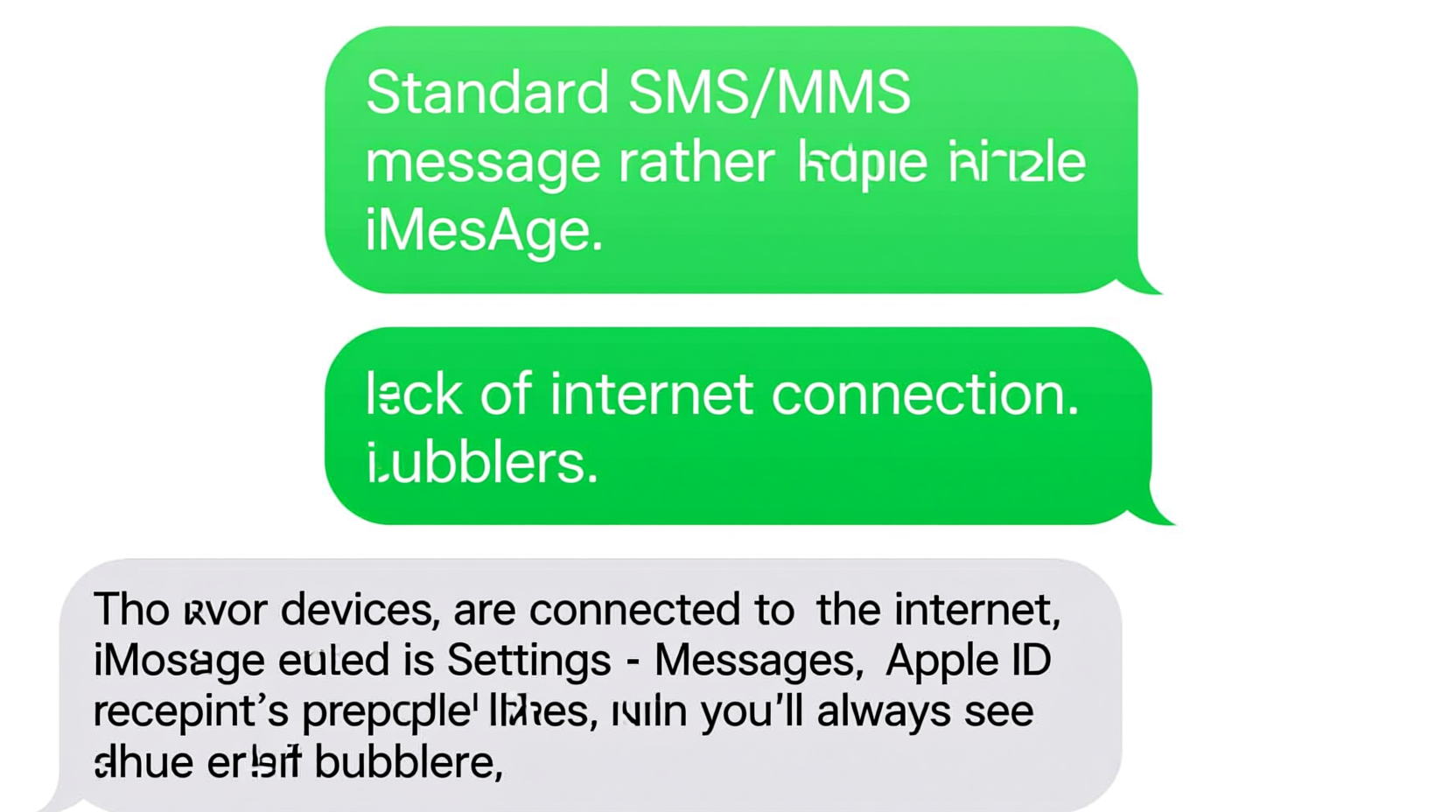
The color of your message bubble in the iPhone's Messages app isn't just aesthetic—it's functional. Apple uses color coding to distinguish between two different messaging systems:
- Blue bubbles: Indicate messages sent via iMessage, Apple’s proprietary internet-based messaging service.
- Green bubbles: Represent standard SMS (Short Message Service) or MMS (Multimedia Messaging Service) texts sent through your cellular carrier.
iMessage requires an Apple ID, Wi-Fi or cellular data, and both sender and recipient must be using Apple devices. When those conditions are met, messages appear in blue and support advanced features like high-resolution photo sharing, typing indicators, read receipts, and end-to-end encryption.
SMS/MMS, shown in green, works across all mobile phones—even non-iPhones—but lacks many modern messaging features. These texts rely on your carrier’s network and count toward your plan’s limits if not unlimited.
Why Are My iPhone Texts Green? Common Causes
Seeing green bubbles doesn’t always mean a problem, but certain patterns can signal underlying issues. Here are the most common reasons your texts appear green:
- You’re messaging a non-Apple device. Android, Windows Phone, or basic cell phones don’t support iMessage. Any message sent to them defaults to SMS (green).
- iMessage is disabled on your iPhone. Check Settings > Messages to ensure iMessage is toggled on. If it’s off, all outgoing messages will use SMS.
- The recipient has iMessage turned off. Even if they own an iPhone, they may have disabled iMessage in their settings, forcing replies into SMS mode.
- No internet connection. iMessage requires data. If you’re out of Wi-Fi range and have poor cellular data, your iPhone may automatically fall back to SMS.
- Phone number not registered with iMessage. Sometimes after switching SIM cards or restoring from backup, your number fails to re-register with Apple’s iMessage servers.
Real Example: A Misunderstood Conversation
Consider Sarah, who recently upgraded her iPhone. After setup, she noticed all her messages to friends were green—even though they used iPhones. She assumed they’d blocked her. In reality, during migration, her phone number hadn’t properly linked to iMessage. Once she went to Settings > Messages > Send & Receive and confirmed her number was selected, blue bubbles returned. The issue wasn’t social—it was technical.
Key Differences Between iMessage (Blue) and SMS (Green)
| Feature | iMessage (Blue) | SMS/MMS (Green) |
|---|---|---|
| Encryption | End-to-end encrypted | No encryption |
| Internet Required | Yes (Wi-Fi or data) | No (uses cellular network) |
| Typing Indicators | Yes | No |
| Read Receipts | Yes (if enabled) | No |
| Group Messaging Features | Names, replies, reactions | Limited; treated as MMS |
| Media Quality | High resolution | Compressed (MMS limits) |
| Delivery Across Apple Devices | Yes (iPhone, iPad, Mac) | No (only phone) |
“Many users don’t realize that green bubbles mean they’re losing core privacy and functionality. iMessage was designed to offer a secure, rich communication layer within the Apple ecosystem.” — David Lin, Mobile Security Analyst at TechShield Labs
How to Fix Unexpected Green Bubbles
If you're sending messages to another iPhone and seeing green bubbles, follow this step-by-step troubleshooting guide:
- Check Your Internet Connection. Ensure Wi-Fi or cellular data is active. Open Safari to test connectivity.
- Verify iMessage is Enabled. Go to Settings > Messages and confirm iMessage is toggled on.
- Confirm Your Apple ID Registration. In Settings > Messages > Send & Receive, make sure your phone number and Apple ID are listed and selected.
- Ensure Recipient Uses iMessage. Ask if they have iMessage enabled. They can check under Settings > Messages.
- Restart iMessage. Toggle iMessage off, wait 30 seconds, then turn it back on. This often forces re-registration.
- Reset Network Settings (if needed). If problems persist, go to Settings > General > Transfer or Reset iPhone > Reset > Reset Network Settings. Note: This erases saved Wi-Fi passwords.
Troubleshooting Checklist
- ✅ Is Wi-Fi or cellular data working?
- ✅ Is iMessage turned on in Settings?
- ✅ Is your phone number verified under “Send & Receive”?
- ✅ Is the recipient online and using iMessage?
- ✅ Have you restarted the Messages app or phone?
- ✅ Are you sending to an iPhone user or non-Apple device?
Frequently Asked Questions
Does a green bubble mean my message wasn’t delivered?
Not necessarily. Green bubbles simply indicate SMS/MMS usage. Delivery reports depend on your carrier. If a red exclamation mark appears, the message failed to send—tap it to try again or switch to iMessage if possible.
Can someone block me if my texts are green?
No. Being blocked doesn’t change bubble color. If blocked, you’d typically see a single checkmark (sent) but no “Delivered” or “Read” status—even in iMessage. Green bubbles alone aren’t evidence of blocking.
Why do some messages to the same person switch between blue and green?
This usually happens when the recipient switches devices or loses internet. For example, if they reply from an Android tablet or their iPhone is offline, the response comes via SMS, triggering a green thread. Your next reply will also default to SMS until both are back online with iMessage.
Conclusion: Embrace the Color Code
The distinction between green and blue message bubbles is more than cosmetic—it reflects the infrastructure behind your digital conversations. Understanding this system empowers you to troubleshoot delivery issues, protect your privacy, and make informed choices about how you communicate. While green isn’t inherently bad, consistently seeing it when messaging other iPhone users suggests a fixable setting or connection issue. By ensuring iMessage is active and properly configured, you regain access to richer, more secure messaging features designed to enhance your daily interactions.




 浙公网安备
33010002000092号
浙公网安备
33010002000092号 浙B2-20120091-4
Comments
No comments yet. Why don't you start the discussion?