
If you've ever sent a message from your iPhone and noticed the bubble turned green instead of blue, you're not alone—and you're probably wondering what it means. The color of your message bubbles isn't just a design choice; it's a direct indicator of how your message is being delivered. Blue bubbles mean your message is traveling securely over Apple’s iMessage network. Green ones indicate it’s falling back to standard SMS through your cellular provider. Understanding this distinction helps explain delivery delays, missing features, and even privacy implications.
This guide breaks down exactly why your iPhone texts appear green, how messaging protocols work behind the scenes, and what you can do if you want more consistent iMessage performance.
What Do Green and Blue Text Bubbles Mean?
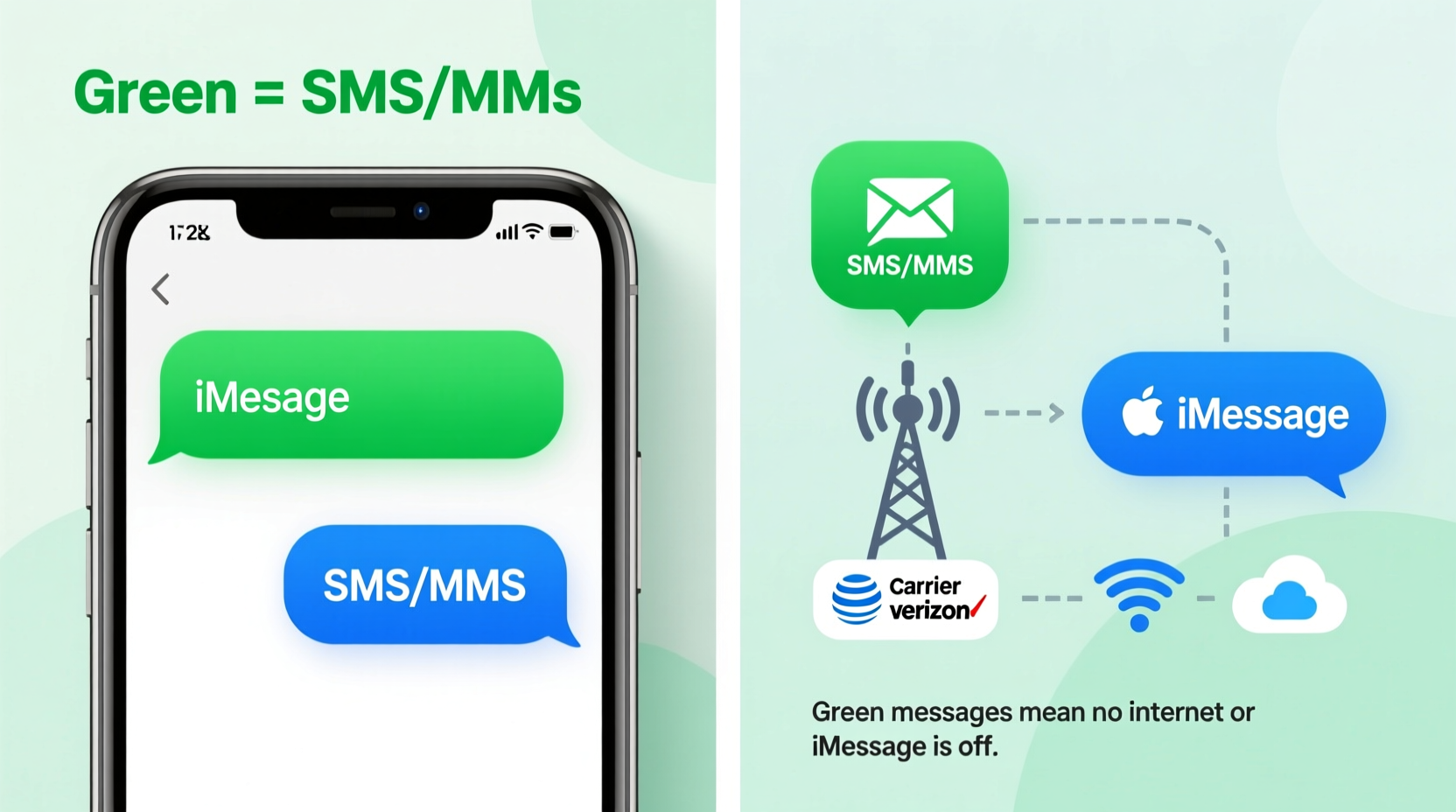
The most visible clue to how your messages are sent lies in their color:
- Blue bubbles: These are iMessages—Apple’s proprietary messaging service that works over Wi-Fi or data between Apple devices. iMessages support high-quality media sharing, read receipts, typing indicators, encryption, and more.
- Green bubbles: These are traditional SMS (Short Message Service) or MMS (Multimedia Messaging Service) texts sent via your cellular carrier. They lack advanced features and rely on older telecom infrastructure.
The shift from blue to green doesn’t always mean something’s wrong—it often reflects the capabilities of the recipient’s device or network status. However, repeated green messages when communicating with other iPhone users may point to configuration issues worth investigating.
iMessage vs. SMS: A Technical Breakdown
To fully understand why your texts go green, it helps to know how iMessage and SMS differ under the hood:
| Feature | iMessage (Blue) | SMS/MMS (Green) |
|---|---|---|
| Network Used | Internet (Wi-Fi or cellular data) | Cellular carrier network |
| Encryption | End-to-end encryption | No encryption |
| Read Receipts | Supported | Not supported |
| Typing Indicators | Available | Unavailable |
| Group Messaging Features | Name display, replies, reactions | Limited functionality |
| Media Quality | High-resolution transfers | Compressed or reduced quality |
| Cross-Device Sync | Yes (iPhone, iPad, Mac) | No |
iMessage relies on an active internet connection and requires both sender and recipient to be using Apple devices signed into their iCloud accounts. When either condition fails, iOS automatically reverts to SMS, resulting in green bubbles.
“iMessage was designed to create a seamless, secure communication layer within the Apple ecosystem. But its dependency on Apple IDs and connectivity means fallbacks to SMS are inevitable when those conditions aren't met.” — David Lin, Senior Mobile Systems Engineer at TechSignal Labs
Common Reasons Why Your iPhone Messages Turn Green
While occasional green messages are normal, consistently seeing them—even when texting other iPhone users—can be frustrating. Here are the most frequent causes:
- The recipient doesn’t use an iPhone: This is the most common reason. Android, Windows Phone, or basic phones only support SMS/MMS, so all messages to them will appear green.
- iMessage is turned off on the recipient’s phone: Some users disable iMessage due to battery concerns, confusion, or switching to Android without deactivating it properly.
- Your own iMessage is disabled: Check Settings > Messages to ensure iMessage is toggled on. If it’s off, all outgoing messages default to SMS.
- Poor or no internet connection: Without Wi-Fi or cellular data, iMessage cannot send messages. Your iPhone may wait briefly before switching to SMS.
- Recipient changed phone numbers without updating Apple ID: If someone switches carriers or devices but keeps sending from an old number not linked to their current Apple ID, iMessage routing fails.
- Send as SMS setting is enabled: By default, iPhones are set to “Send as SMS” when iMessage is unavailable. You’ll see a green bubble as the system tries not to fail silently.
Mini Case Study: Sarah’s Confusing Group Chat
Sarah noticed that in her group chat with three friends—all of whom claimed to have iPhones—her messages were green while others appeared blue. She assumed she was being left out intentionally. After some troubleshooting, she discovered one friend had recently switched to Android but never deactivated iMessage. As a result, messages addressed to that number couldn’t route through Apple’s servers. Once the former iPhone user deregistered their number via Apple’s website, Sarah’s messages turned blue again in the group thread. The issue wasn’t personal—it was technical.
Step-by-Step Guide to Fix Unwanted Green Messages
If you’re frequently getting green bubbles when messaging other iPhone users, follow this sequence to diagnose and resolve the issue:
- Verify iMessage is enabled on your device
Go to Settings > Messages and confirm the iMessage toggle is green. Wait for it to activate completely (this may take a minute). - Check your internet connection
Ensure you’re connected to Wi-Fi or have cellular data enabled. Try loading a webpage to test connectivity. - Confirm the recipient uses an iPhone
If unsure, ask directly. Many people now use dual devices or have family members managing shared numbers. - Ask the recipient to verify iMessage settings
They should go to Settings > Messages > Send & Receive and ensure their phone number and Apple ID are listed and selected. - Deregister old numbers from iMessage (if applicable)
Visit Apple’s iMessage deregistration page to remove numbers no longer in use. This prevents message delivery conflicts. - Restart the Messages app
Toggle Airplane Mode on for 10 seconds, then off. This forces a network refresh and reconnection to iMessage servers. - Update iOS
Outdated software can cause syncing issues. Go to Settings > General > Software Update to install the latest version.
FAQ
Does a green text mean I’ve been blocked?
No. Being blocked typically results in messages staying blue with no delivery confirmation. A green bubble simply indicates the message was sent via SMS, which happens for many non-malicious reasons like device type or connectivity.
Can I force a message to stay blue?
Not manually. iMessage automatically chooses the best available channel. However, you can prevent automatic fallback by turning off “Send as SMS” in Settings > Messages. Be aware: if iMessage fails, the message won’t send at all.
Why do some messages start blue and turn green?
This usually occurs when you begin typing an iMessage, but lose internet connection before sending. The system switches to SMS to ensure delivery, changing the bubble color upon send.
Final Checklist: Optimize Your iMessage Experience
- ✅ Ensure iMessage is enabled on your iPhone
- ✅ Connect to stable Wi-Fi or cellular data
- ✅ Verify recipients are using active iPhones with iMessage on
- ✅ Confirm your phone number is verified under Send & Receive
- ✅ Encourage ex-iPhone users to deregister from iMessage
- ✅ Keep iOS updated to avoid bugs affecting message routing
- ✅ Use FaceTime settings to verify Apple ID association with your number
Conclusion
The color of your message bubbles reveals more than aesthetics—it’s a real-time diagnostic tool for how your messages travel. Green texts aren’t inherently bad, but understanding when and why they appear gives you greater control over your communication experience. Whether you're troubleshooting delivery issues or simply curious about the tech behind everyday interactions, recognizing the difference between iMessage and SMS empowers smarter usage of your iPhone.




 浙公网安备
33010002000092号
浙公网安备
33010002000092号 浙B2-20120091-4
Comments
No comments yet. Why don't you start the discussion?