
A sticky keyboard can turn a smooth workflow into a frustrating experience. Whether you're typing an important email, coding, or gaming, unresponsive or sluggish keys disrupt productivity and accuracy. Sticky keys are a common issue across both laptop and desktop keyboards, often caused by debris buildup, liquid spills, worn-out mechanisms, or environmental factors. The good news is that most cases can be resolved with careful cleaning and preventive habits. This guide walks through the root causes, practical fixes, and long-term strategies to keep your keyboard functioning like new.
Understanding Why Keys Become Sticky
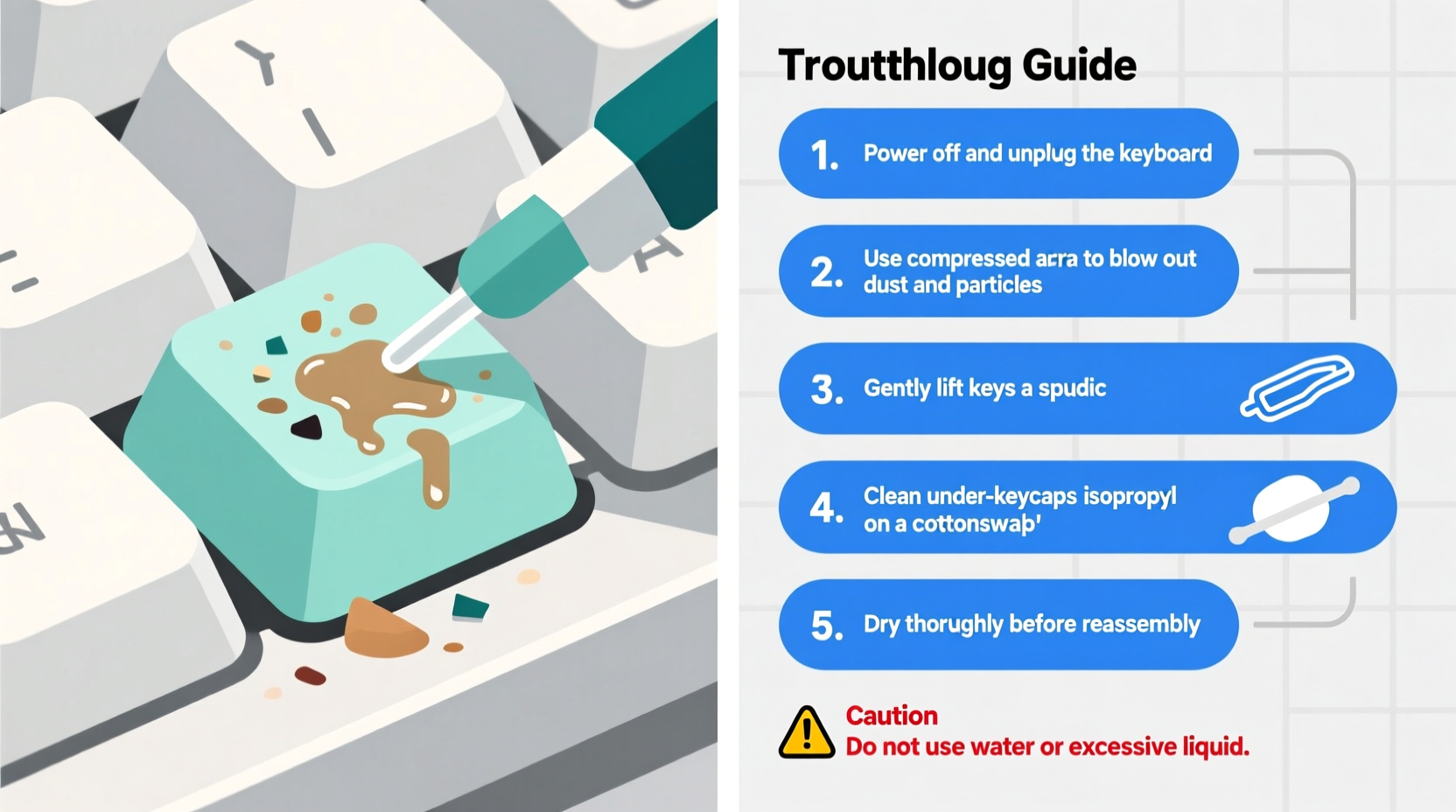
Sticky keys occur when a key doesn’t return to its resting position smoothly after being pressed. This resistance usually stems from physical obstructions or mechanical degradation beneath the keycap. Common culprits include:
- Crumb and dust accumulation: Food particles, pocket lint, and general dust settle under keycaps over time, interfering with switch movement.
- Liquid damage: Spills—especially sugary drinks—dry into a sticky residue that gums up internal components.
- Worn rubber domes or mechanical switches: On older keyboards, repeated use degrades the elasticity of rubber domes or leads to friction in mechanical switches.
- High humidity: Moist environments encourage condensation and material swelling, especially in membrane keyboards.
- Dirt from fingers: Oils, lotions, and dead skin transfer from hands during regular use, gradually forming a grime layer.
Identifying the cause is essential before attempting repairs. A keyboard with minor debris may only need surface cleaning, while one affected by a soda spill requires deeper intervention.
Step-by-Step Guide to Fixing Sticky Keys
Resolving sticky keys involves systematic cleaning and inspection. Follow this timeline to restore full functionality without damaging your device.
- Power down and disconnect: Unplug the keyboard or shut down your laptop. Safety first—never clean electronics while powered.
- Invert and shake gently: Turn the device upside down over a trash can and tap lightly to dislodge loose debris.
- Use compressed air: Blast air at a 45-degree angle under each keycap to push out trapped particles. Hold cans upright to avoid propellant discharge.
- Clean the surface: Dampen a microfiber cloth with isopropyl alcohol (70% or higher) and wipe keycaps and surrounding areas. Never pour liquid directly onto the keyboard.
- Remove keycaps (if possible): For mechanical keyboards or removable laptop keys, carefully pry off affected keys using a keycap puller or plastic tool. Note placement for reassembly.
- Deep clean under keys: With cotton swabs dipped in alcohol, clean the stem, switch housing, and base. Let dry completely before reattaching.
- Reassemble and test: Snap keycaps back into place and press each several times to ensure smooth actuation.
This process typically resolves 80% of sticky key issues. However, some keyboards—particularly low-profile laptop models—have non-removable keys, requiring alternative methods.
Do’s and Don’ts of Keyboard Cleaning
| Action | Recommended? | Reason |
|---|---|---|
| Using compressed air regularly | ✅ Yes | Prevents buildup without contact |
| Wiping with alcohol-dampened cloth | ✅ Yes | Kills germs and dissolves light grime |
| Soaking keycaps in soapy water | ✅ Yes (for mechanical) | Effective for deep clean; dry fully |
| Pouring water or cleaner directly | ❌ No | Risks short circuits and corrosion |
| Using sharp metal tools to remove keys | ❌ No | Can scratch or break plastic clips |
| Blowing with mouth instead of canned air | ❌ No | Moisture accelerates stickiness |
Real Example: Recovering a Coffee-Spilled Laptop Keyboard
Mark, a freelance writer, accidentally knocked over his morning latte onto his MacBook. After wiping the surface, he noticed three keys near the spacebar became increasingly sticky over the next two days. He avoided disassembling the laptop himself but followed a cautious cleaning protocol. Using a can of compressed air, he cleared visible debris. Then, with a folded paper towel dampened with isopropyl alcohol, he gently slid it between the keys to absorb residual sugar. Over 48 hours, he repeated this twice daily. By day three, the keys regained full responsiveness. Mark now keeps a silicone keyboard cover on his desk and never drinks near his workspace.
“Most sticky key issues are preventable with routine maintenance. A five-minute cleaning every few weeks saves hours of troubleshooting later.” — David Lin, Electronics Repair Technician with 12 years of field experience
When Cleaning Isn't Enough: Mechanical Failure and Replacement
Sometimes, no amount of cleaning restores performance. This often happens with older keyboards where internal components have degraded. Signs of irreversible wear include:
- Keys require excessive force to actuate
- Double-typing occurs despite clean surfaces
- Physical wobble or misalignment of keycaps
- Visible discoloration or warping under keys
In such cases, replacement may be more cost-effective than repair. For desktop users, upgrading to a mechanical keyboard improves durability and ease of maintenance. Laptop owners should consult authorized service centers—attempting deep internal repairs without expertise risks permanent damage.
FAQ
Can I use hand sanitizer to clean sticky keys?
No. While hand sanitizers contain alcohol, they also include fragrances, gels, and moisturizers that leave behind sticky residues. Use pure isopropyl alcohol (70–90%) instead.
How do I know if my keyboard needs professional repair?
If multiple keys remain unresponsive after thorough cleaning, or if there's evidence of water damage (e.g., corrosion, error messages), seek professional help. Internal diagnostics may reveal damaged circuitry or failed connectors.
Are sticky keys covered under warranty?
Generally, no. Most manufacturers consider liquid spills and debris accumulation as user damage, not manufacturing defects. Always check your warranty terms, but assume cosmetic and usage-related issues are excluded.
Preventive Checklist for Long-Term Keyboard Health
Maintaining a responsive keyboard is easier than fixing one. Follow this checklist monthly:
- ✔️ Power down and blow out dust with compressed air
- ✔️ Wipe keycaps with an alcohol-moistened microfiber cloth
- ✔️ Inspect frequently used keys (e.g., spacebar, Enter, Shift) for early stickiness
- ✔️ Wash hands before extended typing sessions to reduce oil transfer
- ✔️ Store in a dry, low-traffic area when not in use
- ✔️ Use a protective cover or skin, especially on laptops
Conclusion
Sticky keys are a nuisance, but rarely a death sentence for your keyboard. With methodical cleaning, informed handling, and consistent prevention, most issues can be reversed or avoided entirely. Understanding the mechanics beneath your fingertips empowers smarter care habits. Whether you rely on a sleek laptop or a custom mechanical setup, treating your keyboard with diligence ensures reliability and comfort over time.




 浙公网安备
33010002000092号
浙公网安备
33010002000092号 浙B2-20120091-4
Comments
No comments yet. Why don't you start the discussion?