
Notifications keep you informed—about messages, calendar events, app updates, and more. When they’re unexpectedly silenced, it can lead to missed appointments, overlooked conversations, or delayed responses. While modern operating systems offer robust notification controls, these same features can inadvertently mute alerts if misconfigured. Understanding the root causes behind silenced notifications is essential for regaining control over your digital experience.
This guide breaks down the most common reasons notifications go silent, provides actionable fixes, and offers expert-backed insights to help you maintain reliable alert delivery across smartphones, tablets, and computers.
Common Causes of Silenced Notifications
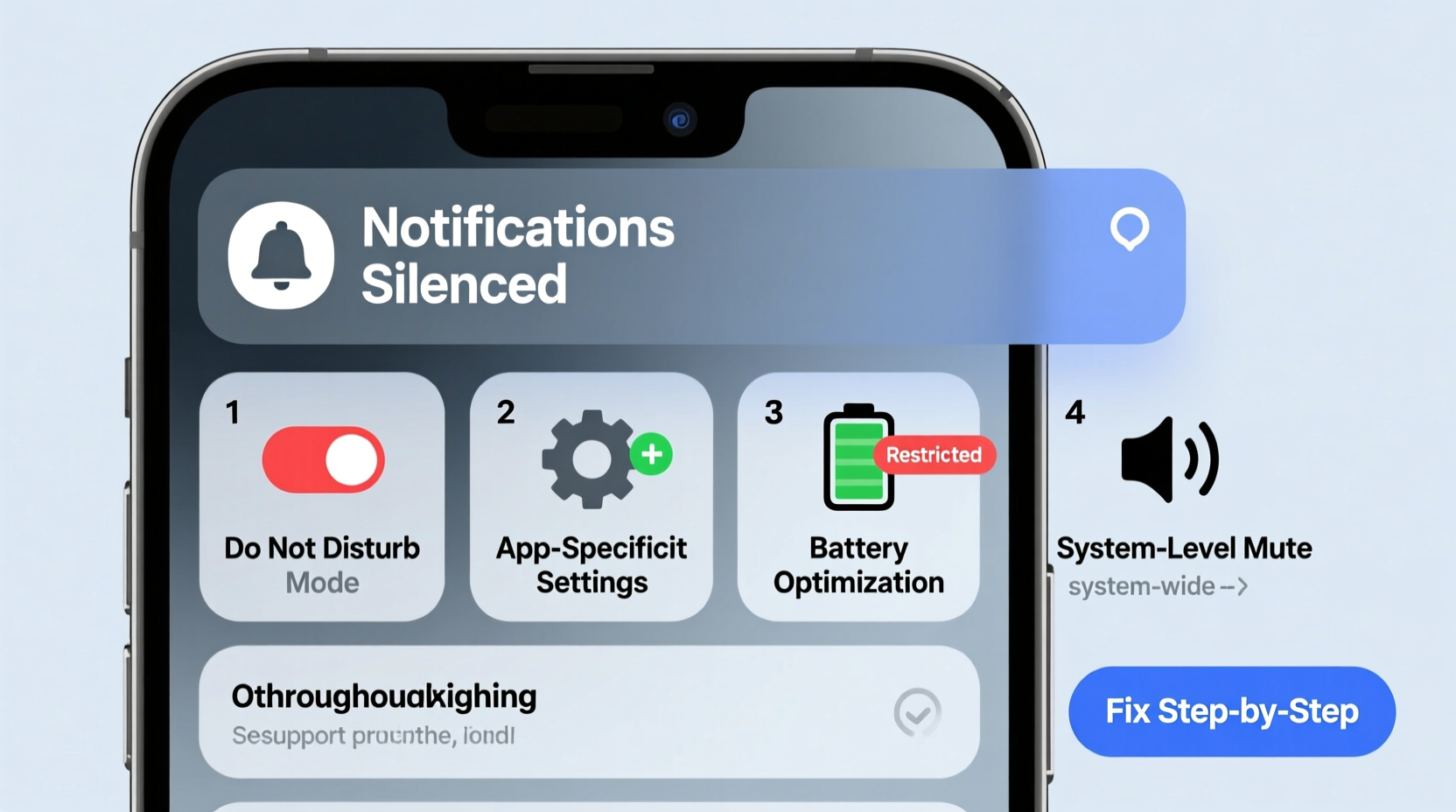
Notifications can disappear from your screen for a variety of reasons, many of which are built into device settings designed to reduce distractions. Below are the primary culprits behind muted alerts:
- Do Not Disturb (DND) Mode: Automatically silences all or most notifications during specified hours or based on activity like driving.
- App-Specific Notification Settings: Individual apps may have alerts disabled in system preferences.
- Volume & Ringtone Settings: Media or ringer volume might be turned down even if DND is off.
- Battery Optimization Features: On Android, aggressive battery-saving modes can restrict background app activity, including notifications.
- Outdated Apps or OS: Bugs in older software versions may interfere with push services.
- Network Issues: Poor Wi-Fi or cellular connectivity can delay or block push notifications.
- Focus Modes or Digital Wellbeing Tools: Custom profiles such as Work, Sleep, or Personal can filter out certain alerts.
Step-by-Step Troubleshooting Guide
Follow this structured approach to identify and resolve the cause of silenced notifications.
- Check Physical Silent Switch or Volume Buttons
On iPhones, ensure the side switch isn’t set to silent (orange indicator visible). On Android and other devices, press the volume button and confirm that \"Ringtone\" or \"Notifications\" volume is audible. - Disable Do Not Disturb / Focus Modes
Navigate to Settings > Sound > Do Not Disturb (iOS) or Settings > Digital Wellbeing & parental controls > Focus mode (Android). Turn off any active modes temporarily to test. - Review App Notification Permissions
Go to Settings > Notifications > [App Name] and verify that \"Allow Notifications\" is enabled. Also confirm that Sounds, Banners, and Badges are toggled on. - Ensure Background App Refresh Is Enabled
Especially on iOS, if an app cannot refresh in the background, it may not receive timely notifications. Enable via Settings > General > Background App Refresh. - Check Battery Optimization Settings (Android Only)
Go to Settings > Apps > [App Name] > Battery > Battery Usage. Select “Unrestricted” to allow constant background access. - Verify Internet Connectivity
Test both Wi-Fi and mobile data. Open a browser to confirm connection. Push notifications require active internet access. - Update Your Operating System and Apps
Install pending updates through the App Store or Google Play. Developers frequently patch bugs related to notification delivery. - Reinstall Problematic Apps
If only one app has issues, delete and reinstall it to reset permissions and clear corrupted cache files. - Sign Out and Back Into Cloud Accounts
For email, messaging, or cloud-based apps, signing out and back in can re-establish push notification channels. - Restart Your Device
A reboot clears temporary glitches and resets network and service connections.
Notification Settings Comparison by Platform
| Feature | iOS | Android | Windows |
|---|---|---|---|
| Global Silence Mode | Do Not Disturb / Focus Filters | Do Not Disturb / Focus Mode | Quiet Hours |
| Per-App Control | Yes (Settings > Notifications) | Yes (Settings > Apps & notifications) | Yes (System > Notifications) |
| Background Restrictions | Background App Refresh | Battery Optimization | Background Apps Toggle |
| Push Server Dependency | Apple Push Notification Service (APNs) | Firebase Cloud Messaging (FCM) | Windows Push Notification Service (WNS) |
| Default Behavior When Locked | Banners hidden unless allowed | Depends on sensitivity setting | Toast popups enabled by default |
Mini Case Study: Resolving Missed Work Messages
Sarah, a project manager using Slack and Microsoft Teams daily, began missing urgent team pings despite having her phone nearby. Her initial assumption was poor signal, but after testing connectivity, she realized notifications worked for social media apps but not work tools.
She followed the troubleshooting steps above and discovered that while Slack had notification permissions, its background refresh was disabled due to recent iOS updates optimizing battery life. Additionally, her “Work” Focus mode was unintentionally blocking non-priority contacts.
By adjusting Focus filters to allow high-priority apps and re-enabling background refresh, Sarah restored real-time alerts within minutes. This case highlights how layered settings—especially across multiple platforms—can silently override user expectations.
“Modern notification systems are powerful but complex. Users often don’t realize how many overlapping rules govern alert delivery—from focus modes to machine learning-based prioritization.” — Dr. Lin Wei, UX Researcher at Mobile Insights Group
Essential Checklist to Restore Notifications
- [] Toggle off Do Not Disturb / Focus Mode
- [] Check physical mute switch (iPhone) or volume level
- [] Confirm app-specific notification settings are enabled
- [] Allow background app refresh (iOS) or disable battery optimization (Android)
- [] Test internet connection (Wi-Fi and mobile data)
- [] Update the affected app and OS to latest version
- [] Restart the device after making changes
- [] Reinstall problematic apps if issue persists
Frequently Asked Questions
Why do some apps still notify me when Do Not Disturb is on?
Most operating systems allow exceptions. You can designate specific contacts or apps—like alarms, emergency alerts, or starred individuals—to bypass silence modes. Check your DND settings to see what’s permitted.
Can I get notified only for priority messages?
Yes. Both iOS and Android support intelligent filtering. On iPhone, use “People” and “Apps” in Focus mode to define who gets through. Android uses Notification Assistant and conversation importance levels to surface critical alerts.
Why do notifications work on Wi-Fi but not on cellular data?
This typically indicates a carrier-related issue or restricted data usage. Ensure that the app is allowed to use mobile data under Settings > Cellular (iOS) or Network & internet > Data usage (Android). Also confirm that background data isn’t blocked.
Preventing Future Notification Failures
Maintaining consistent notification behavior requires proactive maintenance. Schedule monthly checks of key settings, especially after major OS updates. Create routines such as:
- After installing a system update, review notification permissions for mission-critical apps.
- Use label-based email rules or app-specific filters to ensure important senders aren’t buried.
- Enable “Low Data Mode” cautiously—it can impair push delivery on both iOS and Android.
- Monitor third-party antivirus or firewall apps on desktops, which sometimes block notification services.
Additionally, consider enabling secondary alert methods where possible—such as SMS fallbacks for two-factor authentication or syncing calendar alerts across devices.
Conclusion: Take Control of Your Alerts Today
Silenced notifications are rarely random—they result from deliberate design choices meant to enhance user focus. But without awareness, these features can hinder rather than help. By understanding the ecosystem of settings governing alert delivery, you empower yourself to fine-tune your device for reliability, relevance, and responsiveness.




 浙公网安备
33010002000092号
浙公网安备
33010002000092号 浙B2-20120091-4
Comments
No comments yet. Why don't you start the discussion?