
If you've ever been startled by a notification that seemed to blast from your device like a siren, you're not alone. Many users report sudden spikes in notification volume, often disrupting quiet environments or even causing discomfort. While modern devices are designed for convenience and accessibility, settings can shift unexpectedly due to updates, app behaviors, or accidental adjustments. This guide provides a comprehensive look at why your notifications might be too loud and how to regain control—step by step.
Understanding Notification Volume vs. Media Volume
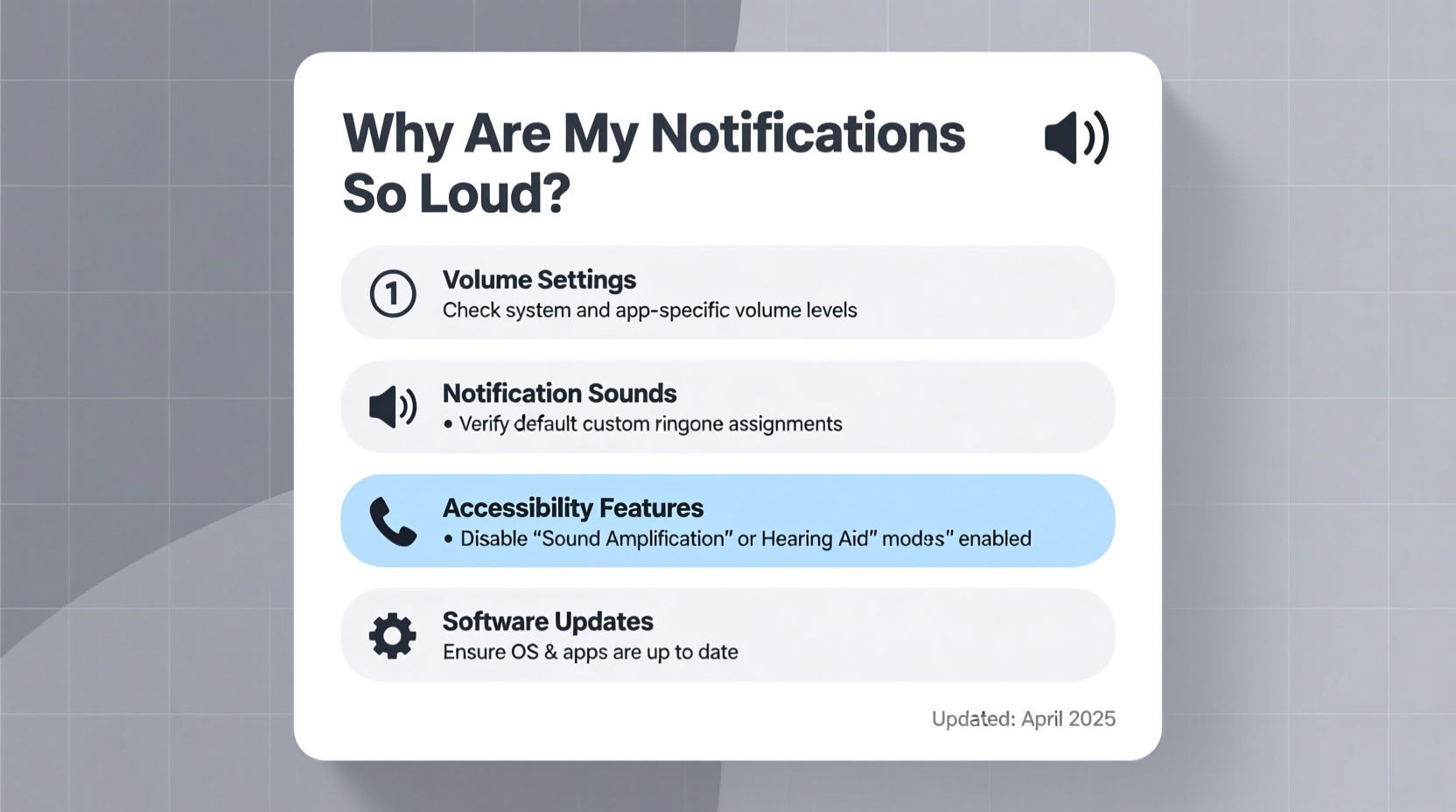
One of the most common sources of confusion is the difference between notification volume and media volume. On most smartphones and computers, these operate independently:
- Notification volume controls alerts for messages, emails, calendar events, and system sounds.
- Media volume affects music, videos, games, and streaming apps.
It's possible to have low media volume while notifications remain deafening. The key is adjusting the correct slider. On Android and iOS, pulling down the volume panel usually reveals separate controls depending on what’s currently active. Tap the gear or “ring” icon to ensure you’re adjusting notification levels—not ringtone or media.
Step-by-Step Guide to Calibrate Your Device Settings
Sudden loudness isn’t always permanent—it may just require recalibration. Follow this sequence across common platforms:
- Access sound settings: Go to Settings > Sound (or Sounds & Haptics on iPhone).
- Locate alert volume: Look for \"Ringtones and Alerts\" or \"Notification Volume.\"
- Adjust manually: Use the slider to reduce the level. Test with a message or email.
- Disable volume amplification features: Some phones have “Adaptive Sound,” “Volume Boost,” or “Night Mode” enhancements that increase perceived loudness.
- Check Do Not Disturb or Focus modes: These can sometimes override default volumes when exiting.
On Windows and macOS, navigate to System Settings > Sound > Output or Notifications to manage alert levels per application. For example, Slack or Teams might play sounds at full system volume regardless of global preferences.
Common Causes of Excessively Loud Notifications
Beyond user error, several technical factors contribute to unexpectedly high notification volume:
- Recent software updates: OS upgrades may reset audio profiles or introduce new default settings.
- Third-party apps overriding controls: Messaging apps like WhatsApp or Telegram sometimes ignore system limits.
- Accessibility features enabled: Features such as Mono Audio, Audio Balance, or Sound Amplifier can distort or boost output.
- Damaged hardware or faulty calibration: A malfunctioning speaker or sensor might misinterpret volume commands.
- Worn-out headphones or Bluetooth devices: Connected peripherals with poor impedance matching can amplify certain frequencies.
“Users often overlook how accessibility tools interact with core audio systems. A single toggle in the Accessibility menu can double perceived loudness.” — Dr. Lena Torres, Senior UX Researcher at Mobile Insights Group
Troubleshooting Checklist: Regain Control Over Notification Volume
Use this checklist to methodically identify and resolve the issue:
- ✅ Verify which volume channel is affected (notification vs. media)
- ✅ Lower the ringer/alert slider in sound settings
- ✅ Disable any \"volume booster\" or \"enhancer\" features
- ✅ Review individual app notification settings
- ✅ Restart the device after changes
- ✅ Disconnect external audio devices during testing
- ✅ Update operating system and apps to latest versions
- ✅ Reset all settings if problem persists (without data loss)
App-Specific Fixes and Platform Differences
Not all apps behave the same way. Here’s how major platforms handle notification sound levels:
| Platform | Where to Adjust | Known Issues |
|---|---|---|
| iOS | Settings > Sounds & Haptics > Ringer and Alerts | Some apps bypass system limits; check individual app settings |
| Android | Settings > Sound > Volumes (tap three-dot menu for more options) | Manufacturer skins (e.g., Samsung One UI) may include extra boosters |
| Windows 11 | Settings > System > Sound > More sound settings > App volume and device preferences | Legacy programs may use outdated audio APIs |
| macOS | System Settings > Notifications > select app > play sound | No per-app volume control; relies on global alert setting |
For messaging apps, dive into their internal settings. In WhatsApp, for instance, go to Settings > Notifications > Message notification tone and disable \"Repeat Alerts\" or lower vibration intensity, which can create the illusion of louder sound due to sensory overlap.
Mini Case Study: Sarah’s Morning Alarm Nightmare
Sarah, a remote worker, began receiving ear-piercing dings every time her team sent a Slack message. Her phone was set to 40% volume, yet alerts sounded near maximum. After checking settings, she discovered that a recent iOS update had re-enabled “Change with Buttons” under Sounds & Haptics—allowing physical buttons to control ringtone volume even when media was playing. Additionally, Slack had updated its notification policy to “High Priority,” triggering louder tones. By disabling button control and customizing Slack’s alert sound to a softer chime, Sarah reduced disruption without missing critical messages.
Frequently Asked Questions
Why did my notification volume suddenly get louder after an update?
Software updates often reset audio profiles or change default behaviors. Manufacturers may also introduce new sound enhancement features that activate automatically. Always review sound settings post-update.
Can apps make notifications louder than the system limit?
While rare, some apps request permission to override system volume. This is more common in communication tools like Zoom or Microsoft Teams. You can restrict this in app-specific notification settings or disable sound entirely for less critical alerts.
Will resetting my phone fix loud notifications?
A full reset isn’t necessary. Try “Reset All Settings” instead (found in General > Transfer or Reset Phone). This clears network, sound, and display configurations without erasing personal data. It often resolves erratic audio behavior caused by corrupted preferences.
Preventing Future Issues: Best Practices
Maintaining consistent notification volume requires ongoing attention. Consider these long-term strategies:
- Create a baseline test: After adjusting volume, send yourself a test message weekly to ensure consistency.
- Limit high-priority apps: Only allow essential services (e.g., calls, texts, emergency alerts) to play loud sounds.
- Use silent or haptic feedback: In quiet environments, switch to vibration-only alerts to avoid surprises.
- Monitor automatic updates: Schedule them during non-working hours to catch unexpected changes early.
Conclusion
Loud notifications don’t have to be an unavoidable nuisance. With a clear understanding of how sound settings work across devices and applications, you can diagnose and fix volume issues efficiently. Whether it’s a misconfigured slider, an overzealous app, or a hidden accessibility feature, the solution is usually within reach. Take a few minutes today to audit your current setup using the steps outlined here. Your ears—and everyone around you—will thank you.




 浙公网安备
33010002000092号
浙公网安备
33010002000092号 浙B2-20120091-4
Comments
No comments yet. Why don't you start the discussion?