
Screenshots are essential for sharing information, documenting errors, or preserving digital moments. But when you take a screenshot and only see a black screen, it can be frustrating—especially if the original content was visible in real time. This issue affects users across Windows, macOS, and even gamers using third-party tools. The root causes vary from software conflicts to hardware acceleration settings, but most can be resolved with targeted troubleshooting. Understanding why this happens is the first step toward fixing it permanently.
Common Causes of Black Screenshots
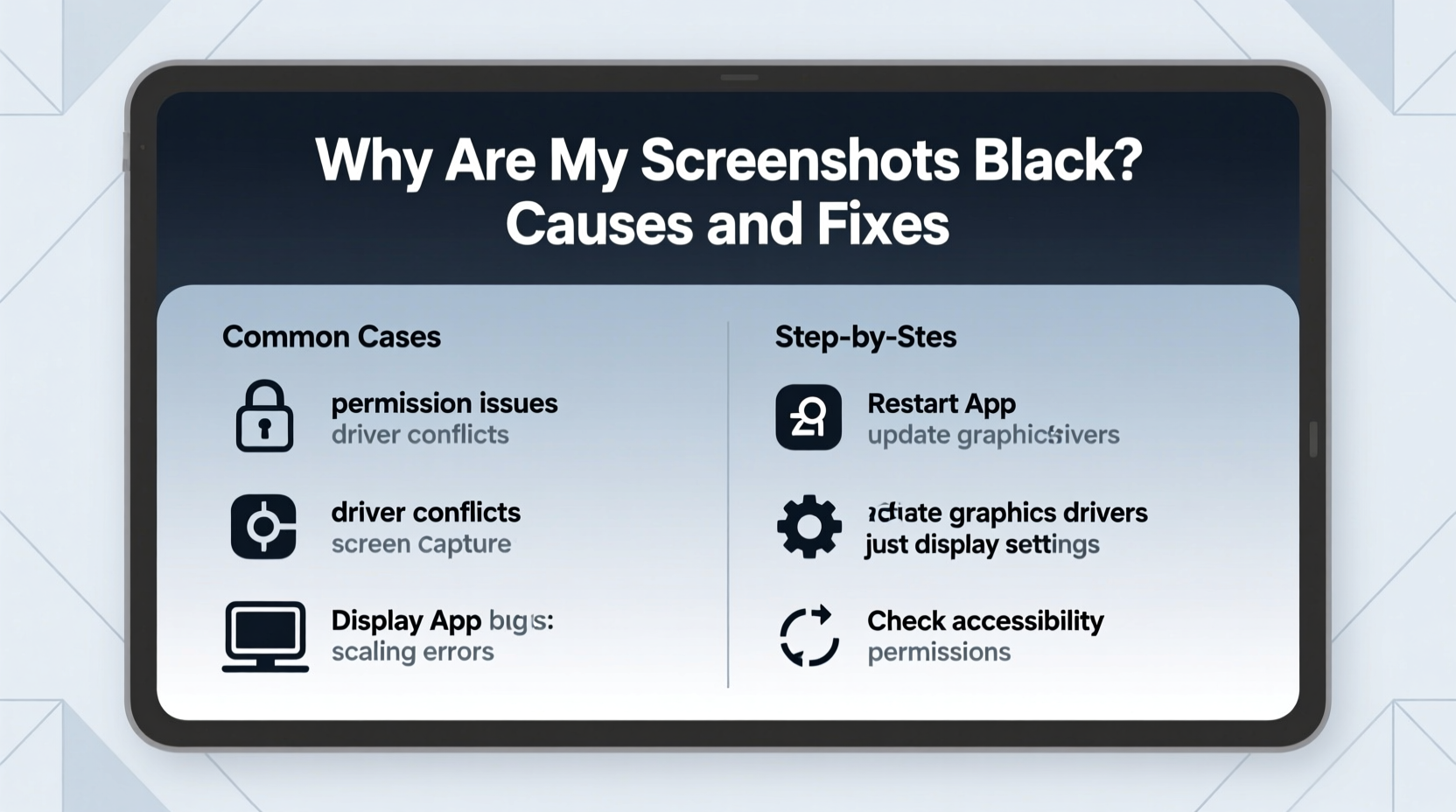
A black screenshot doesn’t always mean your system failed to capture the image. Often, the data is there—but something prevents it from rendering correctly. The most frequent culprits include:
- Hardware-accelerated graphics: Applications like browsers, video players, or games use GPU rendering that some screenshot tools can't access directly.
- Fullscreen applications: Programs running in exclusive fullscreen mode bypass standard display layers, making them invisible to basic screen capture methods.
- Outdated or incompatible drivers: Graphics drivers play a crucial role in how visual data is processed and captured.
- Antivirus or security software interference: Some privacy-focused tools block screen capture for security reasons.
- Third-party overlay apps: Discord, Steam, GeForce Experience, or OBS may conflict with native or external screenshot utilities.
“Modern applications leverage direct rendering paths that operate outside the traditional desktop compositor. This makes them invisible to legacy capture methods.” — David Lin, Senior Software Engineer at DisplayFusion
Platform-Specific Fixes
Windows: Built-in Tools and Graphics Settings
On Windows, the Snipping Tool, Print Screen key, or Game Bar (Win + Alt + PrtScn) may return black results under certain conditions. Here’s how to fix them:
- Disable Hardware Acceleration: Go to Settings > System > Display > Graphics > Default Graphics Settings, and toggle off “Hardware-accelerated GPU scheduling.” Restart your PC afterward.
- Update Graphics Drivers: Visit your GPU manufacturer’s website (NVIDIA, AMD, Intel) and install the latest driver version.
- Run Screenshot Tools as Administrator: Right-click the app (e.g., Snip & Sketch), select “Run as administrator” to grant full access to protected content.
- Use DirectX Diagnostic Tool (DxDiag): Press Win + R, type
dxdiag, and check for any rendering or display anomalies reported by the system.
macOS: Permissions and Secure Content
Apple has tightened security in recent macOS versions, requiring explicit permissions for screen recording. If your screenshots are black:
- Navigate to System Settings > Privacy & Security > Screen Recording.
- Ensure your screenshot tool (Preview, Skitch, or third-party apps) is enabled.
- Restart the app after granting permission.
- For Safari videos or secure content, try using QuickTime Player: Open QuickTime, choose File > New Screen Recording, and record briefly instead of capturing a still.
Gaming Platforms: Overlays and Exclusive Fullscreen
Games using Vulkan, DirectX 12, or exclusive fullscreen mode often produce black screenshots because they render directly to the display, bypassing the OS compositor.
| Platform | Recommended Fix | Alternative Method |
|---|---|---|
| Steam | Use Shift+Tab to open overlay; press F12 to capture | Enable \"Allow Desktop Capture\" in Settings > In-Game |
| GeForce Experience | Use Alt+Z to configure and capture via Share Overlay | Disable fullscreen optimization in game .exe properties |
| Xbox Game Bar | Turn on \"Record gameplay in background\" under Settings > Captures | Add game manually to Game Bar’s recognized titles list |
Step-by-Step Guide to Diagnose and Fix Black Screenshots
Follow this structured approach to identify and resolve the issue efficiently:
- Reproduce the Issue: Attempt a screenshot in the problematic app. Confirm it's consistently black.
- Test in Another App: Take a screenshot of your desktop or browser. If those work, the problem is application-specific.
- Switch to Windowed Mode: For games or media players, exit fullscreen and switch to windowed or borderless mode.
- Check Security Permissions: On macOS or Windows, verify that your screenshot tool has screen recording/capture access.
- Disable Overlays: Temporarily turn off Discord, MSI Afterburner, or other overlay tools to test for conflicts.
- Update or Reinstall Drivers: Use Device Manager (Windows) or manufacturer software to ensure GPU drivers are current.
- Try Alternative Capture Tools: Use VLC (for video), OBS Studio, or dedicated screen recorders to capture the frame as a workaround.
Real-World Example: A Gamer’s Black Screenshot Problem
Mark, a competitive Apex Legends player, noticed that his screenshots taken during matches appeared completely black. He used the default F12 keybind in NVIDIA ShadowPlay, but the images were unusable. After testing, he found that desktop captures worked fine—only in-game shots failed.
He followed these steps:
- Checked GeForce Experience settings and confirmed overlay was enabled.
- Disabled fullscreen optimization for the game executable.
- Switched Apex Legends from “Fullscreen” to “Borderless Windowed” mode in settings.
After restarting the game, his next screenshot captured the exact moment of a clutch win—no longer black. The fix hinged on changing the rendering context so the capture tool could access the frame buffer.
Prevention Checklist
To avoid black screenshots in the future, follow this proactive checklist:
- ✅ Keep graphics drivers updated monthly.
- ✅ Grant screen recording permissions to all capture tools.
- ✅ Avoid exclusive fullscreen mode when possible.
- ✅ Disable conflicting overlays when not needed.
- ✅ Use trusted, up-to-date screenshot software (e.g., ShareX, Lightshot, Snagit).
- ✅ Regularly test capture functionality after system updates.
Frequently Asked Questions
Why do YouTube videos show up black when I screenshot them?
Many browsers and video platforms use hardware-accelerated playback and DRM (Digital Rights Management) to protect content. These technologies prevent direct screen capture to deter piracy. Disabling hardware acceleration in browser settings (Chrome: Settings > System > “Use hardware acceleration”) may resolve this, though it can reduce performance.
Can antivirus software cause black screenshots?
Yes. Some security suites, especially those with anti-screenshot features (like Kaspersky or Bitdefender in privacy mode), block screen capture in sensitive applications. Check your antivirus settings under “Privacy” or “Protection” to disable such restrictions temporarily.
Are black screenshots a sign of malware?
Rarely. While malware can interfere with system processes, black screenshots are far more likely due to graphics settings, permissions, or software conflicts. However, if you notice other unusual behavior—unexpected crashes, high GPU usage, or unauthorized access—run a full system scan.
Conclusion: Take Control of Your Screen Captures
Black screenshots are a common but solvable issue. Whether you're troubleshooting a game, a video call, or a protected web page, the solution usually lies in adjusting graphics settings, managing permissions, or modifying how applications render content. By understanding the underlying causes—hardware acceleration, exclusive display modes, and security restrictions—you gain the power to adapt your setup for reliable captures every time.




 浙公网安备
33010002000092号
浙公网安备
33010002000092号 浙B2-20120091-4
Comments
No comments yet. Why don't you start the discussion?