
Screenshots should accurately reflect what you see on your screen—crisp, clear, and properly lit. When they appear unexpectedly dark, it undermines their usefulness, whether you're sharing a work update, capturing an error message, or saving a moment from a video call. The issue isn't always due to one single cause. It can stem from display settings, software features, hardware limitations, or even ambient lighting conditions. Understanding the root causes is essential to diagnosing and fixing the problem efficiently.
Common Causes of Dark Screenshots
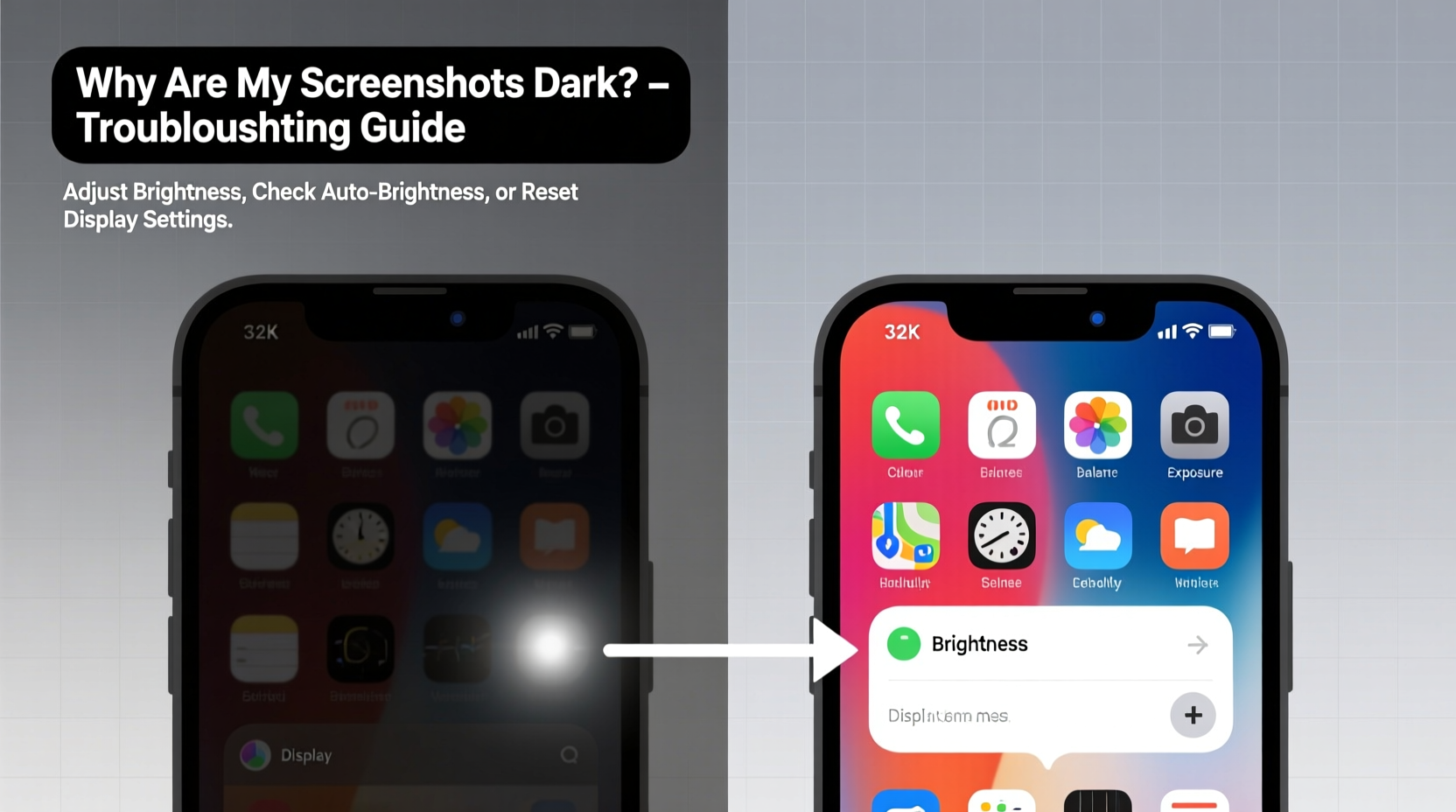
Before diving into solutions, it’s important to identify the most frequent culprits behind dark screenshots:
- Adaptive brightness or True Tone (iOS/macOS): These features adjust screen appearance based on ambient light and time of day, which may affect how colors are captured in screenshots.
- Night Shift or Blue Light filters: Warmer color temperatures reduce blue light but can make images appear darker or more amber-tinted.
- Screen recording overlays or HDR content: Some apps and videos use high dynamic range (HDR), which doesn’t always translate well into standard screenshot formats.
- Display calibration issues: Incorrect gamma, contrast, or color profile settings can skew output.
- Software bugs or outdated drivers (Windows/PC): Graphics drivers play a crucial role in rendering visuals correctly during capture.
- App-specific rendering problems: Certain applications, especially games or media players, may render frames differently when captured.
Step-by-Step Troubleshooting Guide
Follow this structured approach to isolate and resolve the cause of dark screenshots across devices.
- Check active display modes: Turn off Night Shift (iOS/macOS), Blue Light Filter (Android), or f.lux (Windows). These tools often lower brightness and shift color balance.
- Disable True Tone or Adaptive Brightness: On iPhones and iPads, go to Settings > Display & Brightness and toggle off True Tone. On MacBooks, do the same via System Settings > Displays.
- Adjust manual brightness: Set your screen brightness to at least 75% and avoid auto-brightness while capturing.
- Test with different apps: Take screenshots in various environments—browser, notes app, photo viewer—to determine if the issue is isolated to specific software.
- Update your operating system: OS updates frequently include fixes for graphics rendering and screenshot functionality.
- Update graphics drivers (Windows): Outdated GPU drivers can misinterpret frame buffer data. Use Device Manager or your GPU manufacturer's tool (e.g., NVIDIA GeForce Experience) to install the latest version.
- Try alternative screenshot methods: If using keyboard shortcuts fails, test built-in tools like Snipping Tool (Windows), Screenshot app (macOS), or third-party utilities like Greenshot or ShareX.
- Inspect file format and compression: Some tools save screenshots in compressed formats (e.g., JPEG) that degrade quality. Prefer PNG for lossless results.
Real Example: A Designer’s Workflow Fix
A freelance UI designer noticed her client deliverables included unusually dark interface mockups despite vibrant previews on her MacBook Pro. After ruling out monitor defects, she discovered that True Tone was subtly shifting midtones during captures. By disabling True Tone and switching from Preview’s default export to exporting as PNG via Sketch, she restored accurate luminance. This small change prevented repeated revisions and improved client trust in visual fidelity.
Do’s and Don’ts: Quick Reference Table
| Do’s | Don’ts |
|---|---|
| Use full-screen brightness before capturing | Take screenshots under adaptive lighting modes |
| Save in PNG format for clarity | Rely solely on JPEG for detailed visuals |
| Update OS and drivers regularly | Ignore firmware notifications for graphics components |
| Test captures across multiple apps | Assume the issue is hardware-related immediately |
| Disable HDR mode when not needed | Leave HDR enabled on non-HDR displays |
“Accurate screen capture depends as much on software environment as hardware capability. Misconfigured color profiles are responsible for over half the ‘dark screenshot’ reports we receive.” — Jordan Lee, Senior Support Engineer at DisplayCal Labs
Advanced Fixes for Persistent Issues
If basic troubleshooting doesn’t resolve the darkness, consider deeper technical factors.
Verify Color Profile and Gamma Settings
Inconsistent color management can lead to mismatched brightness between display and output. On macOS, go to Apple Menu > System Settings > Displays > Color Filters and ensure no filters are active. On Windows, search “Calibrate display color” in the Control Panel and follow the wizard to reset gamma and brightness levels.
Reset SMC and NVRAM (Mac)
For Mac users experiencing persistent display anomalies, resetting the System Management Controller (SMC) and NVRAM can restore default power and display behaviors:
- Apple Silicon Macs: Shut down, wait 15 seconds, restart.
- Intel Macs: Shut down, then press Shift+Control+Option+Power for 10 seconds, release, then power on.
Check Game Mode or Fullscreen Optimizations (Windows)
Windows Game Mode can interfere with desktop capture tools. To disable:
- Open Settings > Gaming > Game Mode.
- Toggle Game Mode off.
- Also disable \"Fullscreen optimizations\" for problematic apps via Properties > Compatibility tab (right-click .exe file).
Frequently Asked Questions
Why do my screenshots look darker than my screen?
This usually happens due to active display adjustment features like Night Shift, True Tone, or adaptive brightness. These alter perceived screen appearance in real time but don’t always reflect accurately in captured images. Additionally, some apps render content using HDR or proprietary color spaces that standard screenshot tools can't fully preserve.
Can I fix already-taken dark screenshots?
Yes, using photo editing tools like Photoshop, GIMP, or even free online editors such as Photopea. Adjust brightness, contrast, and exposure sliders carefully to recover detail without introducing noise. However, prevention through correct settings yields better long-term results.
Does HDR cause dark screenshots?
Yes. HDR content uses extended brightness ranges that standard SDR (Standard Dynamic Range) capture methods cannot reproduce accurately. When taking screenshots in HDR mode, parts of the image may appear crushed or overly dark. Consider switching to SDR mode temporarily for consistent captures.
Conclusion: Take Control of Your Screen Capture Quality
Dark screenshots aren’t just inconvenient—they can distort communication, undermine credibility, and waste time. The good news is that most causes are easily corrected with awareness and simple adjustments. From disabling automatic tinting features to updating drivers and choosing the right file format, each step brings you closer to reliable, true-to-life captures. Don’t accept dim outputs as inevitable. Diagnose the source, apply targeted fixes, and establish best practices for future consistency.




 浙公网安备
33010002000092号
浙公网安备
33010002000092号 浙B2-20120091-4
Comments
No comments yet. Why don't you start the discussion?