
Text messaging remains one of the most immediate and reliable ways to communicate, yet nothing is more frustrating than hitting \"send\" only to see a red exclamation mark or no confirmation at all. Whether you're using an iPhone or Android, a variety of technical, network, or software-related factors could be blocking your messages from going through. The good news: most of these issues are fixable with the right approach.
This guide breaks down the most common causes behind failed text messages and provides actionable solutions. From checking signal strength to troubleshooting carrier settings, we’ll walk you through everything you need to know to restore seamless messaging.
Common Reasons Text Messages Fail to Send
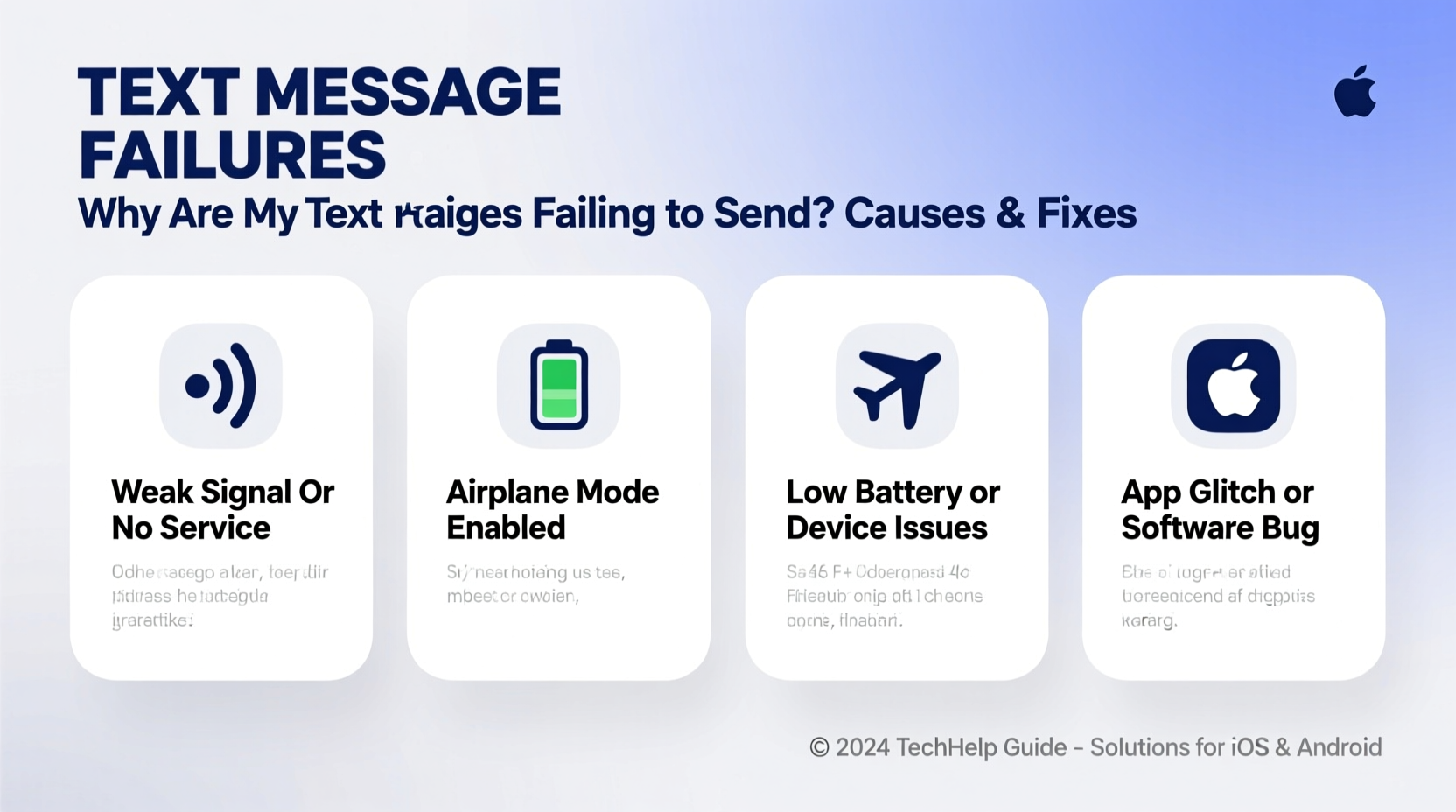
Before jumping into fixes, it’s essential to understand what might be causing the problem. Below are the primary culprits behind undelivered texts:
- Poor or No Network Signal: Without cellular reception, SMS cannot transmit.
- Airplane Mode Enabled: This disables all wireless communication, including texting.
- Incorrect Message Settings: MMS (multimedia messages) require mobile data; iMessage or RCS may interfere with SMS.
- Blocked Number: Either you’ve been blocked by the recipient or your number is restricted.
- Outdated Carrier Settings: Missing APN or SMSC configurations can disrupt message routing.
- Full Message Inbox: Some older devices stop sending when storage is maxed out.
- Carrier Service Outage: Temporary network disruptions affect message delivery.
- Software Glitches: Bugs in the OS or messaging app can halt message transmission.
Step-by-Step Troubleshooting Guide
Follow this logical sequence to diagnose and resolve message-sending failures efficiently.
- Check Signal Strength: Look at your status bar. If you have one bar or “No Service,” move to a location with better coverage or connect to Wi-Fi (if using Wi-Fi calling).
- Disable Airplane Mode: Swipe down (Android) or up (iPhone) to access quick settings and ensure Airplane Mode is off.
- Restart Your Phone: A simple reboot clears temporary glitches affecting connectivity.
- Verify Recipient’s Number: Double-check for typos or incorrect country codes, especially with international numbers.
- Test with Another Contact: Send a message to someone else. If it works, the original recipient may have blocked you or has service issues.
- Toggle Cellular Data (for MMS): MMS requires data. Turn it off and on again under Settings > Mobile Data.
- Check iMessage/RCS Settings: On iPhone, go to Settings > Messages and ensure iMessage is toggled appropriately. For Android, open Messages and verify Chat Features (RCS) status.
- Update Carrier Settings: On iPhone, go to Settings > General > About. If an update is available, you'll be prompted. On Android, check under Settings > Network & Internet > Carrier.
- Clear Messaging App Cache (Android): Go to Settings > Apps > Messages > Storage > Clear Cache.
- Contact Your Carrier: If none of the above work, reach out to confirm there are no account or network issues.
Do’s and Don’ts When Fixing SMS Issues
| Do’s | Don’ts |
|---|---|
| Restart your phone regularly to clear background errors | Ignore persistent error notifications—act early |
| Ensure mobile data is on for MMS and RCS | Assume it's the recipient’s fault without testing |
| Verify correct SMSC number with your carrier | Use third-party apps to “fix” SMS unless trusted |
| Keep your OS and messaging app updated | Delete messages solely to free space without backing up |
| Enable Wi-Fi Calling if cellular signal is weak | Reset network settings without backing up first |
Real-World Example: Sarah’s Weekend Messaging Failure
Sarah was on a weekend trip to a rural area when she noticed her texts weren’t sending. She tried multiple times to message her partner about a change in plans, but each message showed a red exclamation mark. Frustrated, she assumed her phone was broken.
After returning home, she followed basic troubleshooting: restarted her phone (no change), checked Airplane Mode (off), and tested with another friend (same failure). Then she remembered that her carrier had sent a notification two days earlier about a regional outage. She called customer support and confirmed the issue affected her area for 36 hours. Once service resumed, her messages sent instantly.
Sarah learned to check for carrier alerts and now keeps Wi-Fi Calling enabled—a habit that saved her during her next mountain getaway.
“Many SMS failures stem from overlooked carrier-level issues or misconfigured settings. Users often blame their devices when the root cause lies in network infrastructure.” — James Lin, Senior Network Engineer at MetroCom Solutions
Essential Checklist: Fix Failed Text Messages
Use this checklist to quickly diagnose and solve message delivery problems:
- ✅ Check signal bars or network indicator
- ✅ Confirm Airplane Mode is disabled
- ✅ Restart your device
- ✅ Verify the recipient’s number is correct
- ✅ Test messaging with another contact
- ✅ Ensure mobile data is enabled (for MMS)
- ✅ Update carrier settings and OS
- ✅ Toggle Wi-Fi Calling on/off
- ✅ Clear messaging app cache (Android)
- ✅ Contact your carrier to rule out outages or account blocks
Frequently Asked Questions
Why do my texts fail to send only to one person?
If messages fail to only one contact, the issue likely isn’t your phone. Possible causes include: the recipient has blocked your number, their phone is off or out of service, or they’ve disabled SMS. Try calling them or reaching out via another method to confirm.
What does SMSC mean, and why is it important?
SMSC stands for Short Message Service Center. It’s the server your carrier uses to route text messages. If your SMSC number is missing or incorrect (rare, but possible after SIM swaps), texts won’t send. Contact your carrier to verify the correct SMSC settings for your network.
Can full storage prevent text messages from sending?
On older smartphones and some budget Android models, a full internal storage or message inbox can prevent new messages from being processed. While modern phones handle this better, clearing old messages and media can improve performance and resolve stuck texts.
Final Steps: When All Else Fails
If you’ve completed every step and still can’t send texts, consider these advanced options:
- Reset Network Settings: This clears saved Wi-Fi networks, Bluetooth pairings, and cellular configurations. On iPhone: Settings > General > Transfer or Reset iPhone > Reset > Reset Network Settings. On Android: Settings > System > Reset Options > Reset Wi-Fi, Mobile & Bluetooth.
- Try a Different SIM Card: Insert a known-working SIM from the same carrier to test if the issue follows the SIM or stays with the device.
- Visit a Carrier Store: Technicians can run diagnostics, replace faulty SIMs, or provision your line correctly.
- Switch Messaging Apps: On Android, try Google Messages, Samsung Messages, or a trusted alternative to isolate app-specific bugs.
In rare cases, hardware failure—such as a damaged antenna—can prevent cellular transmission. If no cellular functions work (calls, data, texts), professional repair may be needed.
Conclusion: Regain Control of Your Communication
Failed text messages don’t have to disrupt your day. Most issues stem from simple, correctable causes like poor signal, misconfigured settings, or temporary network hiccups. By systematically working through the potential sources—from basic checks to carrier-level fixes—you can restore reliable messaging in minutes.
Stay proactive: keep your phone updated, enable Wi-Fi Calling in low-signal areas, and monitor carrier notifications. These habits minimize future disruptions and keep your conversations flowing smoothly.




 浙公网安备
33010002000092号
浙公网安备
33010002000092号 浙B2-20120091-4
Comments
No comments yet. Why don't you start the discussion?