
If you've noticed that your text messages are appearing in recipients' email inboxes instead of their phones, you're not alone. This issue is most common among iPhone users and often stems from how Apple's iMessage system interacts with phone numbers, Apple IDs, and network settings. While it may seem like a minor glitch, it can disrupt communication—especially when sending time-sensitive messages. The good news is that this problem is usually fixable with a few targeted adjustments. Understanding why it happens is the first step toward restoring normal SMS functionality.
Understanding iMessage and SMS: Why the Confusion Happens
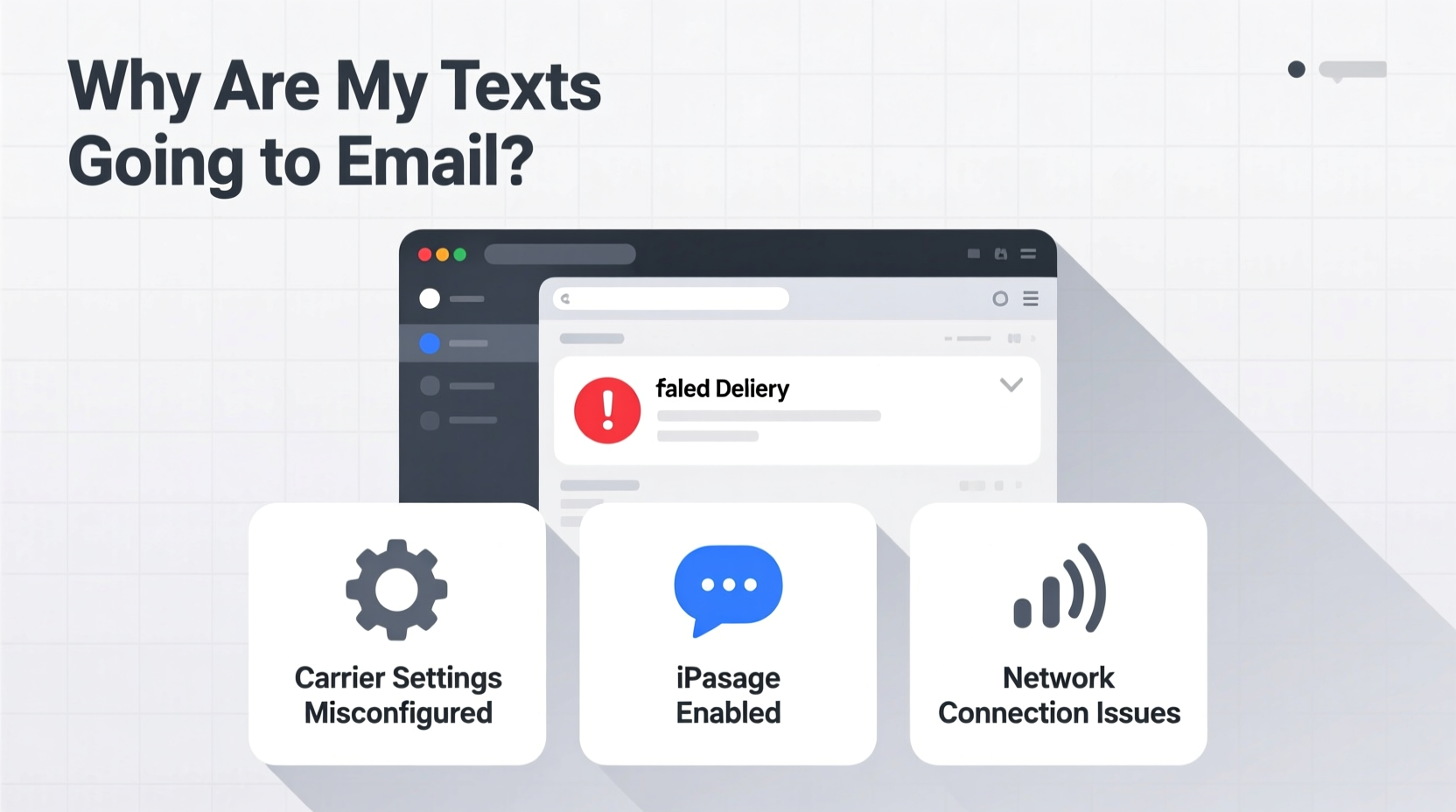
iMessage is Apple’s proprietary messaging service that works over Wi-Fi or cellular data. When enabled, it automatically replaces standard SMS (text messages) with blue bubbles that sync across all Apple devices linked to your Apple ID. However, when iMessage fails to send via its network—due to connectivity issues, incorrect settings, or account mismatches—it may fall back to SMS or even attempt delivery through email.
This fallback behavior explains why some messages appear in an email inbox rather than as a traditional text. Specifically, if your recipient has iMessage set up using their email address and their phone number isn’t properly registered with Apple’s servers, your message may route through email instead of their mobile device.
Apple allows users to register multiple contact points (phone numbers and emails) under one iMessage account. When these aren’t synchronized correctly across devices, confusion occurs—not just for the sender, but also for the recipient who might miss messages sent to an overlooked email inbox.
“Misconfigured iMessage settings are the leading cause of texts appearing in email accounts. It’s not a network flaw—it’s a sync issue.” — Jordan Lee, Senior iOS Support Analyst at TechCare Solutions
Step-by-Step Troubleshooting Guide
Follow this structured approach to diagnose and resolve the root cause of your messages being delivered via email.
- Check Your Recipient’s iMessage Settings
Ask them to go to Settings > Messages > Send & Receive on their iPhone. Ensure their phone number is listed and selected under “You can be reached by iMessage at.” If only an email appears, messages from non-iPhone users—or misrouted iMessages—will go to that email. - Verify Your Own Messaging Settings
On your iPhone, navigate to Settings > Messages > Send & Receive. Confirm that your Apple ID is signed in and that your phone number is active. If your number doesn’t appear, tap “Use your Apple ID for iMessage” and sign in again. - Toggle iMessage Off and On
Go to Settings > Messages and turn iMessage off. Wait 30 seconds, then turn it back on. This forces your device to re-register with Apple’s servers and can resolve syncing errors. - Ensure Cellular Data and Wi-Fi Are Active
iMessage requires internet connectivity. If Wi-Fi is off and cellular data is restricted for Messages, the system may fail to send via iMessage and default to alternative routes, including email. - Restart the Device
A simple restart clears temporary glitches. Press and hold the side button and either volume button, slide to power off, wait 30 seconds, then turn the phone back on.
Common Causes and How to Fix Them
The following table outlines frequent scenarios that lead to texts being sent to email, along with actionable solutions.
| Issue | Symptoms | Solution |
|---|---|---|
| Recipient uses email as primary iMessage ID | Your messages appear as blue bubbles but don’t show up on their phone | Have them add and verify their phone number in Settings > Messages > Send & Receive |
| Your iMessage is linked only to email | You send messages from your iPad or Mac using an email, not your number | Change default send address to your phone number in Messages settings |
| Poor internet connection | iMessage fails silently; SMS doesn’t activate | Enable “Send as SMS” in Settings > Messages and ensure cellular service is active |
| Number not verified with Apple | Grayed-out phone number in iMessage settings | Sign out of Apple ID, restart, then sign back in to trigger verification |
Troubleshooting Checklist
Use this checklist to systematically eliminate potential causes:
- ☑ Confirm both you and the recipient have phone numbers listed in iMessage settings
- ☑ Toggle iMessage off and on to refresh registration
- ☑ Enable “Send as SMS” in case iMessage fails
- ☑ Restart the iPhone after making changes
- ☑ Check that the recipient’s phone number is not blocked or deactivated
- ☑ Ensure the recipient has an active cellular plan with SMS capability
- ☑ Update iOS to the latest version to avoid known bugs
Real-World Example: A Missed Emergency Message
Sarah tried to text her sister about a family emergency. She saw the message sent as a blue bubble and assumed it was delivered. Hours passed with no response. Later, her sister called, unaware of the message—because it had been routed to her old iCloud email, which she rarely checks. After investigating, they discovered that during a recent device transfer, Sarah’s sister had accidentally unlinked her phone number from iMessage, leaving only her email active. Once corrected, future messages arrived directly on her iPhone.
This scenario highlights how critical proper configuration is, especially for urgent communications. A setting oversight led to a potentially serious delay.
Frequently Asked Questions
Why do some of my texts go to email but others don’t?
This typically depends on the recipient’s device and settings. If they’re using an iPhone and iMessage is active with their phone number, messages stay within the iMessage network. If their number isn’t registered or their internet is down, messages may fall back to SMS—or, in misconfigured cases, to email. Non-iPhone users should always receive SMS (green bubbles), so if those are going to email, there’s likely an issue on their end with forwarding rules or third-party apps.
Can I stop messages from being sent to email entirely?
You can't control where messages go on the recipient’s end, but you can ensure your own device sends correctly. Always send from your phone number, not your email. Go to Settings > Messages > Send & Receive > Start New Conversations From, and select your phone number. This minimizes routing confusion.
Does this mean someone is blocking me?
No. If you were blocked, your messages would still send (with no error), but the recipient wouldn’t receive them at all—neither as text nor email. Being routed to email is a technical misconfiguration, not a social one. The message is being delivered, just not to the expected device.
Preventing Future Issues
Maintaining consistent messaging performance requires periodic checks, especially after upgrading devices or changing carriers. Make it a habit to verify your iMessage settings every few months or after any iOS update. Encourage close contacts to do the same, particularly if they use multiple Apple devices. Also, disable any email forwarding rules that could redirect iMessages without your knowledge.
Additionally, consider disabling iMessage for specific contacts if persistent issues occur. While not ideal, switching to SMS ensures reliability. You can do this by temporarily disabling iMessage or asking the recipient to turn off iMessage on their end for your number.
Conclusion
Texts going to email instead of phones is a frustrating but solvable issue. It usually traces back to iMessage settings involving phone numbers and email addresses. By methodically checking configurations on both ends, restarting services, and ensuring proper connectivity, you can restore seamless texting. Don’t assume the problem is on your device alone—collaboration with the recipient often leads to the fastest resolution.




 浙公网安备
33010002000092号
浙公网安备
33010002000092号 浙B2-20120091-4
Comments
No comments yet. Why don't you start the discussion?