
Scroll bars are essential navigational tools that help users move through content on web pages, documents, and applications. When they disappear unexpectedly, it can disrupt usability and create confusion. Whether you're browsing a website, working in a document, or using a desktop application, invisible scroll bars can make navigation frustrating. This comprehensive guide explores the most common causes of missing scroll bars and provides actionable solutions across platforms, browsers, and design environments.
Common Causes of Hidden Scroll Bars
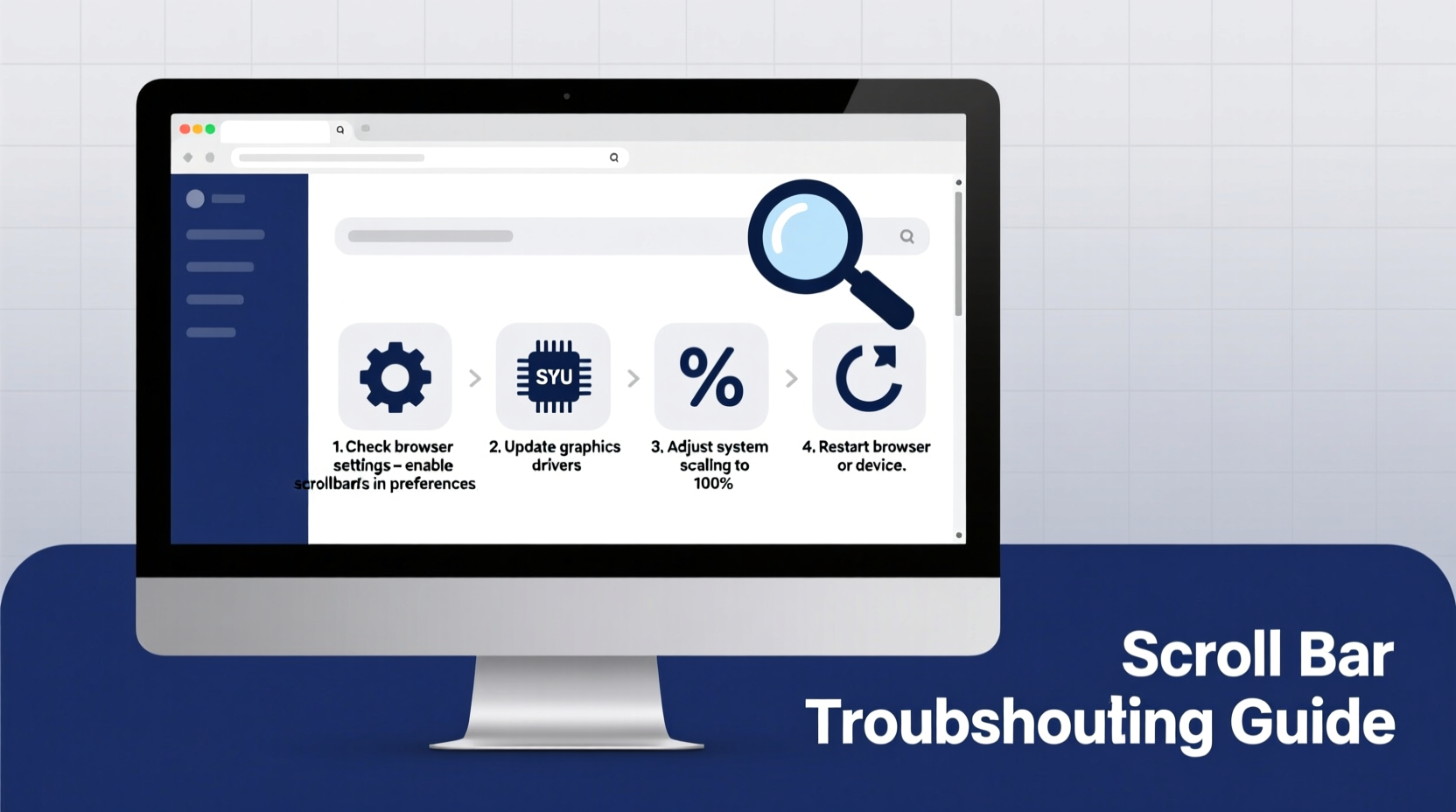
Scroll bars may not appear due to a combination of system settings, browser behavior, CSS styling, or hardware issues. Understanding the root cause is the first step toward resolution. Below are the primary reasons why scroll bars might be missing:
- Operating system settings: Modern OS interfaces often hide scroll bars until scrolling begins (e.g., macOS and Windows 11).
- Browser-specific rendering: Some browsers disable or auto-hide scroll bars based on user preferences or extensions.
- CSS overflow properties: Web developers may use
overflow: hiddenor custom scrollbar styling that removes visibility. - Touchpad gestures: On laptops, two-finger swiping may replace visible scroll bars, making them optional rather than persistent.
- Zoom level or responsive layout: At certain zoom levels or screen sizes, content may fit within view, eliminating the need for scrolling.
Step-by-Step Troubleshooting Guide
Follow this systematic approach to identify and resolve missing scroll bar issues across different contexts.
- Check if content actually requires scrolling. Resize your browser window or zoom out to see if content overflows its container. If everything fits, no scroll bar will appear.
- Attempt to scroll manually. Use the mouse wheel, touchpad gesture, or keyboard arrow keys. If scrolling works but the bar remains invisible, the issue is likely visual, not functional.
- Switch to another browser. Open the same page in Chrome, Firefox, Safari, or Edge to determine if the problem is browser-specific.
- Disable browser extensions temporarily. Ad blockers, dark mode tools, or UI enhancers may override default scrollbar styles.
- Inspect element using DevTools. Right-click the container and select \"Inspect.\" Look for CSS rules like
overflow: hidden,scrollbar-width: none, or-webkit-scrollbaroverrides. - Test on another device. Verify whether the issue persists across phones, tablets, or other computers.
- Review OS-level scrollbar settings. Adjust visibility preferences in System Settings under Accessibility or Display.
Real Example: A Developer’s Oversight
A small business owner reported that customers couldn’t navigate her product catalog on mobile devices. Upon inspection, the development team found that a third-party theme used overflow: hidden on the main container to fix a layout bug, unintentionally disabling vertical scrolling. The fix involved reapplying overflow-y: auto and testing across breakpoints. Within hours, navigation was restored, and bounce rates dropped by 37%.
Platform-Specific Fixes
Different operating systems handle scroll bars differently. Here's how to adjust settings on major platforms.
| Platform | Setting Location | Solution |
|---|---|---|
| Windows 10/11 | Settings > Accessibility > Visual Effects | Toggle “Show scroll bars” to Always. |
| macOS | System Settings > Appearance | Select “Always” under “Show scroll bars.” |
| Google Chrome | chrome://flags/#overlay-scrollbars | Set to Disabled to restore classic scroll bars. |
| Firefox | about:config > scrollbar.skip_first_mouse_wheel_scroll_event | Set to false if scroll doesn’t trigger bar appearance. |
| iOS Safari | N/A (system-controlled) | Scroll bars appear briefly during movement; cannot be made persistent. |
“Modern UI trends favor minimalism, but removing scroll cues entirely harms accessibility. Always ensure alternative navigation indicators exist.” — Lena Torres, UX Designer at WebA11y Labs
Web Development Best Practices
For developers, ensuring scroll bars behave correctly is part of delivering a usable experience. While custom styling offers aesthetic control, it should never compromise functionality.
Use these standards when managing scroll behavior in CSS:
- Avoid
overflow: hiddenon body or main containers unless absolutely necessary. - If hiding default scroll bars, provide a clear visual cue (like fade-in effects or directional icons) to indicate more content exists.
- Use
scrollbar-gutter: stableto prevent layout shifts when scroll bars appear. - Support both forced-color and reduced-motion modes by respecting user preferences via
@media (prefers-reduced-motion).
overflow: hidden with
overflow: clip where possible—it’s faster and preserves scroll API access.
CSS Snippet for Accessible Custom Scrollbars
/* Ensures visible, usable scroll bars on Chrome/Edge */
::-webkit-scrollbar {
    width: 12px;
}
::-webkit-scrollbar-track {
    background: #f1f1f1;
    border-radius: 10px;
}
::-webkit-scrollbar-thumb {
    background: #c1c1c1;
    border-radius: 10px;
    border: 2px solid #f1f1f1;
}
::-webkit-scrollbar-thumb:hover {
    background: #a8a8a8;
}

/* Firefox */
* {
    scrollbar-width: auto;
    scrollbar-color: #c1c1c1 #f1f1f1;
}
FAQ
Why do scroll bars disappear after updating my browser?
Browser updates sometimes enable overlay scrollbars by default—thin, auto-hiding bars designed for touch and minimal interfaces. You can disable this in experimental flags (chrome://flags) or accept the new behavior as temporary visibility only during scroll.
Can I make scroll bars always visible on a website I visit frequently?
Yes. Use a browser extension like “Stylus” to inject custom CSS that forces scroll bar visibility. For example: * { scrollbar-width: thin !important; } for Firefox, or target ::-webkit-scrollbar in Chrome-based browsers.
Are invisible scroll bars a security risk?
Not directly, but they can lead to poor user experience or accidental data exposure if users miss critical content below the fold. From an accessibility standpoint, hiding scroll indicators violates WCAG 2.1 guidelines on navigability.
Final Checklist: Resolve Hidden Scroll Bars
- Confirm content exceeds viewport dimensions.
- Test scrolling functionality with mouse, keyboard, or touch.
- Check OS settings for scrollbar visibility options.
- Try a different browser or device.
- Disable extensions that modify page appearance.
- Inspect CSS for
overflowor scrollbar display rules. - Adjust browser flags if using Chrome or Edge.
- For developers: Implement accessible fallbacks and avoid complete removal.
Conclusion
Missing scroll bars are rarely a single-point failure—they stem from layered interactions between software, design choices, and user preferences. By methodically checking each potential cause, you can restore navigation clarity whether you're an end user or a developer. Visibility matters, especially when it comes to helping people find their way through digital content.




 浙公网安备
33010002000092号
浙公网安备
33010002000092号 浙B2-20120091-4
Comments
No comments yet. Why don't you start the discussion?