
If you've ever sent a message from your iPhone and noticed that the bubble was green instead of blue, you're not alone—and there's a reason for it. This color difference isn't random; it reflects fundamental changes in how your message is delivered. Understanding why some of your texts appear green can help clarify whether your messages are being sent via Apple’s iMessage system or through standard SMS/MMS. More importantly, it affects features like read receipts, typing indicators, group messaging quality, and even data usage.
The distinction between green and blue messages may seem minor, but it impacts reliability, security, and functionality. For users deeply embedded in the Apple ecosystem, consistently seeing green bubbles when messaging other iPhone owners can be confusing—or even concerning. Let’s break down what these colors mean, why they change, and what you can do about it.
What Do Green and Blue Text Bubbles Mean?
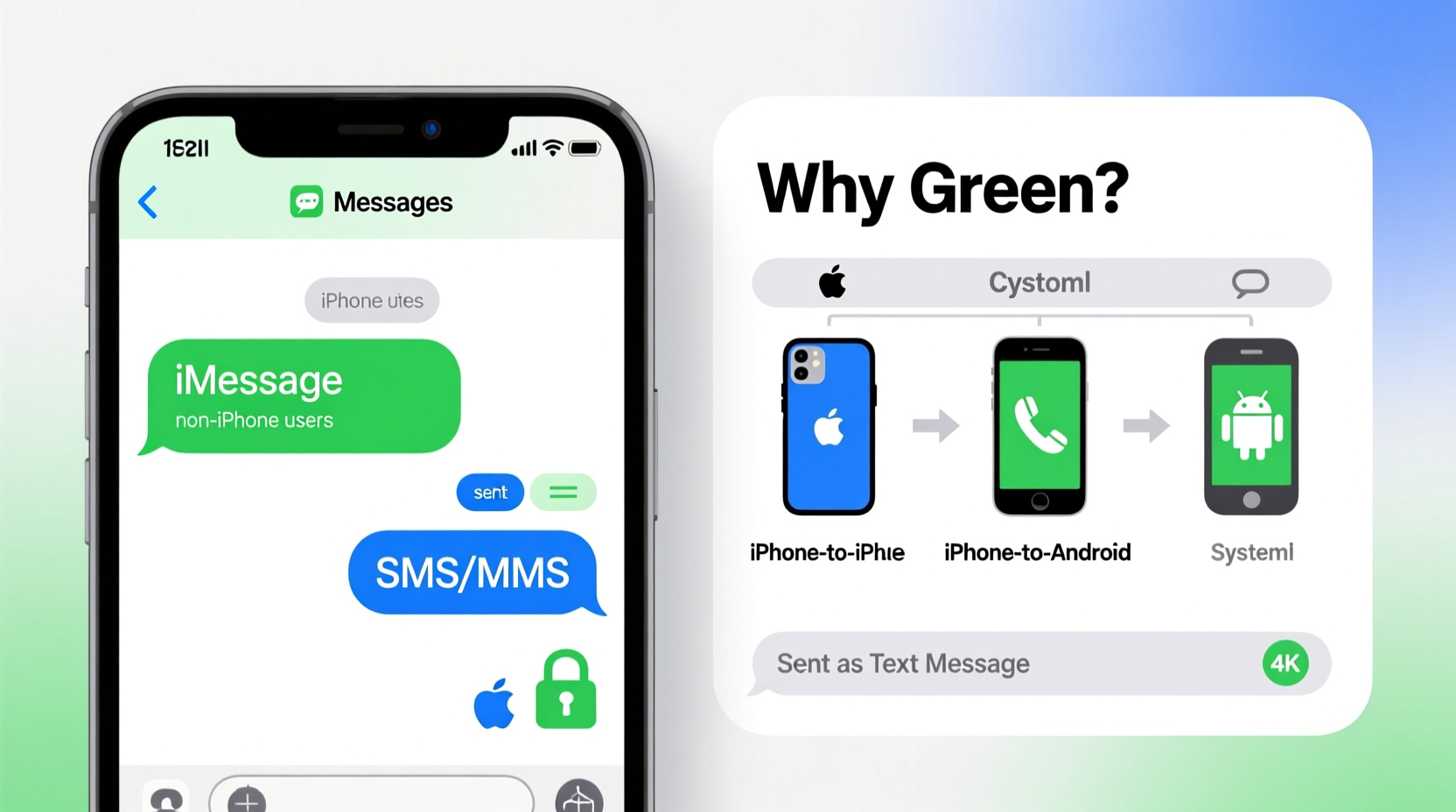
The color of your message bubbles in the iPhone's Messages app indicates the technology used to send the message:
- Blue bubbles: Messages sent via iMessage, Apple’s encrypted messaging service over Wi-Fi or cellular data.
- Green bubbles: Messages sent as SMS/MMS through your carrier’s traditional text messaging system, using your phone number.
iMessage requires both the sender and recipient to have an Apple device (iPhone, iPad, Mac) with iMessage enabled and connected to the internet. When either party lacks these conditions, the fallback is SMS/MMS—hence the green bubble.
This design choice by Apple serves as a visual cue so users can quickly assess whether advanced iMessage features are active for a given conversation.
When and Why Messages Turn Green
There are several scenarios where your messages will default to green, even if you're sending to another iPhone:
- iMessage is disabled on the recipient’s device. They may have turned it off intentionally or due to setup issues.
- Your own iMessage is turned off. Check Settings > Messages > iMessage to ensure it’s enabled.
- No internet connection. Without Wi-Fi or cellular data, iMessage cannot function, forcing a switch to SMS.
- The recipient uses a non-Apple device. Android, Windows Phone, or basic phones only support SMS/MMS.
- Phone number not registered with iMessage. Sometimes after switching devices or restoring backups, Apple’s servers don’t properly link your number to iMessage.
One particularly frustrating case occurs when someone switches from iPhone to Android but doesn’t deregister their iMessage account. In this situation, iPhones continue trying to route messages through iMessage—which fails silently—resulting in undelivered texts while others receive them just fine.
“Over 70% of iMessage delivery issues stem from incorrect account registration or network misconfigurations.” — David Lin, Senior iOS Support Analyst at AppleInsider Tech Services
Key Differences Between iMessage and SMS
Understanding the technical and functional differences between iMessage (blue) and SMS (green) helps explain why the color matters beyond aesthetics.
| Feature | iMessage (Blue) | SMS/MMS (Green) |
|---|---|---|
| Encryption | End-to-end encryption | No encryption |
| Internet Required | Yes (Wi-Fi or data) | No (uses carrier network) |
| Read Receipts | Available (if enabled) | Not available |
| Typing Indicators | Yes | No |
| Group Messaging | Rich features (names, replies, media) | Limited (no threading, participant names) |
| Delivery Confirmation | Yes (delivered/sent status) | Carrier-dependent, often none |
| Cost | Free (with data/Wi-Fi) | May count against plan limits |
As shown, iMessage offers superior privacy, functionality, and user experience. SMS remains essential for cross-platform communication but lacks modern enhancements.
How to Fix Unexpected Green Messages
If you're regularly sending green messages to other iPhone users—especially those you know are still on iOS—you may need to troubleshoot. Follow this step-by-step guide to restore proper iMessage functionality.
Step 1: Verify Your iMessage Settings
Navigate to Settings > Messages and confirm that iMessage is toggled ON. Wait a few moments for activation (it may take up to a minute).
Step 2: Check Send & Receive Addresses
Tap “Send & Receive” in the Messages settings. Ensure your phone number and Apple ID email are listed under “You can be reached by iMessage at.” If your number is missing, tap “Add Another Email or Phone Number” and follow prompts.
Step 3: Restart iMessage
Turn iMessage OFF, wait 30 seconds, then turn it back ON. This often re-establishes the connection with Apple’s servers.
Step 4: Toggle Airplane Mode
Enable Airplane Mode for 10 seconds, then disable it. This resets network connections and can resolve temporary carrier-related glitches.
Step 5: Update iOS
Go to Settings > General > Software Update. Outdated software can cause syncing issues with iMessage registration.
Step 6: Deregister Old Devices (If Applicable)
If you or the recipient recently switched from iPhone to Android, visit Apple’s iMessage deregistration page to remove the phone number from Apple’s system. This prevents failed iMessage attempts.
Real-World Example: The Case of the Missing Birthday Message
Sarah planned a surprise birthday party and created a group chat with five close friends—all iPhone users. She expected seamless coordination via iMessage. However, one friend, Jake, never saw the initial invite. Later, he mentioned he didn’t get any messages.
Upon checking, Sarah noticed that her messages to Jake appeared green, unlike the blue ones sent to others. Confused, she assumed he’d blocked her—until she called him and learned he still used an iPhone.
After investigation, it turned out Jake had temporarily disabled iMessage during a software update and forgotten to re-enable it. Additionally, his phone number wasn’t properly linked to his Apple ID because he used a new SIM without reconnecting to iMessage.
Once Jake reactivated iMessage and verified his number, the messages resumed in blue. Sarah learned the importance of verifying message types before assuming delivery—especially for time-sensitive plans.
Frequently Asked Questions
Can I force a message to send as iMessage instead of SMS?
Not directly. The Messages app automatically chooses based on connectivity and recipient capability. However, ensuring iMessage is enabled and your network is stable increases the likelihood of blue bubbles.
Does green mean the person blocked me?
Not necessarily. A blocked contact usually shows no delivery confirmation and won’t trigger read receipts—but the initial message may still go through as green if sent before blocking. True blocking behavior varies and isn’t reliably indicated by bubble color alone.
Why do some messages start blue and turn green?
This typically happens when you begin composing an iMessage (blue), but lose internet connection before sending. The system may attempt to resend as SMS (green). Alternatively, if the recipient disables iMessage mid-conversation, future messages fall back to SMS.
Final Thoughts: Take Control of Your Messaging Experience
The green versus blue debate isn’t just about colors—it’s about control, clarity, and communication reliability. While SMS ensures universal reach, iMessage delivers a richer, more secure experience within the Apple ecosystem. Recognizing what each color represents empowers you to diagnose problems early and maintain smoother conversations.
Periodic checks of your iMessage settings, awareness of recipient device types, and proactive troubleshooting can prevent misunderstandings and missed messages. Whether coordinating events, sharing photos, or simply staying in touch, knowing why your texts turn green gives you the upper hand in managing digital relationships.




 浙公网安备
33010002000092号
浙公网安备
33010002000092号 浙B2-20120091-4
Comments
No comments yet. Why don't you start the discussion?