
Seeing unexpected lines—vertical, horizontal, flickering, or colored—on your monitor can be both distracting and concerning. These visual artifacts often signal underlying hardware or software problems that, if left unaddressed, may worsen over time. Whether you're using a desktop setup, a laptop, or a high-refresh-rate gaming display, understanding the root causes and knowing how to methodically troubleshoot them is essential. This guide walks through common reasons for monitor lines, practical fixes, and preventive measures to keep your screen clear and functional.
Common Types of Monitor Lines and What They Mean
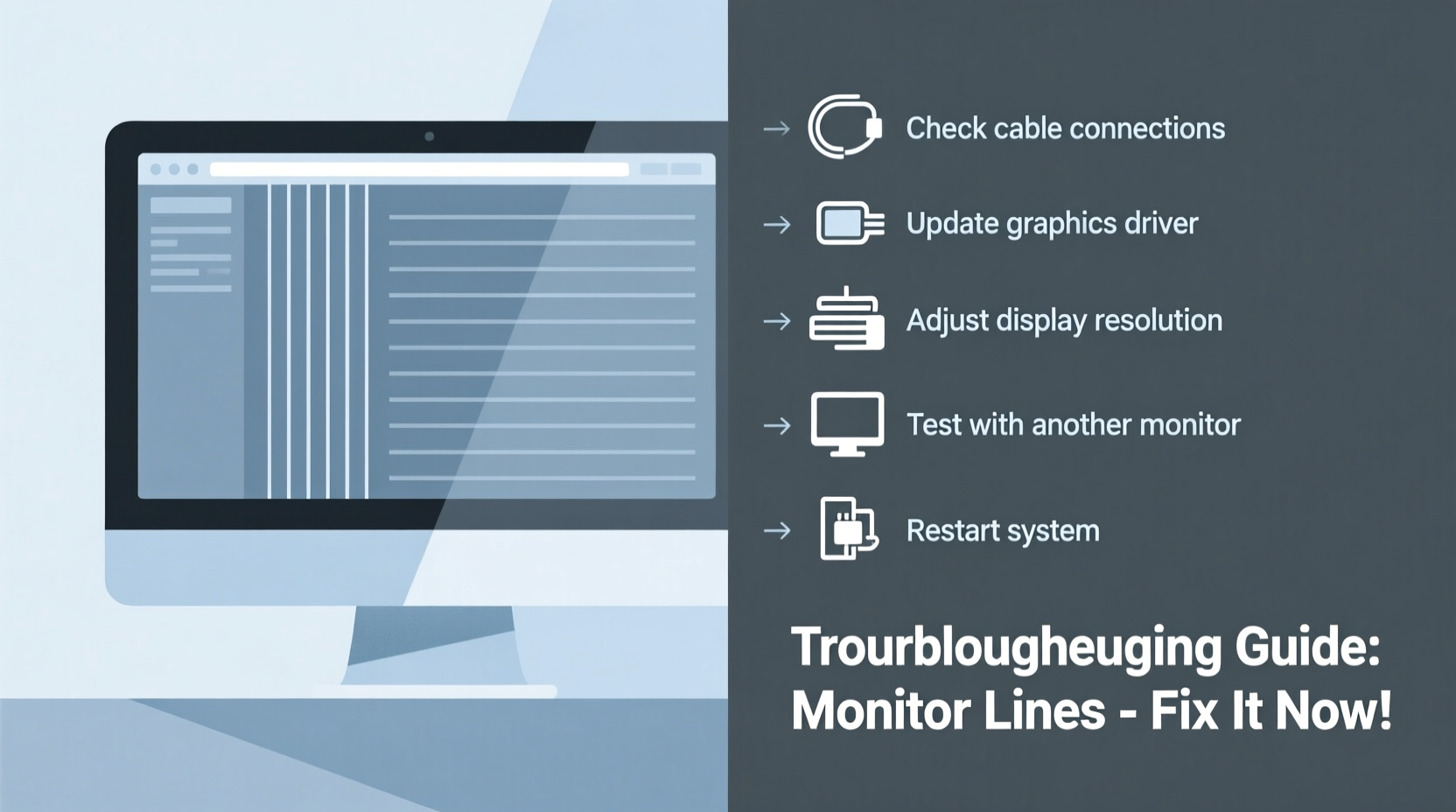
Not all lines are created equal. The appearance, color, and behavior of the lines can offer clues about their origin:
- Vertical green or white lines: Often linked to GPU output issues or faulty LCD panels.
- Horizontal flickering lines: Typically caused by refresh rate mismatches or loose video cables.
- Colored static lines: May indicate pixel defects or driver corruption.
- Persistent thin black lines: Common in aging displays with damaged liquid crystal layers.
- Intermittent lines during movement: Suggests a loose connection or overheating component.
Understanding these patterns helps narrow down whether the issue lies with software, cabling, or physical hardware damage.
Step-by-Step Troubleshooting Guide
Follow this logical sequence to identify and resolve the cause of monitor lines without unnecessary replacements or expenses.
- Restart your computer and monitor. Sometimes, a temporary glitch causes visual artifacts. A reboot clears cached data and resets display drivers.
- Check the video cable (HDMI, DisplayPort, etc.). Disconnect and reconnect it at both ends. Look for bent pins or fraying. Try a different cable if available.
- Switch input sources. If your monitor supports multiple inputs, switch to another device (e.g., a laptop or console) to see if the lines persist. If they do, the issue is likely with the monitor itself.
- Test with another monitor. Connect your current PC to a different display. If no lines appear, the original monitor is likely faulty.
- Boot into Safe Mode (Windows). This loads minimal drivers. If lines disappear, the problem may stem from graphics drivers or third-party software conflicts.
- Update or roll back graphics drivers. Outdated or corrupted drivers can cause rendering errors. Use Device Manager or your GPU manufacturer’s tool (e.g., NVIDIA GeForce Experience) to manage updates.
- Inspect GPU health. For desktop users, reseat the graphics card and check for dust buildup. Run stress tests using tools like FurMark to see if lines appear under load.
Hardware vs. Software: Identifying the Root Cause
Distinguishing between hardware failure and software glitches saves time and money. The table below summarizes key indicators:
| Factor | Hardware Issue | Software Issue |
|---|---|---|
| When lines appear | Always visible, even on BIOS screen | Only during OS use or specific apps |
| Cable swap effect | No change | Might resolve temporarily |
| Monitor test result | Lines present on other devices | Lines absent on other systems |
| Driver update impact | No improvement | Improvement or resolution |
| Physical inspection | Visible pressure marks, cracks, or dead pixels | No physical damage observed |
“Over 60% of reported ‘monitor defects’ turn out to be cable or driver-related. Always rule out external factors before assuming panel failure.” — David Lin, Senior Technician at DisplayCare Labs
Mini Case Study: Resolving Intermittent Vertical Lines
A freelance graphic designer noticed thin vertical green lines appearing on her 27-inch IPS monitor during long editing sessions. Initially rare, the lines became more frequent over two weeks. She followed basic restarts and cable checks with no success. Suspecting heat-related issues, she monitored GPU temperature using HWInfo and found peaks above 85°C. After cleaning dust from the GPU fan and improving case airflow, the lines stopped appearing. Further investigation revealed outdated drivers; updating them stabilized the output. The monitor, previously thought failing, continued functioning flawlessly for over a year post-fix.
This case highlights how thermal stress combined with software inefficiencies can mimic hardware failure.
Preventive Maintenance Checklist
To avoid future line issues, adopt these proactive habits:
- ✅ Clean monitor vents and GPU fans every 3–6 months.
- ✅ Use surge protectors to prevent voltage spikes damaging display circuitry.
- ✅ Keep graphics drivers updated via official sources.
- ✅ Avoid pressing or leaning on laptop screens or thin-bezel monitors.
- ✅ Replace aging HDMI or DisplayPort cables every 2–3 years, especially if frequently unplugged.
- ✅ Enable automatic OS and firmware updates where available.
When to Repair vs. Replace
Deciding whether to repair or replace depends on cost, age, and usage:
- If the monitor is under warranty and shows consistent lines, contact the manufacturer. Most cover panel defects within the first 1–3 years.
- For older monitors (5+ years), replacement is often more economical than paying for LCD panel repairs, which can exceed 70% of a new unit’s cost.
- Laptop screens with internal damage usually require full assembly replacement. Weigh the cost against upgrading the entire device.
- External GPUs or docking stations introducing lines should be tested independently—sometimes the fault lies in peripheral hardware, not the display.
Frequently Asked Questions
Can a bad HDMI cable cause lines on a monitor?
Yes. A damaged or low-quality HDMI cable can introduce signal interference, leading to horizontal flickering lines, color distortion, or intermittent blanking. Replacing it with a certified High-Speed HDMI cable often resolves the issue.
Do vertical lines always mean the monitor is dying?
Not always. While persistent vertical lines often indicate LCD panel failure, they can also stem from GPU faults or driver issues. Confirm by testing the monitor with another device and checking the GPU on a different display.
Can I fix stuck pixels causing line-like artifacts?
Sometimes. Stuck pixels appear as tiny colored dots but can form short lines if clustered. Use pixel-refresh tools like JScreenFix or gently massage the area with a soft cloth. Success varies, and prevention through moderate brightness settings is better than cure.
Conclusion
Lines on your monitor don’t automatically mean it’s time for a replacement. Many cases stem from simple, fixable issues like loose cables, outdated drivers, or overheating components. By systematically isolating variables—starting from connections and moving toward hardware diagnostics—you can accurately diagnose and often resolve the problem without expense. Regular maintenance and awareness of early warning signs extend the life of any display, whether used for work, creativity, or entertainment.




 浙公网安备
33010002000092号
浙公网安备
33010002000092号 浙B2-20120091-4
Comments
No comments yet. Why don't you start the discussion?