
Accessing the internet should be seamless, but many users encounter frustrating blocks when trying to reach certain websites. Whether you're at home, in the office, or using public Wi-Fi, being denied access can feel arbitrary or even suspicious. The truth is, website blocking is often intentional — driven by security policies, network configurations, or regional restrictions. Understanding the underlying causes empowers you to diagnose issues accurately and apply appropriate fixes without compromising safety.
Common Reasons Websites Are Blocked
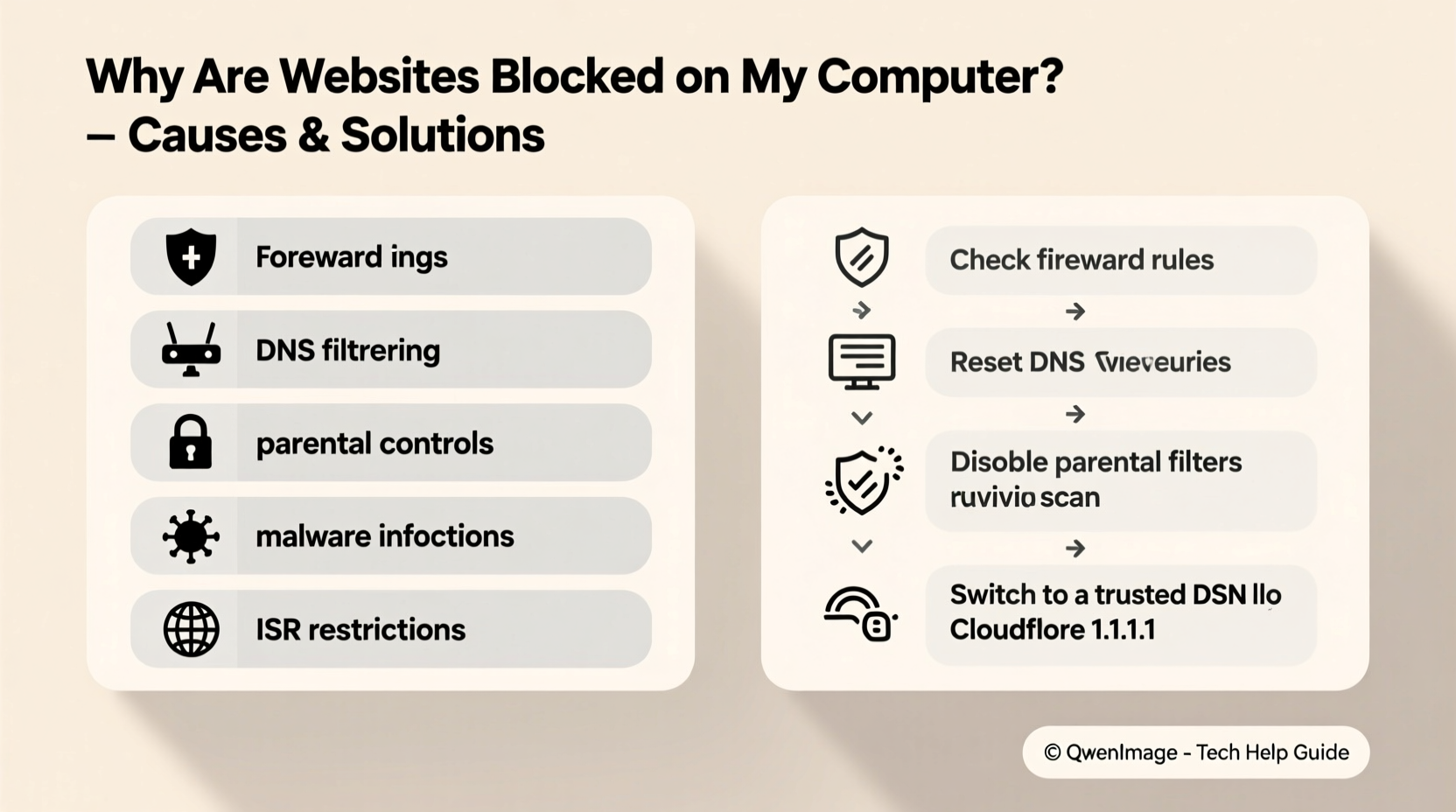
Website blocks rarely happen randomly. Most stem from deliberate mechanisms designed to protect networks, enforce policies, or comply with legal standards. Recognizing these causes helps determine whether a block is justified or if it's an obstacle that needs resolving.
- Network administrator policies: In workplaces or schools, IT departments often restrict access to social media, streaming platforms, or adult content to maintain productivity and compliance.
- Firewall or antivirus software: Security tools may flag certain sites as malicious based on threat intelligence databases, even if the site is safe.
- Parental controls: Home networks with family protection settings might limit access to age-inappropriate or high-risk domains.
- Geographic restrictions (geo-blocking): Some websites limit access based on your IP address location due to licensing or legal requirements.
- ISP-level filtering: Internet Service Providers sometimes block sites involved in phishing, malware distribution, or illegal activity.
- DNS issues: Misconfigured DNS servers may fail to resolve certain domains or redirect requests incorrectly.
- Browser extensions: Ad blockers or privacy tools like uBlock Origin or Privacy Badger can unintentionally block legitimate content.
How to Diagnose Website Blocking Issues
The first step toward resolution is identifying where the block originates. A systematic approach prevents wasted effort and ensures you don’t disable critical protections unnecessarily.
- Check connectivity: Confirm your internet works by visiting multiple unrelated sites (e.g., google.com, bbc.com).
- Try incognito/private mode: This disables most browser extensions, helping isolate whether an add-on is causing the block.
- Use a different browser: Test the site in Firefox, Chrome, or Edge to rule out browser-specific issues.
- Ping the website: Open Command Prompt (Windows) or Terminal (Mac), type
ping example.com, and see if there’s a response. No response could indicate DNS or firewall interference. - Test with a mobile hotspot: If the site loads over cellular data, the restriction is tied to your primary network.
“Many website blocks are not technical failures but policy decisions. Knowing who controls the network tells you where to look for answers.” — Sarah Lin, Network Security Analyst
Solutions Based on Block Type
Once you’ve identified the source of the block, targeted solutions become clearer. Below is a breakdown of remedies aligned with common blocking scenarios.
| Blocking Cause | Solution | Risk Level |
|---|---|---|
| Corporate/School Firewall | Contact IT support; do not attempt bypass unless authorized | High (policy violation) |
| Antivirus Blocking | Add site to whitelist in antivirus settings | Low (if site is trusted) |
| Parental Controls | Adjust settings via family account dashboard or router admin panel | Low |
| Geo-Restrictions | Use a reputable VPN service to change virtual location | Moderate (choose no-log providers) |
| DNS Filtering | Switch to public DNS like Google (8.8.8.8) or Cloudflare (1.1.1.1) | Very Low |
| Browser Extension Interference | Disable extensions one by one to identify culprit | Minimal |
Step-by-Step: Change Your DNS Settings (Windows & Mac)
Changing your DNS can resolve blocks caused by ISP filtering or misconfigured resolvers.
- On Windows: Go to Control Panel > Network and Sharing Center > Change adapter settings.
- Right-click your active connection (Wi-Fi/Ethernet) and select Properties.
- Select “Internet Protocol Version 4 (TCP/IPv4)” and click Properties.
- Choose “Use the following DNS server addresses” and enter:
- Preferred DNS server:
8.8.8.8 - Alternate DNS server:
8.8.4.4
- Preferred DNS server:
- Click OK, then restart your browser.
For Mac: System Settings > Network > Wi-Fi > Details > DNS. Click the + button and add 1.1.1.1 or 8.8.8.8.
Real Example: Office Worker Regains Access to Development Tools
Jamal, a freelance developer working remotely from a co-working space, found GitHub suddenly inaccessible. Other sites worked fine, but attempts to clone repositories failed. He tested the site on his phone using mobile data — it loaded instantly. This confirmed the block was network-specific.
He tried incognito mode and a different browser with no success. After contacting the facility’s front desk, he learned their default firewall blocked “code hosting platforms” under a broad security rule. Jamal explained his use case, and staff added an exception for GitHub and GitLab. Within minutes, access was restored — all without compromising network safety.
This case highlights how communication with network administrators can yield fast, secure resolutions when working in shared environments.
Safe Ways to Bypass Blocks Without Compromising Security
While some blocks are necessary, others hinder legitimate activities like research, remote work, or accessing international news. Safe bypass methods exist — but caution is essential.
- Use a trusted Virtual Private Network (VPN): Encrypts traffic and masks your IP, allowing access to geo-blocked or filtered content. Choose providers with strong privacy policies (e.g., Mullvad, ProtonVPN).
- Try Tor Browser: Routes traffic through encrypted nodes, useful for accessing censored information. Slower speeds make it less ideal for streaming.
- Google Translate trick: Enter the blocked URL into Google Translate. It acts as a proxy, though this method doesn’t work for interactive sites.
- Cloud-based desktop services: Platforms like Amazon WorkSpaces or Parsec allow you to access a remote machine located in an unrestricted region.
“Bypassing filters isn't inherently risky — it's about intent and method. Using encryption and trusted tools keeps you protected while restoring access.” — Dr. Marcus Reed, Cybersecurity Researcher
FAQ
Can my employer see what sites I try to visit even if they’re blocked?
Yes. Corporate networks typically log all DNS requests and web traffic, regardless of whether access is granted. Attempting to bypass filters may violate acceptable use policies and result in disciplinary action.
Why does a website load on my phone but not my laptop on the same Wi-Fi?
This usually indicates a device-specific issue such as outdated browser cache, enabled parental controls on the laptop, or a security application actively filtering content only on that machine.
Is it legal to bypass website blocks?
Legality depends on context. Bypassing government censorship in restrictive regimes is often done for free speech reasons, but circumventing workplace or school filters may breach terms of service or employment agreements. Always consider both legal and ethical implications.
Final Checklist: Troubleshooting Website Blocks
- Verify internet connectivity with other websites.
- Test the site on another device or network.
- Clear browser cache and cookies.
- Try incognito mode or a different browser.
- Disable browser extensions temporarily.
- Check firewall or antivirus settings for blocked domains.
- Change DNS to Google or Cloudflare.
- Contact network administrator if on a managed network.
- Consider using a reputable VPN for persistent geo-blocks.
Conclusion
Website blocks are rarely arbitrary — they stem from layered systems designed to manage access, enhance security, or enforce policies. While inconvenient, understanding the root cause transforms confusion into control. From adjusting DNS settings to engaging with network administrators, practical solutions exist for nearly every scenario. The key is diagnosing accurately and acting responsibly, ensuring you regain access without undermining digital safety.




 浙公网安备
33010002000092号
浙公网安备
33010002000092号 浙B2-20120091-4
Comments
No comments yet. Why don't you start the discussion?