
Suddenly unable to open YouTube? You're not alone. Millions of users experience unexpected access issues with the platform every day. Whether you're on a phone, tablet, or desktop, being locked out of YouTube can be frustrating—especially when you rely on it for entertainment, education, or work. The good news: most problems have simple, immediate solutions. Before assuming it’s a major network failure or device malfunction, try these proven troubleshooting steps. From browser glitches to regional restrictions, this guide covers the full spectrum of common causes and how to fix them quickly.
Common Reasons Why YouTube Won’t Load
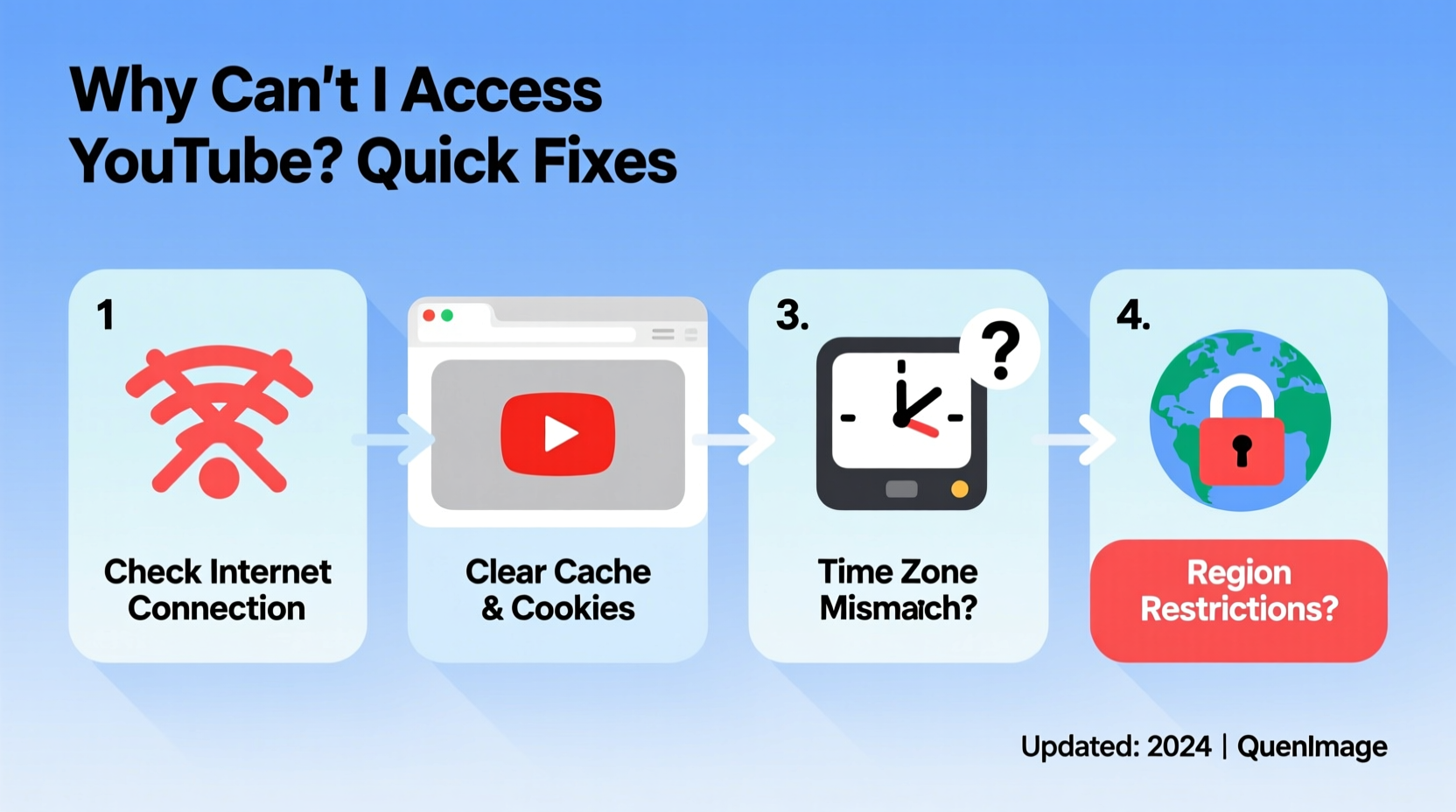
YouTube access issues rarely stem from a single cause. Instead, they result from a combination of device settings, network conditions, or external restrictions. Understanding the root problem is key to applying the right fix. Here are the most frequent culprits:
- Internet connectivity problems – Slow or unstable connections prevent YouTube from loading properly.
- Browser or app cache corruption – Accumulated data can interfere with page rendering.
- Outdated app or browser version – Older software may lack support for current YouTube features.
- Firewall or parental controls – Network administrators or security tools might block YouTube.
- Regional restrictions or ISP throttling – Some countries or internet providers limit access to streaming platforms.
- DNS configuration errors – Incorrect DNS settings can prevent domain resolution.
“Over 60% of YouTube access issues are resolved at the user end—often with a simple restart or cache clear.” — Alex Tran, Senior Network Support Analyst at NetSecure Solutions
Step-by-Step Troubleshooting Guide
Follow this logical sequence to identify and resolve your YouTube access issue efficiently. Start with the simplest checks and progress to more advanced fixes if needed.
- Check Your Internet Connection
Open another website or streaming service. If nothing loads, the issue is likely with your network. Restart your router or switch to mobile data to test. - Test YouTube on Another Device
Try accessing YouTube from a different phone, tablet, or computer on the same network. If it works, the problem is isolated to your original device. - Restart Your Device
A reboot clears temporary glitches in both apps and operating systems. This step resolves many unexplained access issues. - Clear Browser Cache or App Data
In browsers, go to settings and clear cached images and files. On mobile apps, navigate to Settings > Apps > YouTube > Storage > Clear Cache (and Clear Data if necessary). - Update the YouTube App or Browser
Visit your app store or browser update section. Outdated versions often fail to load modern web content correctly. - Disable Browser Extensions or Ad Blockers
Some extensions interfere with video players. Temporarily disable them to see if YouTube loads. - Change Your DNS Settings
Switch to a public DNS like Google (8.8.8.8) or Cloudflare (1.1.1.1) to bypass local DNS bottlenecks. - Try Incognito or Private Browsing Mode
This rules out cookie conflicts or corrupted session data.
Do’s and Don’ts When Fixing YouTube Access
| Action | Do | Don't |
|---|---|---|
| Clearing data | Clear cache first; only clear app data if necessary | Delete app data without backing up preferences |
| Using public Wi-Fi | Verify network allows YouTube access before relying on it | Assume all public networks permit streaming |
| Changing DNS | Use trusted providers like Google, Cloudflare, or OpenDNS | Enter random DNS addresses from unverified sources |
| Installing updates | Update OS, browser, and app simultaneously when possible | Ignore update notifications for extended periods |
| Testing connectivity | Use multiple devices and networks to isolate the issue | Blame your ISP immediately without testing alternatives |
Real-World Example: Office Network Blocks YouTube
Jamie, a freelance graphic designer, visited a client’s office to present a video portfolio hosted on YouTube. When she tried to play the clip, the page wouldn’t load—spinning endlessly with no error message. Her phone worked fine on cellular data, ruling out an account or global outage issue. She asked the IT manager, who confirmed that YouTube was restricted during business hours to reduce bandwidth usage. Jamie switched to a personal hotspot, completed her presentation, and later advised her client to set up a guest network for visitors needing unrestricted access. This scenario highlights how institutional policies—not technical faults—can block YouTube.
Troubleshooting Checklist
Use this checklist to methodically eliminate potential causes. Check each item as you complete it:
- ✅ Test internet connection with another site
- ✅ Restart router and device
- ✅ Open YouTube on a second device
- ✅ Clear browser cache or app cache
- ✅ Disable ad blockers and browser extensions
- ✅ Update YouTube app and browser
- ✅ Try incognito/private browsing mode
- ✅ Change DNS to 8.8.8.8 or 1.1.1.1
- ✅ Check for regional restrictions using a trusted source
- ✅ Contact network administrator if on a restricted network
Frequently Asked Questions
Why does YouTube say “Network Error” even though I’m connected?
This message usually means your device can’t reach YouTube’s servers despite having internet access. It could be due to DNS failure, firewall settings, or temporary server-side issues. First, restart your router. Then, try switching to a different network or using a DNS changer. If the error persists across multiple devices, check Downdetector or Google’s Workspace Status Dashboard for known outages.
Can my school or workplace block YouTube permanently?
Yes. Many organizations use content filtering software to restrict access to streaming sites during work or class hours. These blocks are enforced at the network level and cannot be bypassed without administrative permission. While using a VPN might technically work, it often violates organizational policies and could lead to disciplinary action. Always follow local rules regarding network use.
Does clearing YouTube app data delete my subscriptions?
No. Your subscriptions, watch history, and liked videos are tied to your Google account, not local app data. Clearing the app cache or data will not affect your account information. However, you may need to log back in and reset some preferences like default video quality or autoplay settings.
When to Seek Further Help
If you’ve completed all the steps above and still can’t access YouTube, consider deeper diagnostics. Run a traceroute to youtube.com to see where the connection fails. On Windows, open Command Prompt and type tracert youtube.com. On Mac or Linux, use traceroute youtube.com. Long delays or timeouts indicate network routing issues. You can also contact your ISP to confirm they’re not throttling video traffic. In rare cases, malware can hijack DNS settings—run a scan with a reputable antivirus tool to rule this out.
Conclusion
Being unable to access YouTube doesn’t mean the problem is beyond your control. Most issues stem from minor, correctable glitches in your device, browser, or network setup. By following a structured approach—starting with basic checks and moving to targeted fixes—you can restore access in minutes, not hours. Remember, the fastest solution isn’t always the most technical one. Often, a simple restart or cache clear makes all the difference. Stay proactive: keep apps updated, monitor network performance, and understand your environment’s access policies. With these habits, YouTube will remain just a click away.




 浙公网安备
33010002000092号
浙公网安备
33010002000092号 浙B2-20120091-4
Comments
No comments yet. Why don't you start the discussion?