
Nothing disrupts productivity, entertainment, or communication faster than an unexpected loss of connection. Whether it’s your smartphone failing to join Wi-Fi, your laptop dropping signal mid-meeting, or your smart home devices going offline, connection problems are among the most frustrating tech issues users face daily. The good news is that most connectivity failures stem from predictable causes—and can be resolved with systematic troubleshooting.
Understanding how networks function at a basic level empowers you to diagnose and fix issues without relying on technical support. This guide walks through the root causes of connection failures, provides actionable steps for recovery, and shares expert-backed strategies to prevent future disruptions.
Common Causes of Connection Failures
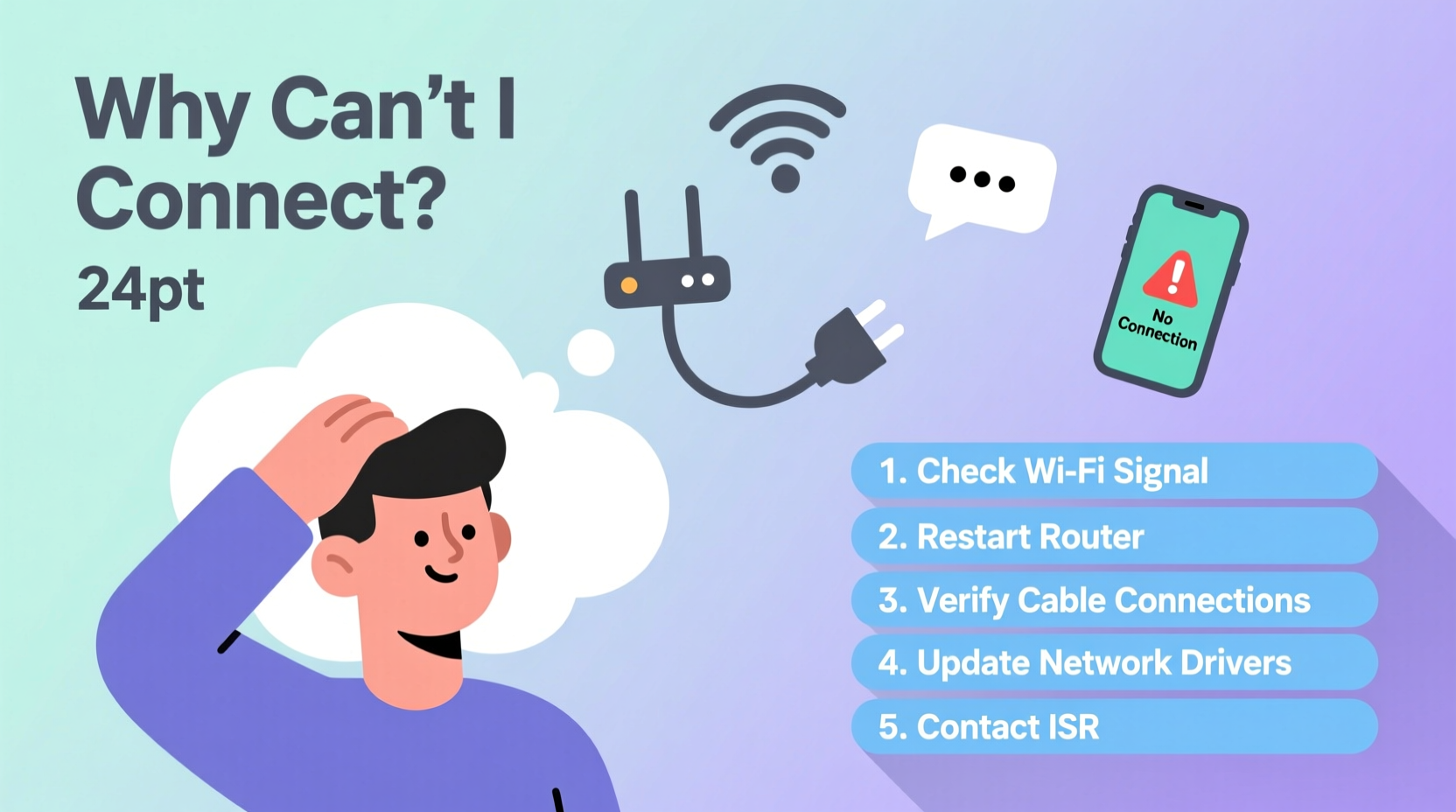
Before diving into fixes, it’s essential to identify what might be breaking the link between your device and the network. Connection issues typically originate from one of four areas: hardware, software, network configuration, or external interference.
- Router or modem malfunction: Overheating, outdated firmware, or power fluctuations can disable network equipment.
- Incorrect network settings: Misconfigured IP addresses, DNS errors, or disabled wireless adapters disrupt connectivity.
- Signal interference: Physical obstructions, neighboring Wi-Fi channels, or electronic devices like microwaves degrade wireless performance.
- Device-specific problems: Outdated drivers, OS bugs, or corrupted network profiles prevent individual devices from connecting.
- Service provider outages: ISP maintenance, line damage, or account issues cut off internet access entirely.
Step-by-Step Troubleshooting Guide
Follow this structured approach to isolate and resolve your connection problem efficiently. Each step builds on the previous one, eliminating potential causes in order of likelihood and complexity.
- Verify the issue scope: Check if only one device is affected or multiple devices. If all fail, the problem likely lies with the router or ISP.
- Restart your equipment: Power cycle your modem and router. Unplug them for 30 seconds, then plug back in. Wait two minutes for full reboot.
- Check physical connections: Ensure Ethernet cables are securely connected and not damaged. For DSL, verify phone line filters are in place.
- Test another device: Try connecting a different smartphone, tablet, or laptop to the same network to rule out device-specific faults.
- Move closer to the router: Distance and walls weaken Wi-Fi signals. Test connectivity near the router to assess signal strength.
- Forget and rejoin the network: On wireless devices, remove the saved network and reconnect by entering the password again.
- Update network drivers (Windows): Go to Device Manager > Network Adapters, right-click your adapter, and select \"Update driver.\"
- Renew IP address: Open Command Prompt and run:
ipconfig /release, thenipconfig /renew. - Change DNS settings: Switch to public DNS servers like Google (8.8.8.8, 8.8.4.4) or Cloudflare (1.1.1.1).
- Contact your ISP: If no devices connect and restarting fails, check for outages in your area or call your provider.
Do’s and Don’ts When Fixing Connectivity Problems
| Do’s | Don’ts |
|---|---|
| Regularly update router firmware | Ignore blinking lights on your modem |
| Use WPA3 encryption for security | Place routers near metal objects or microwaves |
| Label cables for easy identification | Overload power strips with network gear |
| Monitor bandwidth-heavy applications | Assume the problem is always your device |
| Keep a wired connection as backup | Use default admin passwords on routers |
Real-World Example: Home Office Connectivity Breakdown
Sarah, a freelance graphic designer, suddenly lost internet during a client video call. Her laptop showed “Connected, no internet” despite being linked to Wi-Fi. She first tested her phone—same network, same issue. That ruled out a device-specific fault.
She restarted the router, but the problem persisted. Next, she checked her ISP’s status page and found no reported outages. Then she noticed the modem’s “DSL” light was blinking red instead of solid green. A quick search revealed this indicated a line sync issue.
After checking all phone line filters and replacing a faulty cable, the DSL light turned steady green. Internet restored within 90 seconds. Sarah later scheduled monthly equipment checks to catch early warning signs—preventing a repeat crisis before a major deadline.
“Most residential network issues aren’t complex—they’re just misdiagnosed. Start with the simplest explanation: a loose cable, a reboot, or a temporary glitch.” — Raj Patel, Senior Network Technician at NetSecure Solutions
Essential Troubleshooting Checklist
Print or bookmark this checklist for quick reference when your connection drops:
- ✅ Confirm other devices also can't connect
- ✅ Restart modem and router (unplug for 30 seconds)
- ✅ Check for physical damage to cables or ports
- ✅ Verify Wi-Fi is enabled on your device
- ✅ Move closer to the router to test signal strength
- ✅ Forget network and reconnect with correct password
- ✅ Run built-in network troubleshooter (Windows/macOS)
- ✅ Flush DNS cache (
ipconfig /flushdns) - ✅ Switch to a different DNS server temporarily
- ✅ Contact ISP if all else fails and no local cause is found
Frequently Asked Questions
Why does my device say “Saved” but won’t connect to Wi-Fi?
This usually means the network profile is corrupted or the password has changed. Even if marked “saved,” the device may fail authentication. Try forgetting the network completely, then re-enter the current password manually.
Can a virus cause connection problems?
Yes. Malware sometimes modifies proxy settings or hijacks DNS to redirect traffic. Run a full system scan using trusted antivirus software. Also check your browser and OS network settings for unauthorized proxy configurations.
How do I know if my router needs replacement?
If your router is over five years old, frequently overheats, supports only 802.11n or earlier standards, or struggles with more than three active devices, it may be time to upgrade. Modern mesh systems offer better coverage and support for high-bandwidth applications.
Prevent Future Issues with Proactive Maintenance
Waiting for a connection failure to act is reactive and costly in time and stress. Implement these habits to maintain reliable connectivity:
- Schedule monthly reboots: Reboot your router every 30 days to clear memory leaks and refresh connections.
- Enable automatic updates: Allow your router to install firmware updates automatically, if supported.
- Monitor connected devices: Use your router’s admin interface to see which devices are using bandwidth—identify unknown intruders.
- Optimize channel selection: In crowded areas, use apps like Wi-Fi Analyzer to find the least congested 2.4GHz or 5GHz channel.
- Invest in quality equipment: A mid-range modern router with beamforming and MU-MIMO technology handles multiple devices more efficiently than entry-level models.
Conclusion: Take Control of Your Connection
Connection issues don’t have to derail your day. With a methodical approach, most problems can be diagnosed and resolved in under 20 minutes. The key is understanding where to look first—starting with simple fixes like reboots and progressing to deeper diagnostics when needed.
By applying the strategies outlined here, you gain independence from tech support calls and reduce downtime significantly. Whether you're working remotely, streaming content, or managing smart home devices, reliable connectivity is non-negotiable. Start implementing these practices today to build a more stable, resilient network environment.




 浙公网安备
33010002000092号
浙公网安备
33010002000092号 浙B2-20120091-4
Comments
No comments yet. Why don't you start the discussion?