
Email is a cornerstone of modern communication—whether for work, personal correspondence, or staying updated with services. When your inbox goes silent, it’s more than inconvenient; it can disrupt productivity and leave you feeling disconnected. The good news: most email problems have clear causes and straightforward fixes. From server outages to misconfigured settings, this guide breaks down the real reasons you might not be receiving mail—and how to resolve them efficiently.
Common Causes of Email Delivery Failure
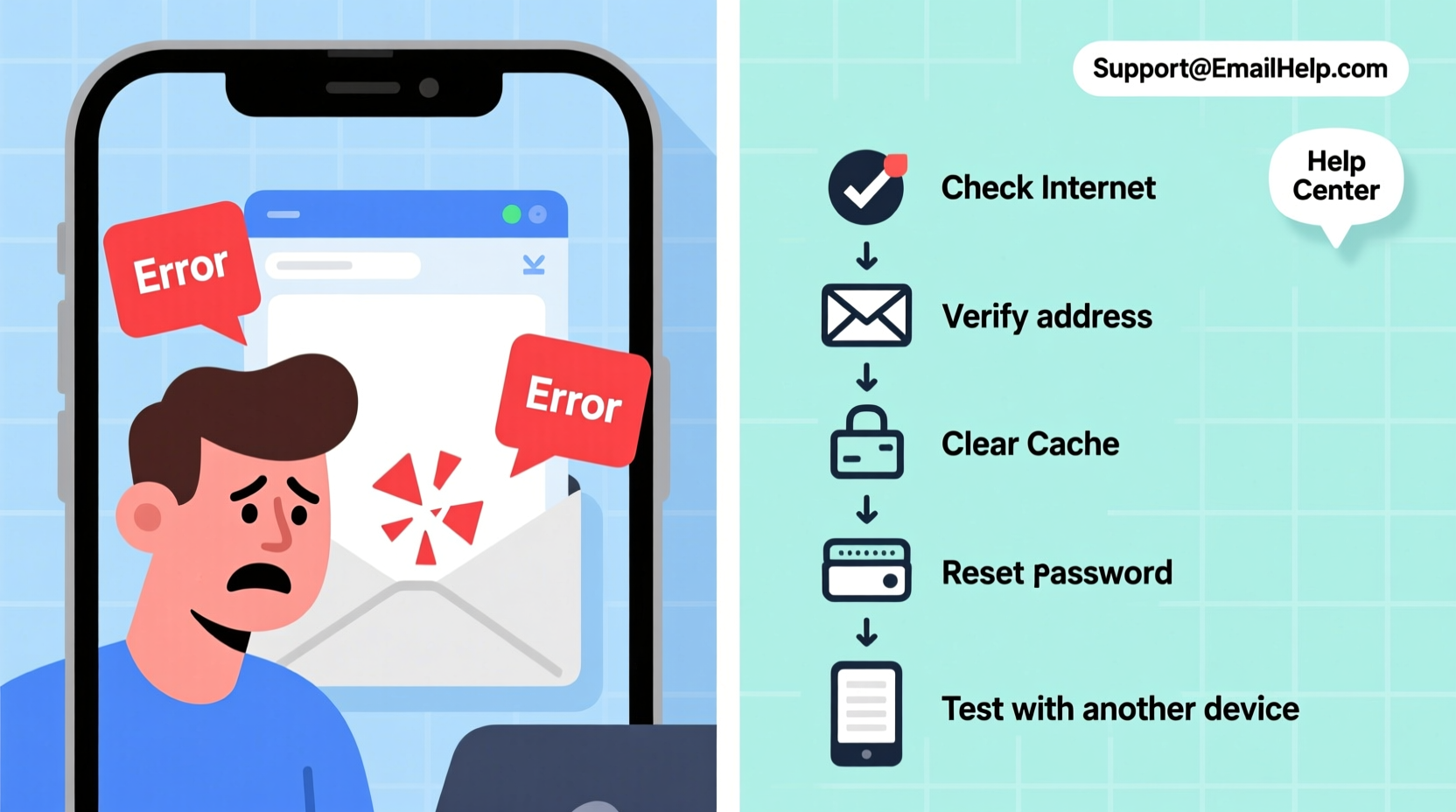
Email doesn’t arrive for a variety of reasons, ranging from simple user errors to complex network configurations. Understanding the root cause is the first step toward resolution. Below are the most frequent culprits:
- Internet connectivity issues: Without a stable connection, your device can’t reach email servers.
- Incorrect account settings: Wrong incoming/outgoing server details (IMAP/POP3/SMTP) prevent syncing.
- Full inbox or storage limit: Many providers block new messages when quotas are exceeded.
- Authentication failure: Incorrect password or two-factor authentication glitches lock access.
- Server downtime: Temporary outages on the provider’s end affect all users.
- Spam filtering: Legitimate emails may be silently moved to spam or junk folders.
- Firewall or antivirus interference: Security software sometimes blocks email ports.
Step-by-Step Troubleshooting Guide
Follow this logical sequence to identify and fix the underlying issue. Start with the simplest checks before moving to advanced diagnostics.
- Check your internet connection. Try loading a website in your browser. If nothing loads, restart your router or switch to mobile hotspot to test.
- Verify service status. Visit your email provider’s status page (e.g., Gmail Status, Outlook Status) to confirm there’s no ongoing outage.
- Test on another device. Log into your email via web browser on a different phone, tablet, or computer. If it works, the issue is isolated to your original device.
- Review spam/junk folder. Some emails never make it to your primary inbox. Check spam regularly and mark important senders as safe.
- Confirm storage space. Most free email accounts cap at 15GB (like Gmail). Exceeding this halts incoming mail.
- Re-enter account credentials. Even a single typo in your password prevents login. Consider using a password manager to avoid mistakes.
- Inspect email settings. Ensure IMAP/POP and SMTP settings match your provider’s requirements (see table below).
- Disable third-party apps temporarily. Antivirus tools or firewalls may interfere with port access. Test after disabling.
Email Configuration Settings by Provider
| Provider | IMAP Server | Port (SSL) | SMTP Server | Port (SSL) |
|---|---|---|---|---|
| Gmail | imap.gmail.com | 993 | smtp.gmail.com | 465 |
| Outlook/Hotmail | outlook.office365.com | 993 | smtp-mail.outlook.com | 587 (TLS) |
| Yahoo Mail | imap.mail.yahoo.com | 993 | smtp.mail.yahoo.com | 465 |
| iCloud | imap.mail.me.com | 993 | smtp.mail.me.com | 587 |
Ensure encryption (SSL/TLS) is enabled. Mismatched ports or unsecured connections will block synchronization.
Real-World Example: The Case of Delayed Work Emails
Jamie, a project manager at a remote tech firm, suddenly stopped receiving client emails in her Outlook app. She could send messages, but replies weren’t appearing. After confirming her Wi-Fi was functional and checking the Microsoft 365 status dashboard (no outages), she logged into Outlook.com via browser—where all missing emails were visible.
The issue? Her desktop app had outdated server settings due to a recent company policy update requiring OAuth2 authentication. Jamie re-added her account with updated credentials, enabling modern authentication. Within minutes, syncing resumed. This case highlights how app-specific configuration drift can mimic broader delivery failures.
“Over 60% of ‘missing email’ reports we see stem from incorrect client settings or full mailboxes—not server-side failures.” — Rajiv Mehta, Senior Network Engineer at CloudPost Systems
Troubleshooting Checklist
- ✅ Confirm internet is working
- ✅ Visit provider’s status page
- ✅ Check spam and trash folders
- ✅ Verify mailbox isn’t full
- ✅ Re-enter password correctly
- ✅ Review IMAP/SMTP settings
- ✅ Restart email app or device
- ✅ Temporarily disable firewall/antivirus
- ✅ Test login via web browser
- ✅ Remove and re-add account if needed
Frequently Asked Questions
Why am I getting emails on my phone but not my laptop?
This typically indicates a problem with the email client on your laptop. It may be using outdated settings, experiencing sync delays, or encountering a local software conflict. Try removing and re-adding the account with current credentials and server information.
I changed my password—now I can’t receive mail. What should I do?
Changing your password invalidates existing sessions. You must manually update the password in every email client (phone, desktop app, tablet). On some devices, especially iOS, go to Settings > Mail > Accounts and edit the password field directly.
Are deleted emails really gone forever?
Not immediately. Most providers retain deleted messages in a “Trash” or “Bin” folder for 30 days before permanent removal. Recoverable items during this period can be restored manually. Some enterprise systems extend retention up to 90 days.
Advanced Fixes for Persistent Problems
If basic troubleshooting fails, consider these deeper solutions:
- Flush DNS cache: Run
ipconfig /flushdns(Windows) orsudo dscacheutil -flushcache(Mac) to clear corrupted network lookups. - Check port blocking: Corporate networks or ISPs sometimes block standard email ports (e.g., 587). Use Wi-Fi vs. Ethernet or contact IT support.
- Enable logging in your email client: Tools like Mozilla Thunderbird offer detailed error logs that pinpoint authentication or SSL handshake failures.
- Use alternative access methods: If IMAP fails, try accessing via POP3 (though less ideal for multi-device use).
For business accounts, contact your IT administrator. Exchange environments often require specific policies, certificate updates, or conditional access rules that prevent automatic configuration.
Prevention: Best Practices for Reliable Email Access
Maintaining consistent email performance requires proactive habits:
- Regularly clean out old messages to avoid hitting storage limits.
- Use strong, unique passwords and enable two-factor authentication without compromising recovery options.
- Keep email apps updated—outdated versions may lack security patches or protocol support.
- Bookmark your provider’s help center and server settings page for quick reference.
- Avoid relying solely on one device; cross-check with web access periodically.
Conclusion
Email delivery issues are rarely mysterious—they’re usually solvable with methodical investigation. Whether it’s a forgotten password, a full inbox, or misconfigured server settings, the solution lies in systematic testing and verification. By understanding the infrastructure behind email and applying practical fixes, you regain control over your digital communication.




 浙公网安备
33010002000092号
浙公网安备
33010002000092号 浙B2-20120091-4
Comments
No comments yet. Why don't you start the discussion?