
Email is a cornerstone of modern communication—whether for work, personal correspondence, or staying updated with services. When you can’t access your inbox, it’s more than inconvenient; it can disrupt productivity and cause real anxiety. The good news: most email problems have straightforward solutions. From forgotten passwords to server outages, this guide breaks down the most frequent causes of email access issues and how to resolve them quickly and effectively.
Understanding the Root Causes
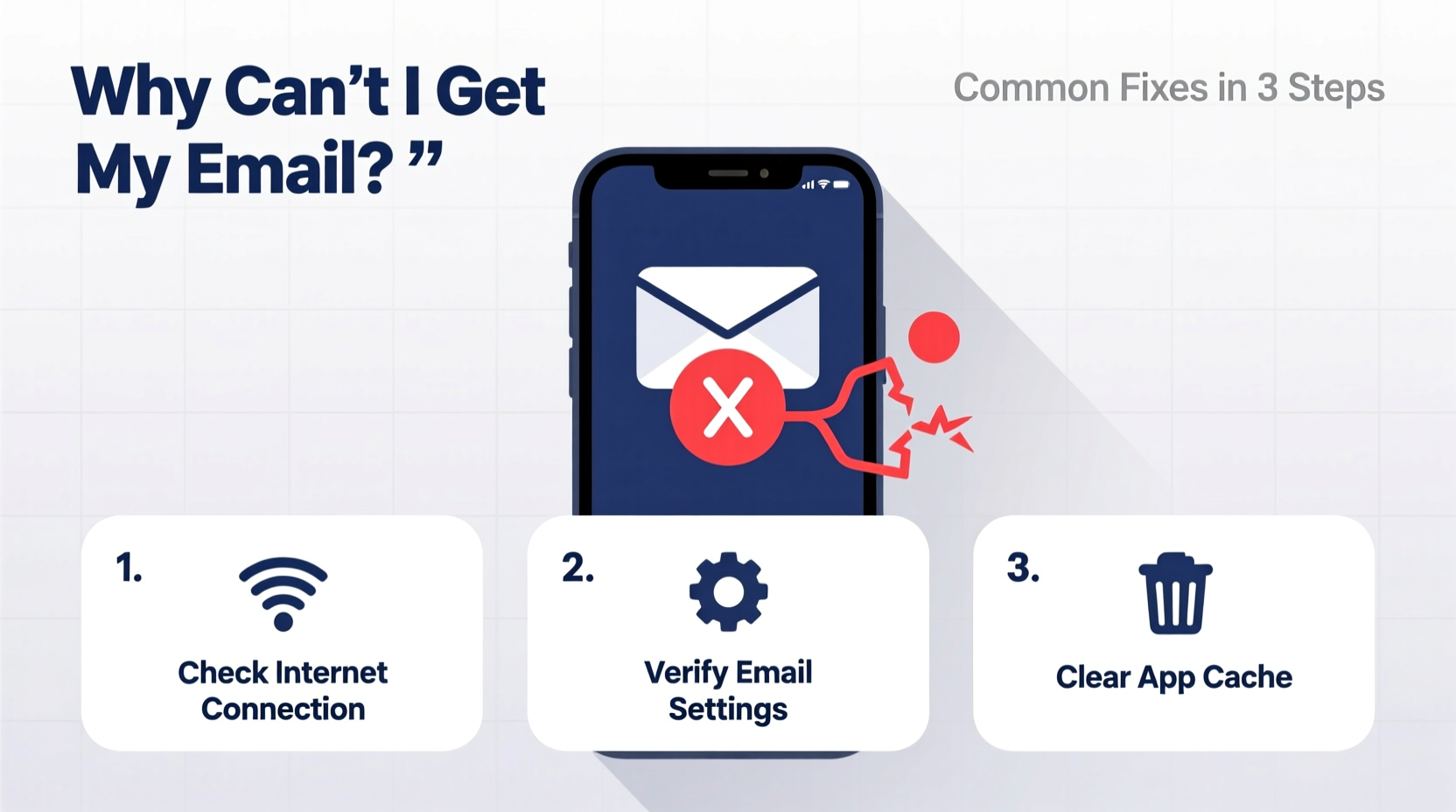
Email delivery and access depend on multiple interconnected systems: your device, network connection, email client settings, authentication credentials, and the provider’s servers. A failure at any point in this chain can prevent you from retrieving messages. Common culprits include incorrect login details, poor internet connectivity, outdated app configurations, or temporary service disruptions.
Before diving into complex fixes, start by identifying whether the issue is isolated to one device, affects multiple platforms, or impacts all users accessing the same account. This helps narrow down whether the problem lies with your setup or the provider’s infrastructure.
Step-by-Step Troubleshooting Guide
Follow this structured approach to isolate and fix the underlying cause of your email access problem.
- Verify Internet Connectivity
Ensure your device is connected to a stable network. Try loading a website to confirm general internet access. If other sites fail to load, restart your router or switch to mobile data. - Check Email Provider Status
Visit the official status page of your email service (e.g., Gmail Status Dashboard, Outlook Service Health) to see if there’s an ongoing outage. - Confirm Login Credentials
Double-check your username and password. Use “Show Password” to verify accuracy. If unsure, use the “Forgot Password” option to reset securely. - Review App or Client Settings
If using an email client like Outlook or Apple Mail, ensure incoming (IMAP/POP) and outgoing (SMTP) server settings are correct and up to date. - Update or Reinstall the Email App
Outdated apps may lack security patches or compatibility updates. Update through your device’s app store or reinstall if issues persist.
Common Configuration Errors and How to Fix Them
Incorrect email settings are among the top reasons for failed connections. Below is a comparison of standard configurations for major providers.
| Provider | IMAP Server | Port (SSL) | SMTP Server | Port (SSL) |
|---|---|---|---|---|
| Gmail | imap.gmail.com | 993 | smtp.gmail.com | 465 |
| Outlook.com | outlook.office365.com | 993 | smtp-mail.outlook.com | 587 |
| Yahoo Mail | imap.mail.yahoo.com | 993 | smtp.mail.yahoo.com | 465 |
| iCloud | imap.mail.me.com | 993 | smtp.mail.me.com | 587 |
Using the wrong port number or disabling SSL encryption can block connections. Always enable SSL/TLS for both incoming and outgoing mail unless otherwise specified by your provider.
“Misconfigured email clients account for nearly 40% of reported access issues. Double-checking server settings resolves most cases.” — David Lin, IT Support Lead at NexaTech Solutions
Security and Authentication Challenges
Modern email platforms prioritize security, which sometimes leads to access blocks. Two-factor authentication (2FA), app-specific passwords, and suspicious activity detection can lock users out—even legitimate ones.
For example, Google may block sign-ins from apps it considers “less secure,” especially older email clients that don’t support OAuth. In such cases, you’ll need to generate an app-specific password or allow “Less Secure App Access” (if still available).
Mini Case Study: Regaining Access to a Locked Gmail Account
Sarah, a freelance designer, suddenly couldn’t send emails from her desktop Outlook client. Web access worked fine, but the app kept prompting for a password. After checking her internet and confirming her password was correct, she reviewed Gmail’s recent security activity. She found a warning: “Blocked sign-in attempt due to app not meeting modern security standards.”
The solution? Sarah enabled 2FA on her Google account, then generated an “App Password” specifically for Outlook. Using this 16-character code instead of her regular password restored full functionality within minutes.
Email Troubleshooting Checklist
Use this checklist to systematically eliminate potential causes:
- ✅ Confirm internet connection is active and stable
- ✅ Visit your email provider’s status page for outages
- ✅ Verify username and password (try logging in via web browser)
- ✅ Check if two-factor authentication is blocking access
- ✅ Review and correct IMAP/POP and SMTP settings
- ✅ Ensure date and time settings on your device are accurate
- ✅ Clear cache/data in mobile email apps (Android: Settings > Apps > [Email App] > Storage)
- ✅ Temporarily disable firewall or antivirus software to test interference
- ✅ Update operating system and email application to latest version
- ✅ Remove and re-add the email account if all else fails
Frequently Asked Questions
Why does my email say “Authentication Failed”?
This error usually means the username or password is incorrect. However, it can also occur if your email provider requires an app-specific password due to two-factor authentication. It may also appear if your device’s clock is off by more than a few minutes, as secure protocols rely on accurate timestamps.
My email works on the web but not in the app. What should I do?
This typically indicates a configuration issue in the email client. The app might be using outdated server settings or lack support for modern authentication methods. Try removing and re-adding the account using the current setup guidelines from your provider. Also, check for app updates.
Can a full mailbox prevent me from receiving new emails?
Yes. Many email services stop delivering new messages when storage reaches its limit. While you may still be able to send emails, incoming messages will bounce or remain undelivered until space is freed. Regularly archive or delete old emails and empty the trash folder to maintain optimal performance.
When to Contact Support
If you’ve completed all troubleshooting steps without success, it’s time to contact your email provider’s support team. Be prepared with specific details: the exact error message, the device and app used, when the issue started, and what steps you’ve already taken. This information speeds up diagnosis and resolution.
For business or organizational accounts (e.g., company email via Microsoft 365 or Google Workspace), reach out to your IT administrator. They often have access to logs and backend tools unavailable to end users.
Conclusion
Email access issues are frustrating, but rarely permanent. By methodically checking connectivity, credentials, configurations, and security settings, most problems can be resolved in under 30 minutes. The key is to avoid assumptions—test each component independently and document your attempts. With the right approach, you’ll not only regain access but also build a better understanding of how your email system works.




 浙公网安备
33010002000092号
浙公网安备
33010002000092号 浙B2-20120091-4
Comments
No comments yet. Why don't you start the discussion?