
Voicemail is a critical part of modern communication, especially when you're unavailable to take calls. Yet, nothing is more frustrating than trying to retrieve messages—only to be met with silence, error tones, or endless loops. If you’ve been asking, “Why can’t I get my voicemail?” you’re not alone. Millions of users face similar issues across carriers like Verizon, AT&T, T-Mobile, and MVNOs. The good news: most problems have simple fixes. This guide walks through the root causes and actionable steps to restore your voicemail access quickly and reliably.
Common Reasons Voicemail Fails
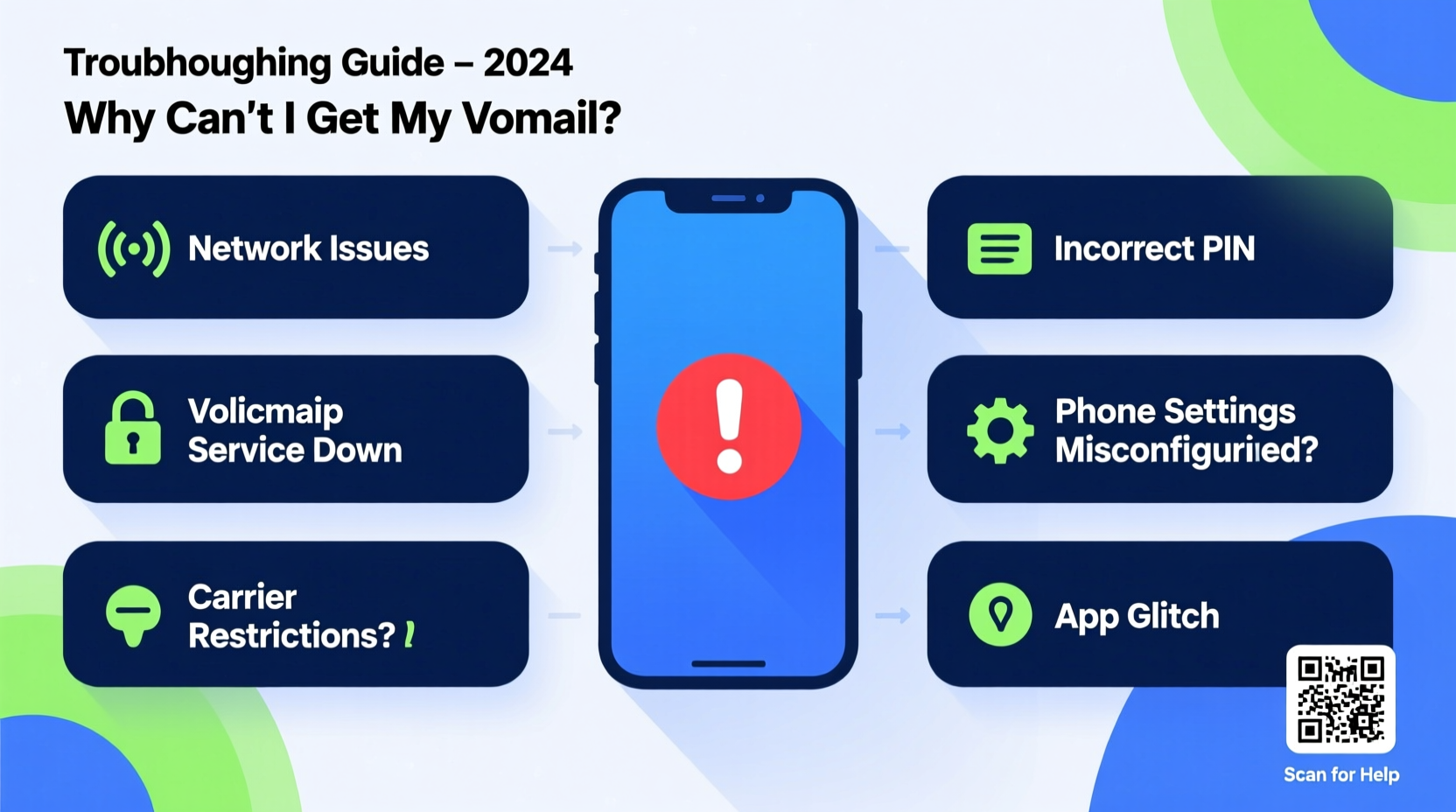
Before diving into fixes, it helps to understand what might be going wrong. Voicemail systems rely on a combination of network signals, carrier settings, device configuration, and app functionality. A failure in any one area can disrupt service.
- Network connectivity issues: Weak or no signal prevents connection to voicemail servers.
- Incorrect voicemail number settings: Your phone may be pointing to an outdated or wrong voicemail number.
- Carrier provisioning errors: Sometimes, your account isn’t properly set up for voicemail on the backend.
- Outdated software: Bugs in older OS versions or carrier apps can interfere with voicemail retrieval.
- Full voicemail inbox: Some systems block new access if storage is full.
- Two-factor authentication or password changes: Carriers increasingly require PINs or app-based login, which may expire or lock you out.
Step-by-Step Troubleshooting Guide
Follow this logical sequence to diagnose and resolve your voicemail issue efficiently. Start with basic checks before moving to advanced solutions.
- Verify Network Connection
Ensure you have at least 1–2 bars of cellular signal or are connected to Wi-Fi. Try making a test call to confirm your line is active. - Restart Your Phone
A soft reboot clears temporary glitches. Power off your device completely, wait 30 seconds, then turn it back on. - Call Your Own Number
Dial your phone number from another device. Let it ring to voicemail. If it doesn’t go through, the issue may be with call forwarding or carrier setup. - Check Voicemail Number Settings
Go to Phone Settings > Phone > Voicemail (iOS) or Dialer App > Settings > Voicemail (Android). Confirm the number listed matches your carrier’s default voicemail access number (e.g., *86 for many U.S. carriers). - Reset Voicemail Password
If prompted for a password and you’re unsure, contact your carrier to reset it. Many now use automated systems for this. - Update Carrier Settings
On iPhone: Settings > General > About. If an update is available, install it. On Android: Check for carrier updates in the dialer app or via system updates. - Reinstall Carrier App (if applicable)
Some carriers (e.g., Verizon with Visual Voicemail) require their app. Uninstall and reinstall it from the App Store or Google Play. - Contact Customer Support
If all else fails, reach out to your carrier. They can verify account provisioning and push a fix remotely.
Carrier-Specific Fixes and Settings
Different carriers use different voicemail systems, so the solution often depends on your provider. Below is a comparison of standard voicemail numbers and support resources.
| Carrier | Voicemail Access Number | Visual Voicemail App | Support Contact |
|---|---|---|---|
| Verizon | *86 or long-press '1' | My Verizon or VZ Messages+ | 1-800-922-0204 |
| AT&T | *86 or hold down '1' | AT&T Enhanced Features | 1-800-331-0500 |
| T-Mobile | *86 or dial own number | T-Mobile Visual Voicemail | 1-877-746-0909 |
| Mint Mobile | Dial own number | Google Voice (often) | Help section in Mint App |
| Cricket Wireless | *86 or call own number | Cricket Account App | 1-800-274-2538 |
Note: Some MVNOs (Mobile Virtual Network Operators) run on major networks but use different voicemail configurations. Always check your provider’s support page for exact instructions.
“Over 60% of voicemail issues stem from misconfigured settings or outdated carrier profiles. A quick reset often resolves the problem.” — James Lin, Senior Network Technician at U.S. Cellular
Real-World Example: Sarah’s Voicemail Recovery
Sarah, a small business owner in Austin, suddenly couldn’t access her voicemail on her iPhone. She’d recently switched from AT&T to T-Mobile via eSIM and assumed everything migrated smoothly. But after missing several client messages, she investigated.
She first restarted her phone—no change. Then she checked her voicemail settings and noticed the voicemail number was still set to AT&T’s legacy code. After manually changing it to *86 and resetting her voicemail password through the T-Mobile app, her voicemail began working within minutes. The root cause? An incomplete carrier profile transfer during the switch.
This case highlights how carrier transitions, even seamless ones, can leave behind configuration gaps that disrupt core services like voicemail.
Essential Checklist: Restore Voicemail Access
Use this checklist to methodically troubleshoot and restore your voicemail:
- ✅ Ensure strong cellular or Wi-Fi signal
- ✅ Restart your smartphone
- ✅ Test by calling your number from another phone
- ✅ Verify the correct voicemail number is set
- ✅ Reset your voicemail password via carrier app or customer service
- ✅ Update your phone’s operating system and carrier settings
- ✅ Reinstall the carrier’s voicemail or messaging app if needed
- ✅ Contact your carrier if issues persist
Frequently Asked Questions
Why does my phone say \"No Service\" when I try to check voicemail?
This usually means your device cannot connect to your carrier’s voicemail server. Check your signal strength first. If you're on Wi-Fi calling, ensure it's enabled and connected. You may also need to re-authenticate your carrier account in the phone settings.
I changed phones—why isn’t voicemail working on my new device?
When switching devices, voicemail must be reactivated. Even if your number transfers successfully, voicemail settings don’t always carry over. Set up voicemail from scratch by calling your own number and following the prompts to record a greeting and set a password.
Can I recover deleted voicemails?
Most carriers retain deleted voicemails in a recovery folder for 30 days. Log into your carrier’s voicemail portal (via app or website) to check for a “Deleted Messages” or “Trash” section. After that period, messages are permanently erased.
Final Steps and Prevention Tips
Once you regain access to your voicemail, take steps to prevent future disruptions. Regularly update your phone’s software and carrier settings. Avoid using third-party apps to manage voicemail unless they’re officially supported. Periodically test your voicemail by calling your number from another line.
If you rely heavily on voice messages for work or personal coordination, consider enabling transcription services (available on most smartphones). Transcribed voicemails appear as text and are often saved longer than audio, reducing the risk of missed information.
“Voicemail may feel outdated, but it remains a vital safety net in communication. Proper setup ensures you never miss critical messages.” — Dr. Linda Cho, Telecommunications Researcher at MIT
Conclusion
Not being able to access your voicemail doesn’t have to be a prolonged headache. With systematic troubleshooting—starting from signal checks to carrier-specific resets—most issues can be resolved in under 30 minutes. Whether you're on a major network or a budget-friendly MVNO, the principles remain the same: verify settings, update software, and don’t hesitate to contact support when needed.




 浙公网安备
33010002000092号
浙公网安备
33010002000092号 浙B2-20120091-4
Comments
No comments yet. Why don't you start the discussion?