
If YouTube suddenly stops working on your phone, it can be frustrating—especially when you rely on it for entertainment, education, or staying updated. The good news is that most issues preventing YouTube from loading are fixable with simple, logical steps. Whether the app crashes, won’t open, or fails to connect, this guide walks you through proven solutions to diagnose and resolve the problem efficiently.
Common Causes of YouTube Access Issues
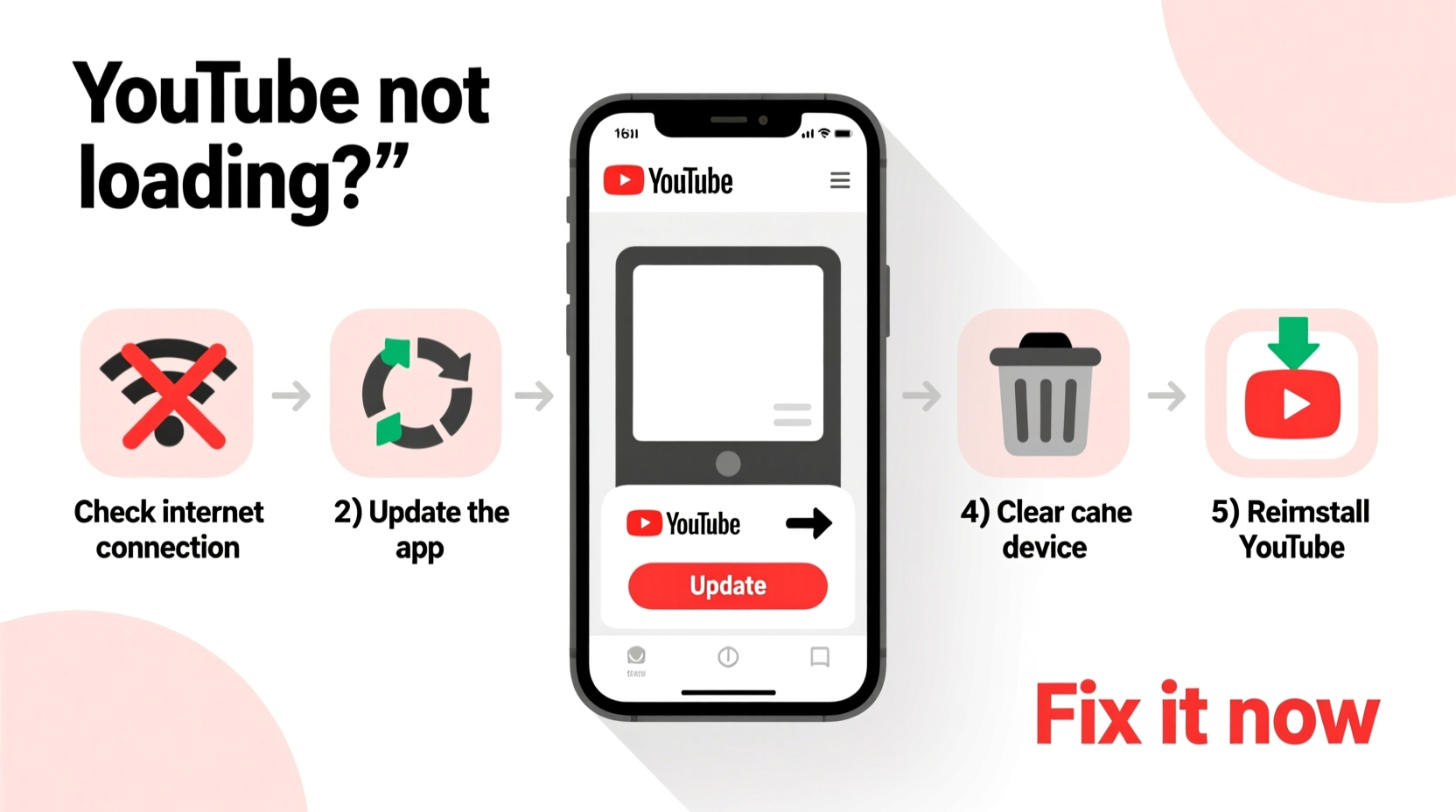
Before diving into fixes, it helps to understand what might be causing the issue. YouTube may not work due to a range of factors, including software glitches, outdated apps, network problems, or device-specific restrictions. Identifying the root cause saves time and prevents unnecessary troubleshooting.
- Outdated YouTube app: Older versions may lack compatibility with current security protocols or operating systems.
- Poor internet connection: Slow or unstable Wi-Fi or mobile data can prevent videos from loading.
- App cache corruption: Accumulated temporary files can interfere with normal app function.
- System updates pending: Your phone’s OS may need an update to support newer app features.
- Regional restrictions or account issues: Some content or even the app itself may be restricted based on location or login status.
Step-by-Step Troubleshooting Process
Follow this structured approach to isolate and fix the issue systematically. Start with basic checks before moving to more advanced solutions.
- Check Internet Connectivity
Ensure your phone is connected to a stable Wi-Fi or cellular network. Test by opening a browser and visiting another site like google.com. If pages fail to load, the issue is likely network-related. - Verify YouTube Server Status
Occasionally, YouTube experiences outages. Use third-party tools like Downdetector or IsItDownRightNow to confirm if others are reporting similar issues globally. - Restart the Device
A reboot clears temporary memory glitches and refreshes network settings. Hold the power button, select “Restart,” and wait 30 seconds before powering back on. - Update the YouTube App
Open your app store (Google Play Store or Apple App Store), search for “YouTube,” and tap “Update” if available. Updated apps include bug fixes and improved stability. - Clear App Cache and Data (Android)
Go to Settings > Apps > YouTube > Storage. Tap “Clear Cache.” If the problem persists, tap “Clear Data” (note: this logs you out). - Reinstall the YouTube App
Uninstall YouTube, then reinstall it from the official app store. This replaces any corrupted installation files. - Check Date & Time Settings
Incorrect system time can disrupt secure connections. Ensure “Set Automatically” is enabled in Date & Time settings. - Disable Battery Optimization for YouTube (Android)
Some phones aggressively limit background activity. Go to Settings > Battery > Battery Optimization > YouTube > Don’t Optimize.
Troubleshooting Table: Quick Reference Guide
| Symptom | Possible Cause | Solution |
|---|---|---|
| App opens but videos don’t play | Network issue or buffering problem | Switch networks, clear cache, or reduce video quality |
| App crashes immediately on launch | Corrupted app data or outdated version | Update or reinstall the app |
| “No Connection” error | Poor signal or DNS misconfiguration | Test other sites, restart router, or toggle airplane mode |
| YouTube not found in app store | Region restriction or account flag | Check Google account region settings or contact support |
| Black screen with audio only | Graphics rendering conflict | Update phone OS or disable hardware acceleration in developer options |
Expert Insight: Why Updates Matter
“Mobile apps like YouTube depend on constant updates not just for new features, but for security patches and compatibility. Skipping updates often leads to instability or complete failure.” — Raj Mehta, Mobile Software Engineer at Android Authority
Regular app and OS updates ensure your device meets evolving technical standards. Developers frequently patch bugs that could otherwise block functionality. Ignoring updates increases vulnerability to performance issues and security risks.
Mini Case Study: Resolving a Persistent Crash Issue
A user named Lisa reported that her YouTube app kept crashing every time she opened it on her Samsung Galaxy S21. She tried restarting the phone and switching Wi-Fi networks, but nothing worked. After checking the app store, she discovered a pending update. Once updated, the app launched normally. However, after two days, the issue returned. This time, she cleared the app cache and disabled battery optimization for YouTube. The combination resolved the issue permanently. The root cause was a background process conflict caused by aggressive power-saving settings.
This case highlights that some problems require layered solutions—addressing both software health and system behavior.
Essential Checklist: Fix YouTube Access Fast
Quick Action Checklist:
- ✅ Restart your phone
- ✅ Confirm internet is working
- ✅ Check for YouTube app updates
- ✅ Clear YouTube app cache (Android)
- ✅ Reinstall YouTube if needed
- ✅ Disable battery saver for YouTube
- ✅ Verify date and time settings
- ✅ Test on another network
Frequently Asked Questions
Why does YouTube say “An error occurred” when I try to play a video?
This message usually appears due to a temporary glitch, poor connection, or corrupted cache. First, check your internet. Then, clear the YouTube app’s cache. If the error continues, restart the app or your phone. In rare cases, the video itself may have been removed or restricted.
Can I use YouTube without the app?
Yes. Open your mobile browser (Chrome, Safari, etc.) and go to m.youtube.com. You can watch videos, search, and even sign in to your account. While the experience isn’t as smooth as the app, it’s a reliable workaround during app failures.
What if YouTube isn’t available in my country?
Some countries restrict access to YouTube due to regulatory policies. In such cases, users may see limited functionality or complete blocks. While virtual private networks (VPNs) can bypass these restrictions, they may violate local laws. Always review your country’s regulations before using such tools.
Conclusion: Regain Access and Stay Proactive
Not being able to access YouTube on your phone doesn’t have to be a long-term problem. Most issues stem from easily correctable causes like outdated software, connectivity gaps, or minor configuration errors. By following the steps outlined—starting with simple restarts and progressing to targeted fixes—you can restore full functionality in minutes.
More importantly, adopt preventive habits: keep your apps and OS updated, avoid third-party app stores, and periodically clear app caches. These small actions significantly reduce future disruptions. Technology should serve you—not stall you.




 浙公网安备
33010002000092号
浙公网安备
33010002000092号 浙B2-20120091-4
Comments
No comments yet. Why don't you start the discussion?