
If YouTube suddenly stops working on your TV or won’t load at all, it can be frustrating—especially when you’re ready to stream your favorite content. Unlike mobile or desktop use, TV-based YouTube access depends on multiple factors: device compatibility, app performance, internet connectivity, and software updates. The good news is that most issues have straightforward fixes. This guide walks through the most common causes and provides actionable solutions to restore YouTube functionality on your television.
Common Reasons YouTube Won’t Load on Your TV
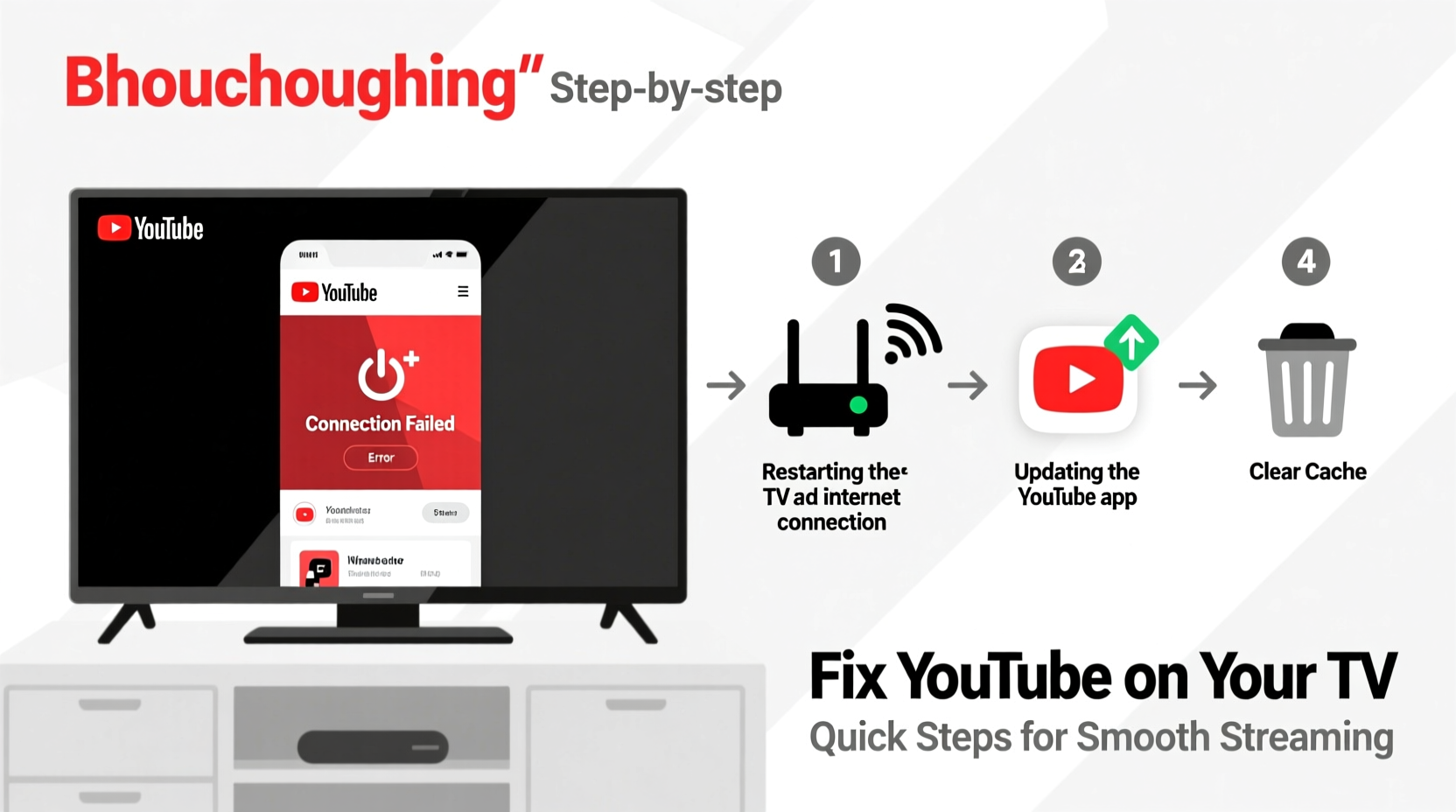
Before diving into fixes, it’s essential to understand why YouTube might not appear or function properly on your TV. Common culprits include:
- Outdated YouTube app or TV firmware – Older versions may become incompatible with current server requirements.
- Poor or unstable internet connection – Streaming requires consistent bandwidth; weak signals disrupt playback.
- App cache corruption – Temporary data glitches can prevent the app from launching.
- Incompatible hardware – Some older smart TVs or streaming sticks no longer support updated apps.
- Server-side outages – Occasionally, YouTube experiences regional or global service disruptions.
- Account sign-in issues – Failed authentication blocks access even if the app opens.
Identifying which category your issue falls into is the first step toward resolution.
Step-by-Step Troubleshooting Process
Follow this logical sequence to isolate and fix the root cause efficiently.
- Check for Internet Connectivity
Ensure your TV has an active internet connection. Navigate to your network settings and confirm signal strength. Try loading another streaming app (like Netflix or Hulu). If none work, the issue is likely network-related. - Verify YouTube Service Status
Visit a site like downdetector.com to see if YouTube is experiencing outages in your region. If so, wait until services are restored. - Restart Your Devices
Power off your TV and unplug your router for 30 seconds. Plug back in, wait for reconnection, then turn on your TV. This clears temporary network and memory errors. - Update the YouTube App
Open your TV’s app store (e.g., Google Play Store on Android TV, Samsung Apps, LG Content Store) and check for available updates for YouTube. Install any pending updates. - Update Your TV’s Operating System
Outdated firmware can break app compatibility. Go to Settings > Support > Software Update (exact path varies by brand) and install any system updates. - Clear YouTube App Cache and Data
On Android-based systems: Settings > Apps > YouTube > Clear Cache. If that fails, select “Clear Data” (this logs you out but often resolves deep glitches). - Reinstall the YouTube App
Uninstall YouTube, restart the TV, then reinstall it from the official app store. - Sign Out and Back Into Your Account
Sometimes authentication tokens expire. Open YouTube, go to Settings > Sign Out, then sign in again using your Google credentials.
Device-Specific Fixes by Platform
Different TV brands and streaming platforms handle apps differently. Here’s how to address issues based on your setup:
| Device Type | Common Issue | Solution |
|---|---|---|
| Samsung Smart TV (Tizen OS) | YouTube crashes on launch | Reset Smart Hub: Settings > Support > Self Diagnosis > Reset Smart Hub |
| LG TV (webOS) | App not available in store | Check model year—pre-2015 models lost YouTube support in 2023 |
| Android TV / Google TV | App freezes during playback | Go to Settings > Apps > YouTube > Storage > Clear Cache & Data |
| Roku | “Unable to connect to YouTube” error | Reconnect to Wi-Fi, then uninstall/reinstall YouTube channel |
| Fire TV Stick | Black screen after opening app | Force stop app, clear cache, or restart device via remote (Hold Select + Fast Forward for 5 sec) |
Mini Case Study: Restoring YouTube on a 2017 LG WebOS TV
Mark had been using his LG 49UK6300PUA for three years without issues. One evening, YouTube failed to open, showing only a spinning logo. He tried restarting the TV and router—no change. After checking Downdetector, he confirmed YouTube was operational elsewhere. He then navigated to Settings > All Apps > YouTube and selected “Reinstall.” The app downloaded successfully and launched normally. Later, he discovered that a recent power surge corrupted the app’s local data. Reinstallation resolved the problem permanently.
“We’ve seen a significant rise in app instability on legacy smart TVs as developers phase out support for older operating systems. Users should consider external streaming devices if built-in apps fail repeatedly.” — David Lin, Senior Tech Support Analyst at Consumer Electronics Alliance
Tips for Preventing Future YouTube Issues
Maintaining smooth YouTube performance involves proactive habits. Implement these strategies to minimize disruptions:
- Enable automatic app and system updates whenever possible.
- Use a wired Ethernet connection instead of Wi-Fi for more stable streaming.
- Limit background apps on your smart TV to free up memory.
- Reboot your TV every few weeks to clear cached processes.
- Avoid third-party app stores—only install YouTube from official sources.
Frequently Asked Questions
Why does YouTube say \"No Internet Connection\" even though other apps work?
This usually indicates DNS or firewall issues. Try changing your DNS settings to Google’s public DNS (8.8.8.8 and 8.8.4.4) in your network configuration. Some routers block specific domains used by YouTube’s API.
My TV is too old to run YouTube. What are my options?
Many TVs manufactured before 2015 no longer receive app updates. The best solution is to use an external streaming device. A $25–$40 dongle adds modern app support, 4K streaming, and voice control to any HDMI-equipped TV.
Can I watch YouTube on my TV without the app?
Yes, but with limitations. You can cast from a phone or tablet using Chromecast or AirPlay (if supported). Alternatively, connect a laptop via HDMI cable. However, these methods require additional hardware or constant device management.
Final Checklist: Restore YouTube on Your TV
Use this quick-reference checklist to methodically resolve your issue:
- ✅ Confirm internet is working on the TV
- ✅ Check if YouTube is down globally
- ✅ Restart TV and router
- ✅ Update YouTube app and TV firmware
- ✅ Clear app cache and data
- ✅ Reinstall YouTube if necessary
- ✅ Sign out and back into your Google account
- ✅ Consider adding a streaming device if your TV is outdated
Conclusion
YouTube not working on your TV is rarely a permanent issue. Most problems stem from simple software glitches, connectivity lapses, or outdated systems—all of which are fixable. By following the steps outlined here, you can quickly identify the cause and restore seamless access to your favorite videos, music, and live streams. Don’t let technical hiccups interrupt your viewing experience. Take action today, and enjoy uninterrupted entertainment on the big screen.




 浙公网安备
33010002000092号
浙公网安备
33010002000092号 浙B2-20120091-4
Comments
No comments yet. Why don't you start the discussion?