
If you’ve ever joined a Zoom meeting only to realize you can’t hear anyone—or worse, no one can hear you—you’re not alone. Audio problems are among the most frequent technical issues users face during virtual calls. While frustrating, these problems are usually fixable with systematic troubleshooting. Whether it’s a software glitch, incorrect settings, or hardware failure, understanding the root cause is key to restoring clear communication.
Common Causes of Audio Problems on Zoom
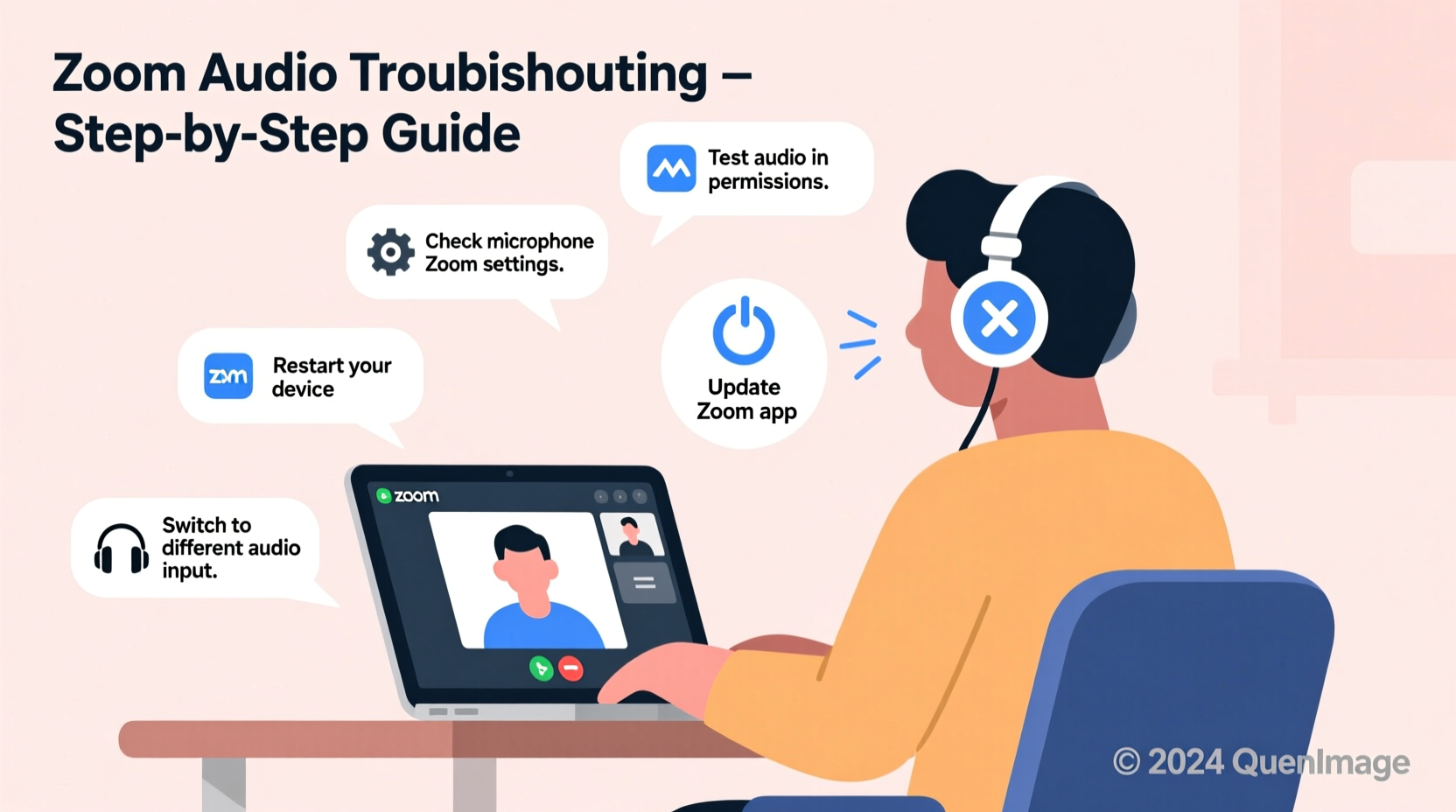
Before diving into solutions, it helps to identify what might be going wrong. Audio issues on Zoom typically stem from one of four categories: hardware, software, network, or account-level settings.
- Hardware issues: Faulty headphones, unplugged speakers, or malfunctioning microphones.
- Software misconfigurations: Incorrect input/output selections in Zoom or your operating system.
- Outdated drivers or apps: Old versions of Zoom, outdated audio drivers, or conflicting background applications.
- Network instability: Poor internet connection affecting real-time audio transmission.
- Muted settings: Accidentally muted audio either in Zoom, your device, or within the meeting controls.
Pinpointing which category applies narrows down your troubleshooting path significantly.
Step-by-Step Guide to Fix No Sound on Zoom
Follow this logical sequence to isolate and resolve your audio issue efficiently.
- Check physical connections. Ensure your headset, speakers, or microphone are properly plugged in. If using Bluetooth, confirm pairing and battery status.
- Verify volume levels. Increase the volume on your device and within Zoom. Don’t assume full volume means sound will play—some devices have separate app-level volume controls.
- Test audio in another application. Play a video on YouTube or a local file to confirm your system can produce sound independently of Zoom.
- Launch Zoom and access settings. Click your profile picture > Settings > Audio.
- Select the correct speaker and microphone. Use the dropdown menus under “Speaker” and “Microphone” to choose your active device. Test each by speaking into the mic and checking the input level bar.
- Enable “Always Mute Microphone” if needed. This prevents accidental noise but ensure you manually unmute when speaking.
- Reboot Zoom. Close and reopen the app after making changes to allow settings to apply.
- Restart your computer. A fresh boot often resolves driver conflicts or stuck processes.
This process eliminates most everyday audio failures. If problems persist, dig deeper into system-level configurations.
Do’s and Don’ts: Audio Setup Best Practices
| Do’s | Don’ts |
|---|---|
| Use wired headsets for stable connections | Use multiple audio devices simultaneously without proper switching |
| Update Zoom and audio drivers regularly | Ignore OS permission prompts for microphone access |
| Run Zoom’s audio test before meetings | Assume default devices are always correct after updates |
| Close bandwidth-heavy apps during calls (e.g., streaming services) | Place your laptop near sources of electromagnetic interference |
| Use noise-canceling mics in loud environments | Speak too far from the microphone |
Real Example: Remote Worker Regains Audio Mid-Presentation
Sarah, a project manager based in Denver, was leading a client presentation via Zoom when she suddenly couldn’t hear any responses. The participants saw her fine, but her audio output had dropped. Initially panicked, she calmly followed a checklist: first checking her headset connection, then verifying Zoom’s speaker setting—which had defaulted back to “MacBook Pro Speakers” despite her external headset being connected. After reselecting the correct output device and restarting Zoom, sound returned within two minutes. She resumed the call with minimal disruption.
Sarah later shared that having a pre-call routine—including testing audio and closing unnecessary apps—has prevented repeat incidents.
“Over 70% of Zoom audio issues are resolved simply by verifying input and output device selection.” — IT Support Lead, TechFlow Solutions
Detailed System-Specific Fixes
Operating systems handle audio differently. Here’s how to address platform-specific quirks.
Windows Users
- Right-click the speaker icon in the taskbar > Open Sound settings.
- Under “Output,” ensure the correct device is selected.
- Click “Device properties” and run the built-in audio troubleshooter.
- Update audio drivers via Device Manager > Sound, video and game controllers.
macOS Users
- Go to Apple Menu > System Settings > Sound.
- Under Output and Input tabs, select your desired device.
- If Zoom isn’t listed under Input/Output permissions, go to Privacy & Security > Microphone and enable Zoom.
- Reset coreaudiod if audio hangs: open Terminal and type
sudo killall coreaudiod.
Mobile Devices (iOS/Android)
- Ensure mute switch is off (iPhone).
- Check that Zoom has microphone permission in device settings.
- Avoid using third-party adapters unless necessary; they often cause latency or dropouts.
- Restart the app or device if audio cuts out mid-call.
Advanced Troubleshooting: When Basic Steps Fail
If standard fixes don’t work, consider these less obvious causes:
- Conflicting applications: Other programs like Discord, Skype, or voice recording tools may lock audio resources. Close them before launching Zoom.
- Corporate firewalls or proxies: Some workplace networks block UDP traffic used by Zoom. Try switching to TCP in Zoom settings: Settings > Audio > Advanced > Use TCP for audio (less efficient but more reliable).
- Damaged audio profiles: Reset your system’s audio configuration by uninstalling and reinstalling audio drivers (Windows) or resetting Core Audio (macOS).
- ZooM cache corruption: Clear Zoom’s cache: Close Zoom > navigate to
AppData/Roaming/Zoom(Windows) or~/Library/Application Support/Zoom(Mac) > delete contents of folder.
As a last resort, completely uninstall Zoom, restart your device, then download and install the latest version directly from zoom.us/download.
Frequently Asked Questions
Why can others hear me but I can’t hear them?
This usually indicates a speaker or output issue rather than a microphone problem. Confirm your output device is correctly set in Zoom and your system settings. Also, check if the meeting host has muted all participants’ incoming audio—a rare but possible scenario in large webinars.
Does poor internet affect audio on Zoom?
Yes. Audio requires stable low-latency connections. If your upload or download speed drops below 600 kbps, Zoom may suppress audio to maintain video stability. Run a speed test at speedtest.net. For better results, connect via Ethernet instead of Wi-Fi.
Can I use Zoom without a microphone?
You can join as a listener-only participant without a mic, but you won’t be able to speak. To listen, ensure your speakers or headphones are working and that Zoom has permission to play audio. Note: Some meetings require audio capability to join.
Final Checklist Before Every Meeting
- ✅ Charge your headset or device
- ✅ Plug in or pair audio hardware
- ✅ Open Zoom and verify speaker/mic in Settings
- ✅ Run audio test at zoom.us/test
- ✅ Close bandwidth-heavy apps (Netflix, downloads)
- ✅ Confirm internet connectivity
- ✅ Join 5 minutes early to catch issues
Conclusion
Not hearing on Zoom doesn’t have to derail your day. Most audio issues stem from simple oversights—misconfigured devices, muted settings, or outdated software—that are easily corrected with methodical checks. By understanding both the common pitfalls and deeper system interactions, you gain control over your virtual communication experience. Equip yourself with regular maintenance habits and quick-response strategies so you’re never left silent when it matters most.




 浙公网安备
33010002000092号
浙公网安备
33010002000092号 浙B2-20120091-4
Comments
No comments yet. Why don't you start the discussion?