
Microsoft Word is one of the most widely used word processing tools across home, academic, and professional environments. When it suddenly refuses to open or respond, productivity grinds to a halt. Whether you're greeted with error messages, a blank screen, or no response at all, the root cause could range from minor software glitches to deeper system conflicts. The good news is that most issues preventing Word from launching can be resolved with targeted troubleshooting steps—many of which you can perform yourself without technical expertise.
This guide walks through the most common reasons Word won’t open and provides actionable solutions backed by IT professionals and user-tested fixes. From quick resets to deeper system repairs, these methods are designed to restore functionality efficiently.
Common Causes Why Microsoft Word Won’t Open
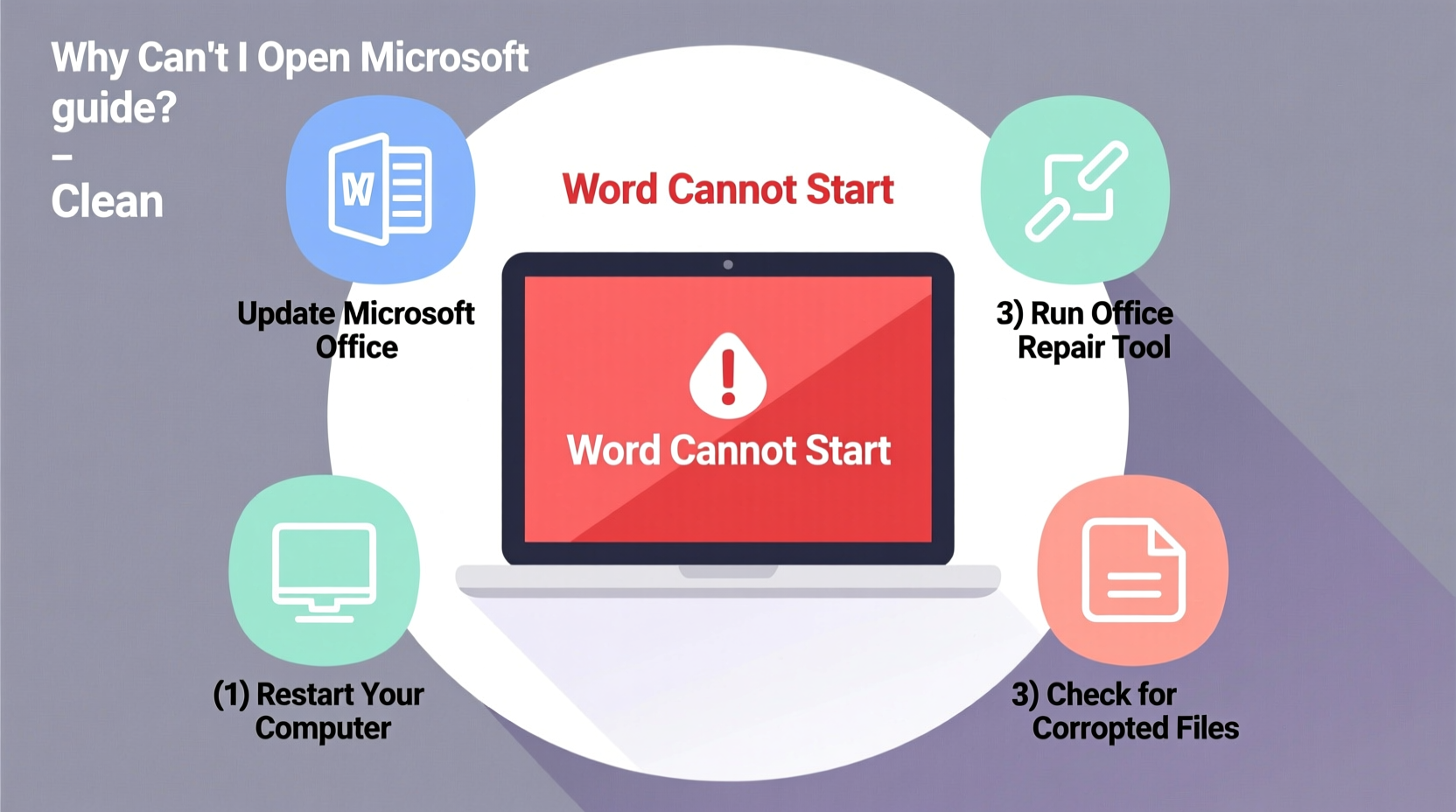
Before diving into fixes, it’s essential to understand what might be causing the problem. Identifying the underlying issue streamlines the troubleshooting process and prevents wasted effort on irrelevant solutions.
- Corrupted user templates: Word relies on Normal.dotm for default settings. If this file is damaged, Word may fail to start.
- Add-in conflicts: Third-party add-ins can interfere with Word’s startup sequence.
- Outdated or corrupted Office installation: Missing updates or broken components prevent proper execution.
- System resource limitations: Low RAM or high CPU usage can stall application launch.
- File association errors: Double-clicking a .docx file may not trigger Word if associations are misconfigured.
- User profile corruption: Damaged Windows or Office user profiles disrupt access.
Step-by-Step Troubleshooting Guide
Follow this structured approach to isolate and resolve the issue. Begin with the simplest fixes and progress to more advanced options only if needed.
- Restart your computer: A reboot clears temporary glitches and resets system resources.
- Check for running instances: Press Ctrl+Shift+Esc to open Task Manager. Look for any \"WINWORD.EXE\" processes under \"Processes.\" End them, then relaunch Word.
- Launch in Safe Mode: Hold Ctrl while opening Word. This disables add-ins and templates, helping determine if they’re causing the crash.
- Repair Office via Settings:
- Go to Start > Settings > Apps > Installed apps.
- Find Microsoft 365 (or Office), click the three dots, and select \"Modify.\"
- Choose \"Quick Repair,\" apply, then restart. If that fails, run \"Online Repair.\"
- Reset the Normal.dotm template:
- Navigate to
C:\\Users\\[YourUsername]\\AppData\\Roaming\\Microsoft\\Templates. - Locate and rename
Normal.dotmtoNormal_old.dotm. - Restart Word—it will generate a new template automatically.
- Navigate to
Do’s and Don’ts When Fixing Word Startup Issues
| Do’s | Don’ts |
|---|---|
| Keep Windows and Office updated | Ignore recurring error messages |
| Use built-in repair tools first | Delete Office files manually from Program Files |
| Back up custom templates before resetting | Install untrusted third-party “fixer” tools |
| Test Word after each change | Run multiple repair processes simultaneously |
| Check antivirus exclusions for Office | Assume hardware failure without testing software first |
Real-World Example: Resolving Persistent Startup Failure
Sarah, a university student, found that Word would freeze every time she tried to open it—either showing a blank window or crashing immediately. She had recently installed a citation plugin for her thesis, which coincided with the issue onset.
Following the troubleshooting steps, Sarah first launched Word in Safe Mode (Ctrl + click). Word opened normally, indicating an add-in conflict. She navigated to File > Options > Add-ins, managed COM Add-ins, and disabled the citation tool. After re-enabling it selectively and updating the plugin, Word launched reliably. The culprit was a compatibility bug between the add-in and a recent Office update.
This case highlights how external tools—even reputable ones—can destabilize Word, and why isolating variables is critical.
Expert Insight on Software Stability
“Over 60% of Office startup issues stem from corrupted preferences or conflicting extensions. A methodical approach—starting with Safe Mode and template reset—resolves most cases without reinstalling.” — David Lin, Senior Desktop Support Analyst at TechFlow Solutions
Advanced Fixes for Stubborn Problems
If basic troubleshooting fails, consider these deeper interventions:
Reinstall Microsoft Office
If repairs don’t work, a clean reinstall often does. Uninstall via Control Panel or \"Apps & Features,\" then download the latest version from setup.office.com. Sign in with your Microsoft account to reinstall under your license.
Check File Associations
If .docx files don’t open Word:
- Right-click a .docx file > \"Open with\" > \"Choose another app.\"
- Select Microsoft Word and check \"Always use this app.\"
- If Word isn’t listed, click \"More apps\" > \"Look for another app on this PC\" and navigate to
C:\\Program Files\\Microsoft Office\\root\\Office16\\WINWORD.EXE.
Run System File Checker
Corrupted system files can affect Office:
- Open Command Prompt as Administrator.
- Type
sfc /scannowand press Enter. - Wait for completion. Restart and test Word.
Disable Hardware Graphics Acceleration
In rare cases, GPU conflicts cause crashes:
- Open Word (if possible) or create a new document via right-click > New > Microsoft Word Document.
- Go to File > Options > Advanced.
- Under Display, check \"Disable hardware graphics acceleration.\"
- Restart Word.
\"C:\\Program Files\\Microsoft Office\\root\\Office16\\WINWORD.EXE\" to bypass launcher issues.
Preventive Checklist for Long-Term Stability
- ✅ Enable automatic updates for Windows and Microsoft 365
- ✅ Regularly clear temporary files (
%temp%) - ✅ Avoid installing unnecessary add-ins
- ✅ Back up important templates monthly
- ✅ Monitor system performance; close unused apps to free memory
- ✅ Use trusted antivirus software and exclude Office directories from real-time scanning if needed
Frequently Asked Questions
Why does Word open but show a blank screen?
This is often caused by a corrupted Normal.dotm template or display driver issues. Try renaming the template file or disabling hardware acceleration. Also, ensure your graphics drivers are up to date.
Can a Windows update break Microsoft Word?
Yes. While rare, major Windows updates can introduce compatibility issues with Office. Check Microsoft’s known issues page or delay feature updates temporarily if problems arise post-update.
What if Word opens but freezes when loading documents?
This may indicate document corruption or excessive formatting. Try opening the file on another device. Alternatively, copy the text into a new document using \"Paste Special\" > \"Unformatted Text\" to strip problematic elements.
Conclusion
Not being able to open Microsoft Word doesn’t have to mean lost work or a costly support call. With systematic troubleshooting—from simple restarts to template resets and safe reinstalls—most users can regain access within minutes. The key is to approach the issue logically, ruling out one cause at a time. By understanding common failure points and applying tested solutions, you maintain control over your workflow and minimize downtime.




 浙公网安备
33010002000092号
浙公网安备
33010002000092号 浙B2-20120091-4
Comments
No comments yet. Why don't you start the discussion?