
Screen recording has become essential for creating tutorials, capturing gameplay, documenting bugs, or sharing digital experiences. Yet, many users encounter frustrating moments when their screen recording fails to start, crashes mid-process, or produces no output at all. These issues can stem from a variety of sources—software limitations, hardware constraints, permissions, or system settings. Understanding the root causes is the first step toward restoring functionality.
This guide breaks down the most frequent reasons screen recording fails and provides actionable solutions across platforms like Windows, macOS, Android, and iOS. Whether you're using built-in tools or third-party software, these insights will help you diagnose and resolve problems efficiently.
Common Causes of Screen Recording Failure
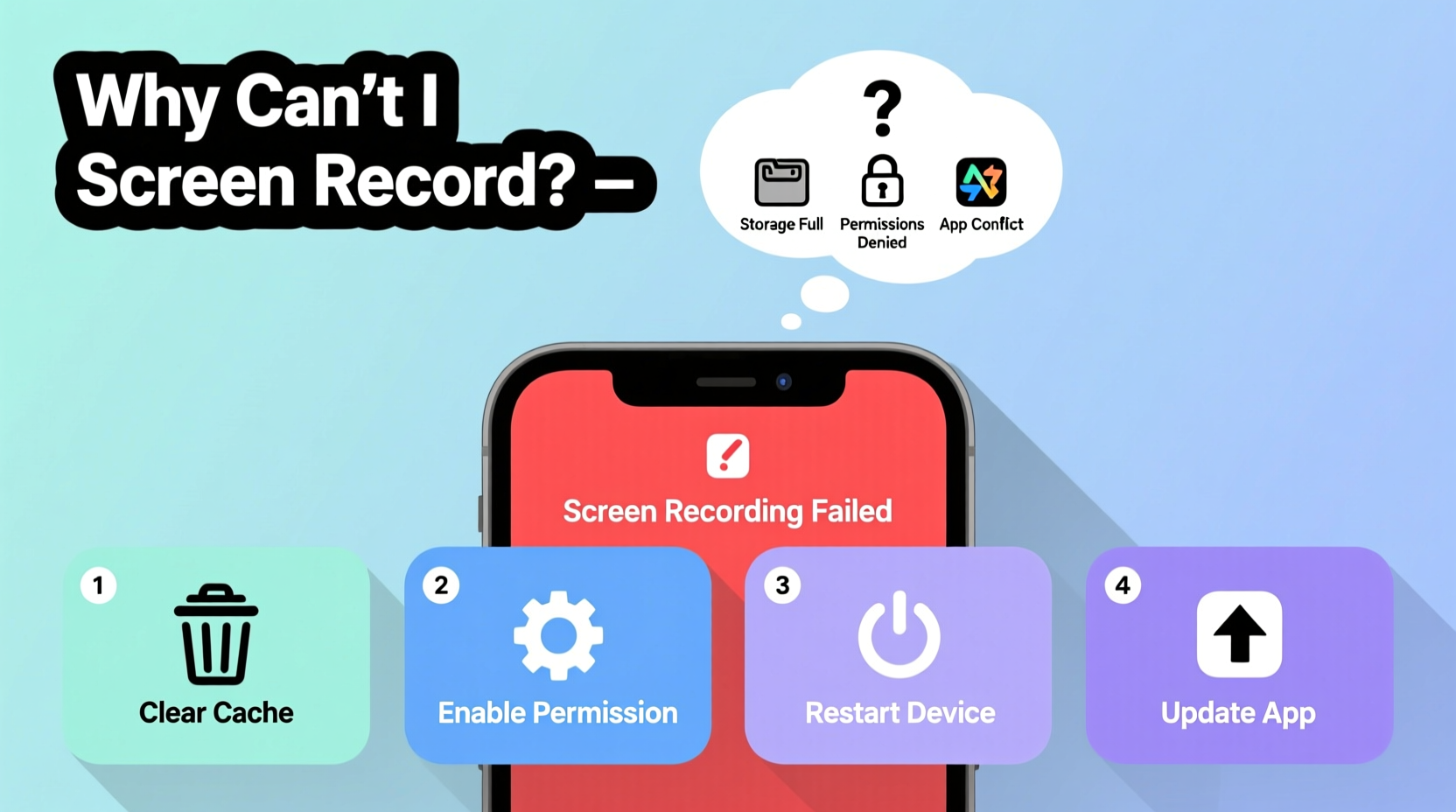
Before diving into fixes, it's important to recognize that screen recording isn’t just a single function—it’s a complex interaction between your operating system, graphics hardware, software permissions, and application compatibility. When one element fails, the entire process can break down.
- Missing or denied permissions: Most modern systems require explicit permission to capture your screen, especially for security reasons.
- Incompatible or outdated software: Older versions of screen recorders may not support new OS updates or display technologies like HDR or high refresh rates.
- Hardware acceleration conflicts: GPU-intensive applications (like games) can interfere with screen capture processes.
- Insufficient storage or RAM: Large video files demand space and memory; low resources can halt recording instantly.
- Protected content restrictions: DRM-protected videos (Netflix, Disney+, etc.) block screen recording by design.
“Screen recording failures are rarely random—they’re usually tied to permission models or resource bottlenecks.” — David Lin, Senior Software Engineer at FrameCapture Labs
Troubleshooting Steps by Platform
Different operating systems handle screen recording differently. Below are targeted troubleshooting strategies based on your device type.
Windows: Fixing Game Bar and Third-Party Tools
Windows 10 and 11 include the Xbox Game Bar as the default screen recorder. If it won’t launch or crashes:
- Navigate to Settings > Privacy & Security > Capture and ensure “Let apps access screen recording” is turned on.
- Go to Settings > Gaming > Xbox Game Bar and confirm it’s enabled.
- Check if the shortcut (Win + Alt + R) is working. Try reassigning it under “Keyboard shortcuts.”
- Update your graphics drivers via Device Manager or directly from NVIDIA/AMD/Intel websites.
- Disable fullscreen optimizations for the app you're trying to record: Right-click the executable > Properties > Compatibility > Check “Disable fullscreen optimizations.”
macOS: Addressing Permission and Performance Issues
Apple tightened screen recording permissions starting with macOS Catalina. If QuickTime or other apps fail to record:
- Open System Settings > Privacy & Security > Screen Recording.
- Ensure your recording app (QuickTime, OBS, etc.) is toggled ON.
- If the app doesn’t appear, remove it and relaunch it once—this prompts macOS to recheck permissions.
- Grant microphone access if audio is needed: Same menu, but under “Microphone.”
- Restart your Mac after enabling permissions—sometimes changes don’t apply until reboot.
Note: Some M1/M2 Macs experience dropped frames during recording due to aggressive power management. Plug in your device and disable automatic graphics switching in Battery settings.
Android: Overcoming App-Specific Blocks
Android allows screen recording natively on most devices running Android 11+. However, issues arise when:
- The app you're recording blocks capture (e.g., banking apps, streaming services).
- Permissions aren’t granted: Swipe down > Screen Recorder > Settings icon > Ensure microphone and notification access are allowed.
- You're using a manufacturer-specific skin (Samsung One UI, Xiaomi MIUI), which may hide or limit the tool.
To reset: Clear cache of the Screen Recorder app via Settings > Apps > Screen Recorder > Storage > Clear Cache.
iOS: Resolving iPhone and iPad Recording Problems
iOS requires manual activation of screen recording in Control Center:
- Go to Settings > Control Center and add “Screen Recording.”
- Swipe down (or up on older models) to open Control Center and tap the gray circle icon.
- If nothing happens, long-press the icon and ensure microphone audio is enabled if needed.
- If recording starts but shows black screen during playback, the app likely uses FairPlay DRM (common in Apple TV+, Hulu).
No sound? Hold the record button in Control Center and select “Microphone On” before starting.
Essential Checklist for Reliable Screen Recording
Use this checklist before every critical recording session to prevent avoidable failures:
- ✅ Enable screen recording permission in system settings
- ✅ Verify sufficient free storage (at least 5GB recommended)
- ✅ Close unnecessary background apps to free up RAM
- ✅ Disable battery saver or performance modes
- ✅ Test microphone and audio input/output settings
- ✅ Confirm the target app doesn’t block recording (DRM check)
- ✅ Update your OS and recording software to latest version
Comparison Table: Screen Recording Support Across Platforms
| Platform | Native Tool | Permission Required? | Audio Capture Support | Limitations |
|---|---|---|---|---|
| Windows 10/11 | Xbox Game Bar | Yes (Privacy settings) | System + mic | No desktop-only recording without third-party tools |
| macOS Monterey+ | QuickTime + Screenshot Toolbar | Yes (Screen Recording in Privacy) | System audio only via third-party tools | No internal audio capture without additional software |
| Android 11+ | Built-in Screen Recorder | Yes (per-app toggle) | System + mic | Blocked in secure apps (banking, streaming) |
| iOS 11+ | Control Center Recorder | Yes (added to Control Center) | Mic only (no system audio) | No internal audio; DRM blocks video capture |
Real-World Example: A Teacher’s Failed Lecture Recording
A high school educator attempted to record a virtual lesson using her MacBook Air. She launched QuickTime Player, selected “New Screen Recording,” clicked record—and got silence and a frozen preview window.
After reviewing system settings, she discovered that while QuickTime was listed in Screen Recording permissions, it had been accidentally disabled during a recent OS update. Re-enabling it didn’t immediately fix the issue—she also had to restart her Mac for the change to take effect. Additionally, she found that Zoom, which she used simultaneously, had exclusive microphone access. Closing Zoom before recording resolved the audio conflict.
This case highlights how multiple small misconfigurations can combine into a complete failure—even when the user has done this successfully before.
Frequently Asked Questions
Why does my screen recording show a black screen?
This typically occurs when recording DRM-protected content such as Netflix, Amazon Prime, or certain banking apps. These apps intentionally prevent screen capture for security and copyright compliance. There is no workaround that complies with legal terms of service.
Can I record system audio on Mac without third-party tools?
No. macOS does not allow native screen recording apps like QuickTime to capture internal system audio without additional software such as BlackHole or Soundflower. You can only record microphone input by default.
Why does my screen recorder keep stopping automatically?
This can happen due to overheating, low disk space, or background app interference. Check available storage, close unused programs, and ensure your device is adequately cooled—especially laptops running intensive tasks.
Final Recommendations for Smooth Screen Capture
Reliable screen recording depends more on preparation than luck. Always test your setup before an important session. Run a 30-second trial recording and verify both video and audio quality. Keep your software updated, permissions active, and system resources uncluttered.
For professionals relying on consistent captures, consider investing in dedicated tools like OBS Studio (free), Camtasia, or ScreenFlow. These offer greater control over outputs, scenes, and encoding settings compared to built-in options.




 浙公网安备
33010002000092号
浙公网安备
33010002000092号 浙B2-20120091-4
Comments
No comments yet. Why don't you start the discussion?