
The AppData folder plays a crucial role in how Windows and your applications function. It stores settings, cached data, plugins, and user-specific configurations for both built-in and third-party software. Despite its importance, most users can't see the AppData folder when browsing their system. This invisibility isn’t a glitch—it’s by design. The folder is hidden to prevent accidental deletion or modification that could destabilize installed programs or even the operating system itself.
While you won’t find AppData on your desktop or directly inside your user folder, it's very much present and active. Understanding how to locate and access it safely empowers you to troubleshoot issues, manage application data, or back up critical settings—without compromising system integrity.
Why Is the AppData Folder Hidden?
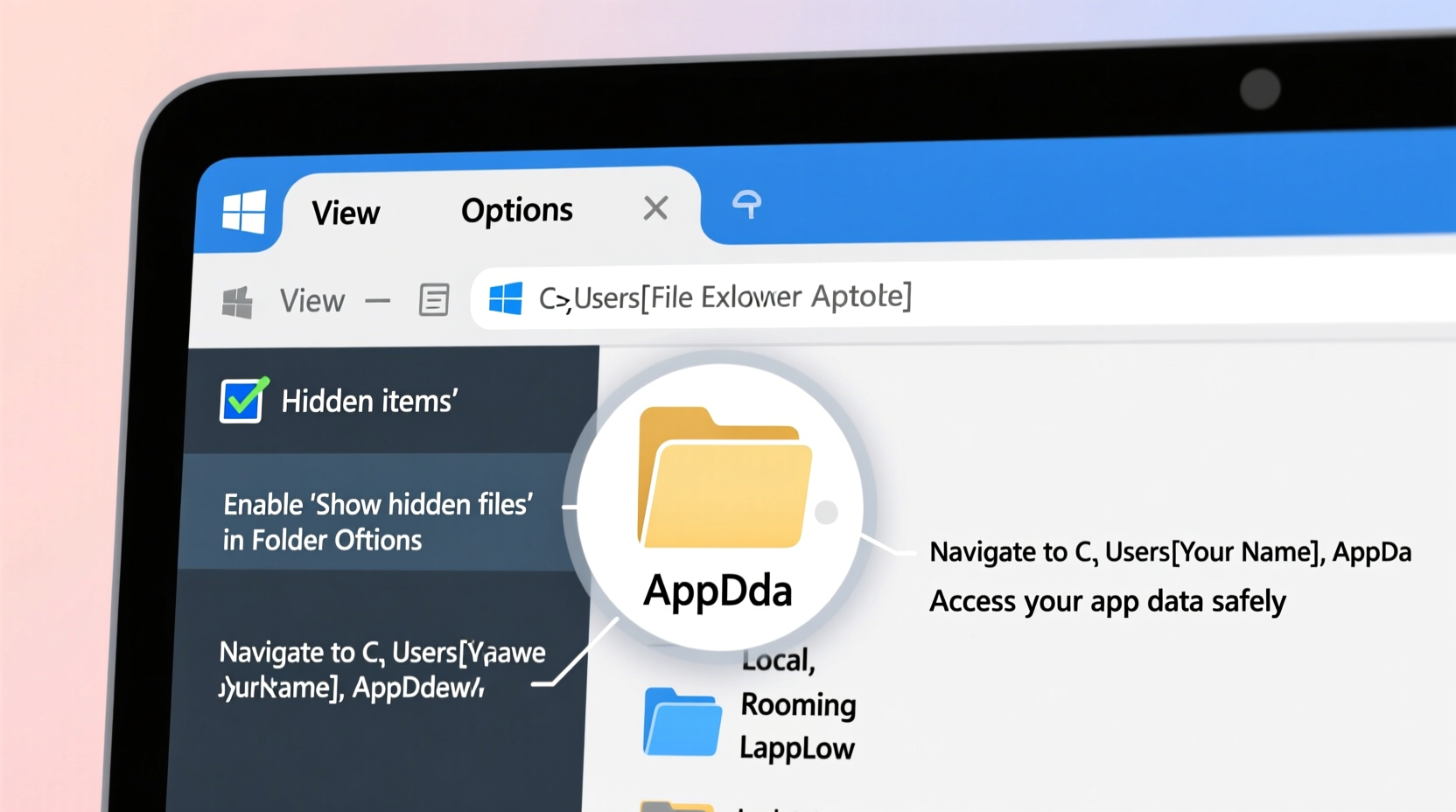
Windows classifies certain directories as “system folders” due to their critical role in maintaining system stability and user experience. The AppData folder falls into this category. Microsoft hides it using a file attribute called hidden, which prevents casual users from altering files that could break apps or cause performance issues.
AppData is further protected by being split into three subfolders:
- Roaming: Contains data that syncs across devices in a networked environment (e.g., in corporate domains).
- Local: Stores data specific to one machine, such as temporary files, caches, and large datasets.
- LocalLow: Holds data for applications running in reduced privileges, like web browsers in protected mode.
These distinctions help Windows manage user profiles efficiently, especially in environments with roaming profiles or strict security policies.
“Hiding AppData reduces the risk of configuration corruption. Most users don’t need direct access, but when they do, knowing how to reveal it properly is essential.” — David Lin, Senior Systems Administrator at TechEdge Solutions
How to Access the AppData Folder: Step-by-Step Methods
There are multiple reliable ways to view and navigate into the AppData folder. Choose the method that best suits your comfort level with Windows.
Method 1: Using the Run Dialog (Fastest)
- Press Windows + R to open the Run dialog.
- Type
%appdata%and press Enter. - This opens the Roaming subfolder of AppData directly.
To access the other two subfolders:
- Use
%localappdata%for the Local folder. - Use
%temp%to jump straight to temporary files (often useful for cleaning).
Method 2: Through File Explorer with Hidden Items Enabled
- Open File Explorer (Windows + E).
- Navigate to
C:\\Users\\<YourUsername>. - Click the View tab at the top.
- Check the box labeled Hidden items.
- The AppData folder will now appear alongside Desktop, Documents, and Downloads.
Note: The folder icon appears dimmed, indicating its hidden status. You can now open it and browse all three subdirectories.
Method 3: Using Command Prompt or PowerShell
For advanced users or automation purposes:
- Open Command Prompt or PowerShell.
- Type:
explorer %appdata%– opens Roaming. - Or type:
start shell:localappdata– opens Local.
This method is particularly useful in scripts or when troubleshooting remotely.
Common Use Cases for Accessing AppData
Most people never need to interact with AppData—but there are legitimate reasons to do so:
- Transferring Application Settings: When moving to a new PC, copying certain AppData folders (like those for Firefox or Discord) preserves bookmarks, themes, and login states.
- Clearing Corrupted Caches: Apps like Spotify or Steam sometimes malfunction due to corrupt cache files located in
Local\\TemporLocal\\AppName. - Fixing Login Loops: Some applications store authentication tokens in AppData. Deleting these (after backing up) can resolve persistent login errors.
- Backing Up Custom Configurations: Game settings, IDE preferences (like VS Code), or browser extensions can be backed up from AppData.
“I once recovered a client’s months-old project settings for Adobe Premiere by restoring just 200MB from AppData. It saved them over 20 hours of reconfiguration.” — Lena Torres, IT Consultant
Do’s and Don’ts When Handling AppData
| Action | Do | Don’t |
|---|---|---|
| Browsing contents | Look around to identify app folders | Modify files unless you know their purpose |
| Deleting files | Remove only temporary or cache folders (e.g., Temp, Cache) | Delete entire app folders without backup |
| Copying data | Copy to external drive before reinstalling OS | Copy while the associated app is running |
| Searching for logs | Check AppData\\Local\\AppName\\logs | Assume all .dat or .log files are safe to delete |
Mini Case Study: Recovering Lost Browser Bookmarks
Samantha, a freelance writer, upgraded her laptop and used a migration tool to transfer files. After setup, she realized her Chrome bookmarks were missing. She tried syncing but encountered an error.
She remembered reading about browser data stored in AppData. Following a guide, she:
- Opened
%localappdata%\\Google\\Chrome\\User Data\\Default - Located the
BookmarksandBookmarks.bakfiles - Copied them to her new machine, replacing the corrupted versions
Within minutes, her full bookmark library was restored. This hands-on knowledge saved her from losing hundreds of research links.
Frequently Asked Questions
Is it safe to delete the AppData folder?
No, not entirely. While temporary files in Local\\Temp can be safely cleared, deleting entire AppData folders will break applications or erase personal settings. Only remove specific cache or log files if necessary, and always back up first.
Can malware hide in the AppData folder?
Yes. Malware often disguises itself in AppData because the folder is hidden and commonly trusted. If you notice unfamiliar folders (e.g., random names like “qwe123”), scan them with antivirus software. Legitimate app folders usually match known program names (e.g., “Discord”, “Slack”).
What’s the difference between AppData and Program Files?
Program Files contains the core application binaries installed system-wide. AppData holds user-specific data like settings, logs, and caches. Two users on the same PC will share Program Files but have separate AppData folders.
Conclusion: Take Control of Your System
The AppData folder isn’t missing—it’s intentionally concealed to protect your system. Now that you know how to find it and use it wisely, you’ve gained deeper control over your Windows environment. Whether you're troubleshooting, transferring data, or cleaning up bloat, accessing AppData opens doors to more effective maintenance.
Approach it with caution, respect its purpose, and use the tools at your disposal. A little knowledge goes a long way in turning a hidden folder into a powerful ally.




 浙公网安备
33010002000092号
浙公网安备
33010002000092号 浙B2-20120091-4
Comments
No comments yet. Why don't you start the discussion?