
Sending a picture message should be as simple as tapping a button. Yet, many users find themselves stuck staring at a failed delivery notification or an endless spinning wheel. Whether you're using an iPhone or an Android device, the inability to send multimedia messages (MMS) can disrupt communication, especially when sharing important visuals like receipts, documents, or family photos. The root causes vary—from network settings and carrier restrictions to software glitches—but most issues are fixable with the right approach.
This guide walks through every possible reason your picture messages aren’t sending and provides clear, actionable solutions. No guesswork, no generic advice—just proven fixes that address both common and overlooked problems.
Understanding MMS vs. SMS
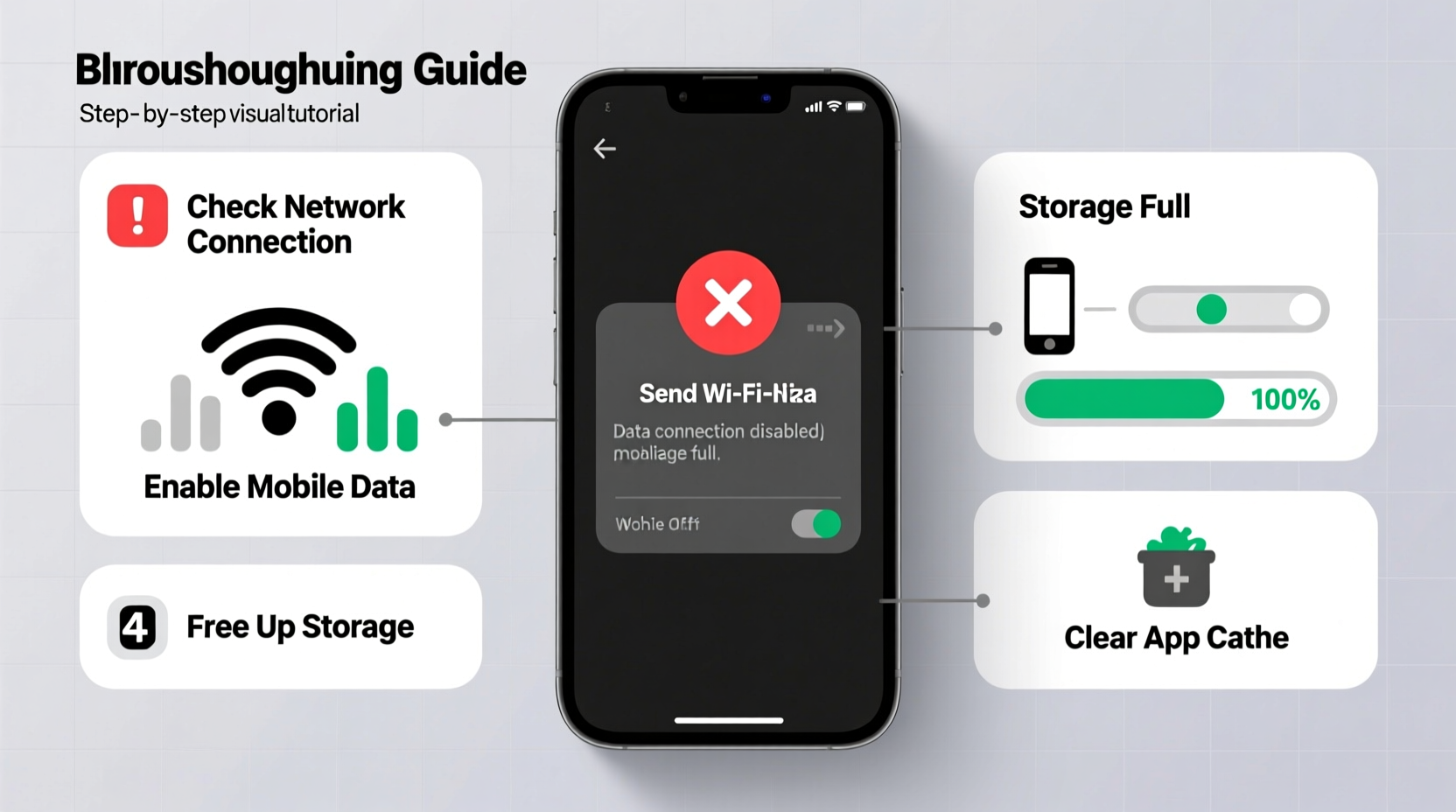
Before diving into troubleshooting, it’s essential to understand the difference between SMS (text messages) and MMS (multimedia messages). SMS supports only text up to 160 characters and works over traditional voice networks. MMS, on the other hand, allows images, videos, audio, and longer texts but requires mobile data or Wi-Fi to transmit.
If your phone sends plain texts but fails when attaching a photo, the issue is almost certainly related to MMS configuration or data connectivity. Unlike SMS, MMS depends on specific network settings known as APN (Access Point Name), which must be correctly configured for your carrier.
“Many so-called ‘phone problems’ are actually misconfigured network settings. MMS relies on precise APN details that carriers sometimes fail to push automatically.” — Carlos Mendez, Mobile Network Engineer
Step-by-Step Troubleshooting Process
Follow this logical sequence to identify and resolve the cause of failed picture messages. Start from the simplest checks and move toward advanced fixes.
- Check Internet Connection: MMS requires mobile data or Wi-Fi. Ensure data is enabled and you have a stable signal. Try loading a webpage to confirm connectivity.
- Verify Message Settings: On Android, open Messages > Settings > Advanced and ensure “MMS messages” are enabled. On iPhone, go to Settings > Messages and confirm “MMS Messaging” is toggled on.
- Restart Your Device: A soft reboot clears temporary glitches. Power off your phone completely, wait 30 seconds, then turn it back on.
- Check Carrier Support: Some carriers restrict MMS on certain plans. Contact customer service to confirm your plan includes multimedia messaging.
- Update Your Software: Outdated operating systems or messaging apps may lack necessary MMS support. Check for system updates under Settings > System > Software Update.
Common Fixes by Device Type
For iPhone Users
iOS handles MMS differently than Android. Apple defaults to iMessage (blue bubbles) when communicating with other Apple devices. When iMessage is unavailable, it falls back to SMS/MMS (green bubbles).
- Go to Settings > Messages and ensure “Send as SMS” is enabled. This allows fallback when iMessage fails.
- Toggle off and on “MMS Messaging.” This resets the service temporarily.
- If messages still fail, reset network settings via Settings > General > Transfer or Reset iPhone > Reset > Reset Network Settings. Note: This erases saved Wi-Fi passwords.
For Android Users
Android devices rely heavily on correct APN settings. Incorrect or missing configurations are the top cause of MMS failures.
- Navigate to Settings > Network & Internet > Mobile Network > Advanced > Access Point Names (APN).
- Select your carrier’s default APN (e.g., “T-Mobile US LTE” or “Verizon”).
- Verify key fields: Name, APN, MMSC, MMS Proxy, MMS Port, APN Type (should include 'mms').
- If settings are missing or incorrect, search your carrier’s official support site for the correct APN details and enter them manually.
- After updating, restart the phone and test with a small image.
| Carrier | APN Type Required | Common MMS Issue |
|---|---|---|
| Verizon | default,mms,supl,fota | Missing 'mms' in APN type blocks picture sends |
| AT&T | phone,mms | Outdated MMSC URL after network upgrades |
| T-Mobile | default,mms | Data not enabled for MMS in plan |
| Google Fi | mms | Requires manual APN setup on some devices |
Real-World Example: Sarah’s Failed Birthday Photo
Sarah tried sending her daughter’s birthday party photos to family members via message. Each attempt failed with “Error: Could not send message.” She checked Wi-Fi and mobile data—both worked fine. After toggling airplane mode and restarting, the problem persisted.
She contacted her carrier, Metro by T-Mobile, and learned her plan had recently changed, requiring updated APN settings. Once she entered the new APN configuration—specifically adding 'mms' to the APN type field—her picture messages sent immediately. The issue wasn’t her phone or the app; it was an invisible backend setting change made by her provider.
This case illustrates how silent carrier updates can break MMS without warning. Regular users aren’t expected to know APN settings, yet they’re often the key to resolution.
Troubleshooting Checklist
Use this checklist to methodically eliminate potential causes:
- ✅ Mobile data is turned on
- ✅ Wi-Fi is disabled (to force mobile data use for MMS testing)
- ✅ MMS option is enabled in messaging settings
- ✅ Phone has strong signal (preferably 4G/LTE or 5G)
- ✅ Carrier plan includes MMS
- ✅ APN settings are correct and include 'mms' in APN type
- ✅ Messaging app is updated to latest version
- ✅ Date and time are set automatically
- ✅ SIM card is properly inserted and functional
- ✅ Test with a small image (large files may time out)
Frequently Asked Questions
Why do my picture messages fail only when I'm on Wi-Fi?
Most carriers require mobile data to send MMS. Even if Wi-Fi is active, the phone must switch to cellular data for MMS transmission. If mobile data is disabled, the message will fail. Some phones offer “Wi-Fi calling with MMS,” but this feature must be enabled and supported by your carrier.
Can I send pictures using iMessage or RCS instead?
Yes. iMessage (Apple) and Google Messages with RCS (Rich Communication Services) allow photo sharing over data without relying on MMS. These services function like instant messaging apps and provide better quality and reliability. However, they only work between compatible devices—sending to non-iPhone users from an iPhone reverts to MMS.
What if none of the fixes work?
If all troubleshooting steps fail, contact your carrier directly. Request a full APN reset or provisioning refresh. They can push corrected settings remotely. Alternatively, try inserting your SIM into another phone. If MMS works there, the issue is device-specific—possibly hardware or deep software corruption.
Final Steps and Prevention
Once MMS is restored, take preventive measures to avoid future disruptions. Bookmark your carrier’s official APN page. Periodically check for system updates. Avoid third-party messaging apps that override default MMS behavior unless fully tested.
Also, consider shifting to internet-based messaging platforms like WhatsApp, Signal, or iMessage where available. These bypass MMS entirely and offer higher media quality, group features, and read receipts—all over data.
Conclusion
The frustration of not being able to send a simple picture message often stems from misunderstood technology rather than broken hardware. By understanding how MMS works and systematically checking network, settings, and carrier requirements, most issues can be resolved in under 30 minutes. Don’t accept “it just doesn’t work” as an answer—your phone is capable, and the fix is usually within reach.




 浙公网安备
33010002000092号
浙公网安备
33010002000092号 浙B2-20120091-4
Comments
No comments yet. Why don't you start the discussion?