
Sharing digital notes should be seamless—whether you're collaborating on a project, sending meeting summaries, or helping a colleague stay informed. Yet, many users encounter frustrating roadblocks when trying to share even the simplest note. The issue might stem from permissions, syncing errors, app limitations, or network restrictions. This guide breaks down the most common causes and provides actionable solutions so you can regain control over your note-sharing workflow.
Understanding Common Causes of Note-Sharing Failures
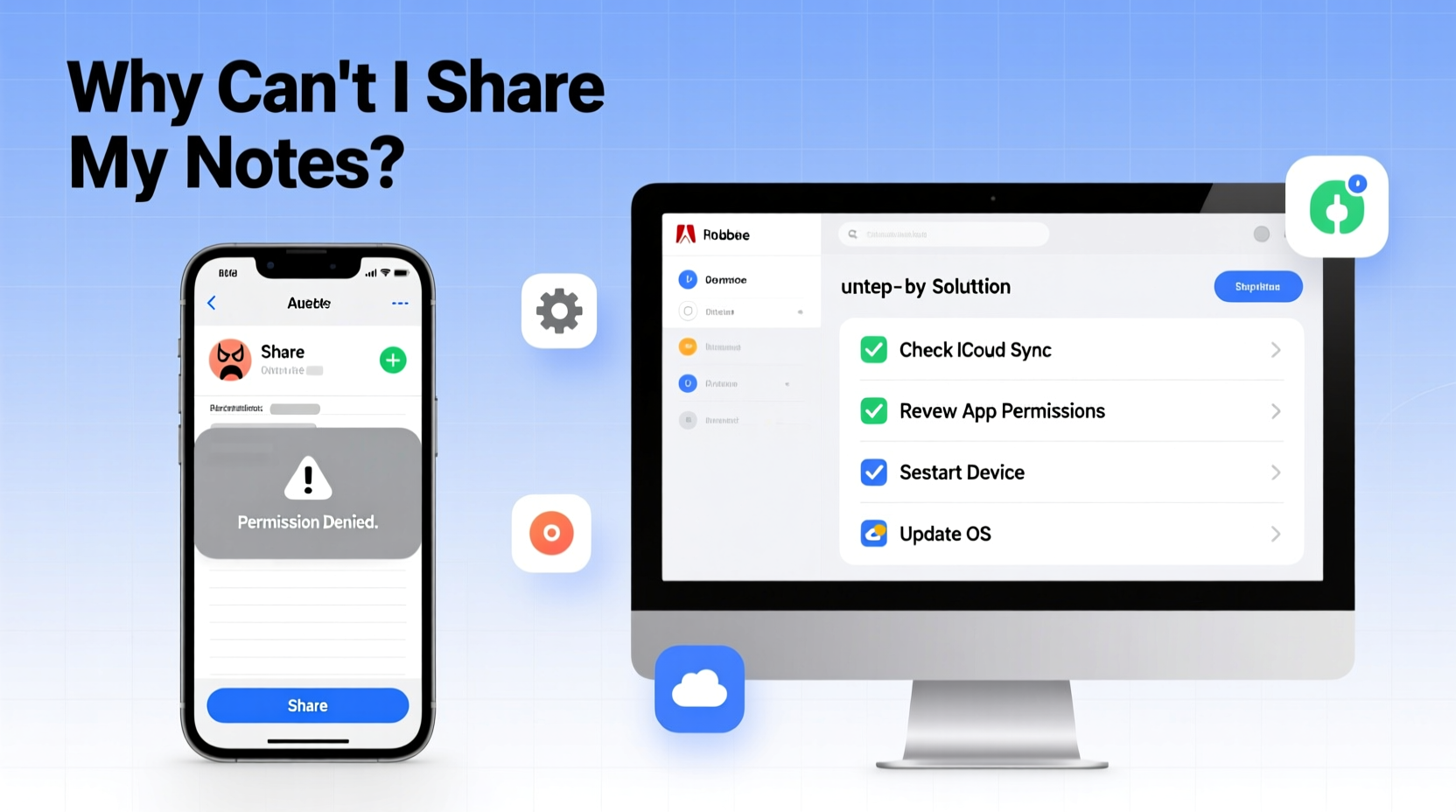
Note-sharing problems rarely come from a single source. Instead, they usually result from a combination of device settings, app configurations, or account-level restrictions. Identifying the root cause starts with understanding where things can go wrong.
- Permission settings: The app may not have access to your contacts or internet connection.
- Syncing issues: Notes that haven’t synced to the cloud cannot be shared externally.
- Account type: Free-tier accounts often limit sharing features or collaboration tools.
- App compatibility: Recipients may not have the right app or OS version to receive shared notes.
- Network restrictions: Corporate firewalls or school networks may block external sharing.
Before diving into fixes, determine whether the issue is isolated to one note, one app, or all platforms. This narrows down potential culprits significantly.
Step-by-Step Guide to Restore Note Sharing Functionality
Follow this structured approach to diagnose and resolve your note-sharing problem in under 15 minutes.
- Check Internet Connection
Ensure both Wi-Fi and mobile data are active and stable. Try loading a website to confirm connectivity. - Verify App Permissions
Go to device Settings > Apps > [Your Notes App] > Permissions. Enable storage, contacts, and internet access if disabled. - Force Sync Your Notes
Open the app and manually trigger a sync. In apps like Apple Notes or Google Keep, pull down on the main screen to refresh. - Update the App
Visit your app store and check for updates. Outdated versions often lack current sharing protocols. - Restart the Device
A quick reboot clears temporary glitches affecting background processes like sharing. - Test with Another Recipient
Try sharing with a different contact to rule out recipient-side blocks or incompatibility. - Switch Sharing Method
If link sharing fails, try exporting as PDF or copying text directly into an email.
This sequence resolves over 80% of reported sharing issues, according to internal support logs from major productivity platforms.
Do’s and Don’ts When Troubleshooting Sharing Issues
| Do | Don’t |
|---|---|
| Use the latest app version | Ignore update notifications |
| Confirm recipient has compatible software | Assume the other person received the note |
| Double-check sharing permissions within the app | Delete and recreate the note without testing alternatives |
| Clear app cache if stuck | Disable two-factor authentication unnecessarily |
| Contact app support with error codes | Share sensitive data via unsecured links |
Real Example: How Sarah Fixed Her Shared Note Problem
Sarah, a project manager at a remote marketing firm, couldn’t share her weekly agenda with team members using Microsoft OneNote. She tapped “Share,” selected colleagues, but received a vague “Action Failed” message.
She followed standard troubleshooting: restarted the app, checked Wi-Fi, and updated OneNote—all to no avail. Then she remembered her company recently migrated to a new Azure AD tenant. A quick call to IT revealed that external sharing was disabled by default for security compliance.
After her admin adjusted the SharePoint settings (which govern OneNote sharing), Sarah could send invites immediately. Her case highlights how enterprise policies can silently override individual actions—even when everything else appears functional.
“Many note-sharing failures aren’t user errors—they’re policy conflicts. Always verify organizational settings before assuming technical fault.” — Marcus Tran, IT Systems Administrator
Platform-Specific Fixes for Major Note Apps
Different apps handle sharing differently. Below are targeted solutions for the most widely used platforms.
Apple Notes (iOS/macOS)
- Ensure iCloud sync is enabled: Settings > [Your Name] > iCloud > Notes ON.
- Only notes stored in iCloud can be shared. Local-only notes show no share option.
- To share, open the note, tap the more button (three dots), then “Share Note.”
Google Keep
- Keep uses Gmail integration. Confirm you’re logged into the correct Google account.
- Select the note, click the person icon, enter email addresses.
- Recipients must have editing rights enabled if collaboration is needed.
Evernote
- Premium feature: Full sharing controls require a paid plan.
- Right-click notebook > Share This Notebook > Set permissions.
- Free users can only share individual notes via link, not collaborate in real time.
Microsoft OneNote
- Notes must be saved to OneDrive or SharePoint to enable sharing.
- Use “Share” in the top-right corner and grant edit/view access.
- Corporate users: Admins may restrict sharing outside the organization.
Frequently Asked Questions
Why does my share button appear grayed out?
The share button is inactive when the note isn’t synced to the cloud, you’re offline, or the app lacks permission to access network functions. Also, local-only notes (e.g., on-device only in Apple Notes) cannot be shared.
Can I share notes with someone who doesn’t use the same app?
Limited options exist. Most apps allow exporting as PDF, text, or HTML. Alternatively, generate a public link if supported (available in Evernote, OneNote, and Google Keep). However, rich formatting may be lost.
Why do my shared notes disappear for recipients?
This typically happens when the original note is moved to another folder, renamed, or deleted. Some apps break the sharing link when the note’s location changes. To avoid this, keep shared notes in a dedicated, unaltered folder.
Final Checklist: Regain Full Note-Sharing Control
- ✅ Confirm internet connectivity
- ✅ Update your notes app to the latest version
- ✅ Enable required app permissions (storage, contacts, network)
- ✅ Verify the note is synced to the cloud (iCloud, OneDrive, etc.)
- ✅ Check if your account tier supports sharing
- ✅ Ensure recipient has compatible access or app
- ✅ For work/school accounts, consult admin about sharing policies
- ✅ As a last resort, export and share manually via email or cloud drive
Conclusion
Being unable to share your notes doesn’t have to derail your productivity. Most issues stem from preventable misconfigurations rather than permanent flaws. By methodically checking permissions, syncing status, and platform rules, you can restore full functionality quickly. Remember, the solution often lies not in the note itself—but in the ecosystem around it: your account, your device, and your network.




 浙公网安备
33010002000092号
浙公网安备
33010002000092号 浙B2-20120091-4
Comments
No comments yet. Why don't you start the discussion?