
Wi-Fi connectivity is essential in modern computing, whether you're working from home, streaming content, or attending virtual meetings. When your computer suddenly fails to detect any available networks, it can be both confusing and disruptive. The issue may stem from hardware, software, router settings, or even environmental interference. This comprehensive guide walks through the most common causes and provides actionable solutions to restore your connection quickly and effectively.
Understanding Common Causes of Wi-Fi Detection Failure
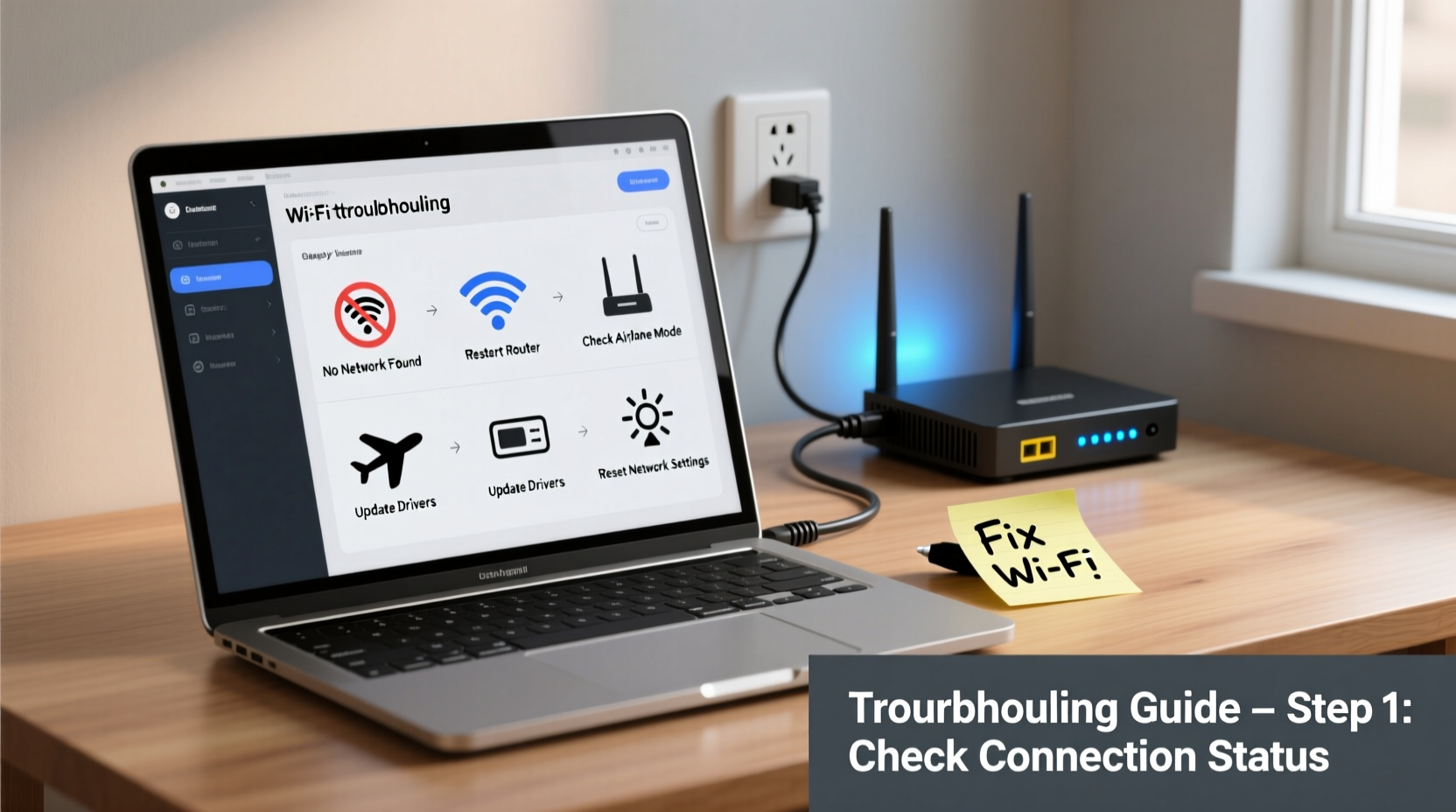
Before diving into fixes, it's important to understand why a computer might not see Wi-Fi networks. Several factors can interfere with wireless detection:
- Disabled Wi-Fi adapter: The wireless interface may be turned off via function key, BIOS, or driver error.
- Driver corruption or incompatibility: Outdated or faulty drivers prevent proper communication with the network.
- Router malfunction: The access point may not be broadcasting its SSID or could be offline.
- Physical obstructions or distance: Thick walls, metal objects, or excessive range can weaken signal strength.
- Interference from other devices: Microwaves, cordless phones, or neighboring networks on overlapping channels reduce performance.
- Operating system bugs: Temporary glitches in Windows, macOS, or Linux can disrupt network services.
Identifying which category your problem falls into will streamline the troubleshooting process and save time.
Step-by-Step Troubleshooting Process
Follow this logical sequence to methodically resolve the issue:
- Verify physical Wi-Fi switch or function key: Some laptops have a physical switch or require pressing a function key (e.g., Fn + F2) to enable wireless.
- Check airplane mode: Ensure airplane mode is disabled in your OS settings.
- Restart your computer and router: A simple reboot often resolves temporary communication errors.
- Confirm the router is powered on and broadcasting: Check LED indicators and attempt to connect via another device.
- Ensure Wi-Fi is enabled in network settings: On Windows, go to Settings > Network & Internet > Wi-Fi. On macOS, click the Wi-Fi icon in the menu bar.
- Run built-in network troubleshooters: Use Windows Network Diagnostics or macOS Wireless Diagnostics tool.
- Update or reinstall Wi-Fi drivers: Access Device Manager (Windows) or System Information (macOS) to check for outdated or missing drivers.
- Reset TCP/IP stack and DNS cache: In Command Prompt (Admin), run:
netsh int ip resetandipconfig /flushdns. - Check for hidden SSID: If your network isn’t broadcasting, manually add it using the SSID and password.
- Test in Safe Mode with Networking: Booting into Safe Mode helps determine if third-party software is interfering.
This structured approach ensures no stone is left unturned and increases the likelihood of identifying the root cause efficiently.
Essential Checklist for Immediate Action
Use this checklist as a quick reference when your computer fails to find Wi-Fi:
- ✅ Is the Wi-Fi toggle on in system settings?
- ✅ Is airplane mode disabled?
- ✅ Did you press the hardware Wi-Fi button (if present)?
- ✅ Can other devices connect to the same network?
- ✅ Have you restarted both the computer and router?
- ✅ Are router lights indicating normal operation?
- ✅ Is the wireless adapter recognized in Device Manager / System Report?
- ✅ Have you updated the network adapter driver?
- ✅ Does the network appear as \"hidden\"? Try manual setup.
- ✅ Have you tried connecting via Ethernet to confirm internet access?
Completing each item systematically reduces confusion and prevents skipping critical steps.
Do’s and Don’ts When Fixing Wi-Fi Detection Issues
| Do’s | Don’ts |
|---|---|
| Restart your router and modem regularly to clear memory leaks. | Ignore firmware updates for your router—these often fix connectivity bugs. |
| Keep your operating system and drivers up to date. | Manually edit registry or system files without backup. |
| Use the latest WPA3 or WPA2 security protocol for better compatibility. | Place your router near large metal objects or microwaves. |
| Position your router centrally and elevated for optimal coverage. | Assume the problem is always with your ISP—test locally first. |
| Document changes made during troubleshooting for future reference. | Overlook simple fixes like reseating cables or power cycling. |
Real-World Example: Office Connectivity Breakdown
A small marketing firm reported that three employees’ laptops suddenly stopped detecting their office Wi-Fi after a weekend. Other devices like phones still connected normally. Initial checks revealed that all affected machines were running recent Windows updates released Friday evening.
The IT consultant suspected driver conflicts introduced by the update. After disabling the automatic Wi-Fi driver update policy and rolling back to the previous version, two laptops regained connectivity. For the third, a corrupted network profile was found and removed using the command: netsh wlan delete profile name=\"OfficeNetwork\". Reconnecting manually restored full access.
This case highlights how system updates can inadvertently break functionality and why maintaining rollback options is crucial in professional environments.
“Many Wi-Fi detection problems are not network-related at all—they stem from local configuration errors or driver instability after OS updates.” — David Lin, Senior Network Engineer at NetSecure Solutions
Frequently Asked Questions
Why does my computer not show any Wi-Fi networks even though others can see them?
This typically indicates a local issue such as a disabled adapter, outdated driver, or hardware failure. First, ensure Wi-Fi is enabled and test in another location. If no networks appear anywhere, the wireless card may be faulty or disconnected internally.
Can a virus prevent my computer from finding Wi-Fi?
While rare, malware can modify network settings or disable services. Run a full antivirus scan and check that critical services like 'WLAN AutoConfig' (on Windows) are running. Also verify that no proxy or firewall software is blocking access.
How do I manually connect to a hidden Wi-Fi network?
On Windows: Go to Settings > Network & Internet > Wi-Fi > Manage known networks > Add a new network. Enter the SSID, security type, and password. On macOS: Click the Wi-Fi icon, select “Join Other Network,” enter details, and choose WPA2 or appropriate encryption.
Conclusion: Take Control of Your Connection
Not being able to find Wi-Fi doesn’t have to mean lost productivity or expensive technician visits. With a clear understanding of potential causes and a systematic troubleshooting method, most issues can be resolved in under 30 minutes. From verifying basic settings to updating drivers and assessing environmental factors, each step brings you closer to reliable connectivity.




 浙公网安备
33010002000092号
浙公网安备
33010002000092号 浙B2-20120091-4
Comments
No comments yet. Why don't you start the discussion?