
Many users are surprised when they try to install a common app on their Windows device, only to be met with the message: “This app can’t be installed because your PC is in S Mode.” It’s a frustrating experience—especially if you weren’t aware of this restriction when purchasing your device. S Mode isn’t a bug or glitch; it’s a deliberate design choice by Microsoft to prioritize security, performance, and simplicity. But what exactly is S Mode? Why does it block third-party applications? And should you stay in it or switch out? Understanding these questions helps you make informed decisions about how you use your Windows device.
What Is Windows S Mode?
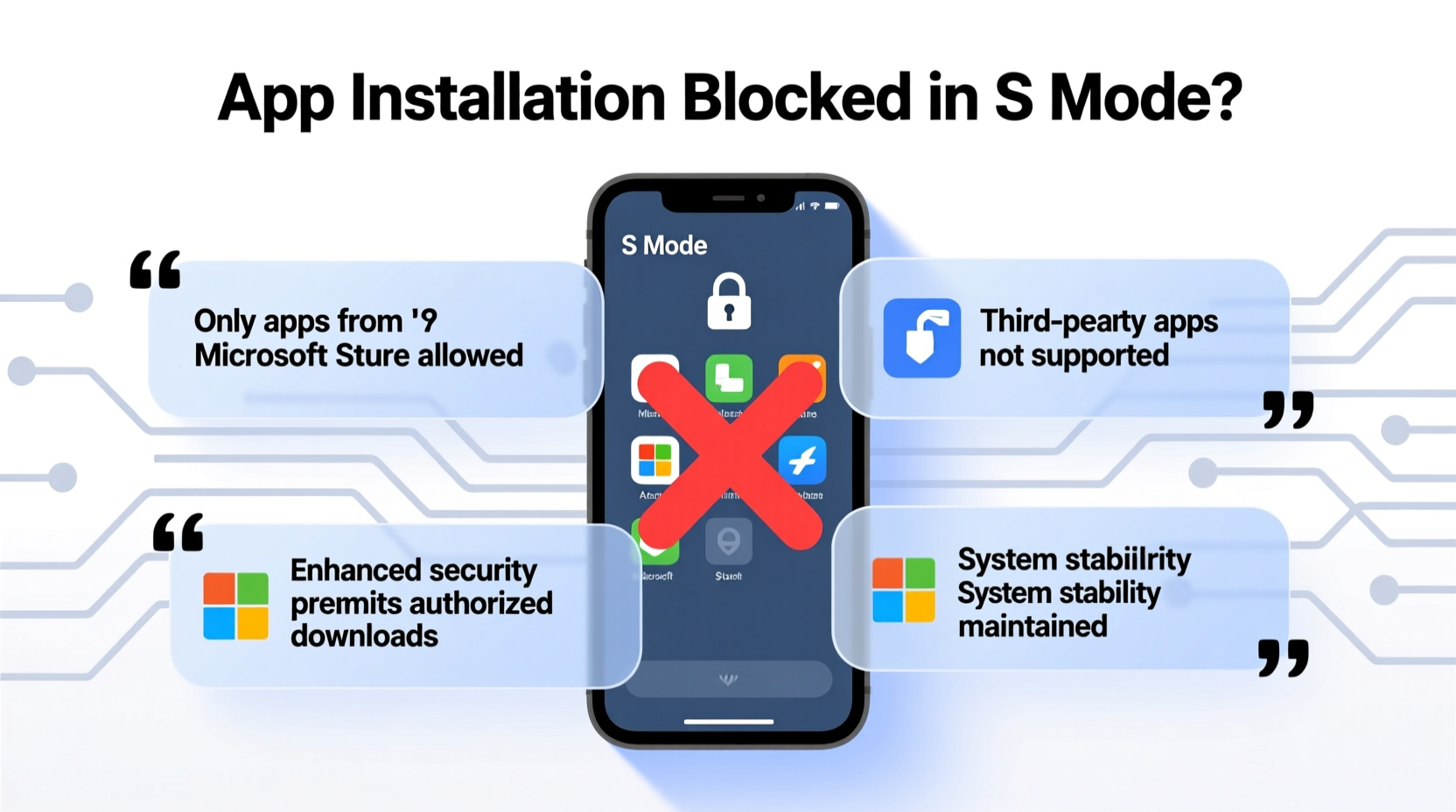
Windows S Mode is a streamlined version of the Windows operating system designed to enhance security and optimize performance. It's not a separate OS but rather a configuration that limits certain functionalities to reduce risks and improve speed. Devices such as entry-level laptops, 2-in-1s, and education-focused models often ship with Windows 10 or 11 Home/Pro in S Mode enabled by default.
In S Mode, the system enforces strict rules:
- Only apps from the Microsoft Store can be installed.
- Microsoft Edge is the default and only allowed web browser.
- System-level changes and unsigned software are blocked.
This locked-down approach reduces the likelihood of malware infections, prevents unauthorized modifications, and ensures consistent performance—making it ideal for students, casual users, and organizations prioritizing stability over customization.
Why Can't You Download Apps in S Mode?
The core reason you can't download traditional desktop applications—like Chrome, Zoom, or Steam—in S Mode is security. Unlike standard Windows, which allows installation from any source, S Mode acts like a gatekeeper. Every app must be vetted and distributed through the Microsoft Store, where developers submit their software for review.
This process filters out potentially harmful programs, ensures compatibility, and minimizes background processes that could slow down lower-end hardware. While this increases safety, it also limits flexibility. For example:
- You can't install Google Chrome—even though it's legitimate—because it's not available in the Microsoft Store.
- Popular tools like VLC Media Player or Discord require sideloading or external installers, both prohibited in S Mode.
- Developers or power users can’t run local scripts or compile code without exiting S Mode.
“S Mode is like living in a gated community: safer and quieter, but with fewer options for who can come in.” — James Lin, Cybersecurity Analyst at SecureEdge Solutions
When Should You Stay in S Mode (and When to Leave)
S Mode isn’t inherently bad—it serves a purpose. The decision to remain in or leave S Mode depends on your usage needs.
| Scenario | Recommended: Stay in S Mode? | Notes |
|---|---|---|
| Student using device for research and assignments | Yes | Most educational apps are available via Microsoft Store or web versions. |
| Parent buying a first laptop for a child | Yes | Reduces risk of accidental downloads and malware exposure. |
| Freelancer needing Chrome, Adobe, or development tools | No | Too restrictive for professional workflows. |
| Business user managing multiple software platforms | No | Requires full access to enterprise-grade tools. |
| Casual user browsing, streaming, email | Optional | Web-based alternatives often suffice; switching is low-risk if needed later. |
Mini Case Study: Sarah’s School Laptop
Sarah, a high school sophomore, received a new Surface Laptop SE for her classes. She tried installing Spotify and Chrome but kept hitting roadblocks. After contacting IT support, she learned her device was in S Mode. Her school district had chosen this configuration to prevent distractions and maintain uniformity across devices.
Initially frustrated, Sarah discovered that Microsoft Edge worked well for online research, and the Microsoft Store offered a web-wrapped version of Spotify. Over time, she adapted. By finals week, she appreciated the lack of pop-ups, smooth performance, and automatic updates. Her device never crashed or slowed—a stark contrast to her friend’s unrestricted laptop cluttered with bloatware.
Sarah’s experience highlights how S Mode, while limiting, can deliver a reliable, distraction-free environment ideal for focused tasks.
How to Switch Out of S Mode (Step-by-Step)
If you determine that S Mode is too restrictive for your needs, you can switch to standard Windows—but the change is permanent and irreversible. Once you leave S Mode, you cannot go back.
- Open Settings: Click Start → Settings (gear icon).
- Navigate to System > Activation.
- Select 'Switch out of S Mode' under the ‘Switch to Windows 10/11 Home’ section.
- Click ‘Go to the Store’. This will open a Microsoft Store page titled “Switch out of S Mode”.
- Click ‘Get’—note that this action is free.
- Confirm the switch. Your device will begin the transition, which takes just a few minutes.
- Restart your PC. After rebooting, you’ll be running full Windows and can install apps freely.
Frequently Asked Questions
Is S Mode only on cheaper laptops?
No, while S Mode is commonly found on budget-friendly devices like the Surface Laptop SE or entry-level Lenovo/IdeaPads, it can technically be enabled on higher-end systems. However, most premium devices ship in full Windows mode to appeal to professionals.
Does switching out of S Mode cost money?
No. The switch is completely free. Microsoft does not charge for leaving S Mode. However, once done, you cannot revert.
Can I still get viruses after leaving S Mode?
Yes. Exiting S Mode removes restrictions, which means you can install unverified software—including malicious programs. Always use antivirus software, avoid suspicious websites, and keep Windows Defender active even after switching.
Action Plan: What You Should Do Now
Understanding S Mode empowers you to decide whether it supports or hinders your digital lifestyle. Here’s a checklist to guide your next steps:
- ✅ Check your current mode: Go to Settings > System > About > Windows Specifications. Look for “Mode” to see if you’re in S Mode.
- ✅ Assess your app needs: List the software you use daily. Are they available in the Microsoft Store?
- ✅ Try web alternatives: Use Chrome-based web apps through Edge, or access tools via browser (e.g., Figma, Trello, Canva).
- ✅ Consult IT/admin if applicable: Schools and workplaces may restrict mode changes.
- ✅ Only switch if necessary: If you rely on non-Microsoft Store apps, proceed with the free switch—but know it’s permanent.
Final Thoughts
Windows S Mode isn’t a flaw—it’s a trade-off between security and freedom. For many users, especially beginners or those in managed environments, it provides a clean, fast, and safe computing experience. For others, particularly creatives, developers, or multitaskers, its limitations quickly become obstacles.
The key is awareness. Knowing why you can’t download apps in S Mode removes confusion and puts control back in your hands. Whether you choose to embrace its boundaries or unlock full Windows functionality, your decision should be intentional—not reactive.




 浙公网安备
33010002000092号
浙公网安备
33010002000092号 浙B2-20120091-4
Comments
No comments yet. Why don't you start the discussion?