
Text messages are more than just casual communication—they often contain important information, from appointment confirmations to personal conversations. When they suddenly vanish, it can be disorienting and frustrating. Unlike emails or cloud-stored files, SMS messages aren’t always automatically backed up, making their disappearance a serious concern. The good news is that most cases of lost texts have identifiable causes and actionable fixes. Whether you're using an iPhone or Android, understanding the reasons behind message loss—and how to respond—can help you recover what’s missing and safeguard your data moving forward.
Common Causes of Disappearing Text Messages
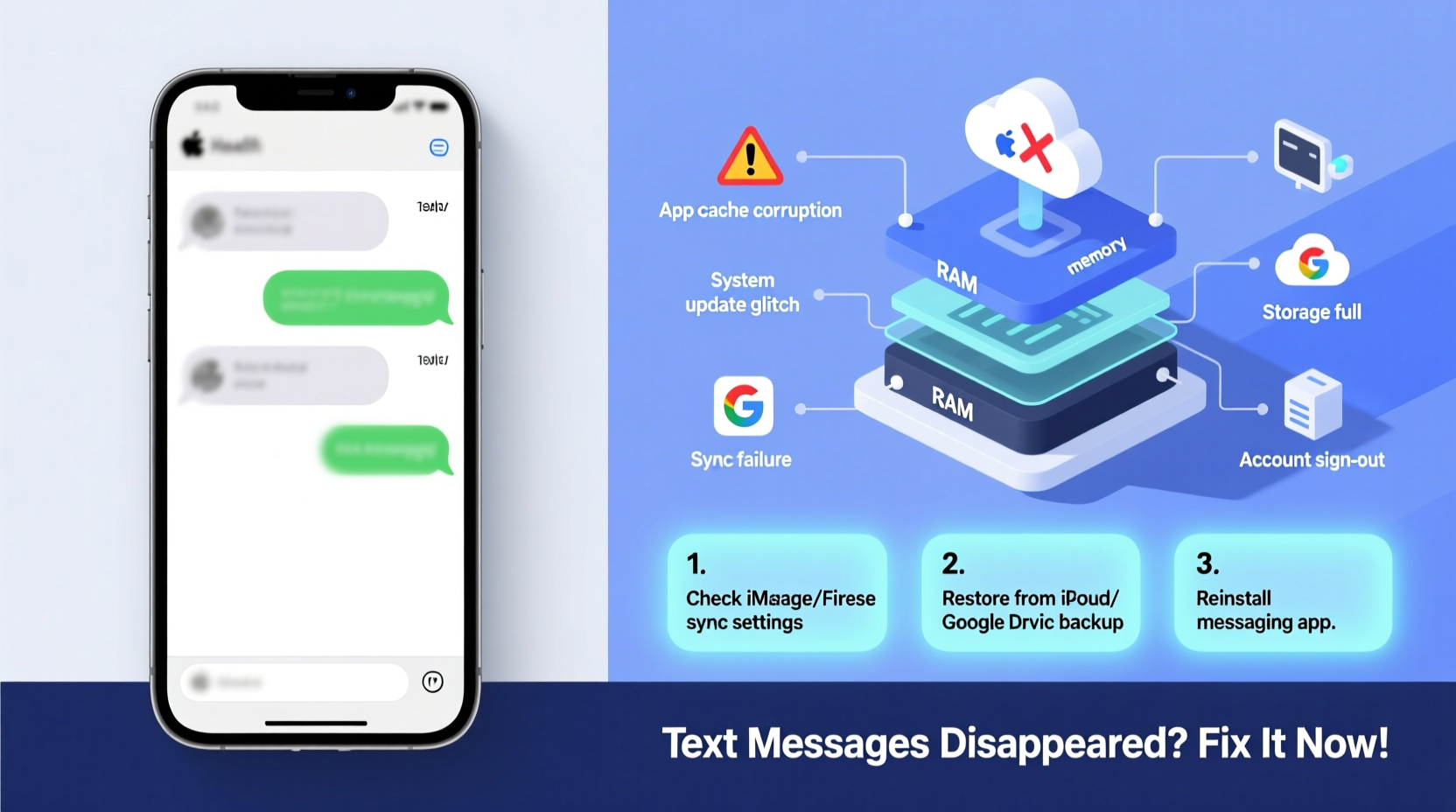
Messages don’t typically vanish without reason. Several technical, user-driven, or system-level factors may lead to their disappearance. Identifying the root cause is the first step toward recovery and prevention.
- Device Sync Errors: Cloud syncing issues between devices (especially on iMessage or Google Messages) can result in incomplete message histories.
- Software Updates: OS updates sometimes reset app settings or temporarily misalign message databases.
- Storage Limitations: Older phones or those with full storage may auto-delete older messages to free up space.
- Accidental Deletion: A swipe or tap can remove entire conversations, especially when using gesture controls.
- Factory Reset or Device Replacement: Switching phones without proper backup transfers often leads to message loss.
- App Glitches: Messaging apps occasionally crash or corrupt local databases, causing messages to disappear.
- iCloud or Google Account Misconfiguration: If sync settings are disabled or logged out, messages won’t carry over across devices.
Step-by-Step Guide to Recover Lost Text Messages
Recovery depends heavily on your device type, backup habits, and when the messages were lost. Follow this structured approach to maximize your chances of retrieval.
- Determine the Scope: Are all messages gone, or just specific threads? This helps narrow down whether the issue is app-specific or system-wide.
- Restart Your Phone: A simple reboot can resolve temporary glitches affecting message display.
- Check Message Filtering: Some apps allow filtering by conversation type (e.g., spam, archived). Ensure no filters are hiding your messages.
- Verify Sync Settings:
- iOS: Go to Settings > [Your Name] > iCloud > check if \"Messages\" is enabled.
- Android: Open Google One settings and confirm SMS backup is active.
- Restore from Backup:
- If you use iCloud, restore from a previous backup via Settings > General > Transfer or Reset iPhone > Erase All Content and Settings > Restore from iCloud Backup.
- On Android, during initial setup, choose “Restore from Google Backup” to retrieve messages.
- Use Third-Party Recovery Tools (with caution): Apps like Dr.Fone, iMobie PhoneRescue, or Tenorshare UltData can scan for deleted messages. Use only trusted software and avoid rooting or jailbreaking unless necessary.
“Many users assume messages are permanently stored, but SMS operates more like temporary logs unless actively backed up.” — David Lin, Mobile Data Forensics Analyst
Prevention Checklist: Avoid Future Message Loss
Once recovered—or if you’re lucky enough to still have your messages intact—take proactive steps to protect them.
- ✅ Turn on iCloud Messages (iOS) or Google Messages sync (Android).
- ✅ Perform regular manual backups before major updates.
- ✅ Avoid clearing app data unless absolutely necessary.
- ✅ Use built-in archiving instead of deletion for old conversations.
- ✅ Monitor available storage; delete unused apps or media to maintain buffer space.
- ✅ Test restoration process periodically using a secondary device or factory reset simulation.
Do’s and Don’ts: Managing Text Message Data
| Do’s | Don’ts |
|---|---|
| Enable end-to-end encrypted backups (iCloud Advanced Data Protection, Google’s end-to-end encryption for Messages). | Assume messages are saved forever without verification. |
| Regularly verify that new messages appear across synced devices. | Delete messages en masse without confirming cloud sync status. |
| Use dedicated backup tools like iTunes (for Mac/PC) or Google One. | Rely solely on carrier storage—most carriers don’t retain SMS long-term. |
| Label critical conversations or forward them to email as a secondary archive. | Ignore software update warnings related to messaging apps. |
Real Example: Recovering Two Years of Lost Family Messages
Sarah, a mother of two in Portland, upgraded her iPhone and assumed her messages would transfer seamlessly. After setting up her new device, she realized nearly two years of family texts—including birthday wishes, school updates, and medical reminders—were missing. Panicked, she contacted Apple Support, who confirmed that iCloud Messages had not been enabled on her old phone. Fortunately, she still had the old device. By reactivating iCloud sync and allowing it to upload the local database, her messages gradually reappeared on both devices over the next 48 hours. The experience taught her to double-check sync settings during every transition.
This case highlights a common oversight: assuming continuity without verifying configuration. Had Sarah discarded her old phone immediately, recovery would have been far more difficult, possibly requiring forensic tools.
Frequently Asked Questions
Can I recover deleted text messages without a backup?
In most cases, no—unless the messages are still cached in the device’s memory and haven’t been overwritten. Specialized recovery software may help, but success isn’t guaranteed. Prevention through regular backups remains the most reliable method.
Why do my messages disappear after updating my phone?
Operating system updates can disrupt app data alignment. On iOS, if iCloud Messages wasn’t enabled before the update, the local message database may not sync back correctly. Always ensure cloud sync is active prior to updating.
Do carriers keep copies of my text messages?
Generally, no. Most carriers do not store SMS content long-term, if at all. Metadata (like time and number) may be retained for billing, but message bodies are typically discarded shortly after delivery. Relying on carrier retention is not a viable backup strategy.
Conclusion: Take Control of Your Messaging History
Lost text messages don’t have to be permanent. While the reasons behind their disappearance vary—from syncing errors to accidental deletions—the solutions are often within reach. Immediate action, combined with a clear understanding of your device’s backup ecosystem, dramatically increases the odds of recovery. More importantly, establishing consistent habits around cloud syncing and periodic backups ensures that your digital conversations remain accessible for years to come. Don’t wait until another update or device switch catches you off guard.




 浙公网安备
33010002000092号
浙公网安备
33010002000092号 浙B2-20120091-4
Comments
No comments yet. Why don't you start the discussion?