
Motion sickness while playing first-person shooter (FPS) games is more common than many players realize. It affects casual gamers and competitive enthusiasts alike, often leading to headaches, nausea, dizziness, and fatigue—sometimes within minutes of starting a session. Unlike physical motion, where your body moves through space, in virtual environments your eyes perceive movement while your inner ear senses stillness. This sensory mismatch confuses the brain, triggering symptoms similar to car or seasickness.
The good news is that this discomfort isn’t inevitable. By understanding the root causes and making targeted adjustments to your game settings, hardware setup, and play habits, you can dramatically reduce or even eliminate FPS-induced motion sickness. This guide breaks down the science behind the issue and provides actionable steps to help you reclaim your gaming experience—starting today.
Why FPS Games Trigger Motion Sickness
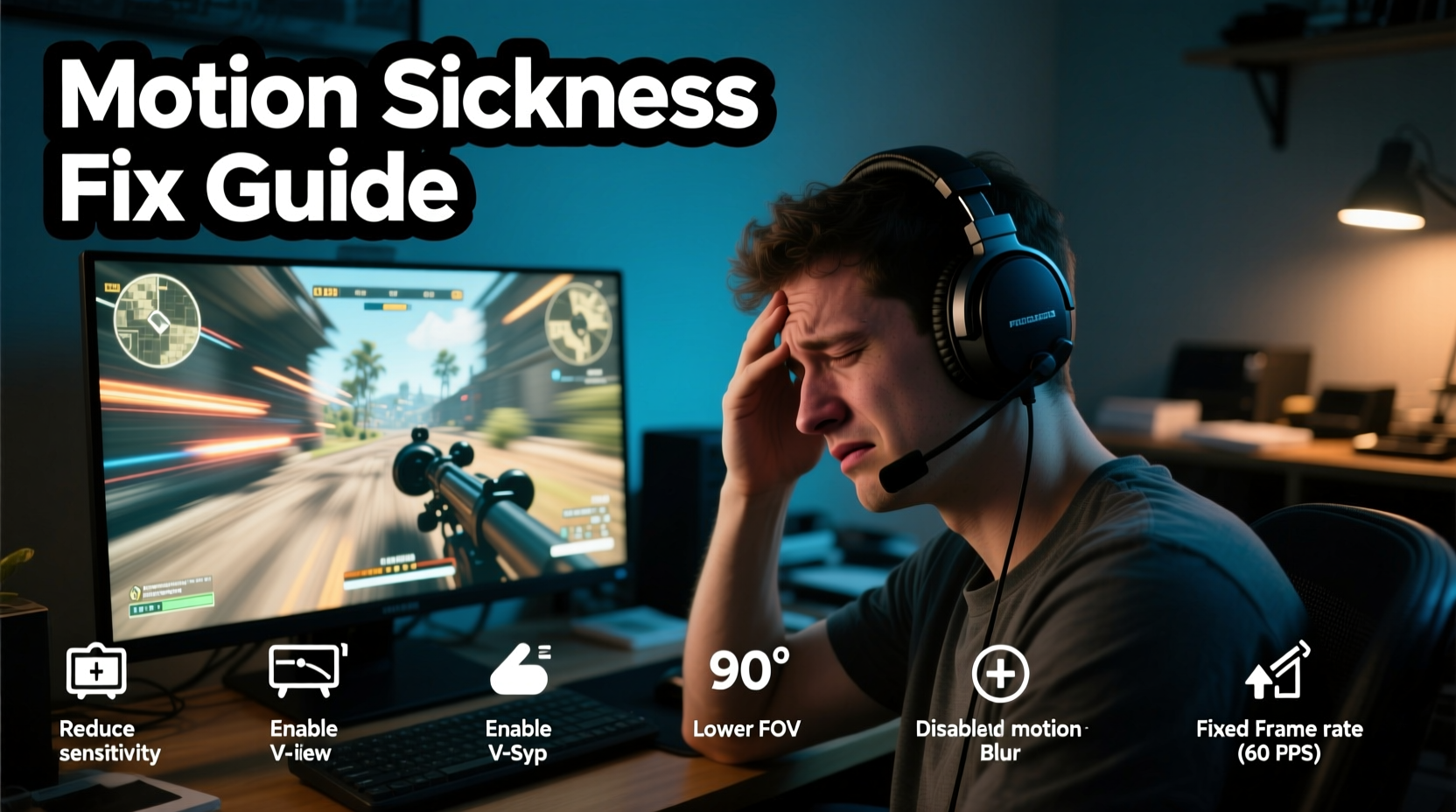
FPS games place players directly into the character’s perspective, simulating real-time movement through dynamic 3D environments. While immersive, this viewpoint creates a neurological conflict. Your visual system reports rapid motion: running, turning, jumping, and camera swaying. Meanwhile, your vestibular system—the balance mechanism in your inner ear—detects no corresponding physical movement. The brain interprets this discrepancy as a potential sign of poisoning or neurological disruption, prompting a defensive response: nausea.
This phenomenon, known as visually induced motion sickness or cybersickness, is particularly pronounced in games with:
- High field of view (FOV) with exaggerated peripheral distortion
- Camera bobbing that mimics footsteps
- Rapid head movements or screen shakes during explosions
- Low frame rates or screen tearing causing visual instability
- Poor depth perception due to small screens or suboptimal resolution
A 2020 study published in Applied Ergonomics found that over 60% of participants experienced some form of cybersickness during prolonged FPS sessions, with younger players and those new to 3D gaming being most susceptible. However, even seasoned players aren’t immune—especially when switching to a new title with aggressive motion effects.
“Virtual motion without physical feedback disrupts sensorimotor integration. The brain struggles to reconcile what it sees with what it feels.” — Dr. Lena Torres, Neuroscientist & Human-Computer Interaction Researcher
Immediate Settings to Change for Relief
You don’t need to stop playing your favorite FPS titles. Often, adjusting just a few key settings can make the difference between feeling ill and playing comfortably. These changes should be applied at the game level and, where possible, reinforced through display and input device settings.
1. Reduce or Disable Camera Bob
Camera bobbing simulates the up-and-down motion of walking or running. While intended to enhance realism, it introduces constant low-frequency oscillation that destabilizes visual input. For sensitive players, this subtle sway is enough to trigger nausea.
2. Adjust Field of View (FOV)
Too low an FOV (< 90) creates a tunnel vision effect, increasing perceived speed and disorientation. Too high an FOV (>110) distorts peripheral visuals, stretching objects unnaturally. Most experts recommend an FOV between 90 and 100 for balance.
| FOV Setting | Effect on Comfort | Recommended? |
|---|---|---|
| < 85 | Narrow view, faster edge motion, higher discomfort | No |
| 90–100 | Natural depth, smooth motion, optimal comfort | Yes |
| > 110 | Peripheral warping, eye strain, disorientation | Limited use |
Note: Console players often have fewer FOV options. Consider using external monitors or adjusting viewing distance to compensate.
3. Enable Motion Blur Reduction or Disable Motion Blur
Motion blur smoothes fast camera turns but reduces visual clarity. When your eyes try to track moving objects through a blurred scene, cognitive load increases, contributing to fatigue and nausea.
If available, turn off motion blur entirely. Alternatively, enable “reduction” modes or use strobe backlighting technologies like NVIDIA Ultra Low Motion Blur (ULMB) or AMD FreeSync Premium Pro.
4. Increase Frame Rate and Minimize Screen Tearing
Choppy or inconsistent frame delivery strains the visual system. A stable 60 FPS is the minimum for comfort; 100+ FPS significantly improves perceptual stability.
- Cap frame rate slightly below monitor refresh rate to avoid tearing
- Enable V-Sync, G-Sync, or FreeSync if screen tearing occurs
- Lower graphical settings (shadows, anti-aliasing) to prioritize performance
5. Modify Mouse Sensitivity and Acceleration
High mouse sensitivity forces rapid, jerky movements. This leads to abrupt visual shifts that mimic sudden head turns—confusing the balance system. Mouse acceleration (where cursor speed varies based on flick intensity) adds unpredictability.
Set sensitivity low enough to require full arm movement for 180-degree turns. Disable mouse acceleration in both game and OS settings for consistent control.
Hardware and Environmental Adjustments
Your gaming environment plays a crucial role in symptom development. Even perfect in-game settings can’t fully compensate for poor ergonomics or display conditions.
Monitor Placement and Size
Sit at least 2–3 feet from your screen. Larger monitors fill more of your visual field, amplifying perceived motion. If using a 27-inch or larger display, increase viewing distance accordingly.
Position the top of the screen at or slightly below eye level. Looking down reduces neck strain and stabilizes posture, which helps regulate vestibular signals.
Lighting and Contrast
Play in a well-lit room. Complete darkness forces your pupils to dilate, increasing sensitivity to flicker and contrast changes. Ambient background lighting (e.g., bias lighting behind the monitor) reduces eye strain and visual fatigue.
Avoid overly bright screens in dark rooms. Lower brightness to match surrounding light levels.
Use a Wider Field Display (Cautiously)
Ultra-wide or curved monitors can improve immersion but may worsen motion sickness due to extreme peripheral rendering. If using one, reduce FOV slightly and ensure the center of the screen aligns with your natural gaze.
Step-by-Step Guide to Reset Your Setup
If you're currently struggling with motion sickness, follow this sequence to reset your configuration for maximum comfort:
- Exit the game and take a 15-minute break in natural light.
- Adjust your chair and monitor so your eyes are level with the top third of the screen, arms relaxed on the desk.
- Open game settings and navigate to Graphics, Controls, and Audio sections.
- Set FOV to 95 (or closest available option).
- Disable camera bob, weapon sway, and motion blur.
- Cap frame rate to 3–5 FPS below your monitor’s refresh rate (e.g., 115 FPS on a 120Hz display).
- Reduce mouse sensitivity so a full desktop mousepad swipe equals a 90-degree turn.
- Turn off mouse acceleration in Windows/Mac and in-game.
- Lower brightness and contrast if the image feels “harsh.”
- Restart the game and play for 20 minutes max. Monitor symptoms.
If symptoms persist after two sessions, consider testing with a different genre temporarily while your brain adapts.
Mini Case Study: Recovering a Competitive Edge
Mark, a 24-year-old aspiring Valorant player, began experiencing nausea and headaches after 15 minutes of ranked matches. He assumed he needed longer breaks or hydration fixes. After weeks of frustration, he discovered online forums discussing FPS motion sickness.
He adjusted his FOV from 85 to 95, disabled all camera bob and motion blur, lowered mouse sensitivity from 1600 to 800 DPI, and capped his frame rate at 141 FPS (on a 144Hz monitor). He also moved his desk closer to a window for ambient light.
Within two days, Mark could play for 45 minutes without symptoms. After a week, he extended to 90-minute sessions. His aim improved—not because of gear changes, but because he was no longer fighting dizziness. Today, he coaches others on setting optimization for comfort-first performance.
Checklist: Motion Sickness Prevention Setup
Use this checklist before launching any FPS game:
- ✅ FOV set between 90–100
- ✅ Camera bob and weapon sway disabled
- ✅ Motion blur turned off
- ✅ Frame rate stable and synced (V-Sync/G-Sync enabled if needed)
- ✅ Mouse sensitivity low, acceleration off
- ✅ Monitor positioned at eye level, 2+ feet away
- ✅ Room has ambient lighting (no pitch black)
- ✅ Play session limited to 30 minutes initially
- ✅ Ventilation good; avoid stuffy or overheated rooms
- ✅ Take a 5-minute break every 25 minutes
FAQ
Can VR cause worse motion sickness than regular FPS games?
Yes. Virtual reality intensifies the effect because the headset fills nearly your entire field of view, increasing sensory conflict. However, modern VR titles use techniques like \"teleportation movement\" and \"comfort vignettes\" to reduce risk. Start with seated experiences and short sessions.
Is there a permanent cure for gaming-related motion sickness?
There’s no universal cure, but many players develop tolerance over time through gradual exposure. Combine setting optimizations with incremental playtime increases (e.g., 10 extra minutes per day). Some find relief with over-the-counter antihistamines (like meclizine), though these should be used sparingly and under medical guidance.
Do certain games cause less motion sickness?
Yes. Games with static cameras, slower pacing, or third-person views (e.g., Overwatch, Apex Legends, or Team Fortress 2) tend to be gentler. Avoid titles known for heavy screen shake or rapid movement (e.g., older Call of Duty campaigns, Doom Eternal) until your tolerance improves.
Conclusion
Motion sickness from FPS games isn’t a personal failing—it’s a predictable physiological response to conflicting sensory inputs. With informed adjustments to settings, display conditions, and play routines, most players can overcome it. Start with disabling camera bob, optimizing FOV, and stabilizing frame rate. Pair these with ergonomic improvements and structured play intervals. Over time, your brain will adapt, and your enjoyment will return.




 浙公网安备
33010002000092号
浙公网安备
33010002000092号 浙B2-20120091-4
Comments
No comments yet. Why don't you start the discussion?