
There’s nothing more frustrating than your AirPods cutting out in the middle of a call, podcast, or workout—especially when both the earbuds and case show 100% battery. You expect seamless performance from Apple’s flagship wireless earbuds, but random disconnections can happen even with full power. The issue isn’t necessarily faulty hardware; it’s often rooted in software glitches, connectivity conflicts, or environmental interference. Understanding why this happens—and how to fix it—is key to restoring reliable audio performance.
This guide dives into the technical and practical reasons behind unexpected AirPods disconnections despite full battery life. More importantly, it provides actionable, step-by-step solutions that go beyond generic advice. Whether you're using first-gen AirPods or the latest AirPods Pro, these fixes apply across models and can resolve most intermittent connection issues.
Understanding the Root Causes
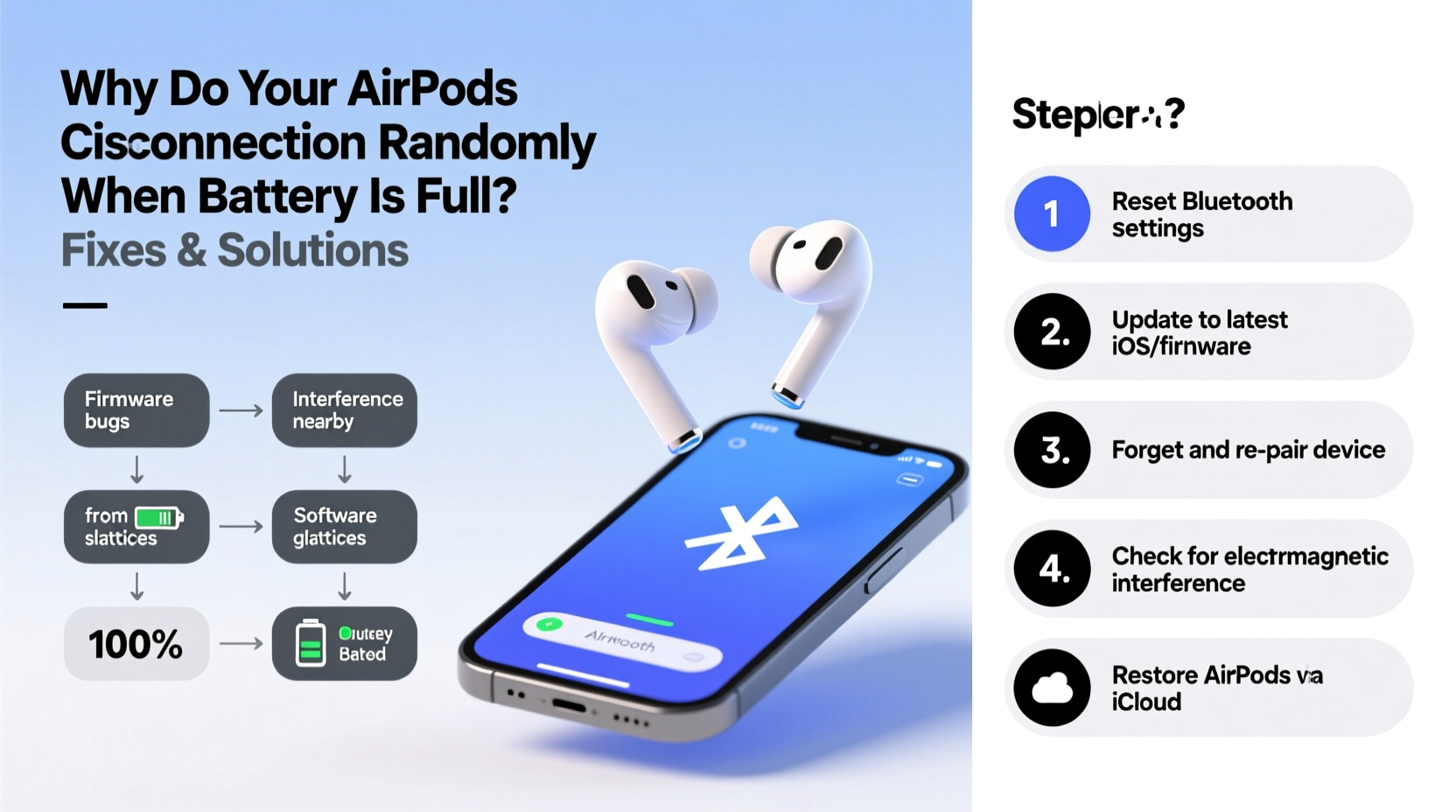
When AirPods disconnect despite having full charge, the problem typically lies outside battery health. The lithium-ion cells may be functioning perfectly, but other components in the ecosystem are failing to maintain a stable Bluetooth link. Common culprits include:
- Bluetooth interference from Wi-Fi routers, microwaves, or nearby devices.
- Firmware bugs in the AirPods or connected device (iPhone, iPad, Mac).
- Outdated iOS or macOS versions that lack critical Bluetooth patches.
- Accumulated cache or corrupted pairing data on your device.
- Physical obstructions or excessive distance between AirPods and source device.
- Misconfigured automatic switching between Apple devices.
Apple designs AirPods to optimize battery efficiency and connection stability, but real-world usage introduces variables that disrupt this balance. For example, if your iPhone frequently switches between cellular data and Wi-Fi, Bluetooth signals can momentarily drop. Similarly, crowded RF environments—like offices or public transit—can overwhelm the 2.4 GHz band used by Bluetooth.
“Even with optimal battery levels, wireless earbuds rely on consistent signal integrity. A weak or unstable Bluetooth handshake often causes disconnections before power becomes an issue.” — Dr. Lena Park, Wireless Communication Engineer
Step-by-Step Troubleshooting Guide
Follow this structured sequence to diagnose and eliminate the root cause of random disconnections. Start with basic checks and progress to advanced resets if needed.
1. Restart Your Devices
Sometimes, a simple reboot resolves temporary software hiccups.
- Turn off your iPhone, iPad, or Mac completely.
- Place your AirPods back in the charging case and close the lid for 30 seconds.
- Reopen the case and press and hold the setup button on the back (for non-Pro models) for 15 seconds until the status light flashes amber, then white.
- Power on your main device and reconnect the AirPods.
2. Check for Software Updates
Outdated firmware is a frequent trigger for instability.
- Ensure your iPhone or iPad runs the latest version of iOS or iPadOS (Settings > General > Software Update).
- Update your Mac via System Settings > General > Software Update.
- To check AirPods firmware: Go to Settings > Bluetooth, tap the “i” icon next to your AirPods, and view the \"Firmware Version.\" Latest versions as of 2024 range from 6.9.0 to 7.0.2 depending on model.
3. Forget and Re-Pair Your AirPods
This clears corrupted Bluetooth profiles.
- Go to Settings > Bluetooth.
- Tap the “i” icon next to your AirPods.
- Select Forget This Device.
- Place AirPods in the case, close the lid, wait 10 seconds, then reopen.
- Press and hold the setup button until the LED flashes white.
- Reconnect as if setting up new AirPods.
4. Reset Network Settings
This erases all saved Wi-Fi networks, VPNs, and Bluetooth pairings—useful for deep system cleanup.
- Navigate to Settings > General > Transfer or Reset iPhone > Reset > Reset Network Settings.
- Enter your passcode and confirm.
- After restart, re-pair your AirPods.
Note: You’ll need to re-enter Wi-Fi passwords afterward.
5. Disable Automatic Device Switching
If you own multiple Apple devices, automatic switching can cause abrupt handoffs that appear as disconnections.
- Open Settings > Bluetooth.
- Tap the “i” next to your AirPods.
- Set Connect to This iPhone to “When Last Connected to This iPhone.”
- Under Automatically Switch To, toggle off “Automatic Switching.”
Environmental and Usage Factors
Your surroundings play a bigger role than most users realize. Even with full battery, physical and electromagnetic conditions impact Bluetooth reliability.
| Factor | Impact on AirPods | Solution |
|---|---|---|
| Wi-Fi congestion | Interferes with 2.4 GHz Bluetooth signals | Switch router to 5 GHz band where possible |
| Walls or metal objects | Blocks signal transmission | Stay within 30 feet line-of-sight |
| Other Bluetooth devices | Causes channel crowding | Turn off unused peripherals |
| Body position | Pocketed phone behind body weakens signal | Keep phone in front pocket or on table |
Additionally, moisture buildup inside the charging case or earbud stems can create intermittent electrical contact issues—even without visible damage. Wipe down your AirPods regularly with a dry, lint-free cloth, especially after workouts or humid conditions.
Mini Case Study: Solving Persistent Disconnections at Work
Mark, a project manager in San Francisco, experienced daily AirPods Pro dropouts during Zoom calls. His battery was consistently full, and his iPhone 14 ran the latest iOS. Initial troubleshooting didn’t help—he reset Bluetooth, updated software, and restarted devices repeatedly.
The breakthrough came when he noticed disconnections only occurred in his office, not at home. Upon investigation, he discovered his desk sat directly between two powerful Wi-Fi access points broadcasting on overlapping 2.4 GHz channels. Using a Wi-Fi analyzer app, he confirmed severe signal interference.
He asked IT to reconfigure one access point to use the 5 GHz band exclusively. He also disabled automatic switching between his Mac and iPhone. After these changes, his AirPods remained connected for weeks without a single dropout. The issue wasn’t the earbuds—it was the environment.
Do’s and Don’ts When Fixing AirPods Disconnections
“Many users jump to replacing hardware too quickly. In over 70% of reported cases, a software reset or environmental adjustment resolves the issue.” — Tech Support Lead, Apple Authorized Service Provider
| Do | Don't |
|---|---|
| Keep iOS and firmware updated | Ignore minor disconnections—they often escalate |
| Test AirPods with another device (e.g., friend’s iPhone) | Use third-party cleaning liquids inside ports |
| Reset network settings periodically | Assume full battery means perfect functionality |
| Store AirPods in a dry, cool place | Leave them exposed to extreme heat (e.g., car dashboard) |
FAQ: Common Questions About AirPods Disconnecting
Can full battery cause disconnection issues?
No. A full battery does not cause disconnections. However, a fully charged battery may mask underlying issues like overheating during charging, which can temporarily disrupt electronics. If disconnections occur immediately after charging, allow the case and earbuds to cool before use.
Why do my AirPods disconnect when I move my head?
This is usually due to signal obstruction. When you turn your head, your body can block the Bluetooth signal between your iPhone (e.g., in your pocket) and the AirPod near your ear. Try keeping your phone closer to your front side or on a desk during use.
Will resetting my AirPods delete my settings?
Resetting removes pairing information and customizations like double-tap actions. After re-pairing, you’ll need to reconfigure features such as noise control (on Pro models) and automatic ear detection. However, your iCloud audio settings may restore some preferences automatically.
Final Checklist: Quick Fixes to Apply Now
- ✅ Restart your iPhone and AirPods case.
- ✅ Ensure iOS is up to date.
- ✅ Forget and re-pair your AirPods.
- ✅ Disable automatic device switching.
- ✅ Test in a low-interference environment (e.g., away from routers).
- ✅ Reset network settings if problems persist.
- ✅ Clean AirPods and case with a dry microfiber cloth.
Conclusion: Regain Reliable Audio Without Replacing Your AirPods
Random AirPods disconnections with full battery aren’t a death sentence for your earbuds. In most cases, the solution lies in software optimization, environmental adjustments, or recalibrating device settings—not hardware failure. By methodically addressing potential causes—from firmware updates to Wi-Fi interference—you can restore smooth, uninterrupted listening.
Don’t rush to buy new AirPods the next time they cut out mid-song. Instead, apply the steps outlined here: reset connections, update systems, and evaluate your usage environment. These strategies save money, reduce e-waste, and empower you to troubleshoot confidently.




 浙公网安备
33010002000092号
浙公网安备
33010002000092号 浙B2-20120091-4
Comments
No comments yet. Why don't you start the discussion?