
If you've ever been in the middle of an important call only for your AirPods to suddenly go silent—only to return seconds later—you're not alone. Audio dropouts during phone calls are one of the most common complaints among AirPods users. While Apple’s wireless earbuds offer seamless integration with iOS devices, they’re not immune to connectivity hiccups. The causes range from Bluetooth interference to outdated firmware or even physical obstructions. Understanding the root issues is the first step toward restoring reliable call quality.
This guide breaks down the technical and environmental reasons behind AirPods cutting out during calls and provides actionable, tested solutions. Whether you're using AirPods (1st through 4th gen), AirPods Pro, or AirPods Max, these fixes apply across models and can significantly improve your experience.
Understanding the Root Causes of Call Dropouts
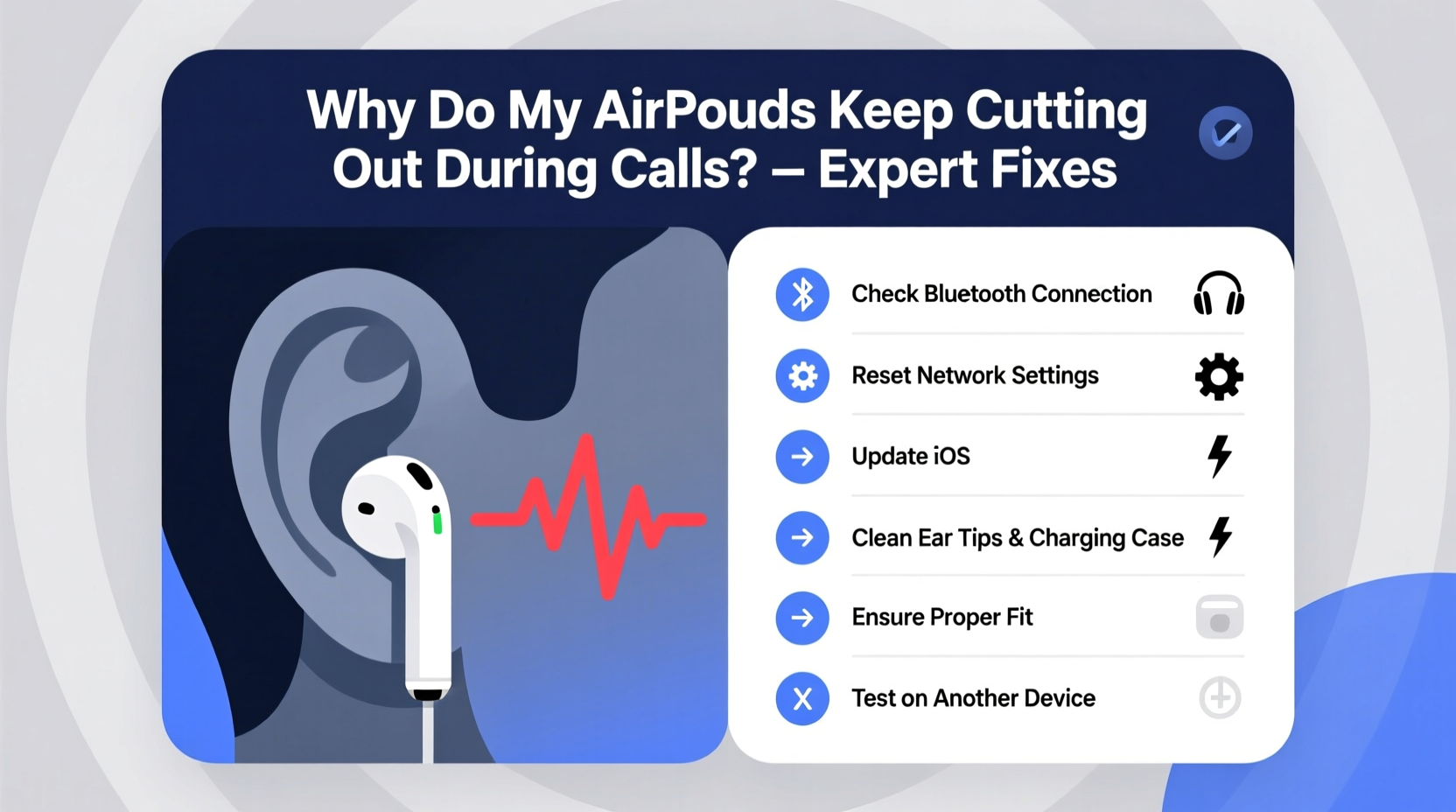
AirPods rely on a stable Bluetooth connection between your earbuds and your connected device—usually an iPhone, iPad, or Mac. During a call, data must be transmitted in real time: your voice travels from the microphone to the paired device, then to the network, while incoming audio follows the reverse path. Any disruption in this chain can cause dropouts, static, or complete disconnection.
The most frequent culprits include:
- Bluetooth interference from other wireless devices like microwaves, routers, or crowded Wi-Fi networks.
- Distance and physical barriers such as walls, metal objects, or even your own body blocking the signal.
- Low battery on either the AirPods or the connected device, which can throttle wireless performance.
- Firmware bugs that affect microphone switching, audio routing, or Bluetooth stability.
- Dirty or obstructed sensors on the AirPods that interfere with proximity detection and automatic ear detection.
- Outdated software on your iPhone or AirPods that hasn’t received the latest connectivity patches.
Unlike music playback, phone calls demand lower-latency, bidirectional audio transmission. This makes them more sensitive to interruptions than streaming services, where small buffering delays go unnoticed.
Step-by-Step Troubleshooting Guide
Follow this logical sequence to identify and resolve the source of your AirPods’ call disruptions. Start with the simplest checks and progress to deeper system resets.
- Check Battery Levels: Ensure both AirPods and your iPhone have at least 20% charge. Low power can reduce Bluetooth transmission strength.
- Reinsert the AirPods: Take them out of the case, wait 10 seconds, and place them back in. Then re-pair by opening the case near your iPhone.
- Test with Another Device: Pair your AirPods with a different iPhone, iPad, or Android phone. If the problem disappears, the issue lies with your original device.
- Restart Your iPhone: A simple reboot clears temporary glitches in the Bluetooth stack.
- Forget and Re-Pair the AirPods: Go to Settings > Bluetooth, tap the “i” next to your AirPods, and select \"Forget This Device.\" Then re-pair them from scratch.
- Clean the AirPods: Use a dry, lint-free cloth to wipe the stems and speaker grilles. Avoid moisture. Buildup can block sensors responsible for maintaining connection stability.
- Reset Network Settings: On iPhone, go to Settings > General > Transfer or Reset iPhone > Reset > Reset Network Settings. This clears all saved Wi-Fi and Bluetooth configurations but often resolves deep-seated pairing issues.
- Update Firmware: AirPods update automatically when left in the case near a charged iPhone. But ensure your iPhone is updated to the latest iOS version to trigger firmware upgrades.
After each step, make a test call to determine whether the issue improves. Many users report success after resetting network settings or cleaning sensor areas.
Do’s and Don’ts When Using AirPods for Calls
| Do’s | Don’ts |
|---|---|
| Keep your iPhone within 30 feet and in line of sight when possible. | Don’t use AirPods in areas with heavy Wi-Fi congestion (e.g., coffee shops, offices). |
| Store AirPods in their case when not in use to maintain charge and firmware readiness. | Don’t ignore software updates for your iPhone or AirPods. |
| Use only one AirPod for calls if the other consistently disconnects. | Don’t attempt DIY repairs if hardware failure is suspected. |
| Enable Automatic Ear Detection to prevent false disconnections. | Don’t leave AirPods exposed to moisture or extreme temperatures. |
Expert Insight: What Engineers Say About Bluetooth Stability
Bluetooth technology has improved dramatically, but it still operates under constraints. Interference, bandwidth limitations, and signal reflection remain challenges—especially in urban environments.
“Even high-end wireless earbuds like AirPods operate in a noisy RF environment. Small shifts in position or nearby electronic activity can disrupt the link. The key is minimizing variables: keep devices updated, avoid overcrowded frequency zones, and maintain clean hardware.” — Dr. Alan Reyes, Wireless Communications Engineer
This expert perspective underscores that while AirPods are engineered for reliability, external factors play a major role. You can't control every variable, but you can optimize your setup to reduce risk.
Real-World Example: Fixing Dropouts in a Home Office
Sarah, a remote project manager in Chicago, began experiencing frequent AirPods cutouts during Zoom and FaceTime calls. She initially assumed her AirPods Pro were defective. After testing them with her iPad—where calls worked flawlessly—she realized the issue was tied to her iPhone 13, which she kept near her Wi-Fi router and dual-monitor setup.
She followed the troubleshooting steps: restarted her phone, cleaned the AirPods’ sensors, and reset network settings. Still, dropouts persisted. Then she moved her iPhone three feet away from her router and placed it on her desk instead of inside a metal drawer. Immediately, call stability improved.
Further investigation revealed her 2.4 GHz Wi-Fi band was saturated due to multiple smart home devices. Switching her router to prioritize the 5 GHz band reduced interference. Sarah now uses AirPods without interruption, proving that environmental tweaks can be more effective than hardware replacements.
Advanced Fixes: When Basic Steps Aren’t Enough
If standard troubleshooting fails, consider these advanced options:
Force a Firmware Update
AirPods firmware updates occur silently in the background. To encourage an update:
- Place AirPods in the charging case.
- Connect the case to power.
- Keep the case lid open and place it near an iPhone that’s connected to Wi-Fi and plugged in.
- Leave undisturbed for several hours.
The iPhone will notify the AirPods to download and install the latest firmware if available. You can check the firmware version by going to Settings > Bluetooth > [AirPods] > \"i\" icon. The version number should be at least 6A325 for older models or newer for recent releases.
Disable Automatic Ear Detection
While designed to pause audio when you remove an earbud, this feature sometimes misfires during calls, causing momentary cutouts. To disable:
- Open Settings on your iPhone.
- Tap Bluetooth.
- Tap the “i” next to your AirPods.
- Toggle off “Automatic Ear Detection.”
After disabling, test a call. Some users report smoother performance, especially during active conversations where head movements trigger false removal signals.
Use Only One AirPod for Calls
If only one AirPod consistently drops audio, try using just the more stable one. In Settings > Accessibility > Audio/Visual, you can set mono audio and route sound to the left or right bud exclusively. This workaround maintains functionality while isolating hardware issues.
Preventive Maintenance Checklist
Regular upkeep prevents many common AirPods problems. Follow this monthly checklist to stay ahead of issues:
- ✅ Clean AirPods and charging case with a dry microfiber cloth.
- ✅ Check for iOS and AirPods firmware updates.
- ✅ Restart your iPhone to refresh wireless services.
- ✅ Test microphone and speaker function using a voice memo.
- ✅ Verify Bluetooth settings and remove unused paired devices.
- ✅ Store AirPods in a cool, dry place away from magnets or metal surfaces.
Consistent maintenance reduces the likelihood of sudden failures and extends the lifespan of your earbuds.
Frequently Asked Questions
Why do my AirPods cut out only during calls but not when listening to music?
Calls require a constant two-way Bluetooth connection for microphone input and speaker output, making them more vulnerable to latency and interference. Music playback uses a simpler, one-directional stream and can buffer slightly, masking minor disruptions.
Can third-party apps cause AirPods call issues?
Yes. Apps like WhatsApp, Zoom, or Microsoft Teams may not integrate as tightly with AirPods as native iOS calling features. Background app refresh conflicts or permission issues can interrupt audio routing. Always ensure apps are updated and have microphone access enabled.
How do I know if my AirPods need servicing?
If you’ve tried all software fixes, cleaned the devices, and still experience persistent cutouts—even with multiple phones—it’s likely a hardware fault. Contact Apple Support or visit an Apple Store for diagnostics. Recalls or service programs may apply, especially for early-generation AirPods Pro with noise cancellation defects.
Conclusion: Take Control of Your Calling Experience
Intermittent AirPods cutouts during calls are frustrating but rarely permanent. Most issues stem from correctable environmental, software, or maintenance factors—not defective hardware. By systematically addressing Bluetooth stability, keeping firmware current, and optimizing your usage habits, you can achieve crisp, reliable call quality.
Start with the basics: clean your AirPods, restart your phone, and re-pair the devices. If problems persist, dive into network resets and environmental adjustments. Remember, small changes—like relocating your iPhone or switching Wi-Fi bands—can yield dramatic improvements.




 浙公网安备
33010002000092号
浙公网安备
33010002000092号 浙B2-20120091-4
Comments
No comments yet. Why don't you start the discussion?